




If you use Cash App often, keeping a funded balance saves time. Knowing how to add cash to Cash App from a bank account lets you move money in a few taps for bills, transfers, and everyday payments.
This guide walks you through how to add money to Cash App safely, from setting up your account to confirming the transfer. You also see alternatives like paper money deposits and common fixes when the cash app add cash option fails.
What you need before you add money
Cash App keeps the process simple, but you need a few things in place before you add money from your bank account to Cash App.
- A Cash App account with your phone number or email verified
- An active debit card or online banking login for the account you want to link
- A compatible iOS or Android phone with the latest Cash App version installed
- Enough funds in your bank to cover the amount you plan to move
Step 1: Download and install Cash App
If you have not installed Cash App yet, start here so you can add funds to Cash App and send money.
- Open the App Store on iPhone or the Google Play Store on Android.
- Search for “Cash App” and select the app with the green icon.
- Tap “Install” or “Get” and wait for the app to finish downloading.
- Open Cash App and enter your phone number or email to create or sign in to your account.
- Enter the verification code you receive and set a secure PIN for payments.
Step 2: Set up your Cash App profile
Before you add cash to Cash App, set up your profile and security settings so your account stays protected.
- Tap the profile icon in the top right corner of the home screen.
- Confirm your name, phone number, and email address.
- Create a unique $Cashtag that friends can use to pay you.
- Turn on security options like PIN or biometric confirmation for payments.
- Enable notifications so you see alerts for every transfer and deposit.
Step 3: Link bank account to Cash App
The most important step in how to add cash to Cash App from a bank account is linking your bank securely. You can use either your debit card or your online banking login.
- Open Cash App
- Tap the profile icon or the “Linked Banks” section.
- Select “Link Bank” to start the process.
- Choose your bank from the list or use the search bar if you do not see it.
- Sign in with your online banking username and password, or enter your debit card number, expiry date, CVV, and ZIP code.
- Follow any extra prompts your bank requires, such as one-time codes or security questions.
Once you complete these steps, your bank appears under Linked Banks, and you can add money to Cash App from that account whenever you need to.
Step 4: Confirm your linked bank
Some banks and Cash App versions ask you to verify the connection before you move larger amounts. This step prevents mistakes and protects your account.
- Check your email or SMS for any verification messages from your bank.
- Log in to your online banking if asked and approve the new connection.
- Return to Cash App and refresh the Linked Banks screen.
- Make sure your bank shows as “Linked” without any warning icons.
- If you see an error, remove the bank and repeat the linking steps carefully.
Step 5: Add cash from your bank account
With your bank linked, you can now add money from bank account to Cash App directly from the main screen.
- Open Cash App and go to the Money or Banking tab on the home screen to the bottom left.
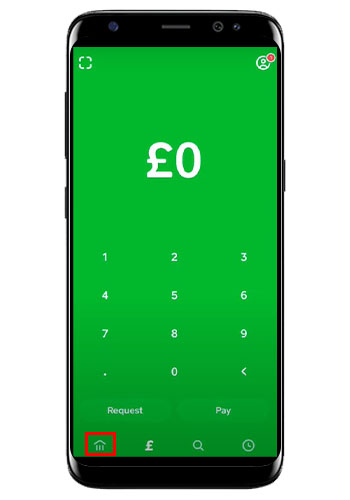
- Tap the “Add Cash” button near your current balance.

- Enter the dollar amount you want to move from your bank to Cash App.

- Confirm which linked bank or debit card you want to use.
- Tap “Add” and approve the transfer with your PIN, Touch ID, or Face ID.
Most transfers arrive almost instantly, so you can use the new balance a few moments after you tap “Add.” If your bank does not support instant transfers, the money may take longer to appear, especially on weekends or holidays.
Step 6: Confirm the transfer in your activity
Always confirm that the cash app add cash transfer worked before you spend the funds.
- Tap the Activity icon on the home screen.
- Look for the most recent entry that shows the amount you added.
- Open the transaction details and check the linked bank, date, and time.
- Return to the Money tab and confirm that your new balance matches the added amount.
- If the transfer shows as pending for too long, contact your bank or Cash App support.
Other ways to add funds to Cash App
Linking a bank is the main way to add funds to Cash App, but you have a couple of alternatives when you cannot or do not want to use your bank directly.
- Paper money deposits: Use the Banking tab and choose “Paper Money” to find participating stores. Show the barcode at checkout and hand cash to the cashier to load it to your balance.
- Receiving payments: Ask friends, family, or customers to send money to your $Cashtag. These payments arrive directly in your Cash App balance.
- Direct deposit: Enable direct deposit in Cash App so your paycheck or benefits go straight to your balance instead of your bank.
These options help you add money to Cash App even when you cannot access your regular bank account or card.
Troubleshooting when you cannot add cash
Sometimes the app blocks a transfer or displays an error message. When that happens, try a few quick checks before you attempt another Cash App add cash move.
- Confirm that your bank has enough funds for the amount you entered.
- Update Cash App to the latest version from the App Store.
- Check your internet connection; switch between Wi-Fi and cellular data if needed.
- Remove and re-link your bank if you recently changed your debit card or login.
- Wait a few minutes if Cash App displays a temporary service or rate-limit error.
If you still cannot add money to Cash App after these steps, contact Cash App support directly in the app so they can review the transaction securely.
Security tips when moving money
Moving money from your bank into any app deserves extra care. Protect your Cash App account before and after you add cash on Cash App.
- Never share your PIN, sign-in code, or full debit card details with anyone.
- Turn on biometric or PIN confirmation for every payment and transfer.
- Only install Cash App from the official app stores, not from links or files sent by strangers.
- Review your Activity tab regularly and report any suspicious charges right away.
- Avoid sending money to people or offers you do not recognize or trust.
Conclusion
Once you understand how to add cash to Cash App from a bank account, keeping your balance topped up becomes quick and routine. You link your bank securely, choose the amount you need, approve the transfer, and confirm it in your activity.
With these steps and a few security habits, you can add money to Cash App confidently and use your balance for peer-to-peer payments, online shopping, or even direct deposits. The more familiar you become with the process, the easier it feels to manage your day-to-day money from your phone.


Discussion (0)
Be the first to comment.