




Cash App lets you send, spend, and receive money in seconds. You can also get paid by direct deposit, use a Cash Card, buy Bitcoin, or invest. None of that matters if you can’t get into your account.
This guide explains how to log in on your phone, on the web, and on a new device, and what to do if you’re locked out. It also shows you how to protect your account with extra security so no one else can get in. The steps below describe the initial sign-up process.
Note: Cash App does not use a traditional password by default. You sign in with a code sent to your phone number or email.
Step 1: Download Cash App
Cash App is available for iPhone and Android.
- Visit cash.app and click "Sign up" or open the App Store (iPhone) or Google Play (Android).
- Search for “Cash App” from Block, Inc.
- Install the official Cash App.
After installation, the Cash App icon will appear on your home screen. Open it to continue.
If you’re on a desktop instead of a mobile, you can also go to the official Cash App site and click Log In in the top right. Cash App now supports sign-in from the browser, not just the app.
Step 2: Open Cash App
Open Cash App on your phone. If you already have an account, you’ll see the sign-in screen.
If you’re new, select Create Account and follow the prompts to register. You’ll be asked for a phone number or an email address. You’ll get a one-time code, then create your $Cashtag, link a debit card or bank account, and finish setup.

Step 3: Enter Your Phone Number or Email
Cash App will ask for either the phone number or email address associated with your account. Make sure you enter the correct one; Cash App will only send the login code to that contact.
Tip: You do not sign in with your $Cashtag. Your $Cashtag is for payments, not login.
Step 4: Verify With the One-Time Code
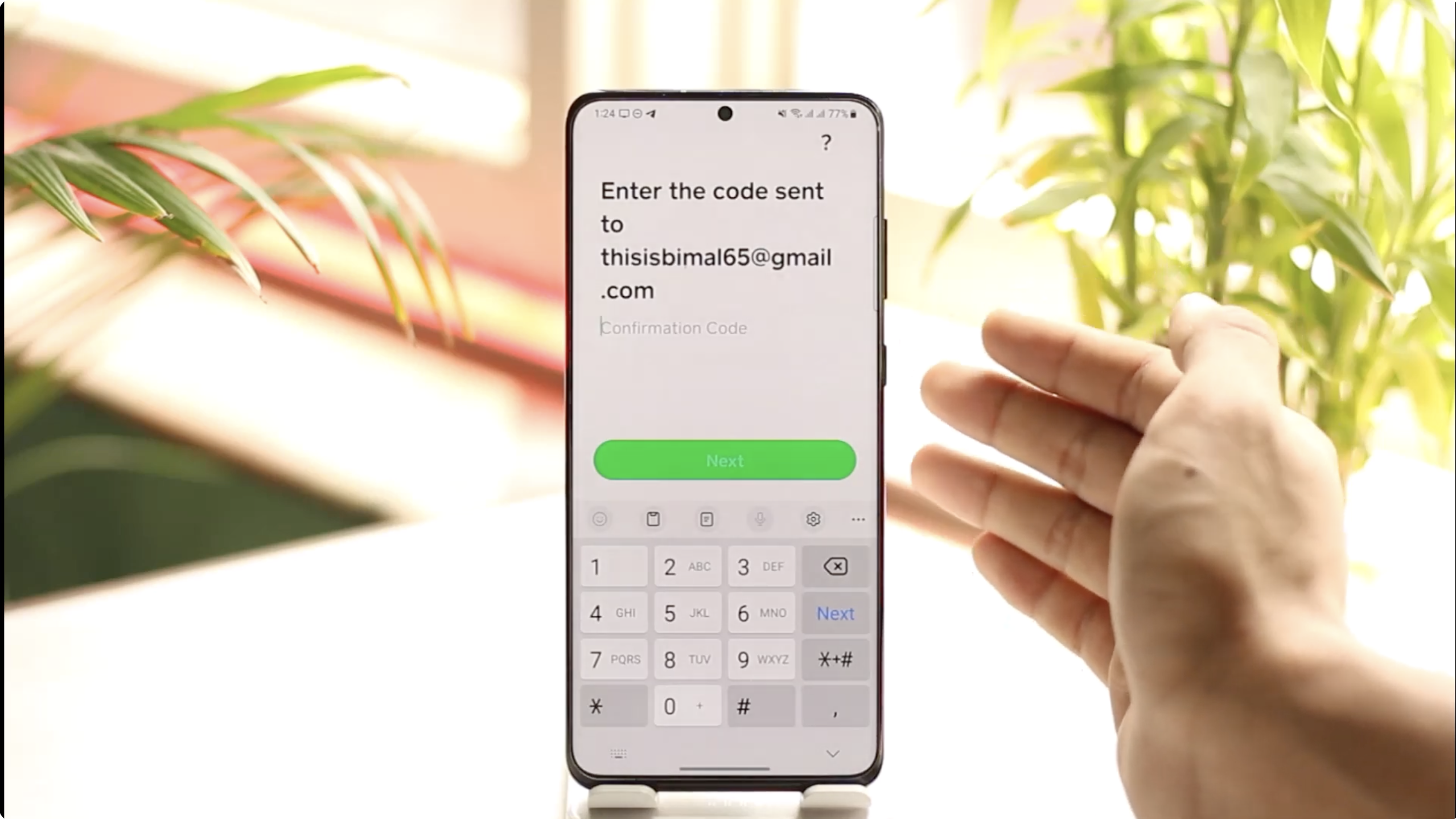
- Check your text messages or email inbox for the code.
- Type that code back into Cash App or the login field on cash.app.
- Cash App will confirm and log you in.
The code expires quickly. If it doesn’t work, request a new one with “Resend Code.”
If you never get the code, confirm your contact info and check your spam folder. You must have access to the verified phone or email on file to complete the login.
Step 5: Approve the Login on a New Device
Cash App flags new devices for extra security. If you’re signing in on a new phone or browser, Cash App may send an additional verification code or ask to confirm recent transactions.
Warning: If you get a login code you didn’t request, do not enter it; someone else may be trying to access your account.
Step 6: Create (or Claim) Your $Cashtag
New users can create a $Cashtag to make receiving payments easier. It starts with a dollar sign ($) followed by your chosen name or brand.
Example: $DigitalCitizen
If you already have an account, you won’t see this step again.
Step 7: Link a Bank Account or Debit Card
Once you’re logged in, Cash App prompts you to connect a funding method. You can link a debit card or bank account for easy transfers and direct deposit.
Without a linked account, you won’t be able to cash out or receive direct deposits. Linking a Cash Card also enables FDIC pass-through insurance on your balance.
Cash App works with partner banks like Lincoln Savings Bank, Sutton Bank, and Wells Fargo for account management, deposits, and card services.
Step 8: Turn On Security Features
- Open Cash App → Profile → Privacy & Security.
- Enable Face ID or Touch ID.
- Turn on PIN lock and login notifications.
- Activate two-step verification for payments.
These features help protect your funds and keep hackers from sending money if your phone is lost or stolen.
Step 9: You’re Logged In
Once logged in, you can view your balance, send or request money, order a Cash Card, manage direct deposit, and review transactions, all from the home screen.
How to Log In to Cash App on the Web
- Go to cash.app.
- Click Log In.
- Enter your phone number or email and click Continue.
- Enter the code you received and access your dashboard.
This is handy if your phone is unavailable or you’re managing your account from a work computer.
How to Sign In on a New Phone
If you got a new phone but kept your same number, install Cash App and log in as usual. If you changed numbers, update your contact info on the old device before switching.
If you no longer have access to the old phone or number, Cash App support can help you verify ownership and restore access.
How to Get Back Into an Old Account
- Tap your profile icon → Sign Out.
- Enter the old email or phone tied to your original $Cashtag.
- Enter the one-time code.
Cash App can merge duplicate accounts if you verify ownership. You may need to confirm a linked card or transaction history.
Best Practices for Account Security
- Never share your one-time login code with anyone.
- Lock your email account tied to Cash App.
- Use Face ID or Touch ID for transactions.
- Enable push and email alerts for new logins or payments.
- Ignore fake Cash App support messages; they never ask for your PIN or code.
FAQs
How do I log in to my Cash App account?
Open the Cash App or visit cash.app. Enter your phone number or email and verify with the code sent to you.
Does Cash App have a password?
No. You log in with a one-time code, not a permanent password. Add a PIN or biometric lock for extra security.
Can I log in with my $Cashtag?
No. Your $Cashtag is for receiving money, not for login.
How do I log in on my computer?
Visit cash.app, click Log In, and follow the same code verification process as on mobile.
What if I lost my phone or number?
Tap “Need help logging in?” and follow recovery prompts, or contact Cash App support to verify identity and recover your account.
Conclusion
You log in to Cash App using a code, not a static password. That’s fast and secure, but only if you keep your phone or email safe. Turn on Face ID or PIN lock, keep your contact info up to date, and never share your login code.
Once you’re in, you can send and receive money, get paid early, manage your Cash Card, and invest all from one secure dashboard.



Discussion (0)
Be the first to comment.