



If you want your files to automatically back up and stay updated, you can add a folder to sync in Google Drive using Google Drive for Desktop. This allows any changes in that folder to be synced with your Google Drive cloud storage.
It is one of the easiest ways to keep your files accessible across devices.
What Does Syncing a Folder Mean?
When you sync a folder:
- Files are automatically uploaded to Google Drive
- Changes are updated in real time
- Files stay the same on your PC and in the cloud
It creates a seamless connection between your local folder and Google Drive.
What You Need Before You Start
Make sure you have:
- Google Drive for Desktop installed
- A Google account
- Internet connection
If not installed, download it from the official Google Drive website.
How to Add a Folder to Sync in Google Drive
Follow these steps.
1: Open Google Drive for Desktop
- Click the Google Drive icon in the system tray (bottom-right corner)
2: Open Settings
- Click the gear icon (Settings)
- Select Preferences
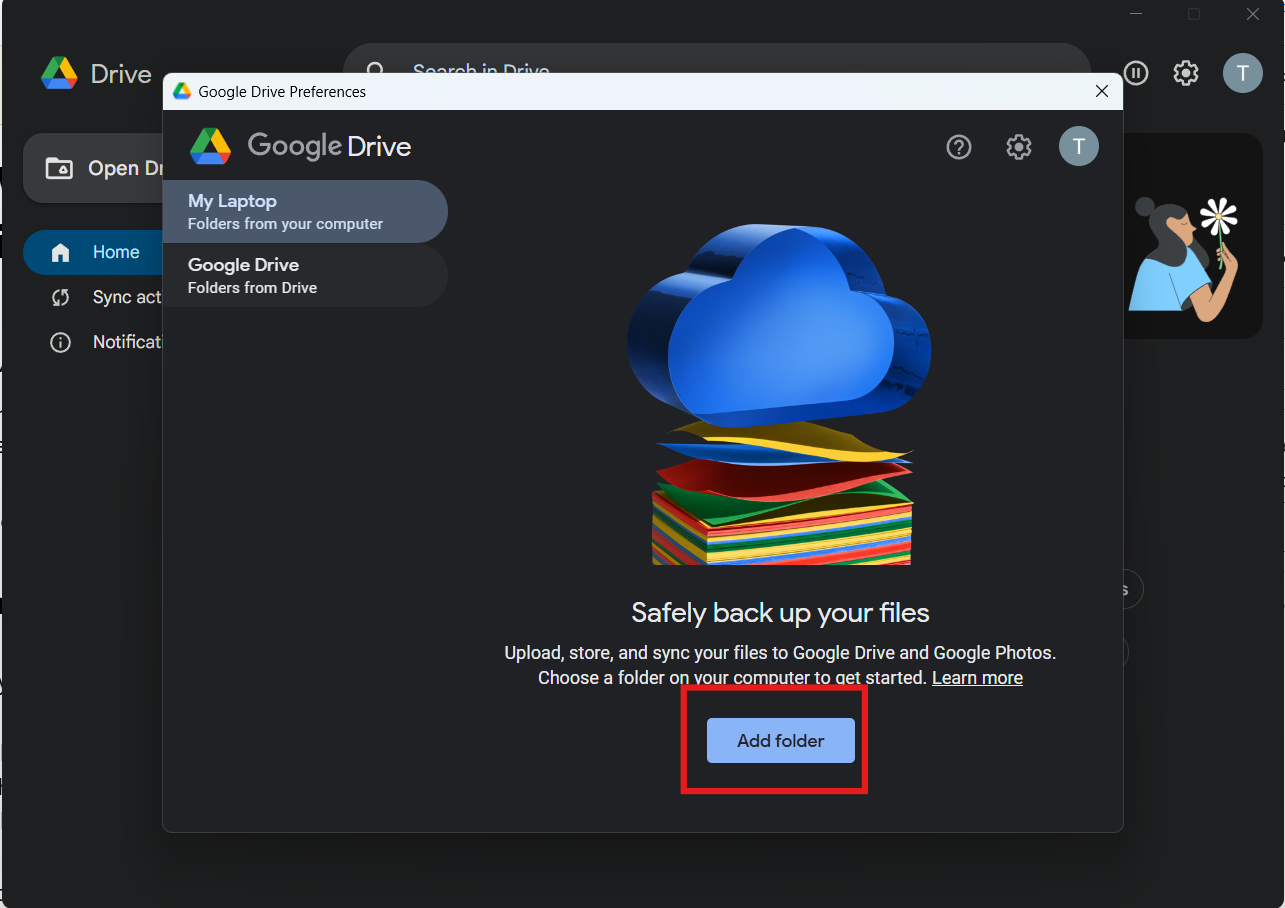
3: Add a Folder
- Under My Computer tab
- Click Add folder
- Select the folder you want to sync
4: Choose Sync Option
You will see options like:
- Sync with Google Drive
- Back up to Google Photos (for images/videos)
Select Sync with Google Drive.
Your folder will now start syncing.
How to Check If Folder Is Syncing
You can verify syncing by:
- Seeing a checkmark icon on files
- Opening Google Drive in browser
- Checking if files appear there
Sync Options Explained
Google Drive offers two main modes.
Stream Files
- Files stay in the cloud
- Download when accessed
- Saves storage space
Mirror Files
- Files stored locally and in cloud
- Available offline
- Uses more storage
Choose based on your needs.
How to Stop Syncing a Folder
If you no longer want to sync:
- Open Preferences
- Select the folder
- Click Remove
This stops syncing but keeps files on your PC.
Common Issues and Fixes
Folder not syncing:
- Check internet connection
- Restart Google Drive app
Files not appearing:
- Wait for sync to complete
- Check storage limits
Sync paused:
- Resume from system tray
Tips for Better Syncing
- Avoid syncing very large folders at once
- Keep file names simple
- Ensure enough Google Drive storage
- Use stable internet connection
Final Thoughts
Learning how to add a folder to sync in Google Drive helps you keep your files backed up and accessible anywhere. It is a simple setup that can save time and prevent data loss.
Once configured, syncing works automatically in the background.
FAQs
How do I sync a folder to Google Drive?
Use Google Drive for Desktop and add the folder in Preferences.
Are files automatically updated?
Yes, changes sync in real time.
Can I access synced files from other devices?
Yes, through your Google Drive account.
Does syncing use storage?
Yes, files count toward your Google Drive storage quota.

Discussion (0)
Be the first to comment.