




Amazon Music gives you multiple ways to stream music, whether you use a phone, PC, smart TV, or Alexa device. Access depends on your subscription tier and the device you’re using, so starting with the right setup makes everything easier.
This guide shows you how to access Amazon Music on every major platform. You’ll also see how to fix sign-in issues, manage devices, and use offline mode when you travel.
1) Check your Amazon Music plan
Your plan controls which features you can access, including offline listening and simultaneous streams. Verifying your tier prevents login, playback, or download restrictions.
Free users get basic ad-supported streaming. Prime users get a larger catalog included with membership. Unlimited and Family subscribers receive the full on-demand library with higher streaming limits.
2) Access Amazon Music on desktop (Windows & Mac)
Open your preferred browser on Windows or macOS, go to the Amazon Music page, and sign in with your Amazon account. Select a playlist or album to start streaming immediately.

You can also download the Amazon Music desktop app on your computer. You only need to go to Amazon’s official apps section, download the app, and install it following the onscreen instructions. Then, sign in with your Amazon credentials.
You can now browse the library, manage playlists, and download content if your plan allows it.
3) Access Amazon Music on mobile (iPhone & Android)
Open the Google Play Store (Android) or App Store (iPhone), search for Amazon Music, and install the app. Now, launch the app and sign in with your account to access your playlists.

4) Access Amazon Music on smart TVs and streaming devices
Smart TVs bring your playlists to the largest screen in the house, and most modern platforms support Amazon Music.
Fire TV and Fire Stick
Press Home on your Fire remote and open the Amazon Music app, which is included by default. Next, sign in if prompted and pick a playlist to start listening.
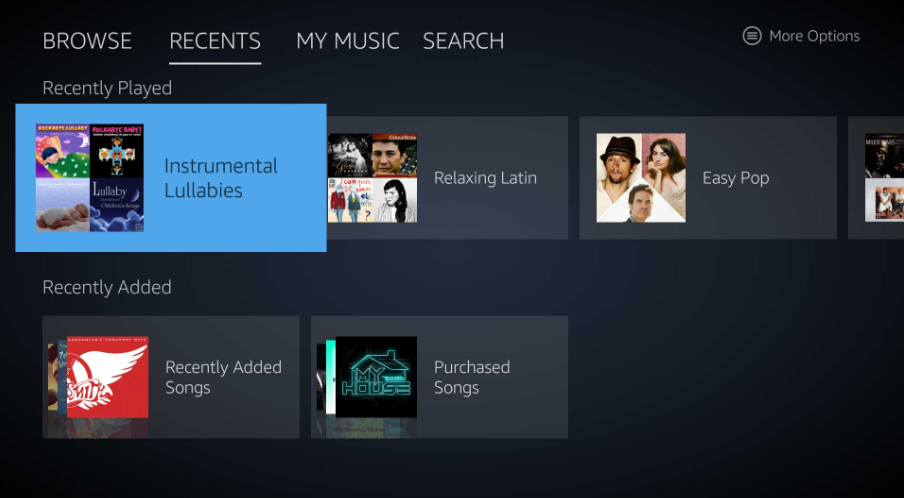
Samsung, LG, and Android TVs
Open your TV’s app store, search for Amazon Music, and install it. Now, you can sign in using your Amazon password or by entering the on-screen code at the activation page.
5) Access Amazon Music on smart speakers and Alexa devices
Open the Alexa app on your phone and go to Settings, then Music & Podcasts. Now, select Amazon Music as your default service.
To play music with voice commands, say Alexa, play pop hits or Alexa, play my playlist. Alexa streams from your Amazon Music account without additional setup.
6) Use Amazon Music offline
You need to download music from Amazon Music to use it offline. Open any album or playlist and tap the Download button. Wait for the checkmark confirming it’s saved locally. Now, open your Downloads section to view stored tracks and remove items you no longer need to free up space.
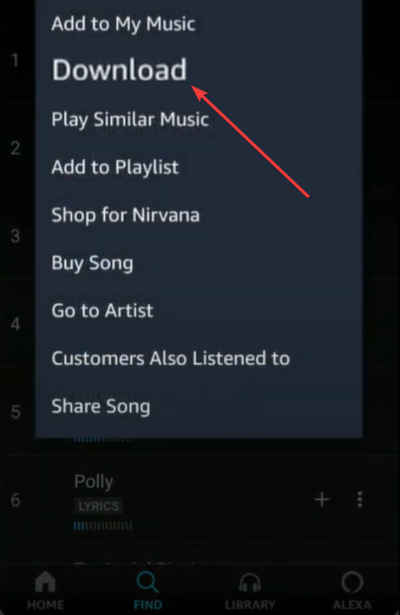
Lastly, re-download songs if they fail due to connection issues.
7) Access Amazon Music on multiple devices
Amazon Music limits how many devices can stream simultaneously, depending on your subscription.
Prime and Free plans allow one active stream. Unlimited allows one, while Unlimited Family enables multiple simultaneous streams.
8) Troubleshoot access problems
- Can’t sign in: Incorrect passwords, two-factor prompts, or using the wrong region can block access. Verify your Amazon account details and retry.
- Device limit reached: This appears when your account streams on too many devices. Deregister unused devices and reconnect your current one.
- App not loading or music not playing: Restart the app, clear the cache, or reboot the device. A reinstall usually fixes corrupted app files.
- Region or country restrictions: Catalog selection depends on your region. Confirm your account’s country setting if playlists appear restricted or missing.
FAQs
Can I use Amazon Music without Prime? Yes. Free users can stream with ads, but access to the full catalog requires Prime or Unlimited.
Can I play Amazon Music on a non-Amazon speaker? Yes. Most Bluetooth and Alexa-enabled speakers support it.
How many devices can use Amazon Music at once? One stream for Free and Prime, one for Unlimited, and multiple for Unlimited Family.
Why aren’t my playlists showing? Playlists may be tied to a different region or account. Check account settings and plan status.
Summary
- Check your subscription tier.
- Sign in through the browser or the desktop app.
- Install Amazon Music on iPhone or Android.
- Use it on Fire TV, smart TVs, and Alexa devices.
- Enable CarPlay, Android Auto, or Bluetooth for car streaming.
Conclusion
You can access Amazon Music on nearly any device with the right app and a valid subscription. Whether you stream on a phone, PC, smart TV, or in the car, consistent logins and the correct plan give you smooth access to your playlists everywhere.


Discussion (0)
Be the first to comment.