




Downloading Amazon Music to your computer gives you offline access to albums, playlists, and purchased MP3s. The process depends on whether you use purchased music or a subscription plan such as Prime or Amazon Music Unlimited. This guide walks you through each method and explains how to manage your downloads, find your files, and fix common issues.
1) Install the Amazon Music app on your computer
You need the desktop app if you plan to download Prime or Unlimited tracks. The app handles offline playback and manages your downloadable content.

Open your computer's App Store (Microsoft Store for Windows, App Store for Mac) and search for Amazon Music. Next, select Get to install the app. Finally, launch the app and sign in with your Amazon account.
2) Download songs in the Amazon Music app
You can download music from the Amazon Music app for offline listening. Downloads appear within the app rather than as external files.

This method works for Prime and Unlimited subscribers. To get started, open the Amazon Music app and select any playlist, album, or song. Next, click the three vertical dots next to the item, then click the Download icon and wait for the icon to turn into a checkmark.
This saves the content to your offline library. To check if the music is completely downloaded, open the app’s sidebar, select Downloads, and review active and completed downloads.
3) Download purchased Amazon Music as MP3 files
Purchased tracks do not require the Amazon Music app. You can download them directly from the Amazon Music web player. These MP3 files save to your computer as standard audio files.
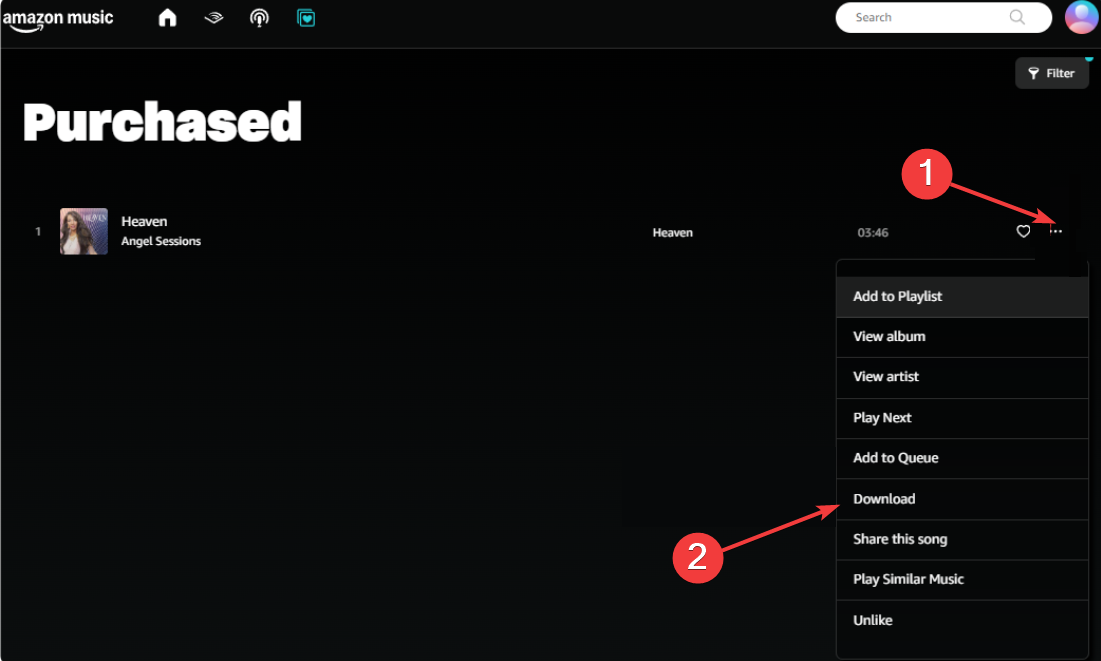
Just open the Amazon Music website in your browser and go to Library. Next, select Purchased and choose a song or album. Now, click Download, and your browser will save the MP3 files to your default downloads folder.
4) Fix Amazon Music download not working on computer
- Check account eligibility: Confirm that your plan supports downloads, check the track or playlist for the download icon, and avoid items marked as Ad-Supported or unavailable for offline listening.
- Restart the Amazon Music app: Close the Amazon Music app completely, reopen it and sign in again, and try downloading the track.
- Clear the download cache: Go to Settings and select Clear Cache. Next, restart the app and try downloading again.
- Reinstall the Amazon Music app: Uninstall the app from your system and restart your computer. Install Amazon Music again, sign in, and retry the download.
Tips for downloading Amazon Music
- Use the Amazon Music desktop app when you want reliable offline playback for Prime or Unlimited tracks.
- Keep your download folder on a drive with plenty of free space.
- Refresh your Amazon Music session by signing out and back in if the download button disappears.
- Delete older offline tracks regularly to prevent storage issues and improve app performance.
FAQs
Can I transfer downloaded Amazon Music to a USB drive? Purchased MP3s can transfer normally. Subscription downloads cannot move to a USB because they remain locked inside the Amazon Music app.
Why can I not find my downloaded songs on my computer? Subscription tracks stay inside the Amazon Music app. Only purchased songs download as MP3 files to your system folders.
Are Amazon Music downloads permanent? Purchased songs remain permanent. Subscription downloads become unavailable if you cancel your plan or go offline for extended periods.
Summary
- Install the Amazon Music app for subscription downloads.
- Download playlists and albums directly inside the app.
- Use the browser method for purchased MP3 files.
- Change the app’s download location if you need more space.
Conclusion
Downloading Amazon Music to your computer is simple once you understand the difference between app-based downloads and purchased MP3 files. The Amazon Music app handles all subscription downloads, while your browser manages purchased MP3s. With correct settings and a few storage tips, you can save space, troubleshoot problems, and enjoy your music offline without interruptions.



Discussion (0)
Be the first to comment.