



Sometimes, you may need to extract a list of all the user accounts on a Windows computer. What if you want to see all the hidden user accounts that exist alongside your user account? Can you use graphical tools in Windows to learn all that? Can you list all users with Windows’ CMD? Moreover, which Windows PowerShell CLI command can be used to list the users within local groups on a given computer? These are all answers you might need, so to help you out, here are seven methods you can use to see all the users in Windows:
NOTE: This guide covers Windows 11 and Windows 10. Most instructions are the same in both operating systems, so I’m mainly using screenshots from Windows 11. When things differ, you’ll find separate sections for Windows 11 and Windows 10.
 Run net user to make Windows CMD show users
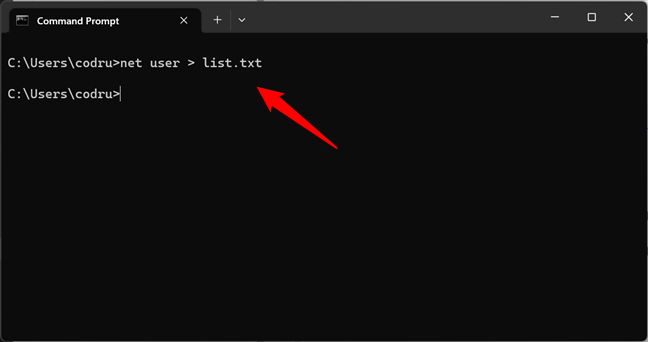
You can also ask the net user command to store the list of users in a text file that opens in Notepad or any other text editor. To do that, specify the file name after the command, like this:
Run net user to make Windows CMD show users
You can also ask the net user command to store the list of users in a text file that opens in Notepad or any other text editor. To do that, specify the file name after the command, like this:
 Save the net list of users to a file using net user
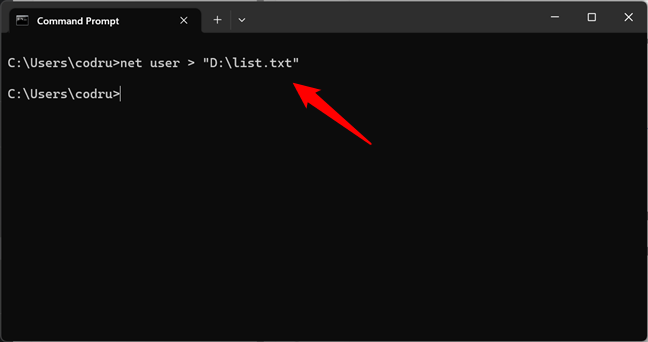
If you want to export the CMD list of users to a text file that’s saved in a location you choose, run the net user command like this:
Save the net list of users to a file using net user
If you want to export the CMD list of users to a text file that’s saved in a location you choose, run the net user command like this:
 Export the CMD list of users to a file at a specified location
A neat trick is using this command to find information about a specific user account. You can do it using the command like this:
Export the CMD list of users to a file at a specified location
A neat trick is using this command to find information about a specific user account. You can do it using the command like this:
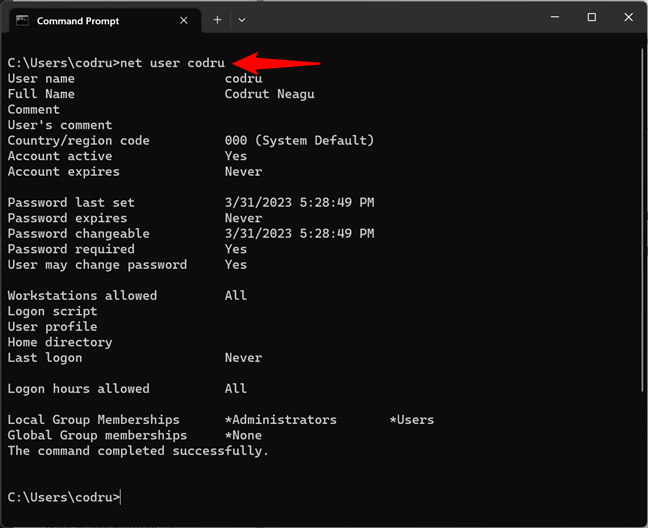
 Getting details about a user account in CMD, using the net user command
If you want to know more about this command and all its parameters, access this documentation page: Net user command.
Getting details about a user account in CMD, using the net user command
If you want to know more about this command and all its parameters, access this documentation page: Net user command.
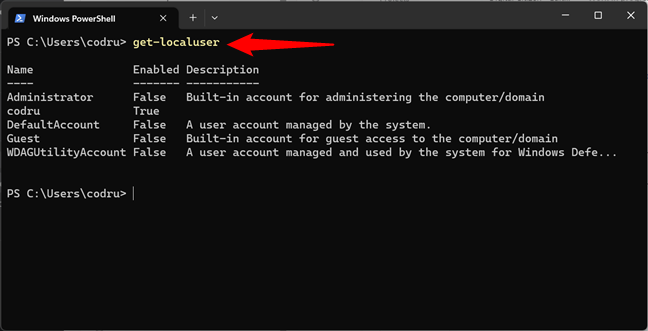
 Using PowerShell to get all users on a computer
Another alternative is to use this command:
Using PowerShell to get all users on a computer
Another alternative is to use this command:
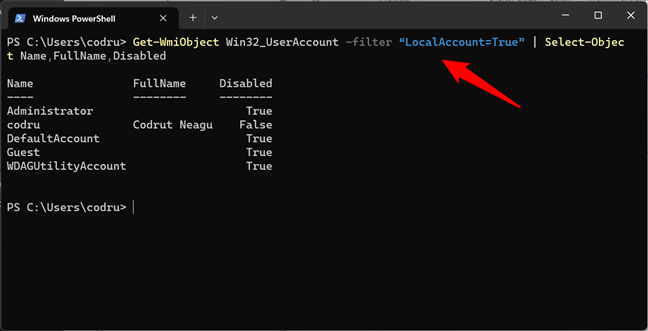 An alternative way to list all users in PowerShell
However, if you have many user accounts configured on your computer, this command is slower than the get-localuser one.
An alternative way to list all users in PowerShell
However, if you have many user accounts configured on your computer, this command is slower than the get-localuser one.
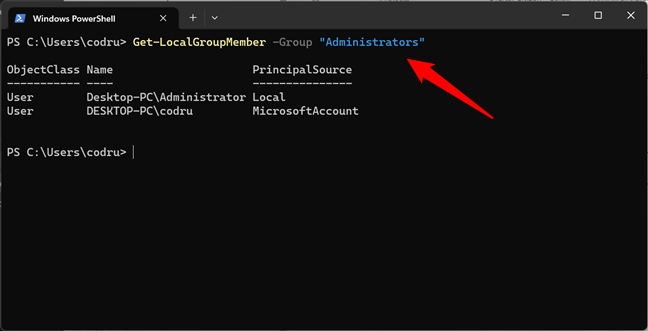 List local group members in PowerShell
Replace the Administrators group in my example with any other group to list its users. And by the way, if you need to see the local user groups configured on your PC, you can run this command:
List local group members in PowerShell
Replace the Administrators group in my example with any other group to list its users. And by the way, if you need to see the local user groups configured on your PC, you can run this command:
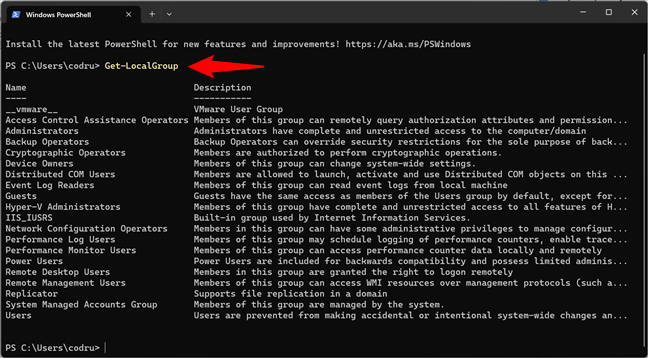
 Command to see local groups
Now that we’ve seen the PowerShell CLI commands for listing users let’s move on to the easier methods. And by easier, I mean graphical. 🙂
Command to see local groups
Now that we’ve seen the PowerShell CLI commands for listing users let’s move on to the easier methods. And by easier, I mean graphical. 🙂
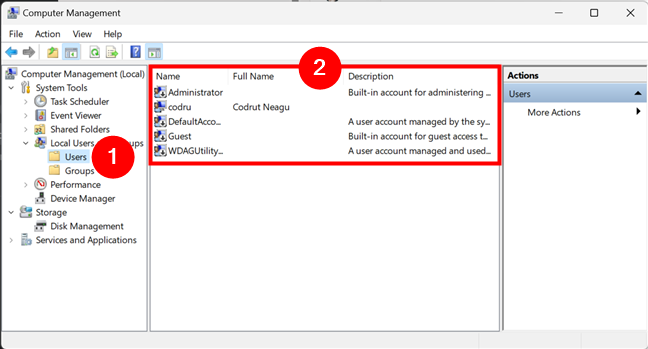
 Windows list of users displayed in Computer Management
Double-click or double-tap on a user account to learn more about its properties and settings, including the user groups that it is part of.
Windows list of users displayed in Computer Management
Double-click or double-tap on a user account to learn more about its properties and settings, including the user groups that it is part of.
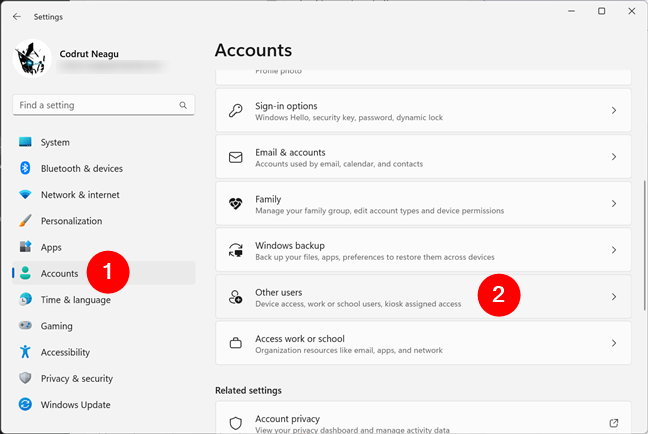
 Head to Other users in Settings' Accounts section
Then, you can see the list of users with access to your Windows 11 computer beside you.
Head to Other users in Settings' Accounts section
Then, you can see the list of users with access to your Windows 11 computer beside you.
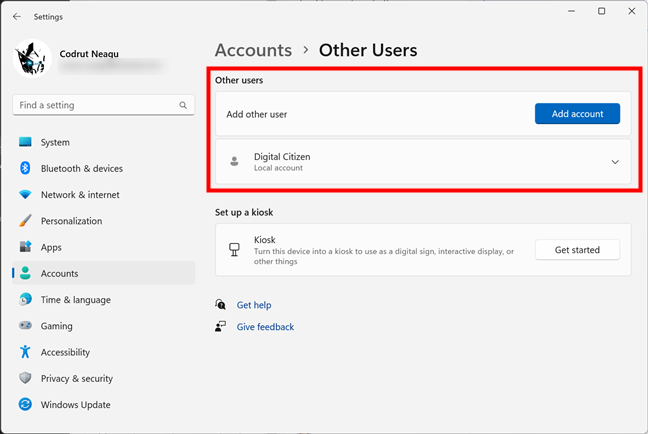 See the list of active users in Windows 11
The drawback of this method is that it doesn’t tell you anything about hidden or disabled user accounts.
See the list of active users in Windows 11
The drawback of this method is that it doesn’t tell you anything about hidden or disabled user accounts.
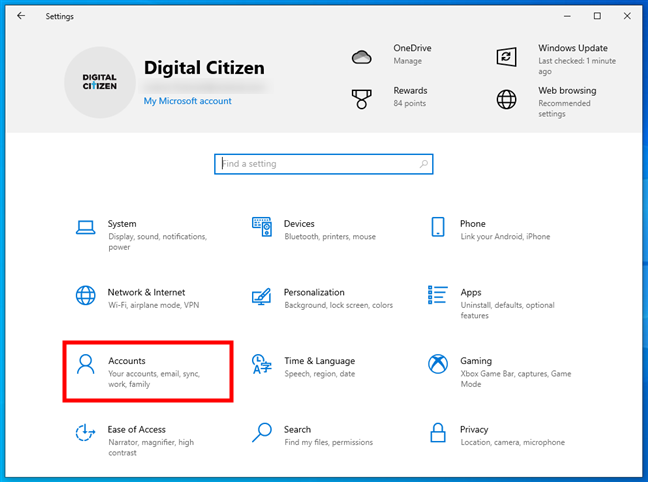
 Go to Accounts in Windows 10's Settings
Select Family & other users on the left sidebar and check the list of active users on your PC on the right. You’ll find all of them listed under Other users.
Go to Accounts in Windows 10's Settings
Select Family & other users on the left sidebar and check the list of active users on your PC on the right. You’ll find all of them listed under Other users.
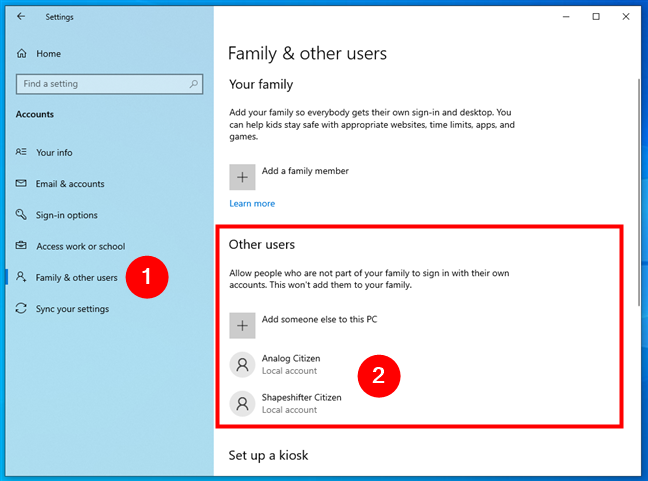
 See the list of active users in Windows 10
The disadvantage of using this method is that it doesn’t show you hidden or disabled user accounts.
See the list of active users in Windows 10
The disadvantage of using this method is that it doesn’t show you hidden or disabled user accounts.
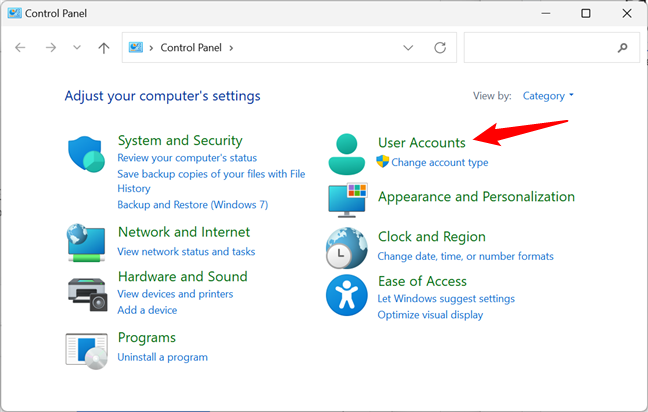
 The User Accounts entry from the Control Panel
Then, click or tap on User Accounts.
The User Accounts entry from the Control Panel
Then, click or tap on User Accounts.
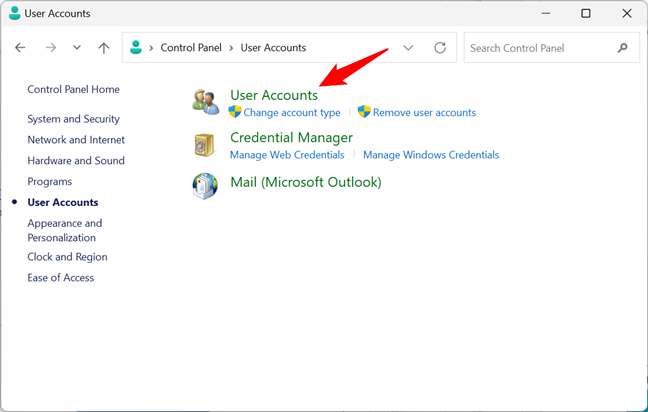 Opening the User Accounts settings
You now see your user account, information about it, and several links. Click or tap the “Manage another account” link.
Opening the User Accounts settings
You now see your user account, information about it, and several links. Click or tap the “Manage another account” link.
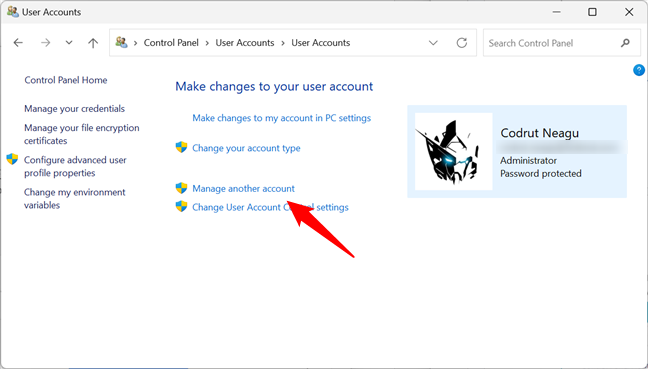
 Manage another account
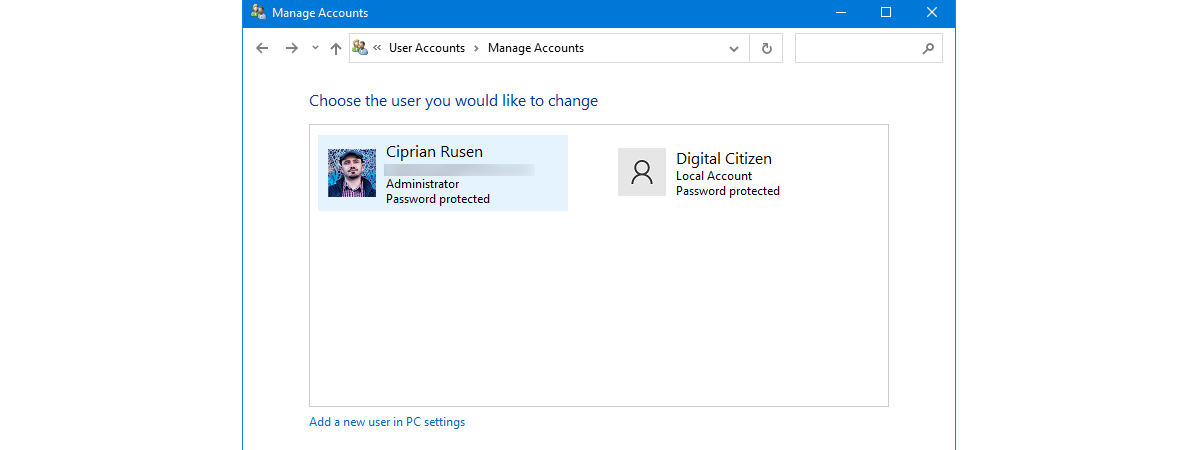
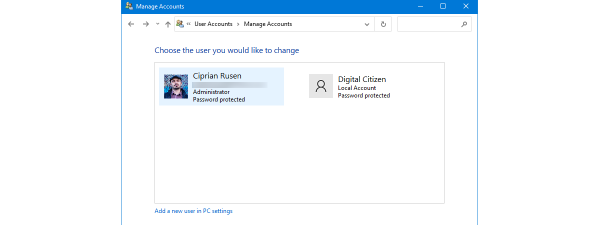
Now you see the active, not-hidden user accounts in Windows, whether they are local accounts, administrators, etc.
Manage another account
Now you see the active, not-hidden user accounts in Windows, whether they are local accounts, administrators, etc.
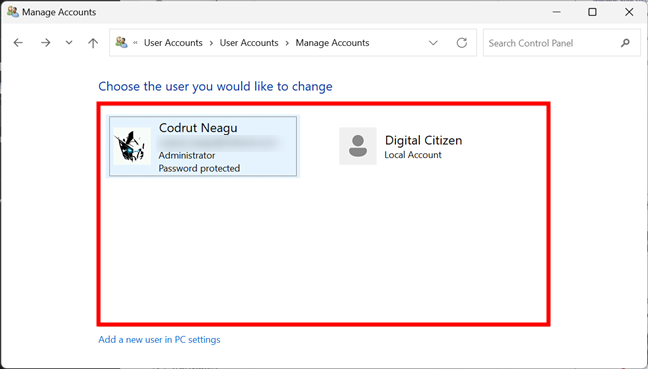 Control Panel shows the list of users on a Windows computer
With this method, you cannot see hidden or disabled user accounts either.
Control Panel shows the list of users on a Windows computer
With this method, you cannot see hidden or disabled user accounts either.
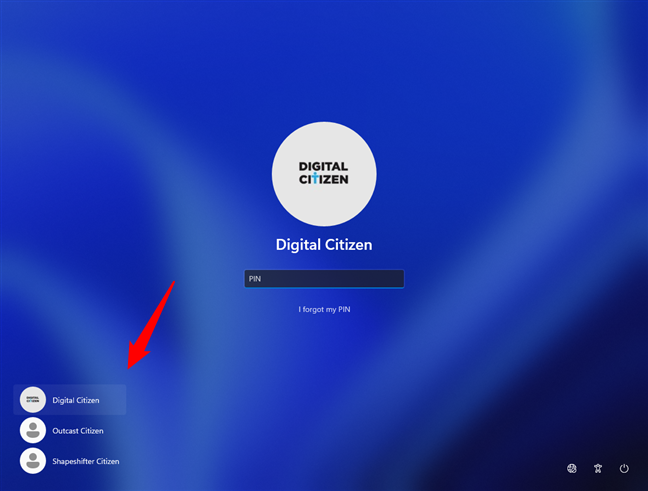
 Windows list of users shown on the sign-in screen
The downside of this method is that you cannot see hidden or disabled user accounts.
Windows list of users shown on the sign-in screen
The downside of this method is that you cannot see hidden or disabled user accounts.
1. How to list all users in Windows’ CMD (or PowerShell)
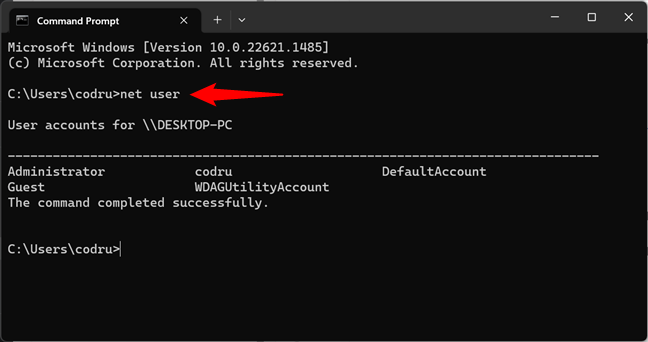
This method works both in the Command Prompt and PowerShell. Open the command-line app that you prefer, and run this command:net user
After you press Enter on your keyboard, the net user command lists the users that have accounts configured on a Windows PC, including hidden ones or disabled user accounts. The user accounts are listed by their internal names that Windows uses behind the scenes, not by their full display name, seen when you sign in to Windows.
net user > filename.txt
Then, a file with the name you provided is created under “C:\Users\Your User Name.”
net user > "path\filename.txt"
net user username
Once you press Enter, Windows displays helpful information about that user account, like the date its password was last set, when it expires (if it’s set to expire), and the groups it’s a part of.
2. How to use PowerShell to get all users on a computer
PowerShell offers an alternative way of finding all the users on your computer. If this is your favorite CLI (command-line interface), you might prefer using the next commands:2.1. Which Windows PowerShell CLI command can be used to list the users on a given computer?
While you can also use the net user command in PowerShell, the best command to view all users in Windows 11 and Windows 10 in this CLI is:get-localuser
Get-WmiObject Win32_UserAccount -filter "LocalAccount=True" | Select-Object Name,FullName,Disabled
2.2. Which Windows PowerShell CLI command can be used to list the users within local groups on a given computer?
In addition to the get-localuser command, PowerShell also offers another command that I think you might find useful: Get-LocalGroupMember. This command allows you to list all the users from a local group on your PC. For instance, if you’d like to see what other users are administrators on your Windows computer, you can run the command like this:Get-LocalGroupMember -Group "Administrators"
Get-LocalGroup
3. How to see the list of all user accounts in Computer Management
A click-or-tap method that displays all user accounts, including hidden users or disabled ones, involves using Computer Management. Open Computer Management, and go to Local Users and Groups > Users. On the right side, you get to see all the user accounts, their names as used by Windows behind the scenes, their full names (or their display names), and, in some cases, a description as well.4. How to see the list of active user accounts in Windows 11’s Settings
If all you want is to find out who are the active users of your Windows 11 PC, you don’t actually need to use the command-line or advanced snap-ins like Computer Management. You can simply see them in the Settings app. Press Win + I on the keyboard to launch it, select Accounts on the left sidebar and click or tap Other users on the right side of the app.5. How to see the list of active user accounts in Windows 10’s Settings
Windows 10 also lets you find the active user accounts on your computer without having to run commands or use the advanced Computer Management application. You can simply use Settings for that. Open the Settings app (a quick way is to click on its Start Menu button), and head to Accounts.6. How to see the list of active user accounts using the Control Panel
An old-fashioned method that you can use to get the list of active user accounts involves opening the Control Panel. After launching it, go to User Accounts.7. How to see the list of active user accounts on the Windows sign-in screen
The obvious and most straightforward method is to look at the sign-in screen before logging into Windows. On this screen, you should see all the active (not hidden) user accounts that exist in Windows. Both in Windows 11 and Windows 10, this list is shown in the bottom-left corner of the sign-in screen.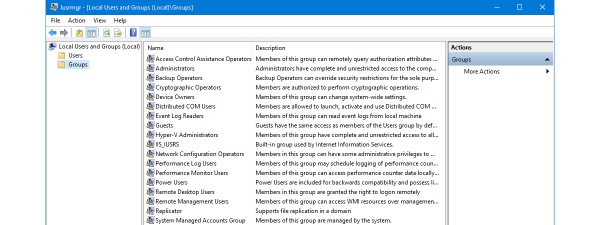
Discussion (8)
found 5
So my repair guy added my laptop to his Domain & told me to just create a local account when I called becuz I couldn’t get admin control. I thought I broke free when I did a refresh in Windows 10 but I still feel.. violated? & paranoid?
Now, when I typed “net user username” … I got: “The user name could not be found” & also “More help is available by typing NET HELPMSG 2221” …which left the exact same response.
Then I went to the next option which suggests going to COMPUTER MANAGEMENT but there is no option for users. The list looks exactly the same except there’s no user or account option?
-task scheduler
-event viewer
-shared folder
-performance
-device management
Is there an reasonable explanation for this?
That’s some very weird advice they gave you.
hi
very nice
tanks
warning, the output of “net user” is difficult to parse for a script, the separator seems to be “anywhere between 12-15 spaces” .. if you for some reason want to do this with PowerShell (for instance, if you need a parseable list), try:
Get-WmiObject -Class Win32_UserAccount -Namespace “rootcimv2” -Filter “LocalAccount=’$True'”
(that works all the way from windows 7 to windows 10, but if you only need win10 support, this command is much easier to remember: get-localuser
)
Yes, it is true
The Windows Defender account is an eye opener. Guess that is Windows 10 for ya. Big Brother and all. I have nothing to hide…but still.
That’s why we started with the more advanced methods. They are an eye opener. 😉