




Did you ever need to export the entire directory tree from a particular folder? Did you need to get a text or Excel document that lists all the files and folders inside a specific folder from your computer in a hierarchical structure? I needed this when trying to create a document that was supposed to be a summary of all the Word documents and Excel spreadsheets I had stored inside a folder. It was at that time that I asked myself a couple of questions. Can you automatically export a folder’s structure to Excel? Is there a DOS tree command that outputs to a file? Can you print a directory tree into an Excel sheet or as a text file? If you want to find out how to export a folder tree, read on:
NOTE: In this guide, I present two methods to export a folder’s tree. The first one is based on using Command Prompt to generate a directory tree as a text file, while the second relies upon an executable file (a script made with PowerShell) that outputs the folder tree as an Excel file and as a CSV file. You can skip to the part that interests you.

 What a folder tree looks like in File Explorer
To get a better idea of what a folder tree is, think about a genealogy tree, but for a folder on a computer. Imagine a root folder, let’s call it the Parent Folder, that contains files as well as other Child Folders. Each of those Child Folders can have other Grandchild Folders and files stored within, etcetera, etcetera. Subfolders can have their own subfolders, creating a nested structure of folders.
What a folder tree looks like in File Explorer
To get a better idea of what a folder tree is, think about a genealogy tree, but for a folder on a computer. Imagine a root folder, let’s call it the Parent Folder, that contains files as well as other Child Folders. Each of those Child Folders can have other Grandchild Folders and files stored within, etcetera, etcetera. Subfolders can have their own subfolders, creating a nested structure of folders.
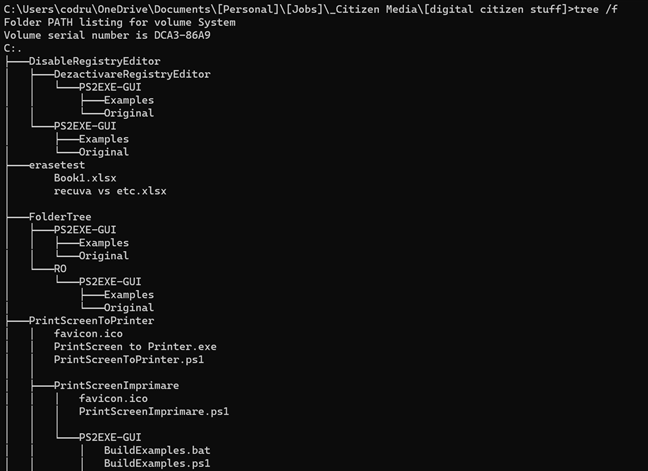
 A folder tree is a graphical layout of the structure of a directory
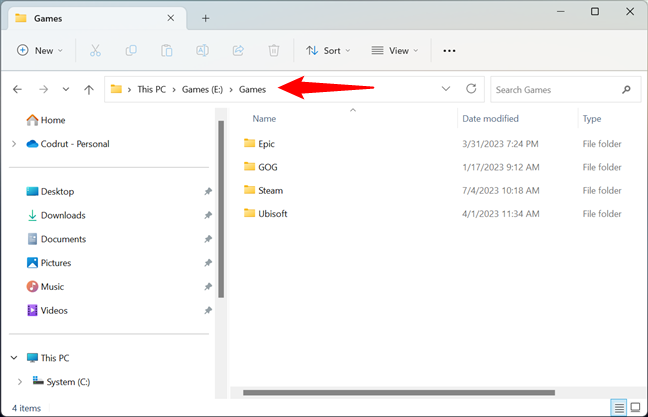
 Using File Explorer to get to the folder
Type cmd in File Explorer’s address bar and press Enter to open the Command Prompt directly at the folder you are interested in.
Using File Explorer to get to the folder
Type cmd in File Explorer’s address bar and press Enter to open the Command Prompt directly at the folder you are interested in.
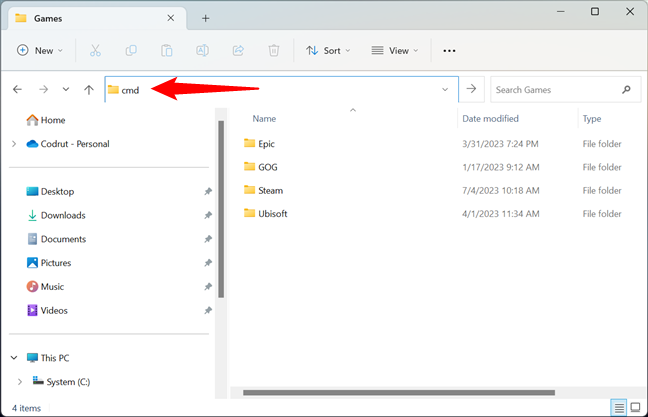 Opening Command Prompt at the location of the folder
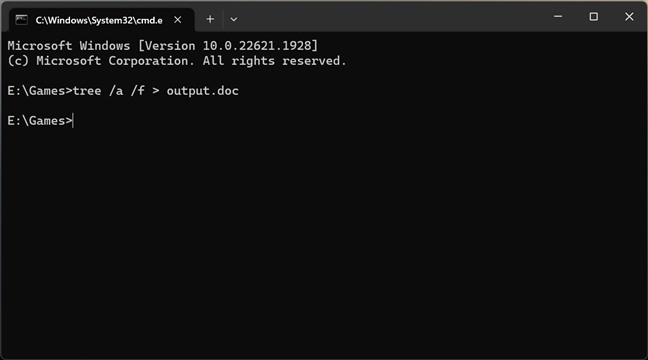
A Command Prompt instance is opened, pointing to your folder. In my case, the Command Prompt was opened using the “E:\Games” folder. To export the folder’s structure, run this command:
Opening Command Prompt at the location of the folder
A Command Prompt instance is opened, pointing to your folder. In my case, the Command Prompt was opened using the “E:\Games” folder. To export the folder’s structure, run this command:
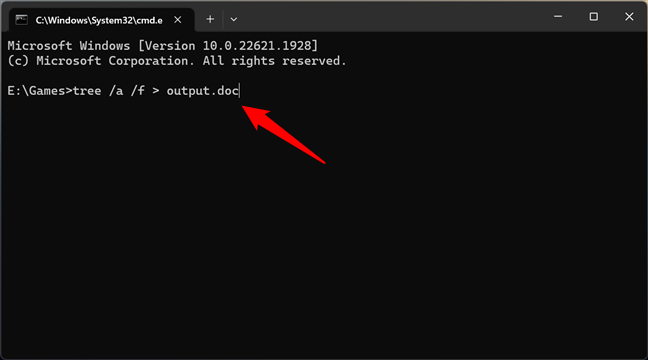
 Running the tree command to get the folder structure
TIP: If you don’t want the directory tree to include files (in other words, make the tree include only folders), skip the /f parameter from the command (tree /a > output.doc).
Output.doc is the document file where the entire directory tree is saved. You can use any name for it, and you can specify any file type as long as it has a text file type. I prefer using Microsoft Word .doc files, but you could use any other text file. For instance, you can choose to output the directory tree to a simple .txt file that’s editable with Notepad. Depending on how many folders and files are stored inside your folder, running this command can take a moment or two.
Running the tree command to get the folder structure
TIP: If you don’t want the directory tree to include files (in other words, make the tree include only folders), skip the /f parameter from the command (tree /a > output.doc).
Output.doc is the document file where the entire directory tree is saved. You can use any name for it, and you can specify any file type as long as it has a text file type. I prefer using Microsoft Word .doc files, but you could use any other text file. For instance, you can choose to output the directory tree to a simple .txt file that’s editable with Notepad. Depending on how many folders and files are stored inside your folder, running this command can take a moment or two.
 The tree command can take a while if the folder you run it on has many items
Now you can close the Command Prompt, as you don’t need it anymore. Go back to File Explorer and navigate to the folder for which you wanted to export the directory tree. Inside, you should find the new text file with the name you specified in the tree command. In my case, this file is called output.doc.
The tree command can take a while if the folder you run it on has many items
Now you can close the Command Prompt, as you don’t need it anymore. Go back to File Explorer and navigate to the folder for which you wanted to export the directory tree. Inside, you should find the new text file with the name you specified in the tree command. In my case, this file is called output.doc.
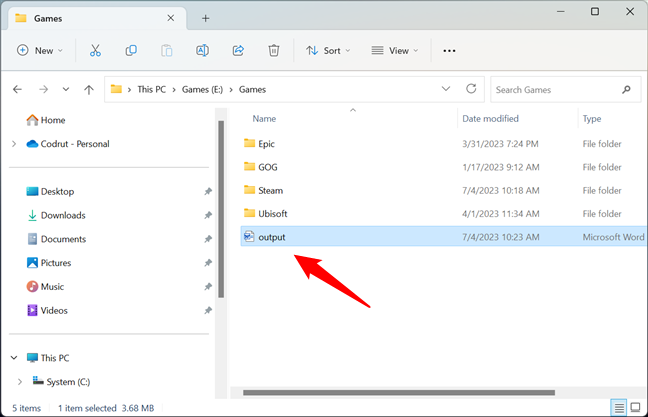 The output text file with the folder/file tree
Open the output file, and the entire directory tree is listed inside.
The output text file with the folder/file tree
Open the output file, and the entire directory tree is listed inside.
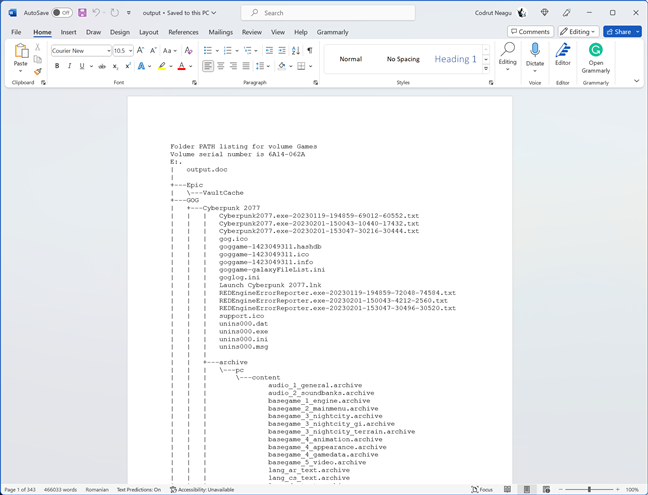
 The folder tree inside a document file
NOTE: If you want to export the directory tree of a folder that contains system files or folders, you must launch Command Prompt with administrative rights and then navigate to your folder from the Command Prompt itself.
The folder tree inside a document file
NOTE: If you want to export the directory tree of a folder that contains system files or folders, you must launch Command Prompt with administrative rights and then navigate to your folder from the Command Prompt itself.
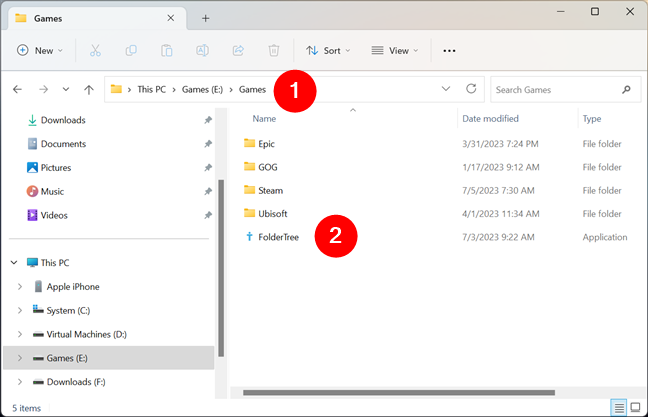 Place FolderTree in the folder whose directory tree you want
NOTE: When you launch FolderTree for the first time, the SmartScreen filter might warn you that it’s an unrecognized app. That’s because there are not that many people downloading and using it. Take my word that it’s safe and does not harm your PC. It’s nothing more than a PowerShell script inside an executable file and a simple user interface. If you get the warning, click or tap on “More info” and choose “Run anyway.”
When FolderTree opens, you should see a small window like the one below. To get the directory tree of the current folder, push the “Get folder tree to Excel” button.
Place FolderTree in the folder whose directory tree you want
NOTE: When you launch FolderTree for the first time, the SmartScreen filter might warn you that it’s an unrecognized app. That’s because there are not that many people downloading and using it. Take my word that it’s safe and does not harm your PC. It’s nothing more than a PowerShell script inside an executable file and a simple user interface. If you get the warning, click or tap on “More info” and choose “Run anyway.”
When FolderTree opens, you should see a small window like the one below. To get the directory tree of the current folder, push the “Get folder tree to Excel” button.
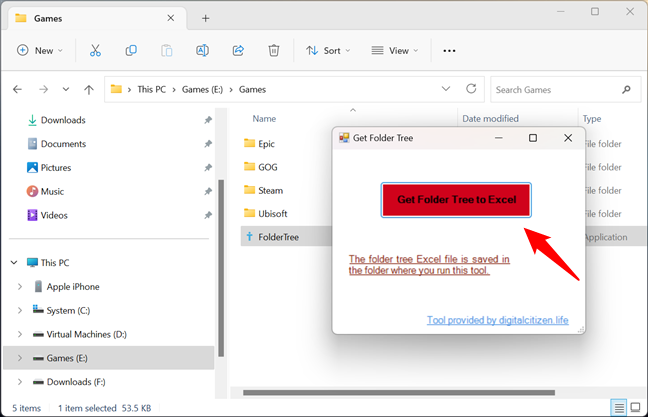 Get Folder Tree to Excel
The tool then outputs two files: FolderTree.xlsx and FolderTree.csv. Both contain the tree list of folders and files inside your current directory.
Get Folder Tree to Excel
The tool then outputs two files: FolderTree.xlsx and FolderTree.csv. Both contain the tree list of folders and files inside your current directory.
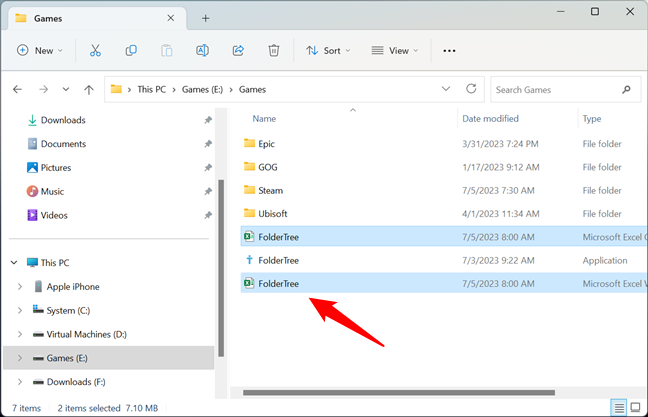 FolderTree outputs the directory tree in Excel and inside a CSV file
Furthermore, both files should have two columns: Directory and Name. The Directory column tells you the folder and the Name column tells you the files in that folder.
FolderTree outputs the directory tree in Excel and inside a CSV file
Furthermore, both files should have two columns: Directory and Name. The Directory column tells you the folder and the Name column tells you the files in that folder.
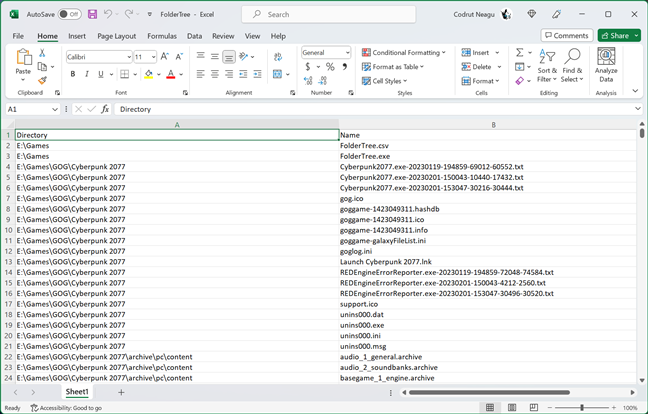
 The directory tree exported in Excel
Now you can go ahead and edit the Excel or CSV file with your folder tree as you want. If you encounter any issues with our tool, let me know in the comments section below.
NOTE: An important limitation of using this script/file is that you can’t use it if you have very long file paths. Truth be told, this is actually a Microsoft Excel limitation rather than PowerShell one of the FolderTree executable/script. Excel doesn’t allow file links that are longer than 256 characters, which limits the number of characters for a path name to 218.
The directory tree exported in Excel
Now you can go ahead and edit the Excel or CSV file with your folder tree as you want. If you encounter any issues with our tool, let me know in the comments section below.
NOTE: An important limitation of using this script/file is that you can’t use it if you have very long file paths. Truth be told, this is actually a Microsoft Excel limitation rather than PowerShell one of the FolderTree executable/script. Excel doesn’t allow file links that are longer than 256 characters, which limits the number of characters for a path name to 218.
What is a folder tree on a computer?
A folder tree is a graphical layout or representation of the hierarchical structure of folders and files found inside a parent folder. The directory tree is useful when you want to see how folders and files are organized inside the parent folder, helping you navigate and manage data more efficiently.How to get the folder tree structure in Windows
Now that we know what a folder tree is, let’s see how to create one:1. Export a folder’s structure to a text file using the “tree” command in Command Prompt
First, open File Explorer and navigate to the folder for which you want to export the directory tree. To exemplify the process, I’ll use my Games folder, located in “E:\Games.”tree /a /f > output.doc
2. Export a folder’s structure to Excel (XLS or CSV file) with our FolderTree tool (based on PowerShell)
Another way to export the structure of a folder in Windows is to use a tool made by yours truly. It’s called FolderTree, and you can download it using this link. If you want, you can also check the code of the file here: FolderTree on GitHub. Save the FolderTree file somewhere on your Windows PC. Then, move or copy it to the folder whose tree structure you want to get. In that folder, double-click or double-tap on the FolderTree executable.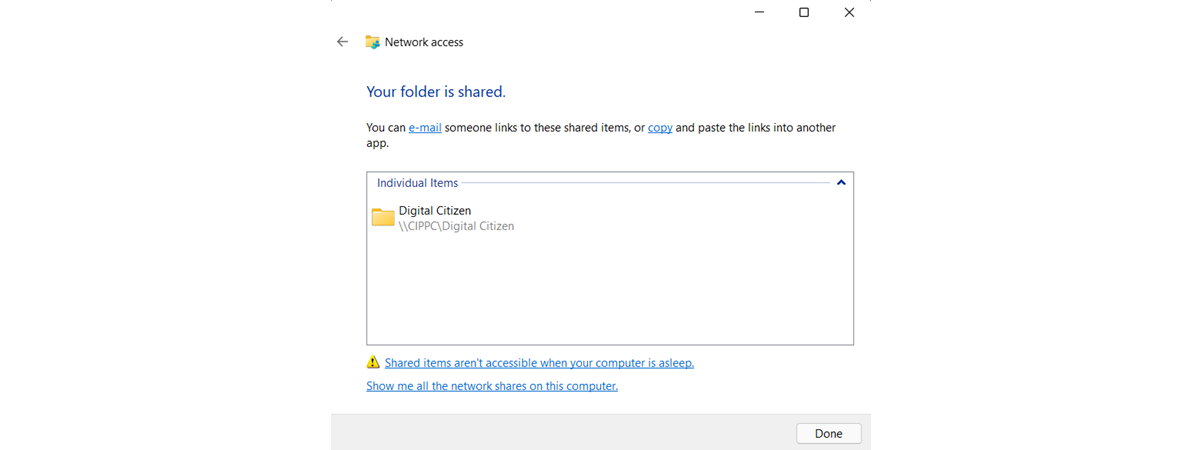

Discussion (79)
The link to download the Folder Tree program does not work.
Hi! Thank you for the tool, seems great.
I tried it but I don’t get more than 58 rows of inputs, which is not the entire folder tree of the selected folder. I am trying to find out what I am doing wrong (copy the .exe in the main folder I want, doublie-click and click on the red button). There is only 1 .csv file, which has the 558 rows, but it should be hundreds.
I’m using the tool for Excel, but only getting output of the folder level the executable is in. No subfolders or files export.
Hi,
Unfortunately, the tree command doesn’t allow that.
You could try PowerShell:
Get-ChildItem -recurse | Select-Object -Property Name, CreationTime
But that won’t output the structure as a tree.
Or, if you like the output of my FolderTree script, you can run a modified version of it.
In Powershell, navigate to the folder that you want to output, and then copy/paste this code:
$path = (Get-Item -Path “.\”).FullName
Set-Location -Path $path
Get-ChildItem -Recurse |
ForEach-Object {$_} |
Select-Object -Property Directory,Name,CreationTime |
Where-Object {$_.Directory -ne $null} |
Sort-Object -Property Directory,Name, CreationTime |
Export-Csv -Force -NoTypeInformation “$path\FolderTree.csv”
$csv = “$path\FolderTree.csv” #Location of the source file
$xlsx = “$path\FolderTree.xlsx” #Desired location of output
$delimiter = “,” #Specify the delimiter used in the file
# Create a new Excel workbook with one empty sheet
$excel = New-Object -ComObject excel.application
$workbook = $excel.Workbooks.Add(1)
$worksheet = $workbook.worksheets.Item(1)
# Build the QueryTables.Add command and reformat the data
$TxtConnector = (“TEXT;” + $csv)
$Connector = $worksheet.QueryTables.add($TxtConnector,$worksheet.Range(“A1”))
$query = $worksheet.QueryTables.item($Connector.name)
$query.TextFileOtherDelimiter = $delimiter
$query.TextFileParseType = 1
$query.TextFileColumnDataTypes = ,1 * $worksheet.Cells.Columns.Count
$query.AdjustColumnWidth = 1
# Execute & delete the import query
$query.Refresh()
$query.Delete()
# Save & close the Workbook as XLSX.
$Workbook.SaveAs($xlsx,51)
$excel.Quit()
}
The only thing added to give you the timestamp is the CreationTime property on this line: Select-Object -Property Directory,Name,CreationTime
You can find the whole thing here: https://github.com/codrutneagu/FolderTree/blob/main/FolderTree.ps1
I did this because I want to reconstruct the itinerary of a trip I took nine years ago by sorting the photos. I never changed their file names but I split them into several folders and subfolders according to location type and city, and doing this manually would be a horror.
However, I already knew the tree command. What I’d have looked for is a way to export the creation time stamp into the .txt file as well – if that is even possible.
Need a list of files displayed on a VM that reside in OneDrive.
This was so helpful! Thank you for the clear instructions!
Glad to help. Don’t forget to subscribe to our email newsletter, for more useful tutorials: https://www.digitalcitizen.life/newsletter/
Thank you for providing this apps. It saves my times a lot! My superior gave me a task to restructure our company MS Sharepoint folders, so in order for me to propose to them some suggestion, first i need to have list of all files in order to group them efficiently afterwards. Thank you so much!
Happy to help. Don’t hesitate to subscribe to our newsletter: https://www.digitalcitizen.life/newsletter/
Indeed. Is it possible to have a complete list, including the empty folders?
Now it only shows folders which contains files. So a lot of folders can be lost in the directory structure…
This does not work. It only creates a blank CSV vile and then crashes
Hi there..
I have a windows folder with music file (mp3), with names of the songs, artists, album names, song duration etc.
I want to create an excel sheet where I can quickly copy/paste all this folder information so that I can sort them out as per my convenience.
Is it possible, please share your thoughts.
Thanks,
Sandy..
Fantastic exec. It simplifies very much my life. But I´ve found that the length of my paths are too large for that. Is there any way to solve that?
Thanks very much
Glad to help. Do not hesitate to subscribe to our newsletter, for more useful tutorials and tools. See here: https://www.digitalcitizen.life/newsletter/
260 character limit so no good for extensive file structures
Hello,
FolderTree.exe works, though too many error messages, say about 10. Latest win10 installed, Excel not yet installed. Finally, resulting CSV-File is OK. Can’t see an *.xlsx File.
“not null, parser” etc.
Do you have some updated version?
Best Regards
Hans-Joachim Huber
Hello. I didn’t have the time to work on this lately. Can you install Excel and let me know if and what errors you get afterward?
Nice article.
You could use a free tool for that:
https://www.mindgems.com/article/export-folder-structure-or-folder-list-to-excel-csv-or-xml-folder-size/
Print, export, largest files and folders…you name it.
Cheers
It’s a false positive what you’re getting from Avira. The file is made by me, and doesn’t include any viruses. If you want, you can double-check it with virustotal.com. Or, you can see this link: https://www.virustotal.com/gui/file/05f31c695c38e839fbb06bfaf48e46a21fd282775d1755d978ab4579276609fd/detection.
You can also check the code here: https://github.com/codrutneagu/FolderTree
Your little utility, FolderTree, would be jolly splendid were it not for the fact that upon clicking the EXE file, Avira security software detects it as a Trojan, automatically grabs it by scruff of its neck and instantly quarantines it.
What say you to that? What kind of Digital Citizenship is that!? Aren’t you ashamed? Why don’t you put on your dunce cap and take an hour facing the corner on a stool.
Hi, the tool is great. However, it looks like it is limiting the output. I am seeing only about 30-40 records.
Thanks for the Folder Tree tool! I would suggest the option of outputting the empty folders too. That is what I really needed.
Indeed. Is it possible to have a complete list, including the empty folders?
Now it only shows folders which contains files. So a lot of folders can be lost in the directory structure…
Was for a work-related task, but fails for me (do not work well), just because it is a lot more of 260 characters for directory. Thank you for you work anyway
This definitely what i’ve been looking for all this time
Thanks
Nice idea, but when I try to use the tree command, I get
‘tree’ is not recognized as an internal or external command,
operable program or batch file.
But it would have been nice if it worked.
Work-related: records/configuration management. Cleaning up identical files stored in multiple directories
The directory tree will help me track pages during Razor Pages development. I plan to map the directory tree to menu items to help ensure that the links between pages are consistent.
Worked a treat – simple but effective instructions. Thanks for sharing!
I’ve been struggling to find a particular folder, which had been moved inadvertently. I looked at several methods to export the folders in the directory, unsuccessfully. Your method and instructions were PERFECT!!! Thank you.
Happy to help. Do not hesitate to subscribe to our newsletter, for more useful guides.
Can you reupload the FolderTree tool? I’m getting a dead link from OneDrive in both places but I’d love to use it.
I’d really like that too, isn’t there anyone still watching this thread ?
Would it be possible to change the script so that the user can select any specific folder ? Maybe also specify any output folder ? That would be a great help, instead of having to copy the tool in the specific folder first.
Thanks for your concern.
Worked like a dream, thank you. Well, almost. Didn’t quite capture the names when I exported the .txt to a .csv, but it provided a good enough template for my music library. Only 500 directories and 8,000 songs to sort through now – wish me luck! And thanks again xxx
Glad to help. Do not hesitate to subscribe to our newsletter, for more useful tutorials like this one.
I received this in the newsletter this morning. There are comments dating back years???
I’m a book collector (ebooks) so I tried the FolderTree.exe file on my books folder. I have a 31,000 line text file listing all my books! A neat list but I really don’t know what to do with it.
In html format the list could be used to remove outdated books from my library but I don’t know if that’s even possible? What’s the possibility of your Powershell programmer coming up with an exe file that produces the list in html format?
Try Snap2HTML
https://www.rlvision.com/snap2html/about.php
It’s freeware, and produces really neat HTML listings of folders and files
Thanks Michael, that app produces a nice html list from an EPUB list but it adds an unnecessary step to opening an ebook.
There are Extensions available for Edge that open Epub and PDF files and maybe other ebook formats so I open an ebook directly from my folder tree
I was looking for a use for Codrut’s list when I suggested an html list.
I really don’t have a problem!
Someone posted a question months ago that I think “Everything” search engine would answer. It searches everything on your computer almost instantly! All the freeware sites have it and Bing search will turn it up for you.
Google takes me to MyWay page with a lot of ads but little else???
Oops!!!
Booboo………. that should have been Ciprian’s list………….. not Codrut’s.
Me bad! Sorry!
Hi Jason Darrell
I have a windows folder with music file (mp3), with names of the songs, artists, album names, song duration etc.
I want to create an excel sheet where I can quickly copy/paste all this folder information so that I can sort them out as per my convenience.
Is it possible, please share your thoughts.
Thanks,
Sunny.
What I need is to show the only tree of folders and not included the files.
Thank you very much!
just omit the /f
ie >tree /a > output.txt
This is absolutely wonderful and everyone at work is loving this especially when trying to find files or folders. Is there any good way that you know of that you can trace a line of folders/subfolders more effectively?
That is the only tedious amount.
Thanks!
thanks for putting it together, very helpful
Is it possible to do this the otherway around (create the directory structure from the doc)?
Thank you very much for this information. I just want to know what is “/a /f” for and would it be possible to get more information, e. g. save dates and file sizes.
I tried this and it used to work really well. Now I only get 1 page of the full print out. Once I got 5 pages, but that was only half of the total folder. What am I doing wrong?
This trick saved my butt on a work project. Thank you so much for posting it!
Happy to help. Do not hesitate to subscribe to our newsletter, for more useful content.
Thanks so much for this.
Thank you for this great tutorial! However, when my output document doesn’t list the folders in the right order. A number of our sub-folders are named things like ’01 XXXX,’ ’02 YYYYY, ’03 ZZZZ,’ etc. The output document lists them in a random order (’03 ZZZZ,’ and then ’01 XXXX’). Is there a way to get the tree to match the exact order of the folders as seen?
How can I do this but have the comments that are attached to the files also be exported?
I have a folder with images scanned from 35mm slides and the file comments have the information that were on the sleeves of the slides. is there a way to export those?
Thank you
you saved my weeks 🙂 big help.
Question – can we save this into an excel file instead of word or txt file?
does this have the 255 char limit on paths and filenames?
Does not work for UNC Paths. Local computer only.
I wanted to tree all of my C: Drive on windows 10. To do so, I had to run the Command Prompt as admin. If you get an “Access Denied” message, open the start menu and type “cmd”. Right click and select “run as admin”. Then you’ll have to manually navigate to the desired location. Hope this helps.
When I tried this, I had to run cmd as administrator. I also did a tree of ALL of my C: drive, so I don’t know if that is why.
great except I just want folder names, the TREE, not the file names.
Thanks though, nice process.
I wanted the same thing. This tutorial gave me a good start… but then I googled the “tree” command and found that all we need to do is REMOVE the /f and it will indeed create the tree without the file names. It worked perfectly.
Nice life hack ! 🙂
Thanks for the help!! Any assistance with formatting in Excel? Delimiting,etc…
My aim is to get all this info. into an xlsx file – how do I do this
open up excel, then open up the saved file tree file that was created. you’ll have to delimit it or spend hours formatting based upon how large of a file you have. I’m dealing with roughly 13,000 lines right now and i can’t see an easy way to go about it.
I want the same!
is there any way get tree structure only up to first 4 layers
Perfect solution, thank you!
Awesome! Thank you so much for this easy tutorial and trick! Just what I needed. Now if only I could get the output format to look nicer…
Thank you for appreciating our work. Don’t hesitate to subscribe to our newsletter, for the latest tutorials and articles that we publish.
for a non computer savy person, this was an easy to understand tutorial. Thank you.
Unfortunately, when I followed the instructions, the doc produced only the text “too many parameters.” So, for that non computer savy person, what does this mean and how do I do what y’all were able to do? 😉
Is there any way to plant a virus or steal data from running a directory tree with no saved file request? Other than a listing of all the files on the computer, is there any sensitive data in the directory itself?
I Have too many files in other languages (japanese, spanish, etc..) but in the file are saved with questions marks:
+—(2008.01.01) AKB48 – SET LIST ~?????????? 2006-2007~
| | | | 01. ??????.flac
| | | | 02. BINGO!.flac
| | | | 03. ?????????.flac
| | | | 04. ????.flac
| | | | 05. ?????.flac
Any way to fix it?
Thanks.
You should try: Directory Report
It can handle files which contain international characters
https://www.file-utilities.com
Hi there, awesome job, it works beautifully! Could you please let me know how I can add the last modified date of the files to the exported tree? Which prompt do I need to give instead of tree /a /f > output.doc ? Thanks!
Hi, I used this and it did produce the output.doc file. However, it is blank. I am using a work network, where windows explorer is patched (somehow) to Sharepoint. Is this why it is not showing a directory?
Thanks for this article – very clear and helpful.
Is there any way to automatically save the output file to a different location than the folder you are trying to map?
Sure. Use the command tree /a /f > "d:folderoutput.txt" and change d:folder with where you want to save your output file.
Interesting tutorial and outcome. Nice job in showing each step along with a screen grab explaining the steps taken. Learned something….Nice job….WLC