




HBO GO, the streaming service that allowed users to access a wide range of HBO content, was gradually phased out over the years. Although HBO GO is no longer available in many regions, it remains active in select areas, where it continues to serve as a platform for HBO content. However, its service has largely been replaced by HBO Max in most markets, which offers an expanded library and additional features.
If you’re a fan of HBO content, adding HBO Max to your LG Smart TV is the perfect way to access all your favorite shows, movies, and documentaries. At the time of writing, HBO Max offers an extensive library of content, including popular shows like Game of Thrones, Westworld, and Succession. In this guide, we’ll show you exactly how to add HBO Max to your LG Smart TV, so you can start streaming in just a few simple steps (the same times apply if you're using HBO Go).
Step 1: Check Compatibility with Your LG Smart TV
Before you start the process of adding HBO Max to your LG Smart TV, you need to make sure your device is compatible with the streaming service. Follow these easy steps to check compatibility:
- Ensure that your LG Smart TV is connected to the internet. A stable internet connection is necessary to stream HBO Max content.
- Navigate to the "Apps" section from the home screen of your LG Smart TV using your remote control.
- Look for the LG Content Store (or App Store) in the Apps section.
- In the search bar, type "HBO Max" and hit Enter. If the app shows up, it means it’s compatible with your LG TV. If it doesn’t appear, you might need to consider using an alternative streaming device.
It's important to note that HBO Max is not available on some older LG Smart TV models or in certain regions. If you’re unsure, check the manual or consult LG customer support.
Step 2: Download the HBO Max App
Once you’ve confirmed that your LG Smart TV supports HBO Max, the next step is to download the app. Here's how to do it:
- Go to the "LG Content Store" or "App Store" on your TV.

- Use the search feature to find "HBO Max".
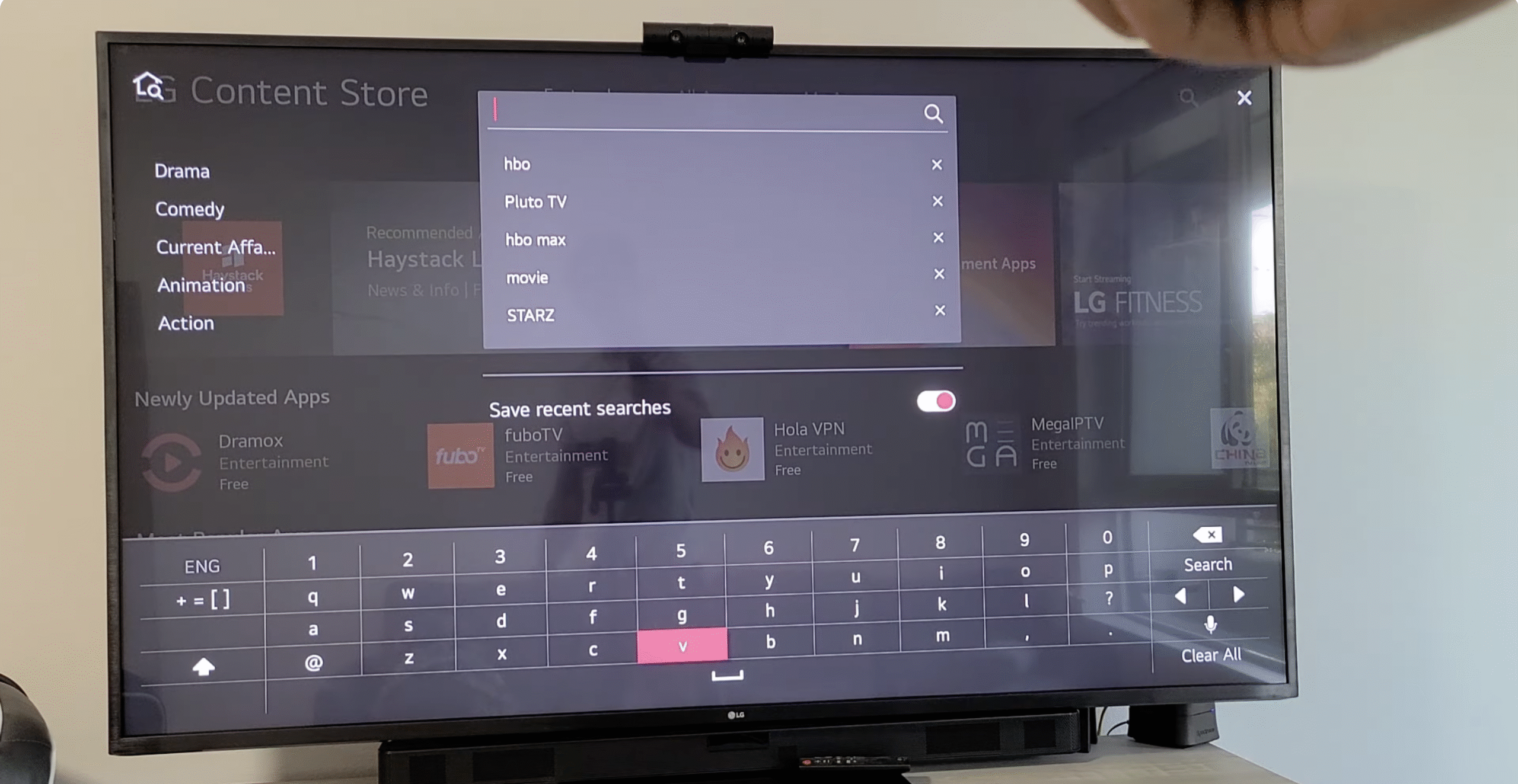
- Select the HBO Max app from the search results and click on "Install" or "Download" to start the installation process.

- Wait for the app to finish downloading and installing. The download time will depend on your internet speed.
Once the download is complete, the HBO Max app will appear on your TV’s home screen or under the "Apps" section.
Step 3: Install the HBO Max App on Your LG Smart TV
After downloading the HBO Max app, the next step is to install it. This process is quick and easy:
- Return to your LG Smart TV’s home screen and go to the "Apps" section.
- Find the HBO Max app and select it to open.
- Read and accept the app’s terms and conditions to complete the installation.
- Once installed, the HBO Max app will be ready to use.
Step 4: Activate HBO Max on Your LG Smart TV
Now that the app is installed, it’s time to activate it and link your HBO Max subscription:
- Open the HBO Max app on your LG Smart TV.
- Select "Sign In" or "Activate Device" from the HBO Max home screen.
- An activation code will appear on the TV screen.
- On a separate device, such as a smartphone or computer, visit the official HBO Max activation page at https://activate.hbomax.com.
- Select your TV provider from the list and enter the activation code displayed on your LG Smart TV screen.
- Complete the activation by entering your provider credentials, if prompted.
Once the process is complete, HBO Max will be activated on your LG Smart TV, and you can start enjoying all the content it has to offer.
Step 5: Log In and Start Streaming HBO Shows and Movies
With HBO Max activated, it’s time to log in and start streaming:
- Open the HBO Max app and select "Sign In" on the home screen.
- Choose your TV provider and enter your login credentials.
- Once logged in, browse the extensive library of HBO Max content and select what you want to watch.
You can now enjoy everything from iconic series like *Game of Thrones* to the latest releases on HBO Max. Just use the app’s intuitive interface to search, select, and play your favorite shows or movies.
Troubleshooting Common Problems
- If HBO Max isn’t showing up in the search results, ensure your TV model is compatible with the app.
- If the app is not installing, check your internet connection and restart your TV.
- If you can’t sign in, double-check your TV provider credentials and ensure your HBO Max subscription is active.
Tips
- Keep your LG Smart TV’s firmware updated to ensure smooth operation and access to the latest features.
- If you experience slow streaming or buffering, try connecting your TV to a more stable Wi-Fi network.
- Check for HBO Max app updates regularly to improve functionality and fix bugs.
FAQ
Is HBO Max available on all LG Smart TVs?
HBO Max is available on most recent LG Smart TV models, but older models may not support it.
Do I need a subscription to use HBO Max?
Yes, you need an active HBO Max subscription to use the service on your LG Smart TV.
Can I use HBO Max without an internet connection?
No, an internet connection is required to stream content from HBO Max on your LG Smart TV.
Summary
- Ensure your LG Smart TV is compatible with HBO Max before downloading the app.
- Download and install the HBO Max app from the LG Content Store.
- Activate the app using an activation code from the HBO Max activation page.
- Log in with your TV provider credentials to start streaming your favorite HBO content.
Conclusion
Adding HBO Max to your LG Smart TV allows you to access an incredible range of content right from your TV. By following the steps outlined in this guide, you can quickly install, activate, and start streaming your favorite HBO Max shows and movies. Remember to check for updates, ensure your internet connection is stable, and enjoy the vast library of HBO programming from the comfort of your home.


Discussion (0)
Be the first to comment.