




Adding HBO Max to Hulu gives you one place to manage billing and access Max’s full library through the HBO Max app. The process stays simple once you know where to add the plan and how to activate it on each device.
This guide covers the steps, device-specific activation, billing conflicts, and common errors users encounter while linking HBO Max to Hulu.
1) How to add HBO Max to your Hulu subscription
Select your profile and open the Account. Next, choose Manage Add-ons and find HBO Max in the Premium Add-ons list. Now, click Add and confirm the purchase to activate the add-on.
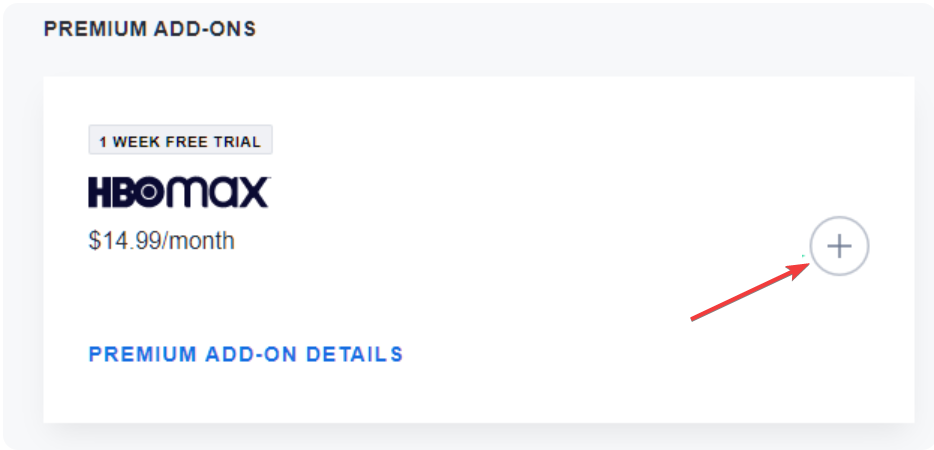
To add the HBO Max add-on from the Hulu mobile app, open Hulu and switch to your primary profile. Now, tap Account and choose Manage Add-ons. From here, select HBO Max and tap Add.
2) How to activate HBO Max after adding it
Install the HBO Max app on your device, launch it, and choose Sign in with a provider. Pick Hulu from the list. Enter the Hulu email and password to link the account.

The app confirms your subscription after the first login. If you see a prompt to activate, complete the on-screen steps to sync your billing.
3) How to watch HBO Max through Hulu
Open Hulu and look for the Max hub tile on the home screen. You can watch featured movies and shows directly inside Hulu.
Launch HBO Max to access the complete set of categories, profiles, and collections.
4) Device-specific setup
Smart TVs (Samsung, LG, Roku TV)
Open your TV’s app store and search for HBO Max and install it. Next, open the app and choose Sign in with a provider. Now, select Hulu and enter your Hulu credentials.
Streaming devices (Fire TV, Roku, Chromecast)
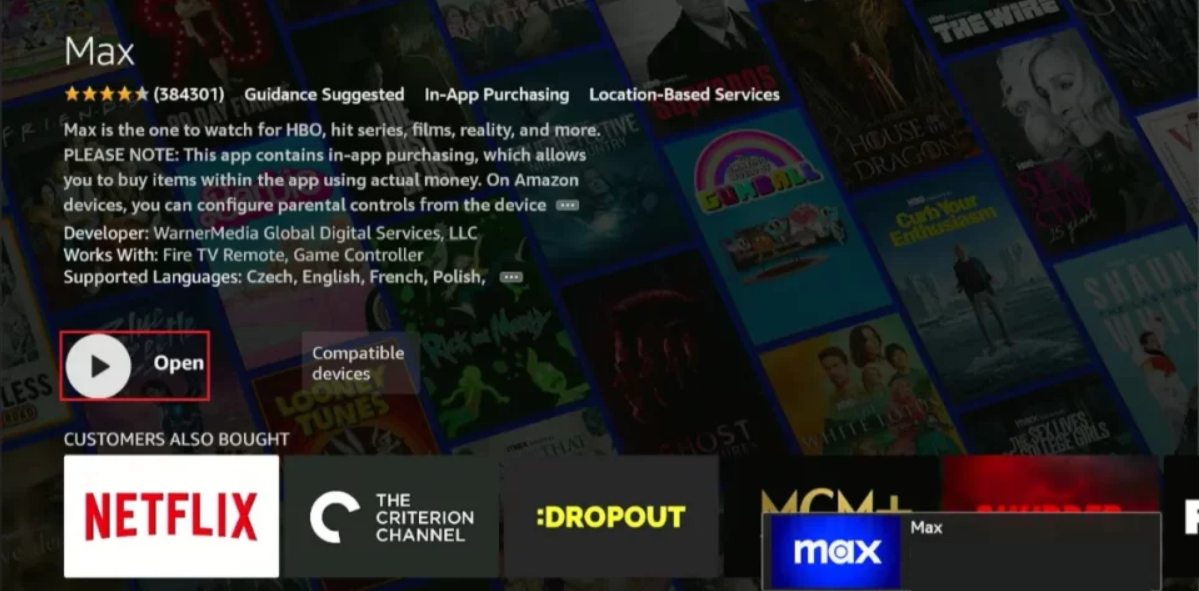
Install HBO Max from your device’s app store and launch the app. Now, select Sign in with a provider, choose Hulu, and enter your login details.
Game consoles (PlayStation, Xbox)
Open your console’s storefront and install HBO Max. Now, sign in using the provider option and select Hulu.
Mobile devices (iPhone, iPad, Android)
Install HBO Max from the App Store or Google Play. Now, open the app and choose Sign in with a provider. Log in with your Hulu credentials.
5) Bundle options that include HBO Max
Disney+, Hulu, HBO Max bundle
Bundles include all three apps with one rate. You still activate HBO Max through the provider login method.

Switching between bundles and standalone add-ons
Switching requires updating your Hulu plan. When you move from a standalone add-on to a bundle, your HBO Max access stays active as long as billing remains uninterrupted.
Common problems and fixes
- HBO Max says subscription not active: Sign out of HBO Max and sign back in using the provider option. If the message stays, refresh your Hulu account by toggling the add-on off and back on.
- Add-on not showing in Hulu: Reload the Manage Add-ons page. If needed, switch profiles or sign out of Hulu and sign back in to trigger a sync.
- Login fails in the HBO Max app: Make sure you select Sign in with a provider and choose Hulu. Clear the app cache if the login loop repeats.
- Region or VPN restrictions: Hulu and HBO Max require a US location. Disable any VPN that routes traffic outside the United States.
FAQs
Does the add-on support profiles and parental controls? Yes. HBO Max lets you manage profiles and viewing restrictions separately from Hulu.
Can I share HBO Max with my household? You can sign in on supported devices, but simultaneous stream limits still apply.
How many devices can stream at once with Hulu-billed access? HBO Max enforces its standard device and concurrent stream limits.
Does the Hulu add-on include 4K content? Yes, HBO Max titles that support 4K remain available through the HBO Max app.
Summary
- Open Hulu and add the HBO Max add-on.
- Install HBO Max on your device.
- Sign in using the provider option and pick Hulu.
- Activate the subscription inside the app.
- Watch Max content on Hulu or use the HBO Max app for the full catalog.
Conclusion
Hulu makes it easy to add HBO Max and manage everything under one bill. Once you activate the app with your Hulu credentials, you can stream the entire Max library across your devices without extra setup issues.


Discussion (0)
Be the first to comment.