Virtual Private Networks (VPN) provide an easy way to extend a private network across the Internet and gain access to them when needed, in a secure manner. You may use VPN to connect to the network from your workplace, or to your home network when you are on the go. Indifferent of the reason, both Windows 8 and Windows 8.1 offer features that enable you to create, configure and use VPN connections. Here's how everything works:
What You Need In Order to Connect to a VPN
In order to connect to your company's Virtual Private Network (VPN) or to some custom VPN you have set up, you need to know the following details:
The IP address of the VPN server.
The connection name and your VPN account details (username & password).
Any custom technical configuration you might need to perform, in order for the connection to be established successfully.
If you have these details available, all you need is a working Internet connection. You cannot connect to a VPN server if you are not connected to the Internet. Then, go ahead and follow the instructions shared in the next section.
How to Create a VPN Connection in Windows 8 & Windows 8.1
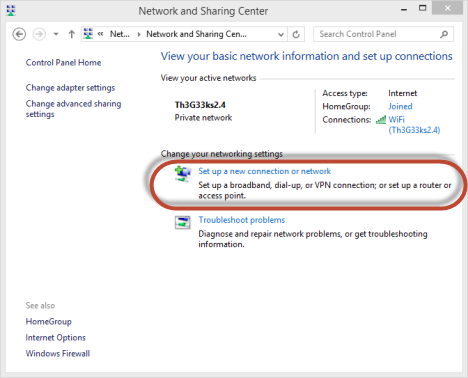
First, you need to open the Network and Sharing Center. There, click or tap the "Set up a new connection or network" link, in the section named "Change your network settings".
Windows 8, Windows 8.1, VPN, Network, Connection, Configure
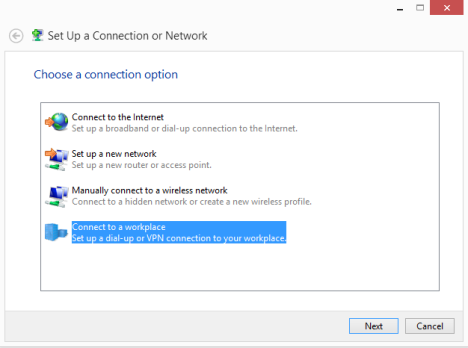
The Set up a Connection or Network window is displayed. Here, select "Connect to a workplace" and click or tap Next.
Windows 8, Windows 8.1, VPN, Network, Connection, Configure
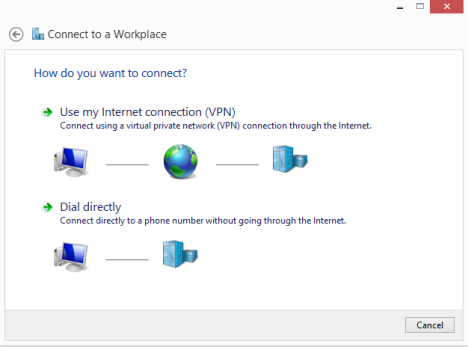
The Connect to a Workplace wizard is shown. You are asked how you want to connect. Obviously, you should click or tap "Use my Internet connection (VPN)".
Windows 8, Windows 8.1, VPN, Network, Connection, Configure
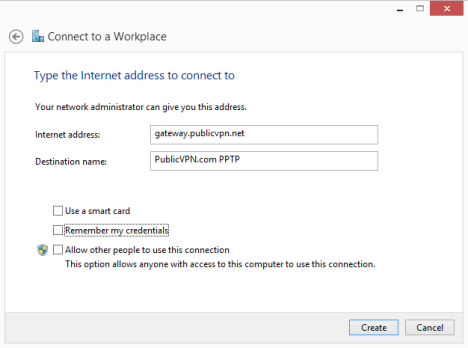
Now you are asked to enter the VPN connection details. Enter the IP or domain address of the VPN server, in the Internet address field. Then, type the destination name you want to use.
Next, check or uncheck the appropriate fields below. Since VPN connections are meant to be secure connections, we don't recommend that you check the box which says "Remember my credentials". In case someone that is not authorized to use your computer gains access to it, you will make it really easy for that person to use your VPN connection. When you are done setting things up, click or tap Create.
Windows 8, Windows 8.1, VPN, Network, Connection, Configure
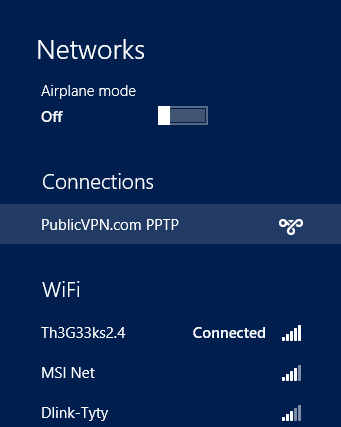
After a couple of seconds, the VPN connection is created and the Networks pane is shown, with the newly added connection visible in the Connections section.
Windows 8, Windows 8.1, VPN, Network, Connection, Configure
How to Edit the Properties of a VPN Connection in Windows 8 & Windows 8.1
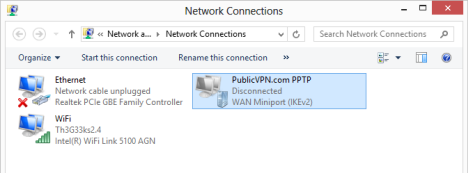
For some VPN connections, this may not be enough and you might need to modify some of the default settings. In order to do that, go back to the Network and Sharing Center and click or tap "Change adapter settings" in the column on the left. The Network Connections window is shown, listing the available network connections. Right click or press and hold the newly created VPN connection.
Windows 8, Windows 8.1, VPN, Network, Connection, Configure
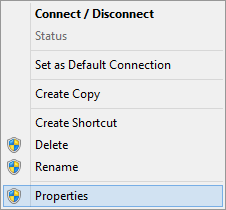
In the right-click menu, click or tap Properties.
Windows 8, Windows 8.1, VPN, Network, Connection, Configure
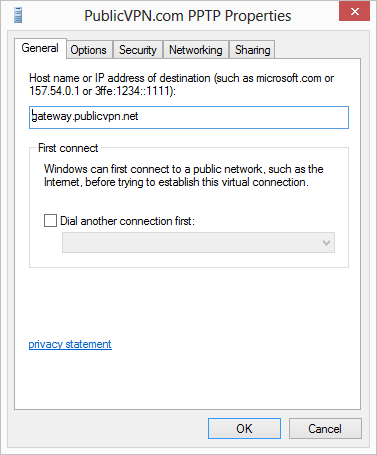
The Properties window opens for the selected VPN connection. Here you will find lots of tabs with settings that can be changed, related to security, networking protocols, etc.
Windows 8, Windows 8.1, VPN, Network, Connection, Configure
When done changing the appropriate settings, don't forget to click or tap OK, so that they are applied.
How to Connect Through VPN
Now that you have created and set up your VPN connection it is time to use it and connect to it. Go to the Desktop and bring up the Networks pane (with a click or tap on the Network icon in the notification area of the taskbar). ' In the Connections section click or tap the VPN connection, then click or tap Connect.
Windows 8, Windows 8.1, VPN, Network, Connection, Configure
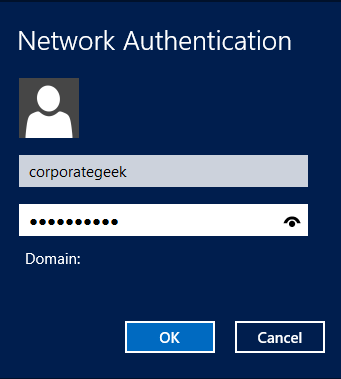
You are asked to enter your user account details. Type the username and password for your VPN connection and click or tap OK.
Windows 8, Windows 8.1, VPN, Network, Connection, Configure
Windows takes a few seconds to connect and, when done, the Networks pane disappears automatically.
Conclusion
Setting up, configuring and connecting to VPN is done relatively easy, both in Windows 8 and Windows 8.1. If you are looking for other networking related tutorials, don't hesitate to read our recommendations below.
Thankyou for the most useful and clear tutorial on VPN.
Best vpn ·
To make VPN profile management easier for end user, there is a new intuitive modern user interface to manage VPN profiles in Windows 8.1. This new interface resides in PC Settings and provides a unified experience to create, edit, and remove native as well as 3rd party VPN clients.
Creating a VPN profile requires only the server information. The Windows operating system automatically discovers authentication methods and tunnels when it connects, which provides a seamless experience for creating a VPN.
Amir ·
I connected the VPN fine on Windows 8.1. The internet wasn’t working so from Control PanelNetwork and InternetNetwork Connections > VPN connection > Properties > Networking tab, I selected IPV4 > Properties > General > Advanced button > IP Settings tab, I unchecked the ‘Use default gateway on remote network’. Now the internet is working fine whilst connected to the VPN but unfortunately cannot connect to my work computer using Remote Desktop Connection. Any help would be much appreciated.
Thanks,
Amir
Ciprian Adrian Rusen ·
When you connect to the VPN you join a different network than the one used to access the VPN. If the computer you want to access remotely is not on the same network as your VPN service, you won't be able to connect to it.
Micheal Justin ·
Among various threats, you are exposed to different privacy concerns: threat of information leakage to hackers, spammers, governmental agencies, etc. In addition to this, you are blocked access to geo restricted websites such as Netflix, Hulu, UK TV, ITV, etc. and censorship in different countries.
This is where VPN comes into play, providing you with greater internet security and other valuable features.
rimshabawar ·
what is the password of networks
Kevin ·
the network itself does not have a password.
the user is authenticated and can be a member of any domain.
the domain field seems to be present but it is greyed out and can’t be used
Kevin ·
In Windows 7 I can enter a domain name on the Network Authentication page.
However, in Win8 the “Domain” field seems to be there but I can’t enter anything. Our VPN server needs this field.
Any idea how to use the Domain field in Win8???
Patrick ·
Enter the IP or domain address of the VPN server, in the Internet address field. Then, type the destination name you want to use.
where do you get this IP adress ? Which VPN server ?
Ciprian Adrian Rusen ·
You can use a VPN service from your work and you need to ask the IT department for these details or you subscribe to a free or paid VPN service and that service gives you the connection details.
tauseefgt ·
There are various setup guides available on internet for windows 8.1. Users can setup vpn on windows 8.1 by finding the best method online. vpnranks.com providing details of setup and process so users can go for it.
Mahendar ·
I have configured vpn in my laptop long back. now my laptop is going to be changed. I do have an idea of network ip, but donno how to to know user id and password from the existing one.
sayeed helal ·
I am in china. I need help to know : how to set up free vpn in windows mobile 8.1. I need some vpn name which may act on it in china.
Kyle ·
I keep creating a profile, setting the password, and it keeps resetting it to a fifteen character password. this is on the host windows 8 computer, under user connection properties.
leha ·
can u tell what is the password for this vpn connection?
Colin Briggs ·
For those of you struggling with trying to connect with a domain account when you can no longer share the VPN and Save the Credentials for other users here is the solution:
Log on with your Outlook/Live account.
Create the VPN and log in to confirm it works OK.
Disconnect.
Copy the VPN file (rasphone.pkb) from C:UsersusernameAppDataRoamingMicrosoftNetworkConnectionsPbk
to
C:Program DataMicrosoftNetworkConnectionsPbk
Log out.
Click on the network icon at the bottom left of logon screen. The VPN name and icon will appear in the centre of the screen.
Click on it, enter your domain username and password.
Jeff ·
My problem is that it default to the MS account and I can’t change it. I need to be able to enter the domainusername to authenticate with the domain. Is there a place in the registry i can force the username?
truls ·
What are the username and password? and how do I find it/register it/
Ciprian Adrian Rusen ·
You get the username and password from your network admin or from the vendor of the VPN service you are using.
linkinpro ·
Hey I’m currently using windows 7 and I’m trying to configure the VPN address of my college which is in the other part of the country and every time I try to connect it isn’t connecting…. suggest some settings which could make it work as all the databases are on that network…………
Robert ·
i do have a specific usr i pwd for this VPN, because this server is in company where i,m working, MS2008R2 ent ed. on win7pro everything works perfectly, on my tablet also. problem is that i cant use specific user name and password for that VPN, and win8.1 always backing me up to use ms user name, and i don’t know how to disable it. there is place to insert specific usr and pwd, only once. after that i get a error mess, without possibility to change usr name, and win8.1 for me change it to my ms usr name, and cant be different after that. empty space is password only after 1st error message 🙂
Jeff ·
Robert, I am also having the problem of not being able to change the user name. I entered one in the option filed when i created the vpn connection. the connection fails and prompts me for the password to my ms account. I can’t change the username filed. Did you find a fix for this?
Robert ·
how to make a vpn in win 8.1 without microsoft account, because this way not working. my ms account is different from my work credentials, and after did all explained here, receive error on password, but user name is unchangeable and is my ms name for logging into win8.1
Ciprian Adrian Rusen ·
I do not understand the connection between your VPN user account and password and your Microsoft account. How and why are they related?
They should be separate entities.
Robert ·
its a very simple actually. When u log into win8.1 with my user and pwd, in my case its an ms acc, after input a different usr and pwd, need it for VPN i receive error with mess that my user name is not right. after that i cant use different user name exept ms user name, and there is a space for a pwd only. above that space is locked my ms user name that i cant change. i try it with a different user name, created a new user without ms acc, the story is the same. hope this describe my problem
Ciprian Adrian Rusen ·
But do you have a specific username and password for your VPN service? Which VPN service do you use?
John ·
Such a nice way to express the configuration process. Really helpful article. Keep posting stuff like this.
sarah ·
This password was visible please send the password














Discussion (28)
Thankyou for the most useful and clear tutorial on VPN.
To make VPN profile management easier for end user, there is a new intuitive modern user interface to manage VPN profiles in Windows 8.1. This new interface resides in PC Settings and provides a unified experience to create, edit, and remove native as well as 3rd party VPN clients.
Creating a VPN profile requires only the server information. The Windows operating system automatically discovers authentication methods and tunnels when it connects, which provides a seamless experience for creating a VPN.
I connected the VPN fine on Windows 8.1. The internet wasn’t working so from Control PanelNetwork and InternetNetwork Connections > VPN connection > Properties > Networking tab, I selected IPV4 > Properties > General > Advanced button > IP Settings tab, I unchecked the ‘Use default gateway on remote network’. Now the internet is working fine whilst connected to the VPN but unfortunately cannot connect to my work computer using Remote Desktop Connection. Any help would be much appreciated.
Thanks,
Amir
When you connect to the VPN you join a different network than the one used to access the VPN. If the computer you want to access remotely is not on the same network as your VPN service, you won't be able to connect to it.
Among various threats, you are exposed to different privacy concerns: threat of information leakage to hackers, spammers, governmental agencies, etc. In addition to this, you are blocked access to geo restricted websites such as Netflix, Hulu, UK TV, ITV, etc. and censorship in different countries.
This is where VPN comes into play, providing you with greater internet security and other valuable features.
what is the password of networks
the network itself does not have a password.
the user is authenticated and can be a member of any domain.
the domain field seems to be present but it is greyed out and can’t be used
In Windows 7 I can enter a domain name on the Network Authentication page.
However, in Win8 the “Domain” field seems to be there but I can’t enter anything. Our VPN server needs this field.
Any idea how to use the Domain field in Win8???
Enter the IP or domain address of the VPN server, in the Internet address field. Then, type the destination name you want to use.
where do you get this IP adress ? Which VPN server ?
You can use a VPN service from your work and you need to ask the IT department for these details or you subscribe to a free or paid VPN service and that service gives you the connection details.
There are various setup guides available on internet for windows 8.1. Users can setup vpn on windows 8.1 by finding the best method online. vpnranks.com providing details of setup and process so users can go for it.
I have configured vpn in my laptop long back. now my laptop is going to be changed. I do have an idea of network ip, but donno how to to know user id and password from the existing one.
I am in china. I need help to know : how to set up free vpn in windows mobile 8.1. I need some vpn name which may act on it in china.
I keep creating a profile, setting the password, and it keeps resetting it to a fifteen character password. this is on the host windows 8 computer, under user connection properties.
can u tell what is the password for this vpn connection?
For those of you struggling with trying to connect with a domain account when you can no longer share the VPN and Save the Credentials for other users here is the solution:
Log on with your Outlook/Live account.
Create the VPN and log in to confirm it works OK.
Disconnect.
Copy the VPN file (rasphone.pkb) from C:UsersusernameAppDataRoamingMicrosoftNetworkConnectionsPbk
to
C:Program DataMicrosoftNetworkConnectionsPbk
Log out.
Click on the network icon at the bottom left of logon screen. The VPN name and icon will appear in the centre of the screen.
Click on it, enter your domain username and password.
My problem is that it default to the MS account and I can’t change it. I need to be able to enter the domainusername to authenticate with the domain. Is there a place in the registry i can force the username?
What are the username and password? and how do I find it/register it/
You get the username and password from your network admin or from the vendor of the VPN service you are using.
Hey I’m currently using windows 7 and I’m trying to configure the VPN address of my college which is in the other part of the country and every time I try to connect it isn’t connecting…. suggest some settings which could make it work as all the databases are on that network…………
i do have a specific usr i pwd for this VPN, because this server is in company where i,m working, MS2008R2 ent ed. on win7pro everything works perfectly, on my tablet also. problem is that i cant use specific user name and password for that VPN, and win8.1 always backing me up to use ms user name, and i don’t know how to disable it. there is place to insert specific usr and pwd, only once. after that i get a error mess, without possibility to change usr name, and win8.1 for me change it to my ms usr name, and cant be different after that. empty space is password only after 1st error message 🙂
Robert, I am also having the problem of not being able to change the user name. I entered one in the option filed when i created the vpn connection. the connection fails and prompts me for the password to my ms account. I can’t change the username filed. Did you find a fix for this?
how to make a vpn in win 8.1 without microsoft account, because this way not working. my ms account is different from my work credentials, and after did all explained here, receive error on password, but user name is unchangeable and is my ms name for logging into win8.1
I do not understand the connection between your VPN user account and password and your Microsoft account. How and why are they related?
They should be separate entities.
its a very simple actually. When u log into win8.1 with my user and pwd, in my case its an ms acc, after input a different usr and pwd, need it for VPN i receive error with mess that my user name is not right. after that i cant use different user name exept ms user name, and there is a space for a pwd only. above that space is locked my ms user name that i cant change. i try it with a different user name, created a new user without ms acc, the story is the same. hope this describe my problem
But do you have a specific username and password for your VPN service? Which VPN service do you use?
Such a nice way to express the configuration process. Really helpful article. Keep posting stuff like this.
This password was visible please send the password