In most office jobs, you will need to use spreadsheets to cope with the massive amounts of numerical data that you need to manage. But even if you don't need spreadsheets at work, they can be a great tool at home as well: you don't need anything more than a good spreadsheet application to manage your personal budget or family finances. And why not use the best spreadsheet application for that? Microsoft Excel is available on Android as well. Let's see how to use it to create and save an Excel spreadsheet on your smartphone:
How To Start Using Microsoft Excel For Android
NOTE: This tutorial relies on the new Microsoft Excel app for Android, which replaces the old Microsoft Office Mobile. If you're still using the old version, consider upgrading.
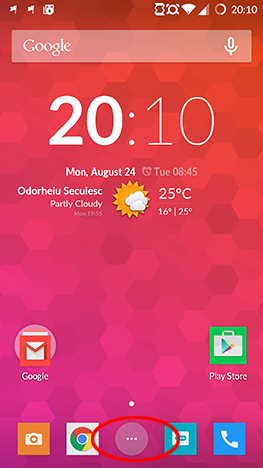
Downloading and installing Microsoft Excel on your Android device takes only a couple of steps: just follow our previous guide. If you're done with the installation, launch Excel. In order to to that, tap the All apps icon on the home screen, that looks like a grid of dots.
Android, Microsoft, Office, Excel, spreadsheet, create, edit, save
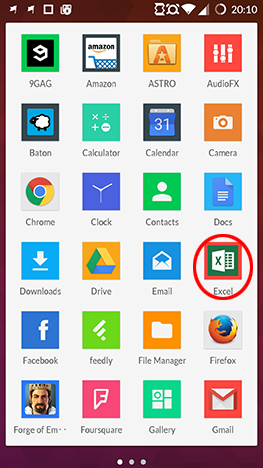
Find the Excel icon and tap it to launch the application.
Android, Microsoft, Office, Excel, spreadsheet, create, edit, save
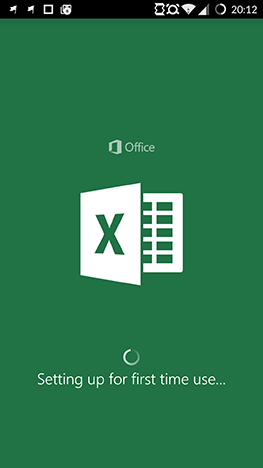
The first startup takes a bit longer than usual, you will need to wait 1-2 minutes at most on the initial setup screen.
Android, Microsoft, Office, Excel, spreadsheet, create, edit, save
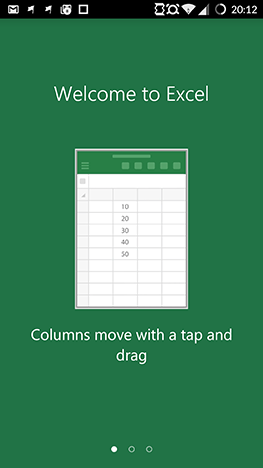
When this is done, you will see a welcome screen, like the one below. Scroll to the right twice to start using Excel.
Android, Microsoft, Office, Excel, spreadsheet, create, edit, save
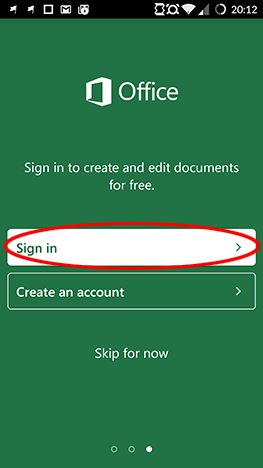
Now you can login using your Microsoft Account, create a new one, or start using the application without an account. You cannot edit or save spreadsheets without a Microsoft Account, so you should tap Sign in to log in. If you don't already have a Microsoft Account (formerly known as Windows Live ID), you can read about what it is and how to create one in this article.
Android, Microsoft, Office, Excel, spreadsheet, create, edit, save
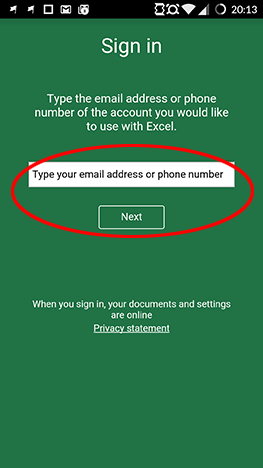
Tap the text field and type in the email address or phone number associated with your Microsoft Account, then tap Next to continue.
Android, Microsoft, Office, Excel, spreadsheet, create, edit, save
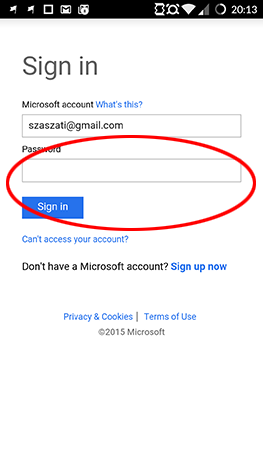
You will now be taken to the Microsoft Account sign-in page. Type your password in the Password field and tap Sign in.
Android, Microsoft, Office, Excel, spreadsheet, create, edit, save
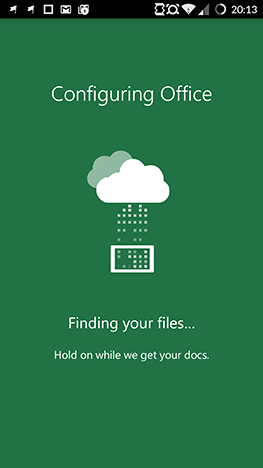
Excel will now connect to your Microsoft Account, which shouldn't take more than a minute.
Android, Microsoft, Office, Excel, spreadsheet, create, edit, save
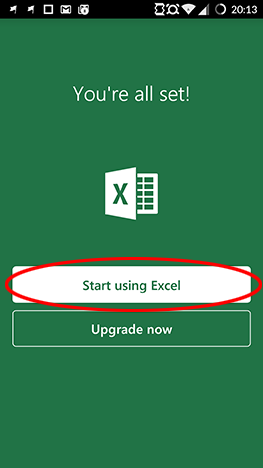
Next, tap Start using Excel to access your files.
Android, Microsoft, Office, Excel, spreadsheet, create, edit, save
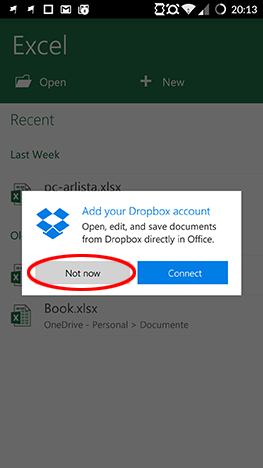
At this point you can add your Dropbox account to access files stored there. We will discuss this in a later tutorial, for now tap Not now to continue.
Android, Microsoft, Office, Excel, spreadsheet, create, edit, save
The list of your Excel files on OneDrive will load as well as any spreadsheets found on your device.
How To Create A New Document On Microsoft Excel For Android
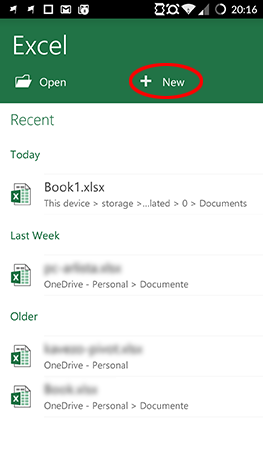
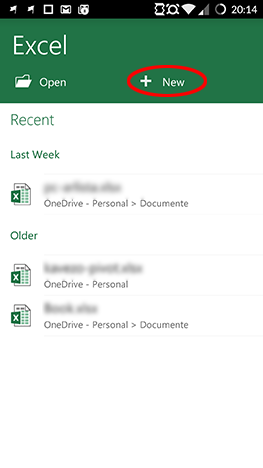
After the initial setup is complete, you can create a new spreadsheet. Tap New to create a new Excel spreadsheet.
Android, Microsoft, Office, Excel, spreadsheet, create, edit, save
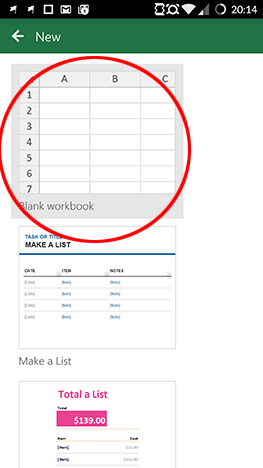
You will see a list of templates. You can choose one of them if you want a preformatted spreadsheet, or just tap Blank workbook to start with the default, empty one.
Android, Microsoft, Office, Excel, spreadsheet, create, edit, save
Now you can start working with those numbers! Here you can enter and format data, similarly to Microsoft Excel on Windows.
How To Save A Spreadsheet On Microsoft Excel For Android
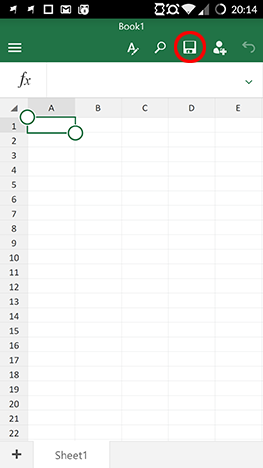
When you're done working on the spreadsheet, tap the Save icon that looks like a floppy disk.
Android, Microsoft, Office, Excel, spreadsheet, create, edit, save
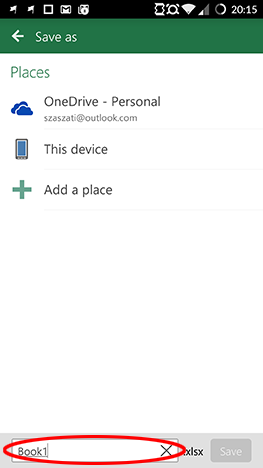
On the next screen, in the bottom row, you can name your spreadsheet. Just tap inside the text field and type a name.
Android, Microsoft, Office, Excel, spreadsheet, create, edit, save
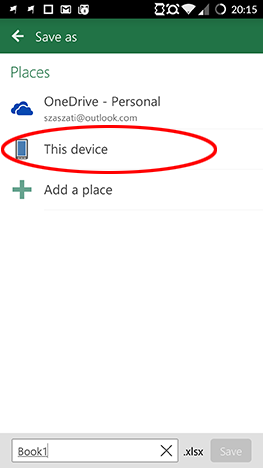
Here you can also choose where to save your spreadsheet. By default, you can save to your OneDrive account, or to the device you're using Excel on. For now, tap This device.
Android, Microsoft, Office, Excel, spreadsheet, create, edit, save
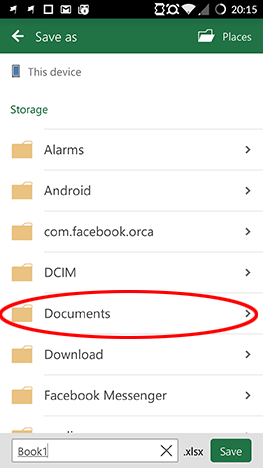
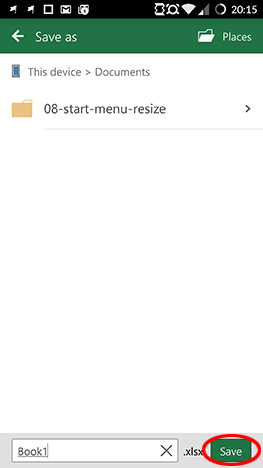
The list of folders on your device will appear. In this demonstration we saved in the Documents folder: tap on it, or on any other folder you would like to save to.
Android, Microsoft, Office, Excel, spreadsheet, create, edit, save
Finally, tap the Save button in the bottom right corner, to save your Excel spreadsheet.
Android, Microsoft, Office, Excel, spreadsheet, create, edit, save
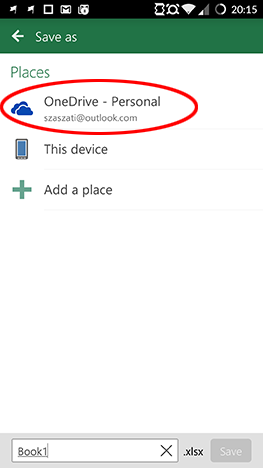
If you would like to save your new spreadsheet to your OneDrive, after tapping the Save icon and naming your document, tap OneDrive.
Android, Microsoft, Office, Excel, spreadsheet, create, edit, save
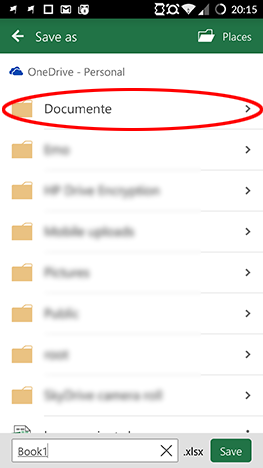
Choose a folder from the ones on your OneDrive and tap on it.
Android, Microsoft, Office, Excel, spreadsheet, create, edit, save
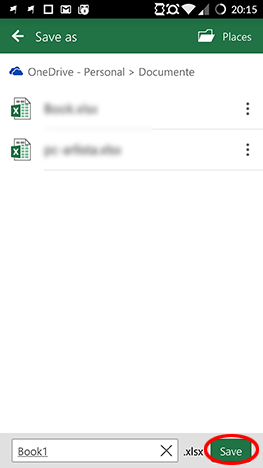
Finally, tap Save to save your spreadsheet.
Android, Microsoft, Office, Excel, spreadsheet, create, edit, save
From now on, when you use Excel, you won't need to go through the whole initial setup: you will see all your spreadsheets from OneDrive and the current device, and you will just need to tap New to create a new one.
Android, Microsoft, Office, Excel, spreadsheet, create, edit, save
Conclusion
In order to get Microsoft Excel running on your Android device you will need to complete an initial setup, but this is a one-time process. You should also have a Microsoft Account to use Excel to its full extent - fortunately the registration process is simple.
After this initial setup and with a Microsoft Account connected, creating and saving an Excel spreadsheet is rather simple, no matter whether you are saving it locally or to the cloud. Keep your eyes on our tutorial series for Microsoft Office on Android, we will be showing you some other features of the apps soon. And leave us a comment regarding your experience with Office on Android!
I created an Excel file on my desktop computer, attached it to an email and then saved it to my phone. I can open it but I cannot save it to a folder on the phone. I get a message “Office can’t save a copy of your file right now. Please try again later.” I don’t think the file is opened anywhere else.







Discussion (1)
I created an Excel file on my desktop computer, attached it to an email and then saved it to my phone. I can open it but I cannot save it to a folder on the phone. I get a message “Office can’t save a copy of your file right now. Please try again later.” I don’t think the file is opened anywhere else.