




When Snapchat videos don’t play, the cause usually sits with your connection, app settings, device restrictions, or a temporary Snapchat outage. You can fix most cases in a few minutes by following the steps below, starting with the quickest checks.
Table of contents
Check if Snapchat is down
Sometimes the problem isn’t your phone. Snapchat server issues can stop videos from loading, playing, or buffering across the app.
How to confirm a Snapchat outage
Check Snapchat’s official status channels or recent user reports to see if others face the same issue. If videos fail for many users at once, wait until Snapchat restores service.

Restart Snapchat and your phone
Temporary glitches often break video playback. A quick restart clears stalled processes and resets media handling.
Fully close and reopen Snapchat
Swipe Snapchat away from recent apps, then open it again. This refreshes the app session and reloads video services.
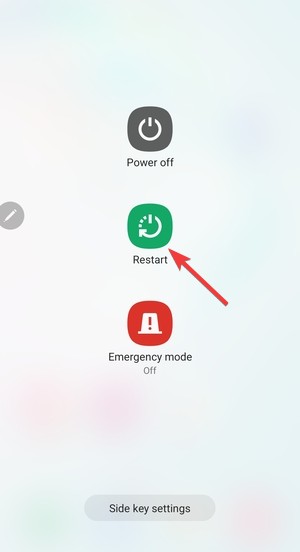
Restart your device
Restarting your phone resets network connections and system media components that Snapchat depends on.
Check your internet connection
Snapchat videos require a stable connection to download and decode properly. Weak or restricted networks often cause endless loading screens.
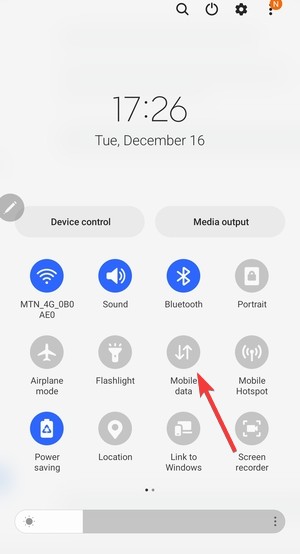
Switch between Wi-Fi and mobile data
Turn off Wi-Fi and test mobile data, or do the opposite. This helps identify router, hotspot, or carrier issues.
Disable VPNs and private DNS
VPNs and custom DNS services can block Snapchat’s media servers. Turn them off and retry video playback.
Turn off data and battery restrictions
Modern phones aggressively limit background activity, which can stop Snapchat videos mid-load.
Disable Data Saver or Low Data Mode
Turn off Data Saver on Android or Low Data Mode on iPhone. These features pause video downloads to save bandwidth.
Remove battery optimization for Snapchat
Exclude Snapchat from battery optimization so the system doesn’t suspend video loading or playback.
Update Snapchat and your operating system
Outdated software often struggles with newer video formats and codecs.
Update the Snapchat app
Open the Play Store or App Store and install the latest Snapchat version. Updates often fix known playback bugs.
Install pending system updates
System updates refresh media frameworks that apps use for video decoding. So make sure to update your phone's software by going to Settings > Software update. After the update is complete, restart your phone and check if the issue is fixed.
Clear cache or reinstall Snapchat
Corrupted temporary files can stop videos from playing, even when everything else looks fine.
Clear Snapchat cache (Android)
Go to Settings > Apps >Snapchat > Storage and click Clear cache to remove temporary files. This keeps your account and chats intact.
Alternatively, open the Snapchat app, tap your profile picture in the top left corner, and tap the gear icon in the top right corner on the next page. Now, scroll down and click the Clear cache option.

Reinstall Snapchat (iPhone and Android)
Uninstall Snapchat, restart your phone, and install it again. This creates a clean app environment.
Check permissions and storage space
Snapchat needs access to system resources to load and play videos.
Allow camera, microphone, and storage access
Go to Settings > Apps > Snapchat and tap Permissions on Android. Next, enable all required access. Restricted permissions can block media playback.
Free up device storage
Low storage prevents Snapchat from buffering or saving video files. Delete unused apps or files if space runs low.
Identify content-specific issues
Sometimes the issue affects only certain video types, not the entire app.
Snapchat Stories vs Chats vs Spotlight
Test videos in Stories, Chats, and Spotlight to isolate where the problem appears.
No sound or black screen during playback
Sound issues point to audio routing problems, while black screens usually indicate video decoding failures.
When nothing works
If videos still won’t play, the issue may be with your account or Snapchat itself.
Log out and log back in
Open the Snapchat app, tap the Profile icon in the top left corner, and tap the Settings icon in the top right corner on the next page. Now, scroll down and tap the Log out option.
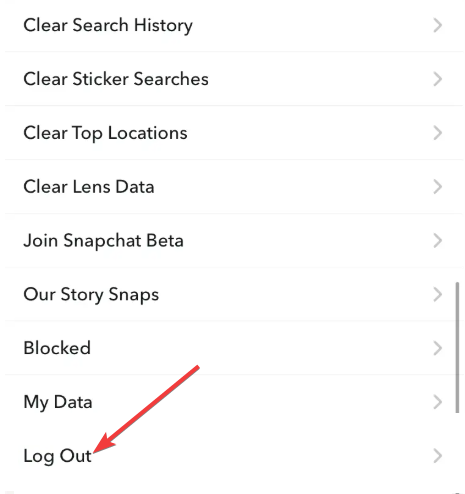
Logging out refreshes account tokens and can restore media access.
Wait for a Snapchat-side fix
If none of the fixes help and others report similar issues, wait for Snapchat to roll out a server or app fix.
FAQs
Why do Snapchat videos load forever but never play?
This usually happens due to slow connections, data restrictions, or temporary server issues.
Can a Snapchat ban stop videos from playing?
Temporary account restrictions can limit some features, including media playback.
Will reinstalling Snapchat delete my chats?
Snapchat stores chats on its servers, so reinstalling the app won’t remove saved conversations.
Summary
- Check whether Snapchat servers are down.
- Restart Snapchat and your phone.
- Test another internet connection and disable VPNs.
- Turn off data and battery restrictions.
- Update, clear cache, or reinstall Snapchat if needed.
Most Snapchat video issues resolve after a restart or network change. If none of the fixes work and reports spike online, wait for Snapchat to address the problem on their end.


Discussion (0)
Be the first to comment.