




Snapchat’s Snap Map can share your live location with friends, which is not always ideal. If you want more privacy without disabling location services completely, there are several ways to pause Snapchat location without turning it off.
At the time of writing, Snapchat still offers flexible controls through Ghost Mode and device-level location settings on both Android and iPhone. The steps below help you stay visible on Snapchat while limiting when and how your location updates.
Use Ghost Mode To Pause Snapchat Location
Ghost Mode works like Snapchat’s privacy shield. It hides your location on Snap Map without requiring you to revoke location permissions entirely.
- Open the Snapchat app.
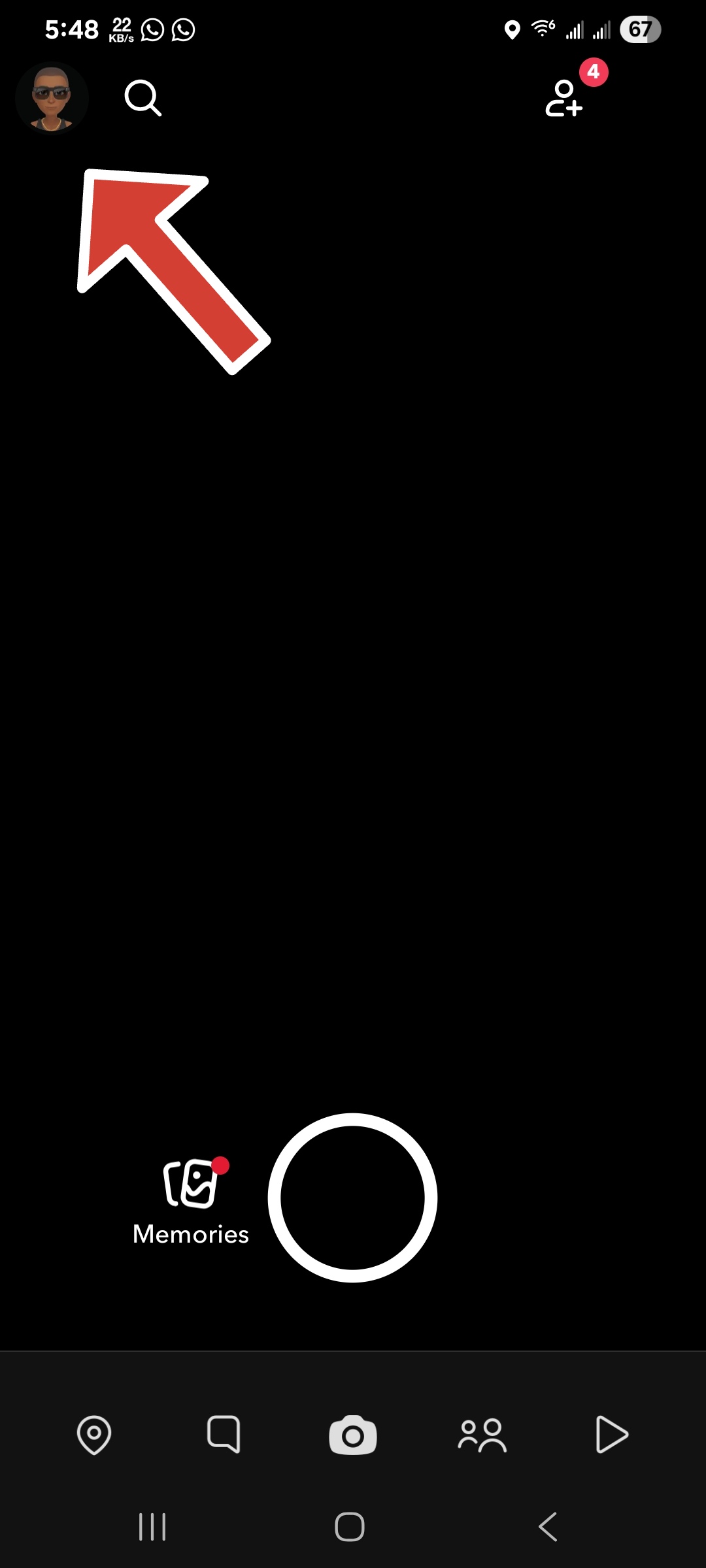
- Tap your profile icon in the top-left corner.
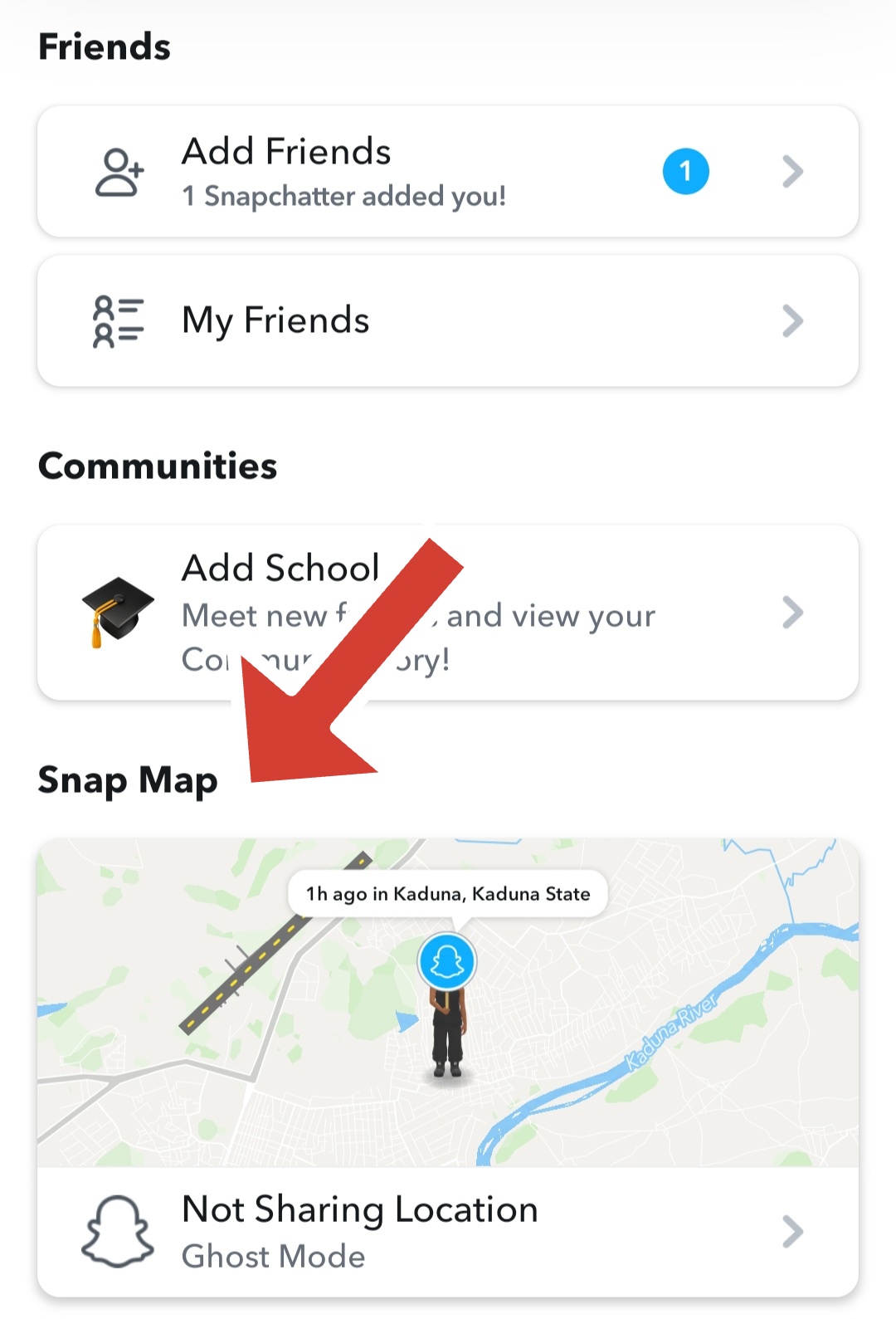
- Select Snap Map.
- Enable Ghost Mode.
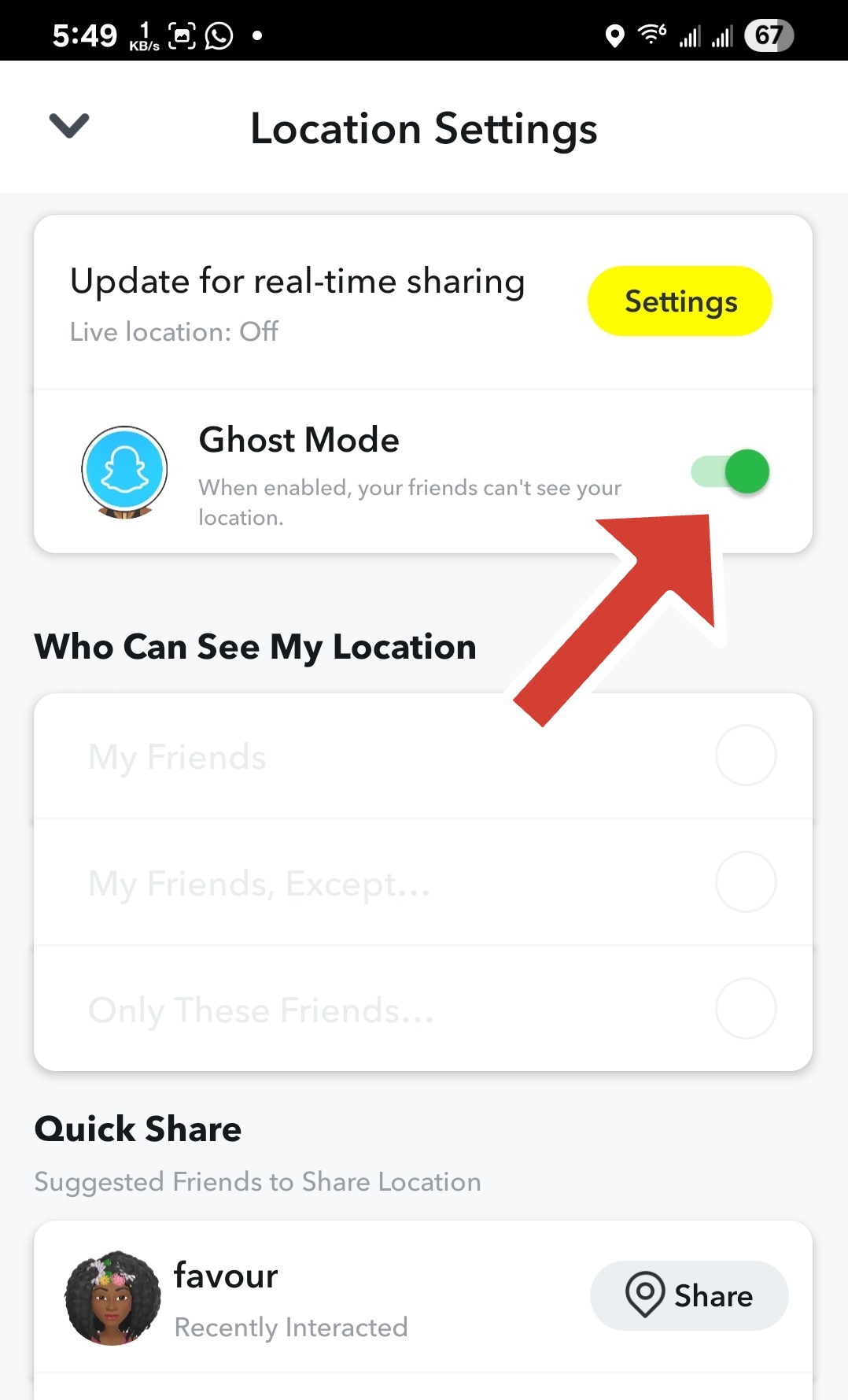
- Choose a duration such as 3 hours, 24 hours, or Until Turned Off.
When Ghost Mode is active, your Bitmoji disappears from Snap Map, signaling that your location is paused.
Turn Off Precise Location Access
If you want Snap Map to work without revealing your exact whereabouts, disabling precise location is an effective middle ground. Snapchat will still see an approximate area instead of your real-time position.
- Open your phone’s Settings.
- Go to Apps and select Snapchat.
- Open Location permissions.
- Turn off Precise Location.
This option works on both Android and iPhone and keeps Snap Map functional with reduced accuracy.
Allow Location Access Only While Using The App
Restricting location access ensures Snapchat updates your location only when the app is open. This prevents background tracking while keeping core features available.
- Open system Settings.
- Go to Apps and select Snapchat.
- Open Location permissions.
- Select Allow Only While Using The App.
Your location stops updating once you close Snapchat.
Block Snapchat Location Access Completely
If privacy is your top priority, you can stop Snapchat from accessing your location altogether. This fully disables Snap Map visibility.
- Open device Settings.
- Go to Apps and select Snapchat.
- Open Location permissions.
- Select Don’t Allow or Never.
Snap Map will no longer display your location, and your Bitmoji may disappear after inactivity.
Troubleshooting Common Problems
If your Bitmoji vanishes unexpectedly, Snapchat may not have received a location update within 24 hours. Opening the app briefly can restore visibility.
If location settings keep reverting, check system-level privacy or battery optimization settings that may override app permissions.
Tips
- Use Ghost Mode for temporary privacy instead of permanent blocks.
- Disable Precise Location for a balance between privacy and usability.
- Review location permissions after app or system updates.
- Avoid Always Allow location access unless necessary.
FAQ
Can I pause Snapchat location without my friends knowing?
No. When location updates stop, your Bitmoji disappears from Snap Map.
Does Ghost Mode turn off Snap Map completely?
No. It hides your location while keeping Snap Map enabled.
Will Snapchat still work without location access?
Yes. Chat, snaps, and stories function normally without location.
Why does my location update even when Snapchat is closed?
This happens when location access is set to Always.
Summary
- Ghost Mode pauses Snapchat location temporarily or indefinitely.
- Disabling Precise Location limits accuracy without blocking access.
- Allowing location only while using the app prevents background updates.
- Blocking location access fully disables Snap Map visibility.
Conclusion
Pausing Snapchat location without turning it off gives you control over when your whereabouts appear on Snap Map. By combining Ghost Mode with smart permission settings, you can maintain privacy without sacrificing everyday Snapchat features.


Discussion (0)
Be the first to comment.