




Google Maps packs a lot of information into a small screen, so icons do most of the talking. If you understand what each symbol means, you can spot traffic issues faster, follow turn-by-turn directions with more confidence, and avoid tapping the wrong button when you are in a hurry.
This guide breaks down the most common Google Maps symbols and icons you will see on iPhone, Android, and the web. Icon shapes can change slightly after app updates, but the meaning stays consistent across devices.
Google Maps Home Screen Icons
The home screen icons help you search, change map views, and start directions quickly. If you know these shortcuts, you can get where you need to go with fewer taps.
- Search Bar: Find an address, business, landmark, or category like “gas station using the Search Bar.”
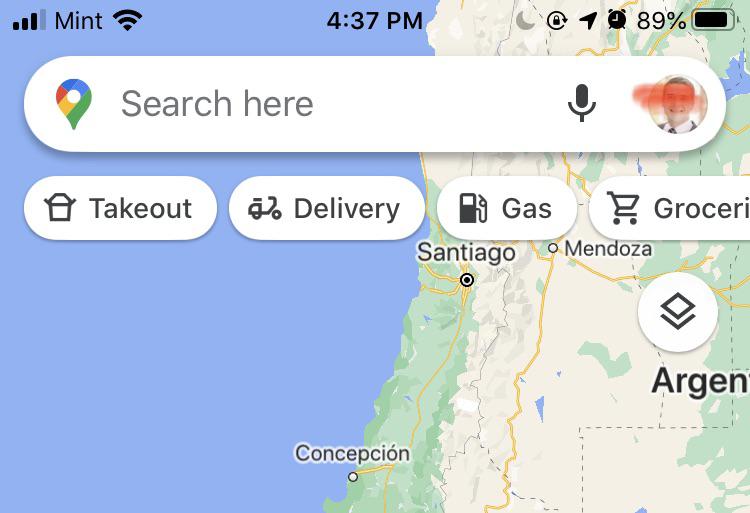
- Microphone: Start a hands-free search using voice input.
- Layers Or Map Type: Switch views like satellite or terrain, and toggle map layers.
- Current Location Button: Re-center the map on your position.
- Directions: Open the directions panel to plan a route.
- Your Profile Or Menu: Access settings, your contributions, and account options.
Your Location Marker And GPS Accuracy Symbols
Your location marker tells you where Google Maps thinks you are right now. The surrounding shapes help you judge accuracy and direction before you start moving.
- Blue Dot: Your current GPS location.

- Light Blue Circle: Your location accuracy area, where a bigger circle usually means less precision.
- Directional Beam Or Cone: The direction your phone detects you are facing.
- Compass: Resets map orientation so you can line up north and your route.
Search And History Symbols
The search screen uses small icons to show what you searched for, what you saved, and what you can edit. These symbols help you retrace a place quickly without typing again.
- Back Arrow: Return to the map from search results.
- Clock Or History Icon: Indicates recent searches or places you viewed.

- Pencil Or Edit Icon: Edit saved labels like Home, Work, or Parking.
- Three Dots Menu: Opens more actions like sharing, saving, or reporting issues.
Directions Input Icons
The directions screen focuses on start and end points plus travel modes. These icons help you switch routes and compare travel options fast.
- Starting Point: Usually “Your Location,” but you can set a different start.
- Destination Field: Where you enter the place you want to reach.
- Swap Icon: Switch your start and destination in one tap.
- Travel Mode Icons: Car, public transit, walking, rideshare, and cycling, depending on availability.
- Add Stop: Insert stops like food, fuel, or pickups on the way.
Route Preview Symbols
Route preview icons help you inspect a trip before you start navigation. You can change route preferences, share directions, or save a trip for later.
- Blue Route Line: Your suggested route to the destination.
- Alternate Routes: Additional routes shown in lighter lines.
- Start Button: Begins turn-by-turn navigation.
- Options Or Three Dots: Adjust route preferences like avoiding tolls or highways, when available.
- Share: Send the route to someone else.
- Save: Bookmark the route or destination to a list.
Live Navigation Icons
During navigation, icons help you stay oriented, control voice guidance, and report issues on the road. Learning these symbols helps you avoid wrong turns and missed exits.
- Next Turn Arrow: Shows your upcoming turn or lane guidance.
- Re-Center: Snaps the camera back to your current position.
- Exit Or X: Stops navigation and returns to the map.
- Sound Icon: Toggles voice guidance between muted, alerts only, and full guidance.
- Search Along Route: Find places like gas, food, or restrooms without leaving navigation.
- Report: Submit a road report when available, like a crash or hazard.
Traffic Colors And Road Condition Symbols
Traffic colors provide a quick read of how fast vehicles move on a road. Road condition icons flag closures, accidents, and other disruptions that can affect your route.
- Green: Traffic flows normally.
- Orange: Moderate slowdown.
- Red: Heavy congestion and delays.
- Dark Red: Severe congestion or stop-and-go traffic.
- Road Closure Symbol: A closed road or blocked access point.
- Construction Icon: Roadwork that may slow travel or change lanes.
- Accident Icon: A reported crash or incident.
Public Transit And Boundary Symbols
Transit symbols show rail lines and major transit points. Boundary lines help you understand the edges of a city, region, or area you searched for.
- Train Or Metro Line: Colored lines that represent transit routes.
- Station Icons: Marks stops, terminals, or major hubs.
- Dotted Boundary: A border for a city, district, or searched area.
Saved Places And Personal Markers
Saved icons help you recognize places you pinned earlier. They can replace default place icons, so you can spot favorites faster but lose some category context.
- Star: A starred place you saved.
- Heart: A favorite location.
- Flag: “Want To Go” locations.
- Home: Your saved home address marker.
- Work: Your saved work address marker.
- Custom List Icon: A symbol tied to a list you created.
Common Place Icons You See On The Map
Place icons help you identify what a location is before you tap it. You will usually see these while browsing nearby businesses or searching by category.
- Food And Drink: Restaurants, cafes, and bars.
- Shopping: Stores, malls, and grocery locations.
- Gas: Gas stations and fuel stops.
- Parking: Public lots and garages.
- Hotel: Hotels and lodging options.
- Medical: Hospitals, urgent care, and pharmacies.
- Attractions: Museums, landmarks, and tourist spots.
- Outdoors: Parks, trails, campgrounds, and scenic areas.
- Public Services: Post offices, libraries, police, and government buildings.
- Worship: Churches, mosques, temples, and other places of worship.
Troubleshooting Common Problems
If an icon seems missing or incorrect, the issue usually comes from outdated app data, weak GPS, or the wrong map layer. These quick checks help you confirm what you are seeing.
- Icons Look Different Than This Guide: Update Google Maps, then force-close and reopen the app.
- Blue Dot Jumps Around: Turn Location Services on, then calibrate location by moving your phone in a figure-eight motion if prompted.
- Traffic Colors Do Not Show: Turn on the Traffic layer in map settings, then zoom in closer.
- Navigation Buttons Missing: Start a route again, then check if you entered navigation mode or only preview mode.
- Saved Icons Cover Place Icons: Open Saved, then adjust your lists so fewer markers appear at once.
Tips
- Use the Re-Center button before you start moving so the map matches your real direction.
- Switch to Satellite view when you need visual landmarks like parking lots or building shapes.
- Use Search Along Route only when parked, so you do not miss turns.
- Save key locations as Favorites so they stay easy to find in unfamiliar areas.
- Turn on the Traffic layer when planning long trips to avoid predictable slowdowns.
FAQ
What does the blue dot mean on Google Maps?
The blue dot marks your current location. The surrounding circle and beam help you judge accuracy and direction before you start navigating.
What do the traffic colors mean on Google Maps?
Green usually means normal flow, orange means moderate slowdown, and red or dark red indicates heavy congestion and longer delays.
Why do icons look different on my phone?
Google updates the interface often, so icon styling can shift between versions. The function usually stays the same, especially for navigation and location controls.
Can I hide Google Maps icons to reduce clutter?
You can reduce clutter by changing layers, zooming, or searching for a specific place type. Google Maps does not offer a single toggle to hide every default icon.
Summary
- Home screen icons help you search, change layers, and start directions fast.
- The blue dot, circle, and beam show your location, accuracy, and direction.
- Navigation icons control routing, voice guidance, and reporting while driving.
- Traffic colors and road symbols warn you about congestion, closures, and incidents.
Conclusion
Google Maps icons act like a built-in legend for navigation, search, and traffic. Once you recognize the most common symbols, you will spend less time guessing and more time getting to the right place with fewer surprises.


Discussion (0)
Be the first to comment.