




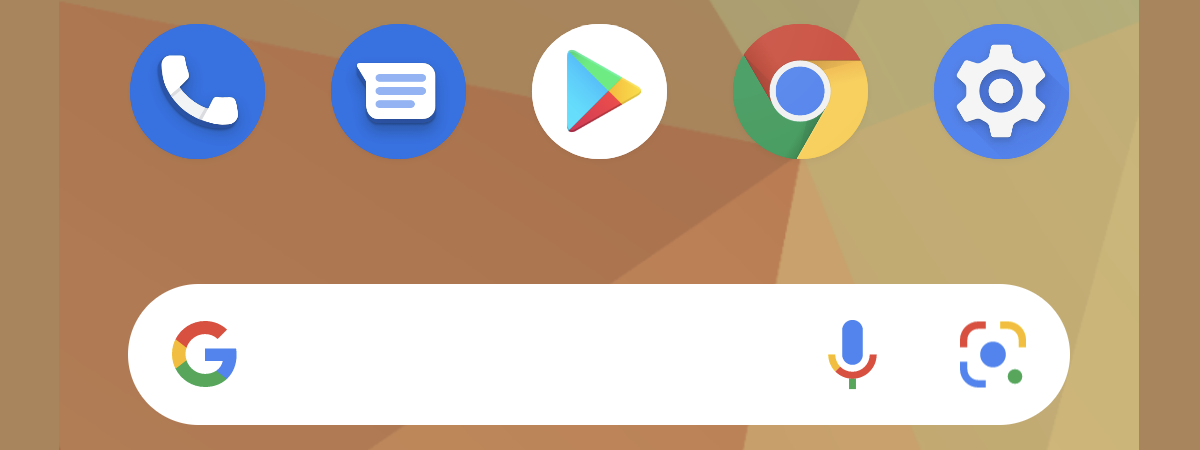
The Google Search bar on your Android home screen provides quick access to search, voice commands, and more. With a simple tap or voice prompt, you can find anything online in seconds, making it an essential feature for those who want fast and efficient access to information.
Step 1: Long-press on the home screen
To begin, long-press on an empty area of your Android home screen. This action opens a menu with various options for customising your home screen.
Step 2: Select widgets
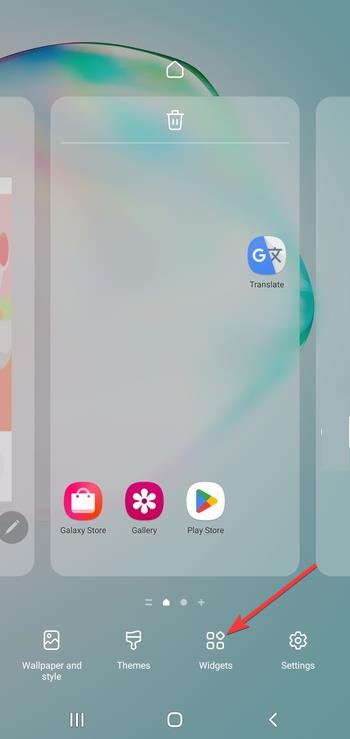
From the options that appear, tap on Widgets. This will open a list of all available widgets that can be added to your home screen, including the Google Search bar.
Step 3: Drag the Google Search widget to home screen
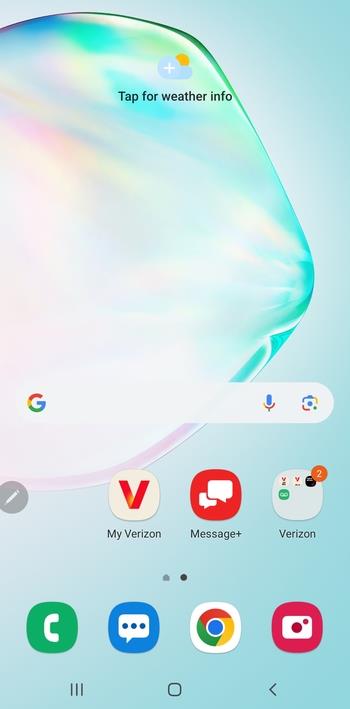
Once you’re in the Widgets menu, locate the Google widget. Press and hold the Google Search widget, then drag it to an empty spot on your home screen. The widget will appear on your screen, ready to use.
Customising your Google Search bar widget
Adjust size and position

After adding the Google Search bar, you can adjust its size by tapping and holding the widget until resizing handles appear. Drag the handles to make the widget larger or smaller, and reposition it by moving it around the screen until it fits your home screen layout.
Change the look of the Widget
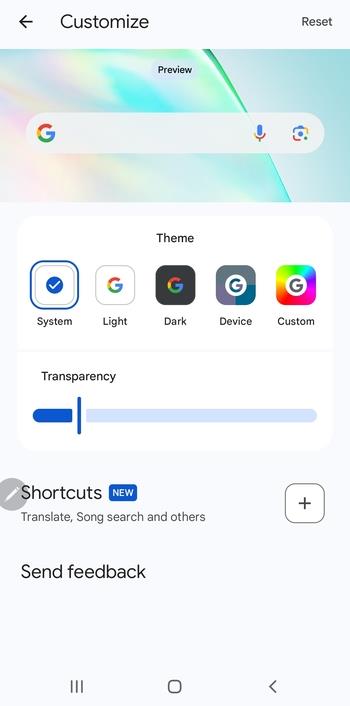
To customise the widget’s appearance, tap on it, and depending on your Android version, you may see options to change its background, text colour, or transparency. You can personalise it to match your style and preferences, ensuring it blends seamlessly with the rest of your home screen.
Troubleshooting missing or unresponsive Google Search widget
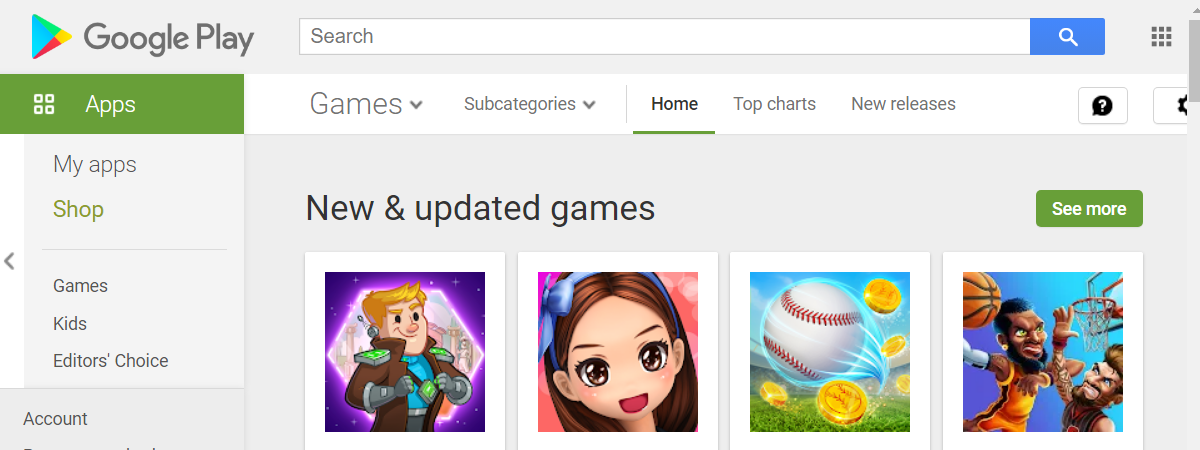
- When the widget is missing: If the Google Search bar widget doesn’t appear in the widgets list, make sure your Google app is up-to-date. Visit the Google Play Store, check for updates, and install any available updates. If that doesn’t resolve the issue, try restarting your device.
- Fixing an unresponsive widget: If the widget becomes unresponsive or stops reacting to taps, clearing the Google app’s cache can help. Go to Settings → Apps → Google, tap Storage, and then select Clear Cache. If the issue persists, reset the home screen layout by long-pressing an empty area of the home screen and selecting Home settings → Reset layout.
Optimising the Google Search bar for better performance
- Disable search suggestions: To optimise the Google Search bar for performance and privacy, you can disable search suggestions. Open the Google app, go to Settings → Google Assistant → Suggestions, and toggle off the suggestions for a cleaner, more streamlined experience.
- Remove Google Search history: For privacy reasons, you may want to clear the search history from the widget. You can do this by opening the Google app, tapping on your profile icon, going to “Search History,” and clearing any saved searches.
FAQs
Can I add the Google Search bar to any Android device? Yes, most Android devices allow you to add the Google Search bar to your home screen. However, the process may vary slightly depending on the device manufacturer and custom launcher.
What do I do if the Google Search bar is missing? If the Google Search bar is missing, make sure your Google app is updated. Try restarting your device or checking the Widgets menu for the Google Search widget.
Can I resize the Google Search bar widget? Yes, you can resize the Google Search bar widget by long-pressing it and adjusting the size using the resizing handles that appear.
Can I add the Google Search bar using third-party launchers? Yes, third-party launchers like Nova Launcher also support adding the Google Search bar widget, allowing you to customise the widget and home screen layout further.
Summary
- Long press on the home screen to open the options and select Widgets.
- Drag the Google Search widget from the widgets menu to your home screen.
- Resize and reposition the widget to fit your layout.
- Customise the appearance of the Google Search bar by changing its background and transparency.
- Troubleshoot missing or unresponsive widgets by updating the Google app or clearing cache.
Conclusion: Enjoy easy access to Google Search
Adding the Google Search bar to your Android home screen is a quick and simple way to enhance your device’s functionality. With easy access to search, voice commands, and customisation options, the widget makes your Android experience more efficient and personalised.
Whether you're troubleshooting a missing widget or customising its appearance, these steps will ensure you can enjoy Google Search at your fingertips.

Discussion (0)
Be the first to comment.