




The “This message has not been downloaded from the server” error on iPhone usually appears in the Mail app when an email fails to load its content. This can block access to important messages and often happens due to network issues, server problems, or incorrect mail settings.
At the time of writing, this issue affects both iPhone and iPad users across iCloud Mail and other email providers. The fixes below address the most common causes and still work on current iOS versions.
Check If The Mail Server Is Online
Email messages cannot download if the mail server is temporarily unavailable. This often affects iCloud Mail but can also occur with third-party email services.
- Wait a few minutes and try reopening the message.
- Check whether other emails are loading normally.
- Test email access on another device using the same account.
Force Close And Reopen The Mail App
Temporary Mail app glitches can interrupt communication with the server. Restarting the app forces a fresh connection.
- Open the App Switcher.
- Swipe up on the Mail app to close it.
- Reopen the Mail app and try downloading the message again.
Restart Your iPhone
System-level iOS glitches can prevent emails from downloading correctly. Restarting clears temporary issues affecting background processes.
- Turn off your iPhone using the power controls.
- Wait at least ten seconds.
- Turn the device back on and open Mail.
Check Your Internet Connection
A weak or unstable network connection is one of the most common reasons emails fail to download from the server.
- Switch between Wi-Fi and cellular data.
- Toggle Airplane Mode on and off.
- Restart your Wi-Fi router if needed.
Make Sure Your iPhone Has Enough Storage
If your iPhone storage is nearly full, Mail may not be able to download new message content.
- Open Settings.
- Go to General and tap iPhone Storage.
- Free up space if available storage is low.
Check Mail Fetch And Push Settings
Incorrect mail fetch settings can stop messages from syncing properly with the server.
- Open Settings and tap Apps.
- Select Mail
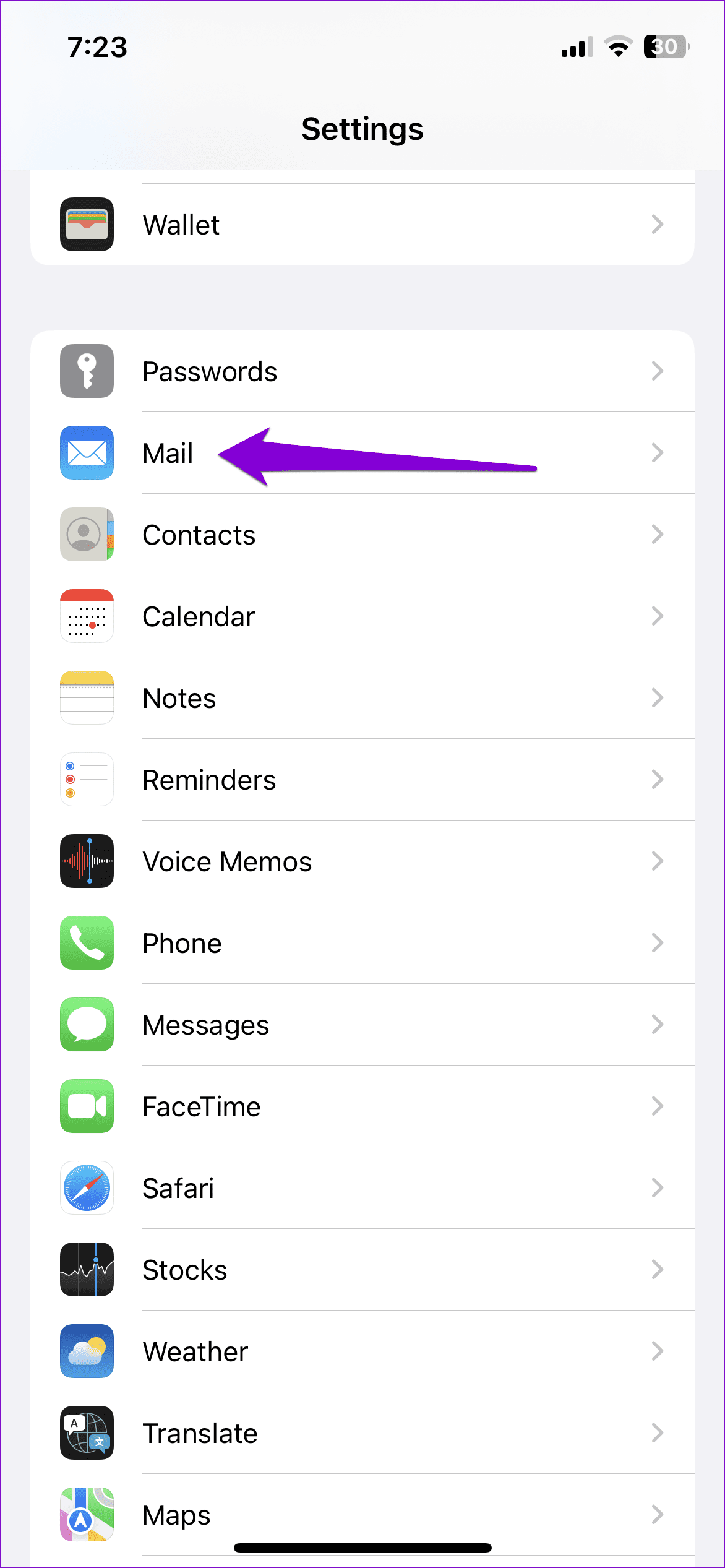
- Tap accounts.
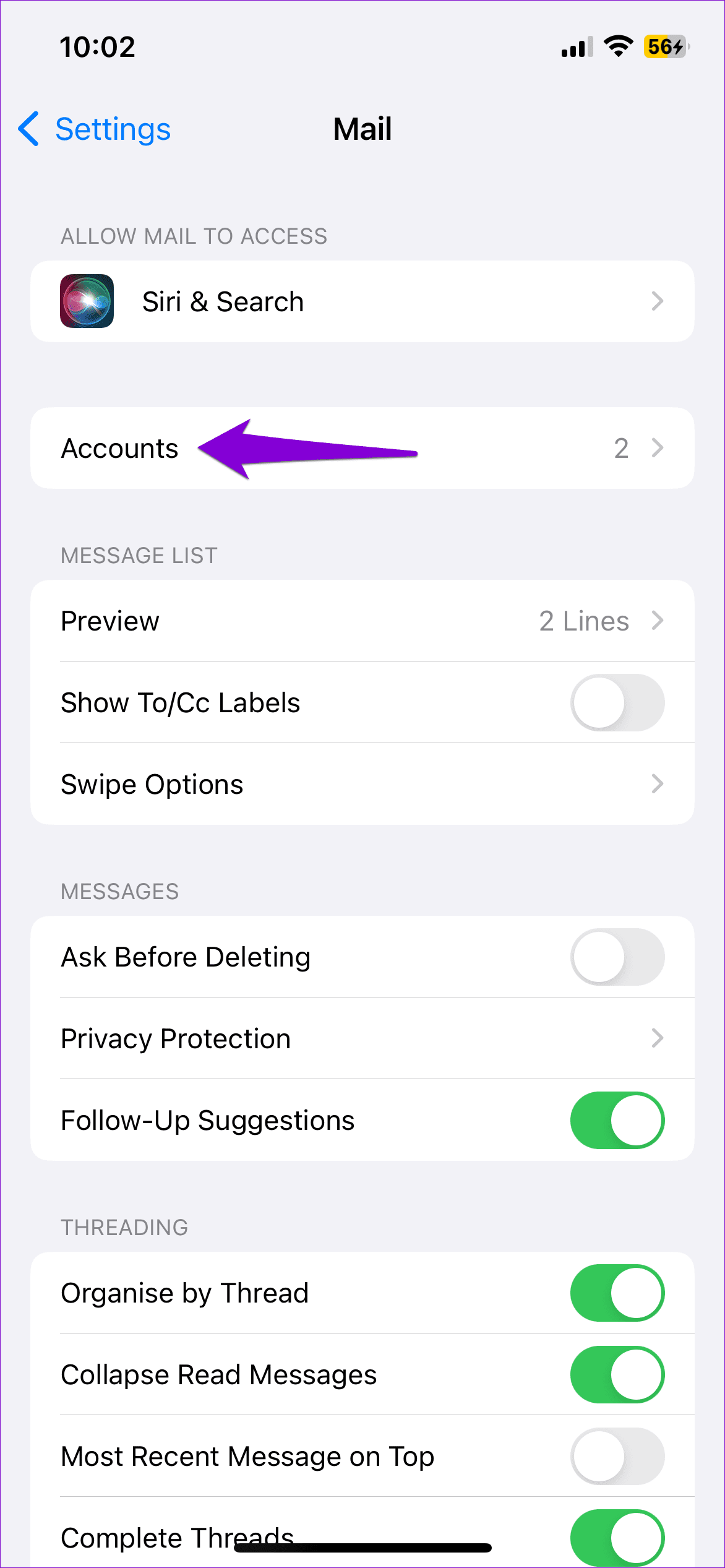
- Tap Fetch New Data.
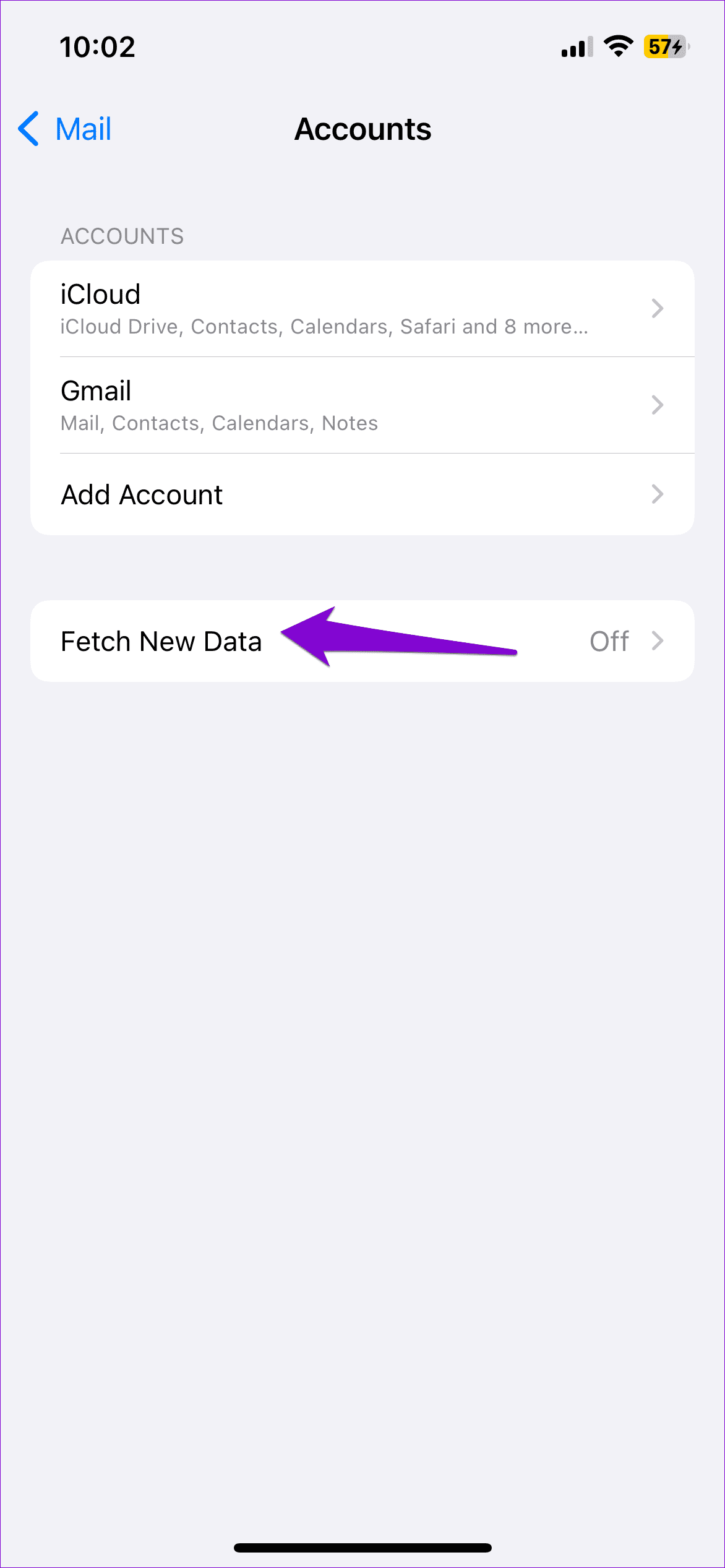
- Enable Push and select Automatic.
Turn Off Mail Privacy Protection
Mail Privacy Protection can sometimes interfere with message downloads by limiting server connections.
- Open Settings and tap Apps.
- Select Mail and tap Privacy Protection.
- Turn off Protect Mail Activity.
Remove And Re-Add Your Email Account
Corrupted account settings can prevent emails from downloading fully. Re-adding the account resets its configuration.
- Open Settings and tap Apps.
- Select Mail and tap Mail Accounts.
- Choose the affected account and tap Delete Account.
- Add the account again and sign in.
Troubleshooting Common Problems
If only older emails show this error, the message may not be stored locally and requires a stable connection. If the error appears across multiple accounts, system settings are likely the cause.
Persistent errors after re-adding accounts may indicate server-side limitations or provider outages.
Tips
- Keep at least several gigabytes of free storage available.
- Use Push mail when supported by your provider.
- Avoid aggressive battery or data restrictions.
- Restart Mail after changing settings.
- Update iOS regularly to receive bug fixes.
FAQ
Does this error mean the email is lost? No, the message still exists on the server.
Does deleting the Mail app fix this issue? It can, but re-adding the email account is usually enough.
Can this affect non-iCloud email accounts? Yes, the error can appear with Gmail, Outlook, and other providers.
Summary
- The error is usually caused by network or server issues.
- Mail app glitches can block message downloads.
- Storage and fetch settings play a key role.
- Re-adding the account often resolves the problem.
Conclusion
The “This message has not been downloaded from the server” error on iPhone is frustrating but fixable. By checking connectivity, adjusting mail settings, and refreshing your account, you can restore normal email access and prevent the issue from returning.


Discussion (0)
Be the first to comment.