




If you’re trying to sign out of the Mail app on an iPhone or iPad, you won’t find a logout button. Apple designs the Mail app around system-level accounts, not app-level sessions. To sign out, you either remove the email account entirely or disable Mail syncing for that account.
Table of contents
- Why you can’t sign out of the Mail app on iPhone or iPad
- What “signing out” actually means in the Mail app
- How to sign out of Mail on iPhone and iPad by removing an email account
- How to temporarily sign out of Mail without deleting the account
- Sign out of email apps that are not Apple Mail
- iPhone vs iPad: Are the steps different?
- Tips for managing email privacy on shared iPhones and iPads
- FAQs about signing out of Mail on iPhone and iPad
- Summary
Why you can’t sign out of the Mail app on iPhone or iPad
Apple’s Mail app does not support manual sign-out. It pulls email directly from accounts added to your device, so Mail stays signed in as long as the account exists in Settings.
What “signing out” actually means in the Mail app
Signing out means removing the email account from your device or turning off Mail access for that account. Both actions stop Mail from downloading or showing messages.
How to sign out of Mail on iPhone and iPad by removing an email account
Removing the account fully signs you out and deletes Mail data from the device. This option works best if you no longer need the account on that iPhone or iPad.
Remove an email account from iPhone or iPad settings
Follow these steps to completely sign out of Mail:
- Open Settings > Apps.
- Tap Mail.
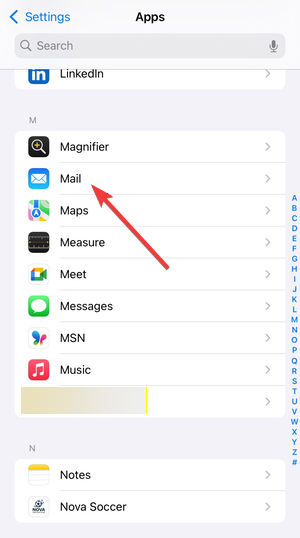

- Select Mail Accounts.
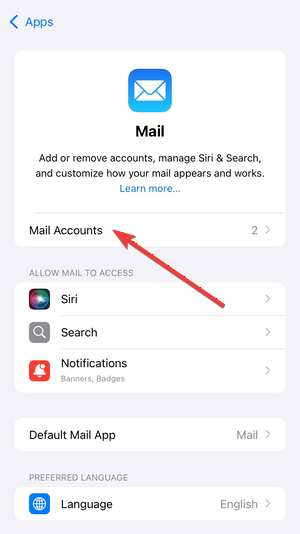

- Tap the email account you want to remove.
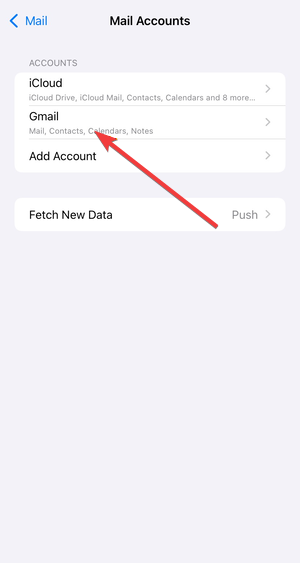

- Now, tap Delete Account.
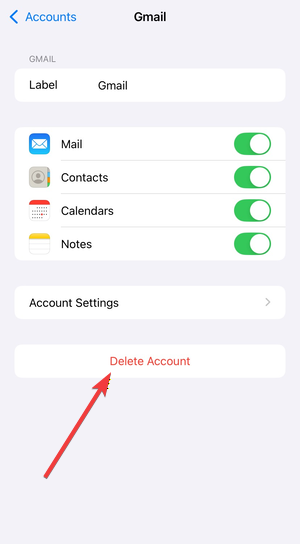

- Confirm by tapping Delete from My iPhone or Delete from My iPad.
Mail stops syncing immediately after you remove the account. This can be useful if a specific email is not working on iPhone or iPad.
What happens after you remove a Mail account
iOS deletes emails, folders, and attachments stored locally on the device. Your messages remain safe on the email provider’s servers and reappear if you add the account again.
How to temporarily sign out of Mail without deleting the account
If you want a temporary solution, disable Mail syncing instead of removing the account. This method keeps the account available for other services.
Turn off Mail sync for a specific email account
Use this option to block Mail access while keeping contacts or calendars:
- Open Settings > Apps.
- Tap Mail and then Mail Accounts.
- Select the email account.
- Toggle Mail off.
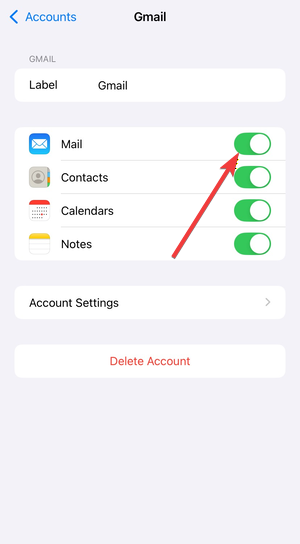
The Mail app hides that inbox and stops fetching messages.
When disabling Mail sync is the better option
This approach works well for work emails, shared devices, or short privacy breaks. You avoid re-entering passwords when you need Mail again.
Sign out of email apps that are not Apple Mail
Many users open Gmail or Outlook instead of Apple Mail. Those apps handle sign-out differently.
How to sign out of Gmail, Outlook, and Yahoo Mail apps
Third-party email apps include true sign-out options inside their settings. Open the app, go to account settings, and tap Sign out or Remove account.
iPhone vs iPad: Are the steps different?
The steps remain the same on iPhone and iPad. Menu names match across iOS and iPadOS, although screen layouts may look wider on iPad.
Tips for managing email privacy on shared iPhones and iPads
- Disable Mail sync instead of deleting accounts.
- Use Screen Time restrictions to limit Mail access.
- Remove accounts before selling or giving away a device.
FAQs about signing out of Mail on iPhone and iPad
Can I sign out of Mail without deleting my email account?
Yes. Turn off the Mail toggle for the account instead of deleting it.
Will deleting a Mail account erase my emails permanently?
No. Emails stay on the provider’s server and remain accessible elsewhere.
Why doesn’t Apple allow signing out of the Mail app?
Apple links Mail access to system accounts rather than app sessions.
Summary
- The Mail app does not include a sign-out button.
- Removing the email account fully signs you out.
- Disabling Mail sync offers a temporary alternative.
- Third-party email apps support real sign-out options.
Removing or disabling an email account gives you full control over Mail access on iPhone and iPad. Choose full removal for permanent sign-out or disable Mail sync when you need a temporary break.


Discussion (0)
Be the first to comment.