



Low call volume on iPhone can make conversations frustrating, especially when the caller sounds muffled or barely audible. This issue often appears after iOS updates, but simple settings, accessories, or network problems can also reduce in-call audio.
Below are reliable ways to fix low call volume on iPhone and restore clear, consistent sound during phone calls.
Adjust The Call Volume During A Call
Call volume controls work only while you are actively on a call. If the volume was lowered accidentally, audio may sound faint even when media volume seems fine.
- Make or answer a phone call.
- Press the Volume Up button on the side of the iPhone.
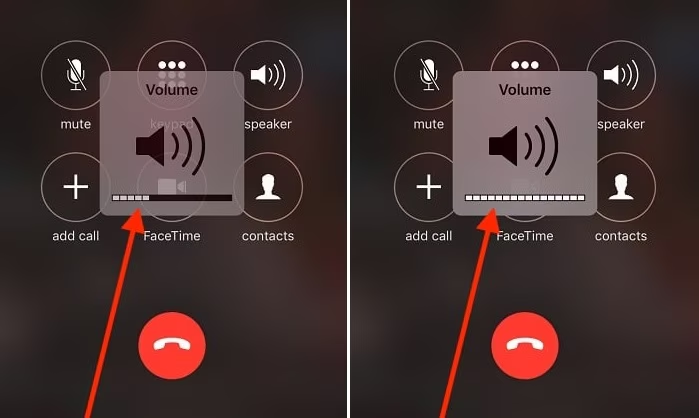
- Enable Speaker briefly to check if the audio improves.
Check If The Other Caller Is Muted
Sometimes the issue comes from the other end of the call. If the caller has muted their microphone, audio may drop suddenly.
- Ask the other person to confirm their mute setting.
- End the call and redial if the audio does not return.
Turn Off Phone Noise Cancellation
Phone Noise Cancellation can reduce background sounds, but it may also lower voice volume in some environments.
- Open Settings.
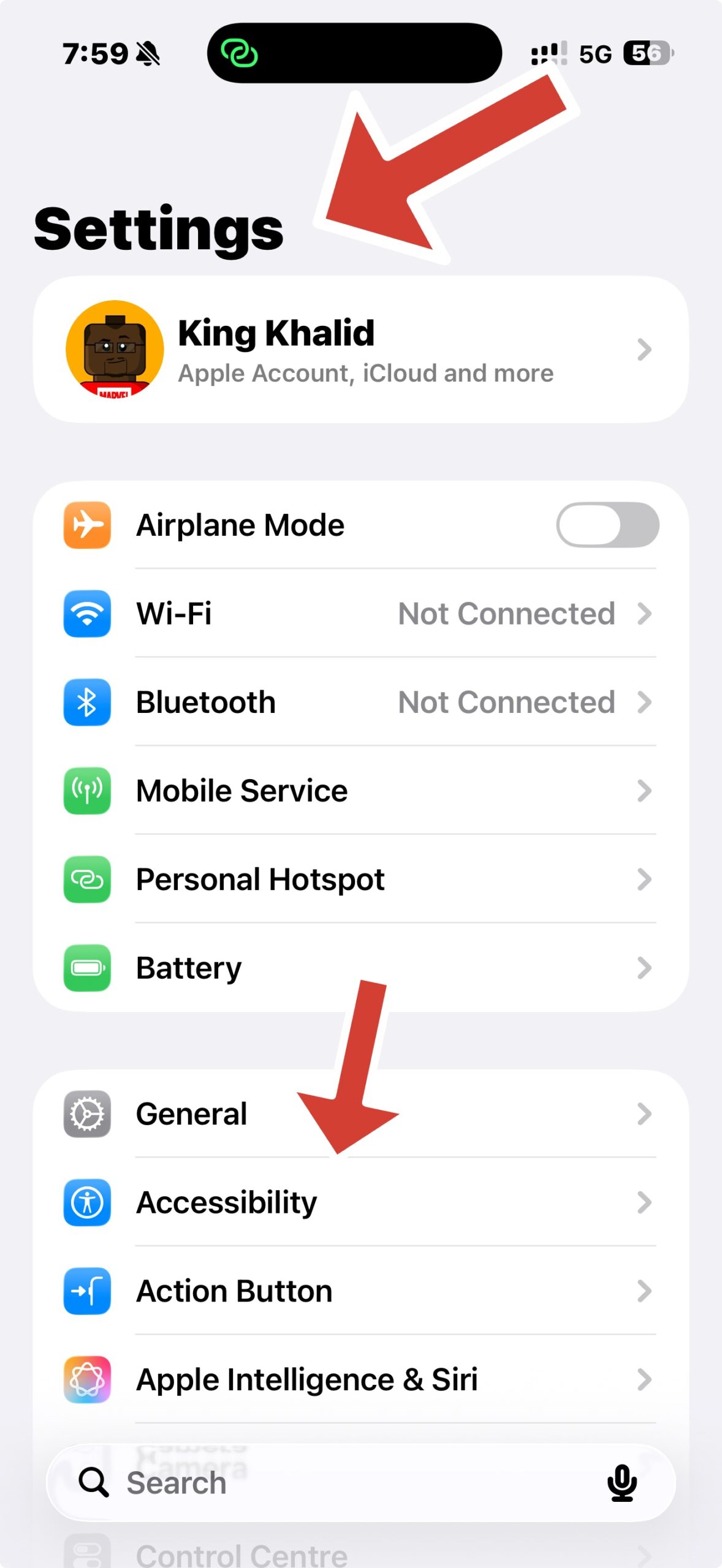
- Go to Accessibility.
- Tap Audio & Visual.
- Turn off Phone Noise Cancellation.
This option appears on supported iPhone models.
Toggle Airplane Mode
Weak signal or temporary network issues can cause low call volume. Resetting the cellular connection often helps.
- Open Control Center.
- Turn Airplane Mode on.
- Wait a few seconds, then turn it off.

Clean The Earpiece And Speaker Grilles
Dust or debris blocking the speaker or earpiece can significantly reduce call volume.
- Inspect the earpiece and speaker openings.
- Use a soft brush or dry cloth to remove debris.
- Avoid sharp tools or liquids.
Test The Speaker For Hardware Issues
A damaged speaker can cause low call volume even at maximum settings.
- Play music or a video at full volume.
- Switch to Speaker mode during a call.
- Listen for distortion or very low output.
Remove The Case Or Screen Protector
Some cases or screen protectors partially block the earpiece, especially thicker designs.
- Remove the case and screen protector.
- Make a test call.
- Check if call volume improves.
Disconnect Bluetooth Devices
Bluetooth headsets or car systems can redirect call audio away from the iPhone speaker.
- Open Control Center.
- Turn off Bluetooth.
- Retry the call.
Check Call Audio Routing Settings
Incorrect routing settings may send call audio to the wrong output.
- Open Settings.
- Go to Accessibility.
- Tap Touch.
- Select Call Audio Routing.
- Choose Automatic.
Restart Your iPhone
Temporary system glitches can affect call volume after updates or prolonged use.
- Power off the iPhone.
- Wait a few seconds.
- Turn it back on and test calls.
Update iOS
Apple frequently fixes call audio bugs through software updates.
- Open Settings.
- Tap General.
- Select Software Update.
- Install any available update.
Reset All Settings
If all else fails, resetting system settings can resolve persistent audio problems without deleting data.
- Open Settings.
- Tap General.
- Select Transfer Or Reset iPhone.
- Tap Reset.
- Choose Reset All Settings.
Troubleshooting Common Problems
If call volume stays low, confirm the issue occurs only during calls and not media playback. Persistent problems may indicate hardware damage.
If none of the fixes work, professional inspection may be required.
Tips
- Adjust volume only while on an active call.
- Keep speaker grilles clean.
- Avoid thick cases that block audio ports.
- Update iOS regularly.
FAQ
Why is my iPhone call volume low but media volume is fine?
Call volume uses separate controls and routing settings.
Does iOS update affect call volume?
Yes. Some updates introduce audio bugs that later updates fix.
Can low signal cause low call volume?
Yes. Network quality affects call clarity and loudness.
Summary
- Low call volume can come from settings, accessories, or software.
- Most fixes involve simple adjustments.
- Cleaning and Bluetooth checks often help.
- Hardware issues require professional repair.
Conclusion
Low call volume on iPhone usually has a straightforward cause. By checking settings, cleaning hardware, and keeping iOS updated, you can restore clear call audio and avoid missed conversations.

Discussion (0)
Be the first to comment.