




Volume buttons seem harmless until they start causing problems. A stuck key, a child tapping the buttons, or a game reacting to accidental presses can quickly make an Android phone frustrating to use.
Android does not offer a built-in way to disable hardware volume buttons, but you can still block or neutralize them using safe, proven methods. This guide shows the most reliable options, starting with simple no-root solutions and moving to advanced controls when needed.
Table of contents
- Quick answer: Can you block volume buttons on Android
- When blocking volume buttons makes sense
- Method 1: Block volume buttons using Accessibility apps
- Method 2: Remap volume buttons to do nothing
- Method 3: Use built-in OEM features
- Method 4: Block volume buttons with root access
- Troubleshooting: Volume buttons still change volume
- Tips for preventing accidental volume changes
- FAQs
- Summary
Quick answer: Can you block volume buttons on Android
Android does not let you fully disable hardware buttons from system settings. You can block or override volume buttons using Accessibility apps, button remappers, OEM tools, or root-based solutions.
The best option depends on your Android version and device brand.
When blocking volume buttons makes sense
Blocking volume buttons helps in several common scenarios. Parents prevent kids from muting tablets, gamers avoid accidental presses during play, and users with broken buttons stop constant volume changes.
Kiosk and demo devices also benefit from fixed audio levels.
Method 1: Block volume buttons using Accessibility apps
Accessibility apps intercept hardware key presses before Android applies the default action. This method works on most phones and requires no system modification.
Step-by-step: block volume buttons with an Accessibility app
Use these steps on most Android phones:
- Install a trusted button-control or key-blocking app from Google Play.


- Open Settings → Accessibility → Installed apps.


- Select the app, then turn on its Accessibility access.
- Grant any requested permissions the app needs to intercept key presses.
- Enable the option to block or ignore Volume up and Volume down.
Once active, the app prevents volume changes system-wide.
Limitations of Accessibility-based blocking
Some system screens still react to volume buttons. Emergency modes, boot menus, and recovery screens ignore Accessibility rules.
Battery optimization may stop the app unless you exclude it.
Method 2: Remap volume buttons to do nothing
Button-remapping apps change what happens when you press volume keys. Instead of adjusting sound, the button performs a neutral action or no action at all.
Best use cases for remapping instead of blocking
Remapping works well for games and media apps. You keep physical button input while stopping volume changes, which many users prefer over full blocking.
Known issues with remapping on newer Android versions
Android 13 and newer can restrict background key interception. Some remappers only work while the app runs in the foreground, and results vary by manufacturer.
Method 3: Use built-in OEM features
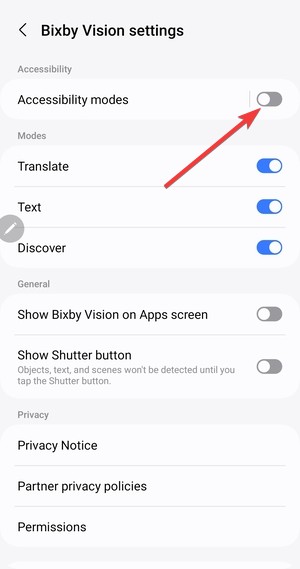
Some manufacturers add limited controls for hardware buttons. They sometimes come as accessibility options, which you can find by opening Settings on your Android device. These options do not fully disable volume keys, but they can reduce their impact in certain situations.
Samsung devices
Samsung phones support Modes and Routines, which can help keep volume predictable during specific conditions like gaming or child use. You can also reduce accidental changes by combining these tools with app pinning.
Pixel and stock Android devices
Stock Android offers fewer controls for hardware buttons. App pinning limits navigation buttons, but it does not block volume keys, so most users rely on Accessibility or remapping apps.
Method 4: Block volume buttons with root access
Root access enables system-level control over hardware keys. Root tools can fully disable volume buttons across the OS.
Why root offers full control
Rooted devices can modify key layout files or intercept input at a deeper level. This method can block volume buttons across system UI and apps.
Risks and downsides of rooting
Rooting can void warranties on many devices. Banking and streaming apps may stop working, and security risks increase if you misconfigure permissions.
Troubleshooting: Volume buttons still change volume
Try these fixes if blocking does not stick:
- Confirm the app has Accessibility permission enabled in Settings → Accessibility.
- Disable battery optimization for the blocking app in Settings → Battery → Battery optimization.
- Remove conflicting button-mapping, automation, or “gesture” apps that also intercept keys.
- Restart your phone, then recheck Accessibility access after the reboot.
Android can revoke Accessibility access after system updates, so recheck the toggle if the issue returns.
Tips for preventing accidental volume changes
- Enable app pinning during games or child use to reduce accidental exits.
- Exclude blocking apps from battery optimization so Android does not stop them.
- Use a case that shields side buttons if accidental presses happen often.
- Lock volume levels inside media apps when the app offers a volume lock option.
FAQs
Can I block volume buttons during calls? Many Accessibility apps cannot override call volume controls due to system restrictions, so results vary by phone and Android version.
Will blocking volume buttons affect media playback? Blocking stops physical button changes, but it does not mute audio unless you configure the app to do that.
Do these methods survive reboots? Accessibility apps usually restart automatically, but you should recheck permissions after updates or major reboots.
Is blocking volume buttons safe? Non-root methods are generally safe when you use reputable apps with clear permission scopes.
Summary
- Android has no native option to disable volume buttons.
- Accessibility apps usually deliver the safest no-root workaround.
- Button remapping works best for games and media-focused use.
- Root offers full control, but it adds major risks and downsides.
Blocking volume buttons on Android helps when broken keys, kids, or specific apps cause constant volume changes. Although Android lacks a native option, Accessibility apps and button remappers solve the problem for most users without risking system stability.
Start with non-root methods and only consider root-based solutions if you need full control and understand the risks.


Discussion (0)
Be the first to comment.