




If your Android phone shows Wi-Fi connected but no internet access, you’re dealing with limited Wi-Fi connectivity. This usually appears as an exclamation mark or cross on the Wi-Fi icon, meaning your device connects to the router but cannot reach the internet.
This guide walks through proven ways to fix limited Wi-Fi connectivity on Android, starting with quick checks and moving to advanced network fixes.
Restart Wi-Fi On Your Android Device
Temporary network glitches can cause Wi-Fi to show limited connectivity. Restarting Wi-Fi forces your phone to reconnect and request a fresh network configuration.
- Swipe down to open the notification panel
- Tap the Wi-Fi icon to turn it off
- Wait a few seconds and turn Wi-Fi back on
Restart Your Wi-Fi Router
The issue may come from the router rather than your Android phone. Restarting the router clears stalled connections and renews internet access.
- Unplug the router from power
- Wait at least 30 seconds
- Plug the router back in and wait for full startup
Restart Your Android Phone
System processes can occasionally interfere with network services. Restarting the phone refreshes all background connections.
- Press and hold the Power button
- Select Restart from the menu
- Reconnect to Wi-Fi after reboot
Forget And Reconnect To The Wi-Fi Network
Saved network data can become corrupted, causing Wi-Fi connected but no internet access. Forgetting the network removes old settings.
- Open Wi-Fi settings
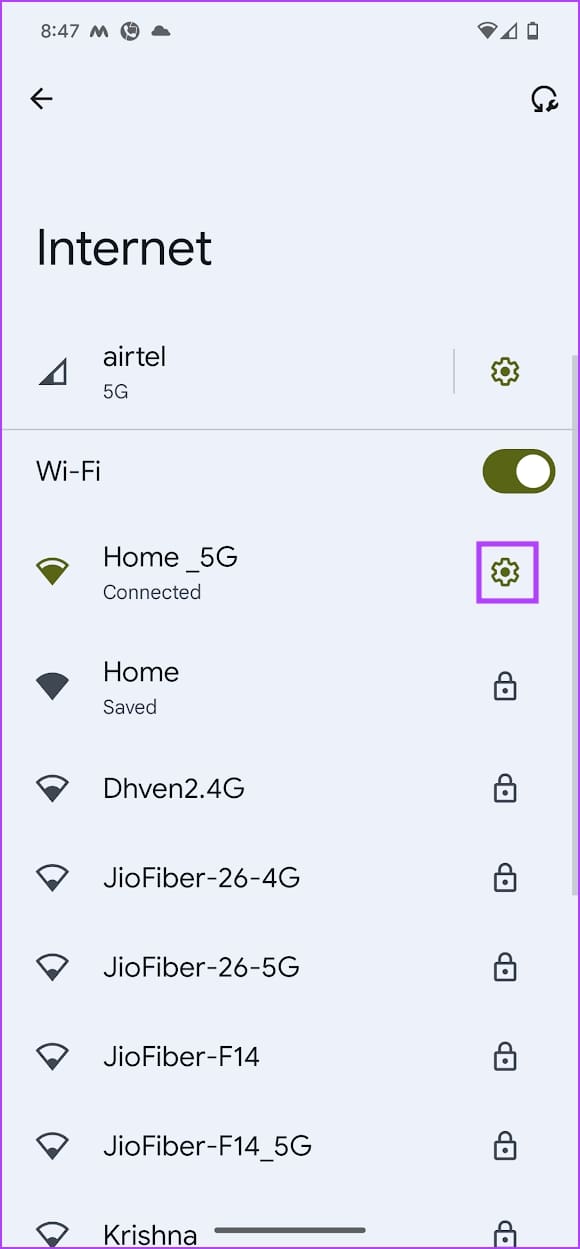
- Tap the connected network name
- Select Forget
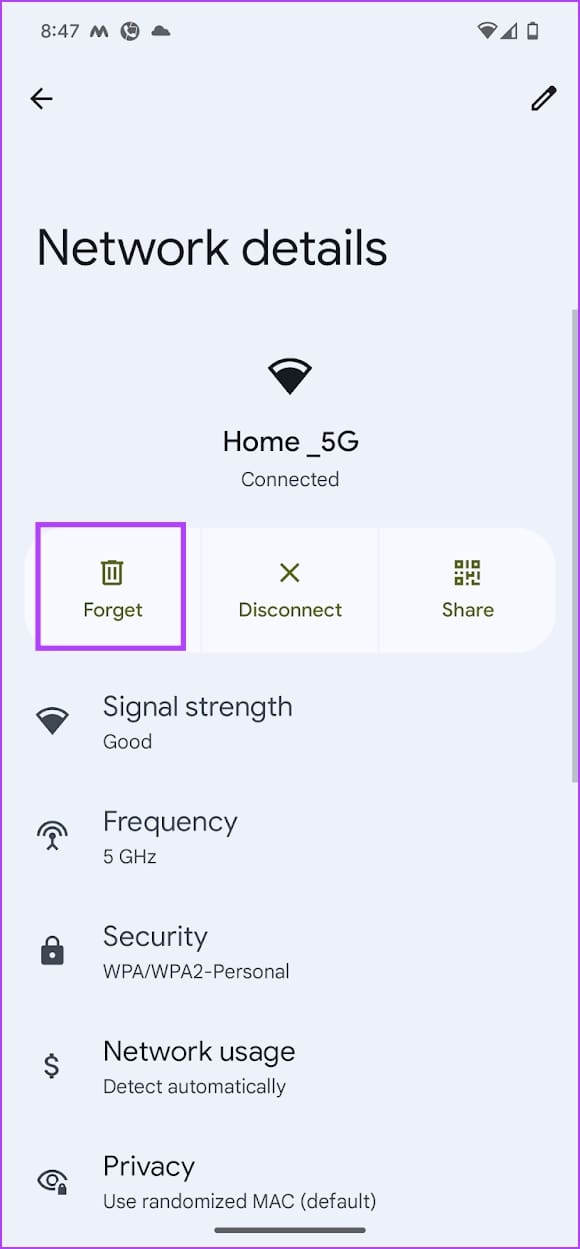
- Reconnect and enter the Wi-Fi password
Change IP Settings From DHCP To Static
IP address conflicts often trigger limited Wi-Fi connectivity on Android. Assigning a static IP can resolve routing issues.
- Open Wi-Fi settings and tap the connected network
- Select Edit or the pencil icon
- Expand Advanced options
- Change IP settings from DHCP to Static
- Set IP address to 192.168.1.251
- Set Gateway to 192.168.1.1
- Set Network prefix length to 24
- Set DNS 1 to 8.8.8.8 and DNS 2 to 8.8.4.4
- Save changes and reconnect
Set Wi-Fi Network Usage To Unmetered
Android may restrict background traffic if the Wi-Fi network is marked as metered. Switching to unmetered restores full access.
- Open Wi-Fi settings
- Tap the connected network
- Select Network usage
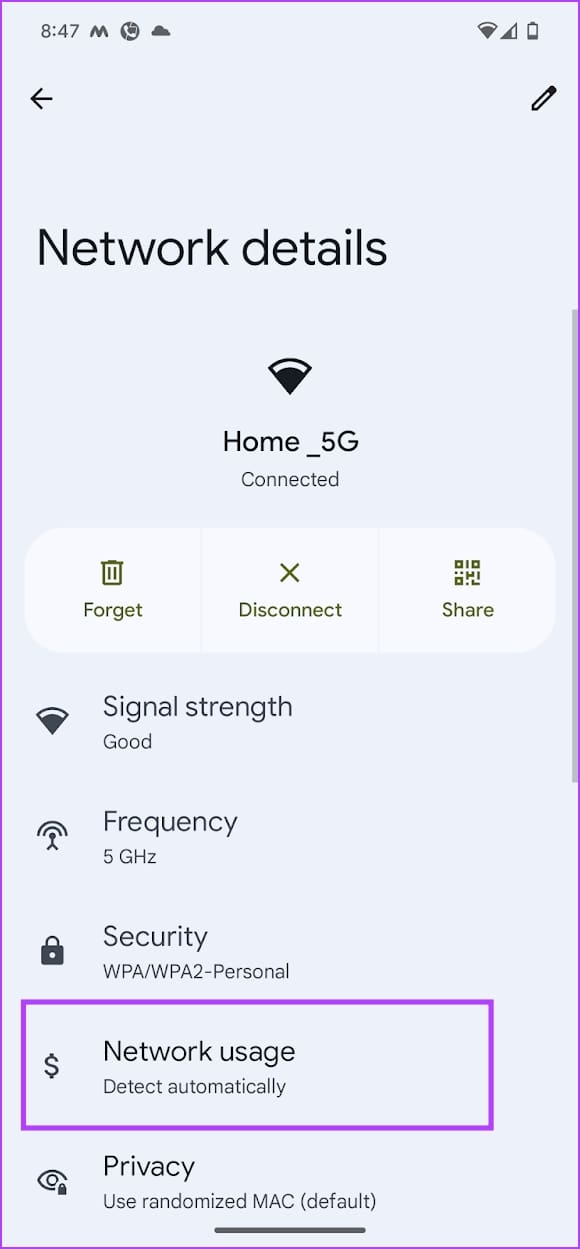
- Choose Treat as unmetered
Reset Network Settings On Android
If all else fails, resetting network settings clears misconfigured Wi-Fi, Bluetooth, and mobile data options without deleting personal data.
- Open Settings
- Search for Reset network settings
- Select Reset Wi-Fi, mobile, and Bluetooth
- Confirm using your PIN or password
Troubleshooting Common Problems
If Wi-Fi still shows limited connectivity, test another device on the same network to rule out ISP issues. If all devices fail, contact your internet provider.
If only your phone is affected, check for pending system updates or hardware faults.
Tips
- Keep Android system updates installed
- Avoid public routers with heavy congestion
- Restart your router periodically
FAQ
What does limited Wi-Fi connectivity mean on Android? It means your phone connects to the router but cannot access the internet.
Will resetting network settings delete my files? No, it only removes saved network and Bluetooth data.
Does changing DNS improve Wi-Fi connectivity? Yes, public DNS servers can resolve routing and lookup issues.
Summary
- Limited Wi-Fi connectivity usually stems from network conflicts
- Basic resets fix most Android Wi-Fi issues
- Advanced IP and DNS changes resolve stubborn cases
Conclusion
Limited Wi-Fi connectivity on Android can be frustrating, but it is usually easy to fix. By working through these steps in order, you can restore stable internet access and prevent the issue from returning.


Discussion (0)
Be the first to comment.