




If Google Chrome no longer offers to translate foreign pages, the cause usually sits in language settings, extensions, or corrupted profile data. Follow the steps below in order, starting with the fastest fixes and moving toward deeper resets only if needed.
Table of contents
- Check Chrome translate language settings
- Force Google Translate to appear on a page
- Fix extension-related conflicts
- Clear Chrome cache and site data
- Reset Chrome language detection
- Test Chrome in a clean state
- Update or reset Google Chrome
- Fix Chrome translate not working on mobile
- Why Google Chrome translate stops working
- Tips to keep Chrome Translate working reliably
- FAQs
- Summary
Check Chrome translate language settings
Chrome Translate fails most often because translation prompts are disabled or blocked for specific languages.
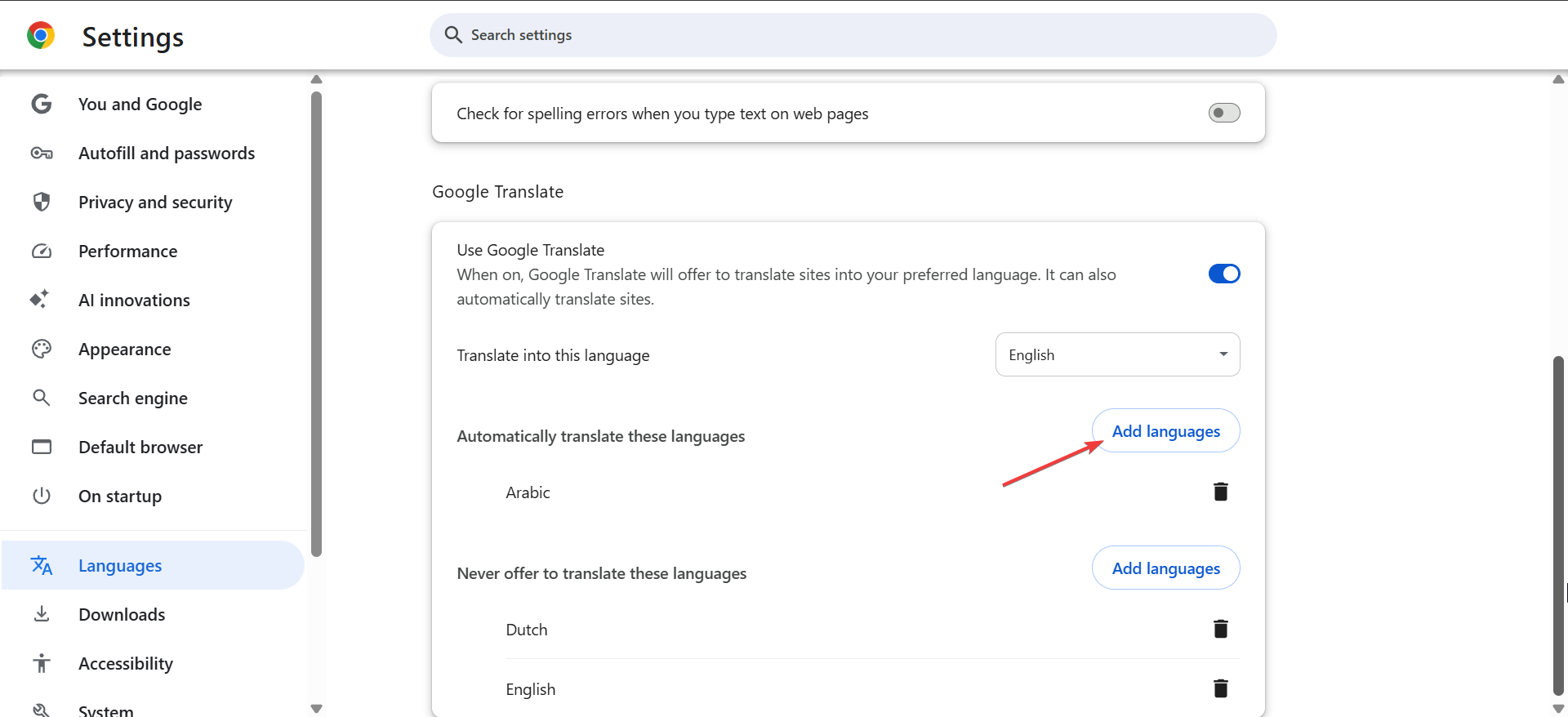
Enable “Automatically translate pages”
This setting controls whether Chrome can show the translate pop-up at all. You can change it from the language section of Chrome settings.
- Open Chrome.
- Click the three-dot menu in the top-right corner.
- Select Settings.
- Click Languages.
- Add languages under the Automatically translate these languages.

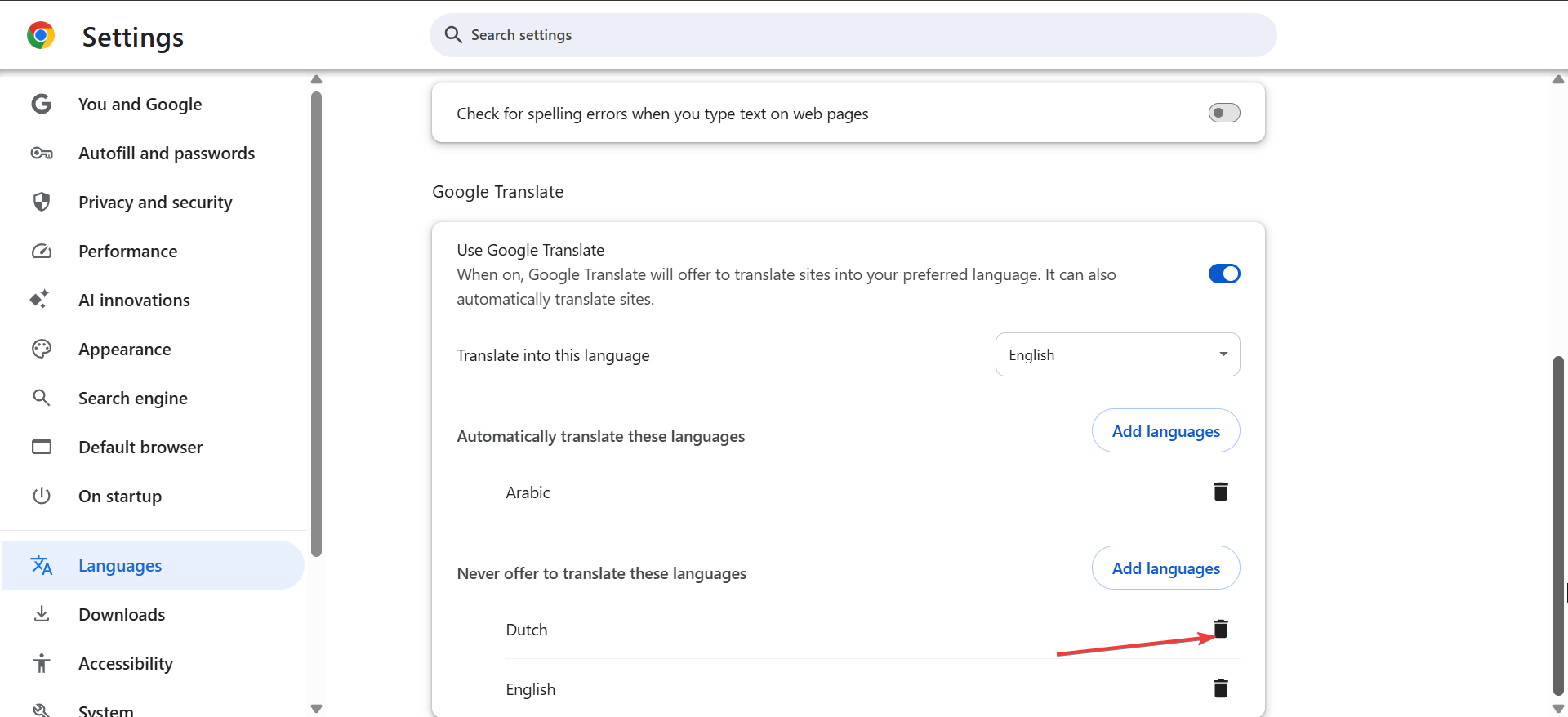
Remove languages set to “Never offer to translate”
Chrome skips translation for languages marked as excluded.
- Open Settings → Languages.
- Scroll to Languages.
- Click the three-dot menu next to each listed language.
- Now, remove languages under Never offer to translate these languages.
Confirm your preferred language order
Chrome assumes you understand languages placed high in the list.
- Open Settings → Languages.
- Drag English to the top of the list.

- Move rarely used languages lower or remove them temporarily.
Force Google Translate to appear on a page
Some pages load without triggering automatic detection.
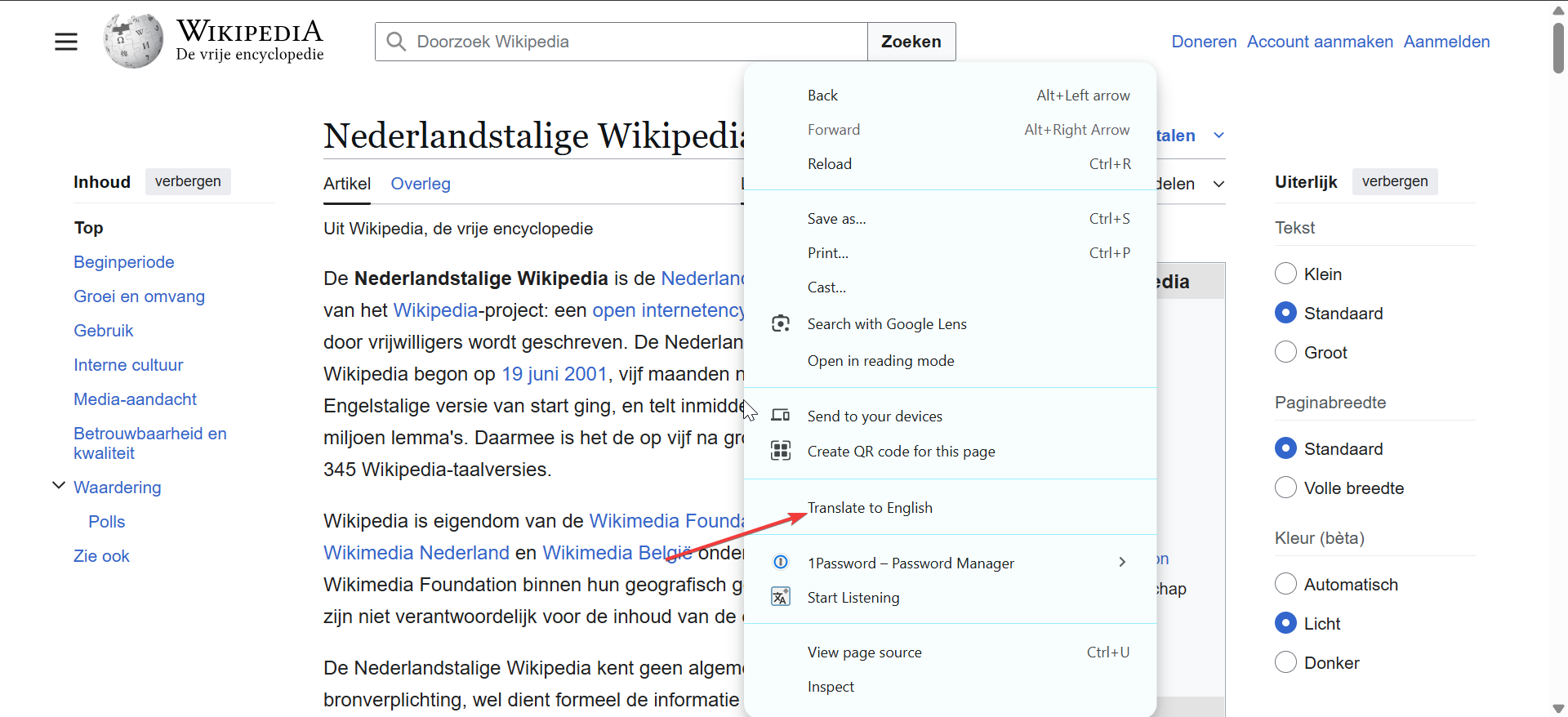
Use the right-click translate option
This bypasses automatic language detection.
- Open a foreign-language webpage.
- Right-click anywhere on the page.
- Click Translate to English.

Use the address bar translate icon
Chrome shows this icon only after language detection succeeds.
- Load a foreign-language page.
- Look for the translate icon in the address bar.
- Click the icon and select Translate.
Fix extension-related conflicts
Extensions that modify pages or block scripts often break translation.
Disable page-modifying or privacy extensions
Ad blockers and script blockers commonly interfere.
- Open Chrome.
- Go to Settings → Extensions.
- Turn off extensions one by one.
- Reload the page after each change.
- Leave the conflicting extension disabled.
Check third-party translation extensions
Multiple translators cause conflicts.
- Open Extensions.
- Disable any third-party translation tools.
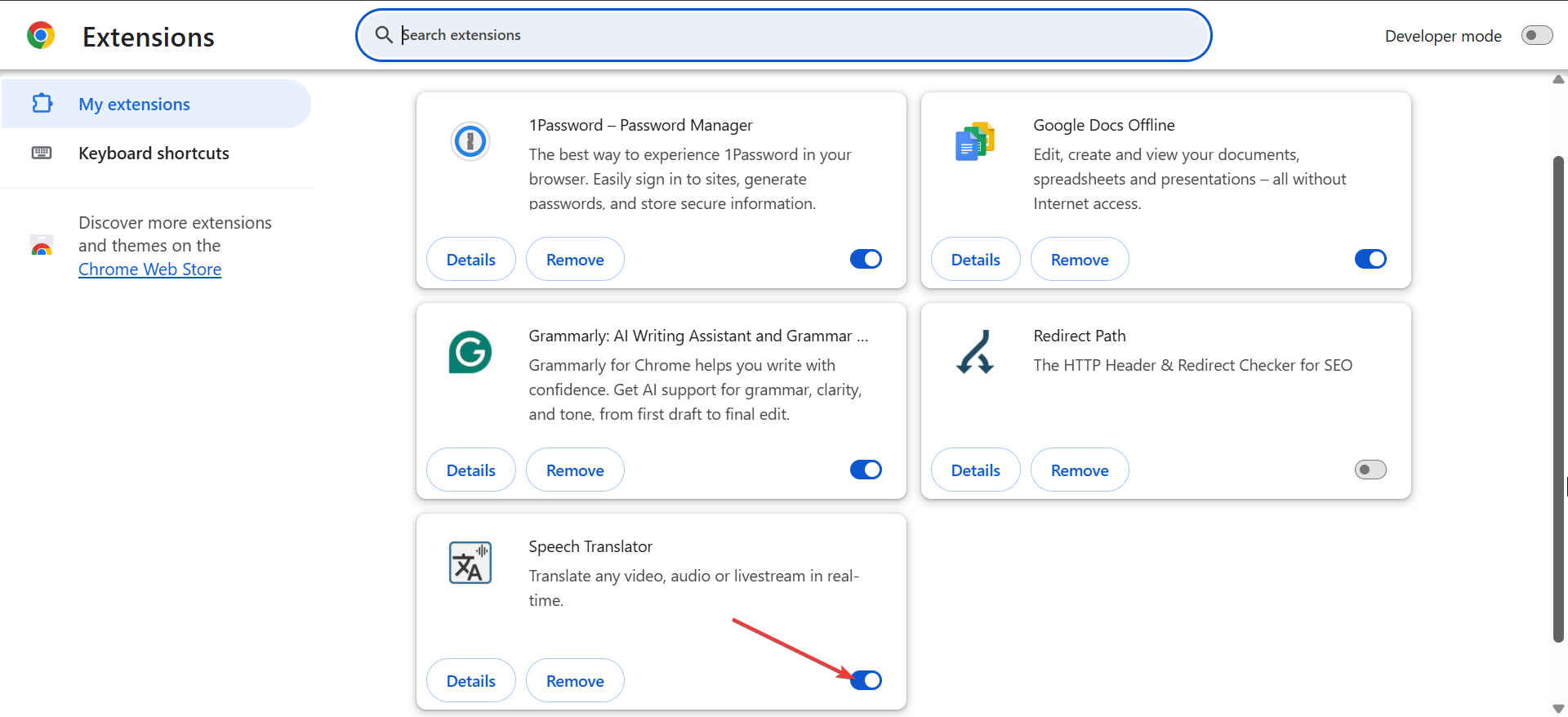
- Refresh the page and test Chrome Translate again.
Clear Chrome cache and site data
Corrupted cache data can stop translation prompts from appearing.
Clear cached images and files
This resets detection without deleting saved logins.
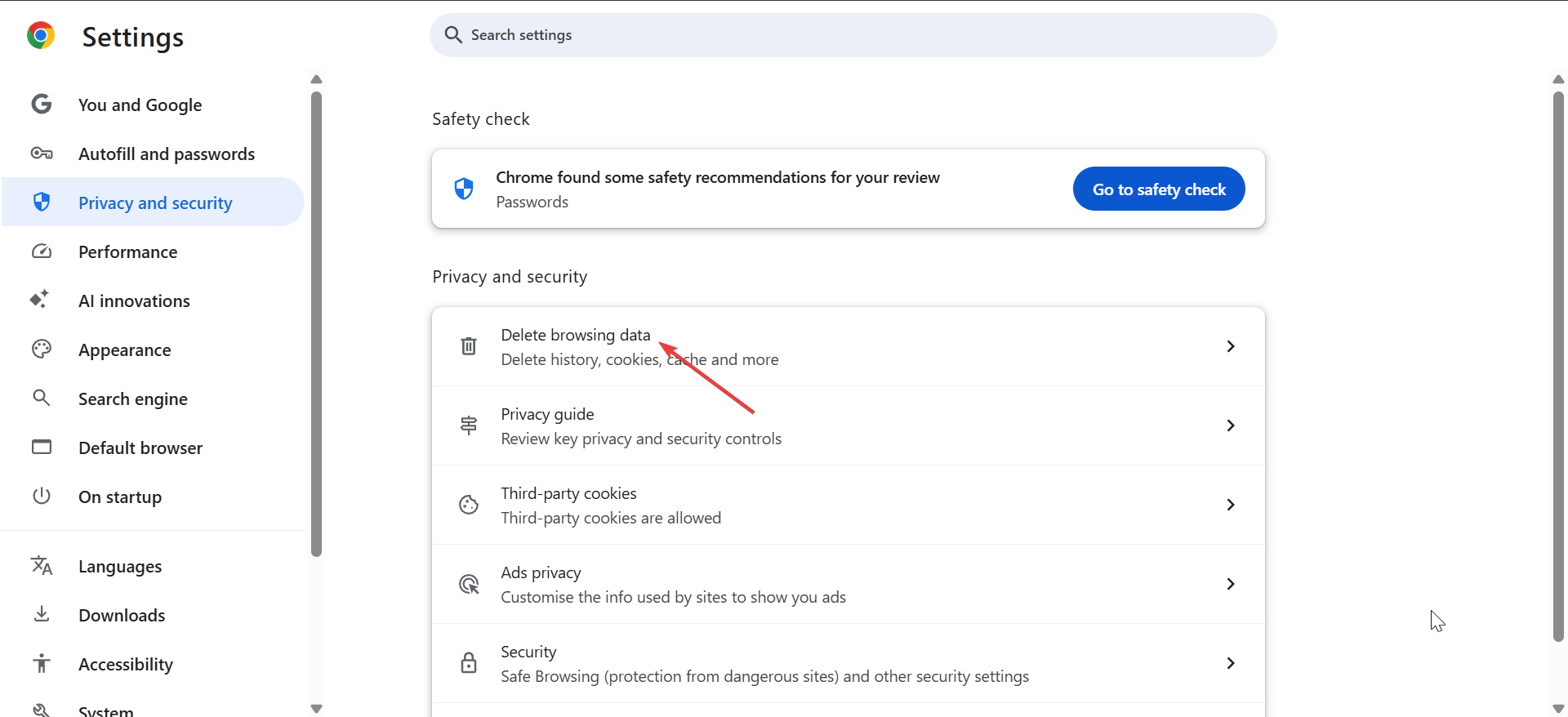
- Open Settings.
- Click Privacy and security.
- Next, select Delete browsing data.
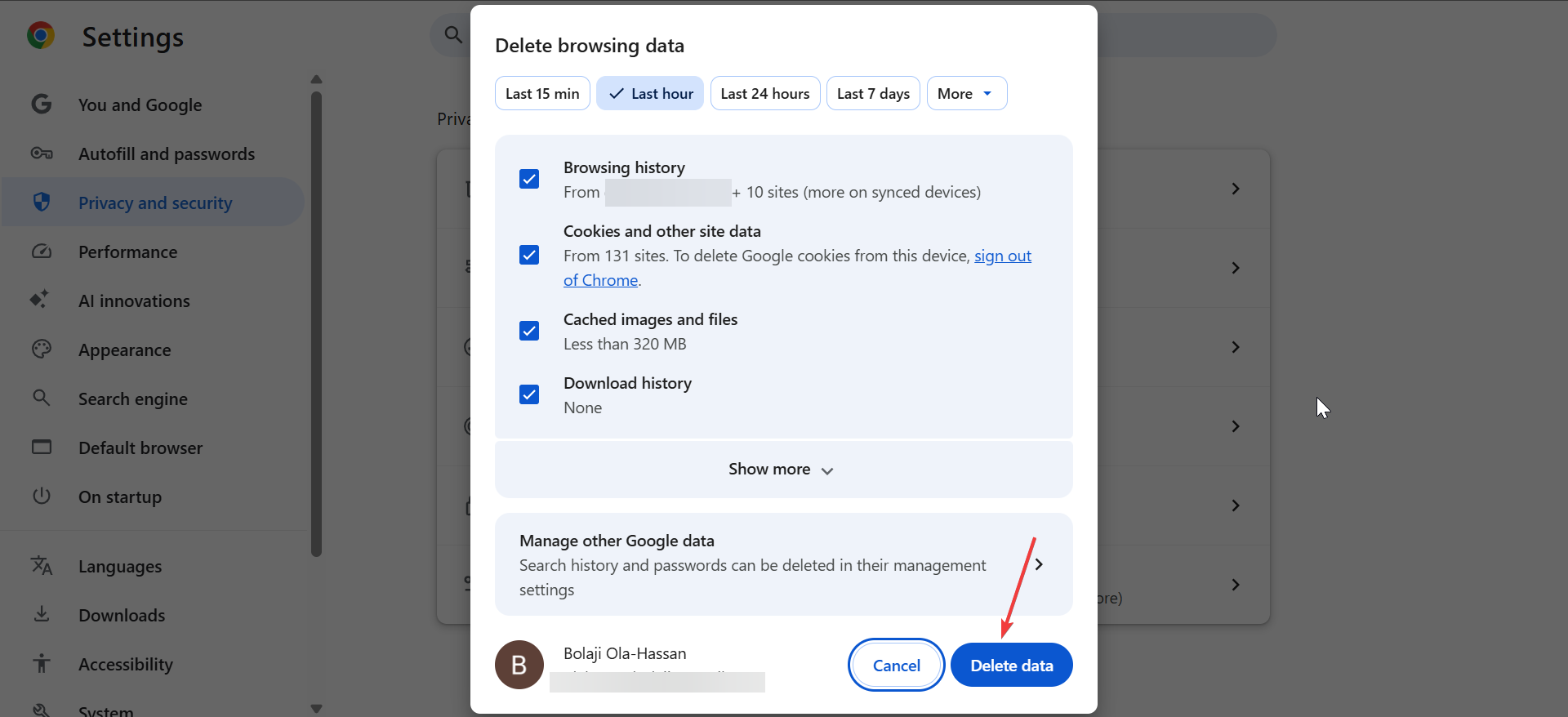
- Now, choose Cached images and files.
- Finally, click Delete data.
Remove site-specific language data
Some sites store language rules locally.
- Open Settings → Privacy and security.
- Click Cookies and other site data.
- Select See all site data and permissions.
- Search for the affected website.
- Remove its stored data.
- Reload the page.
Reset Chrome language detection
Chrome sometimes misidentifies languages after long-term use.
Reorder preferred languages
This forces Chrome to re-evaluate language rules.
- Open Settings → Languages.
- Move English to the top.
- Restart Chrome.
Remove and re-add your primary language
This refreshes language detection completely.
- Open Settings → Languages.
- Remove English from the list.
- Restart Chrome.
- Add English again.
- Move it to the top.
Test Chrome in a clean state
Profile-level corruption can disable translation entirely.
Test in Incognito mode
Incognito disables extensions automatically.
- Press Ctrl + Shift + N.


- Open a foreign-language webpage.
- Check if Translate works.
- If it works, an extension causes the issue.
Create a new Chrome profile
This fixes corrupted profiles.
- Click your profile icon in Chrome.
- Select Add.
- Create a new profile.
- Open a foreign-language page in the new profile.
- Confirm Translate works before migrating data.
Update or reset Google Chrome
Outdated or broken installs can block Translate services.
Update Chrome to the latest version
Translate relies on up-to-date browser components.
- Open Settings.
- Click About Chrome.
- Install any available updates.
- Restart Chrome.
Reset Chrome settings without deleting data
This restores default behavior.
- Open Settings.
- Click Reset settings.
- Select Restore settings to their original defaults.

- Confirm the reset.
Fix Chrome translate not working on mobile
Mobile Chrome uses separate translation controls.
Enable translation in Chrome mobile settings
Translate may be disabled by default.
- Open Chrome on your phone.
- Tap the three-dot menu.
- Open Settings.
- Tap Languages.
- Enable translation options.
Clear app cache or reinstall Chrome
This fixes persistent mobile-only translation failures.
- Open your device Settings.
- Go to Apps → Chrome.
- Tap Storage.
- Select Clear cache.
- Reinstall Chrome if the issue persists.
Why Google Chrome translate stops working
Chrome skips translation under specific conditions that look like bugs.
Mixed-language pages
Pages containing partial English often bypass translation prompts.
Script-blocked or iframe-heavy sites
Some websites technically prevent translation from loading.
Tips to keep Chrome Translate working reliably
- Keep English at the top of your language list.
- Avoid running multiple translation extensions.
- Update Chrome regularly.
- Clear cache after major Chrome updates.
FAQs
Why does Chrome Translate not appear on some sites?
Chrome ignores pages it detects as partially English or script-blocked.
Can Chrome Translate break after an update?
Yes, updates can reset or corrupt language detection until settings refresh.
Does Incognito mode affect translation?
Incognito helps test extension-related problems quickly.
Summary
- Enable translation and review language exclusions.
- Force translation using right-click and address bar tools.
- Disable conflicting extensions and clear the cache.
- Reset language detection or Chrome profiles.
Chrome Translate usually starts working immediately after correcting language settings or extension conflicts. If the issue persists after a profile reset, reinstall Chrome and reconfigure languages before restoring extensions.


Discussion (0)
Be the first to comment.