




A Chromebook that gets stuck on the Chrome logo usually runs into a startup or system issue, not a permanent failure. In most cases, you can fix the problem at home by following a few steps in the right order, starting with simple resets and ending with ChromeOS recovery if needed.
Below, you’ll find clear, no-fluff fixes that work for most Chromebooks, whether the issue appeared suddenly or right after an update.
Table of contents
Why your Chromebook is stuck on the Chrome screen
Several common problems can stop ChromeOS from loading past the logo. Identifying the likely cause helps you choose the right fix faster.
Failed or interrupted ChromeOS update
If the Chromebook lost power or shut down during an update, ChromeOS may fail to complete the boot process.
Battery or power-related startup failure
Low battery voltage, a faulty charger, or unstable power can prevent the system from initializing properly.
Corrupted system files or firmware
Damaged system files or firmware errors can block ChromeOS during startup, leaving the device frozen on the logo.
Try these quick fixes first
Start with these steps because they do not erase your files or Google account data.
Perform a hard reset on your Chromebook
A hard reset clears temporary hardware states that often cause startup freezes.
- Turn off the Chromebook completely.
- Press and hold Refresh.
- While holding Refresh, press Power.
- Release both keys when the Chromebook starts.
If the device boots normally, the issue was temporary.
Fully drain and recharge the battery
A full power cycle can fix firmware and battery detection issues.
- Leave the Chromebook unplugged until the battery drains completely.
- Keep it off for at least 30 minutes.
- Plug in the charger and let it charge to at least 50%.
- Power it on normally.
Disconnect all external devices
USB drives, SD cards, and peripherals can interrupt startup.
- Power off the Chromebook.
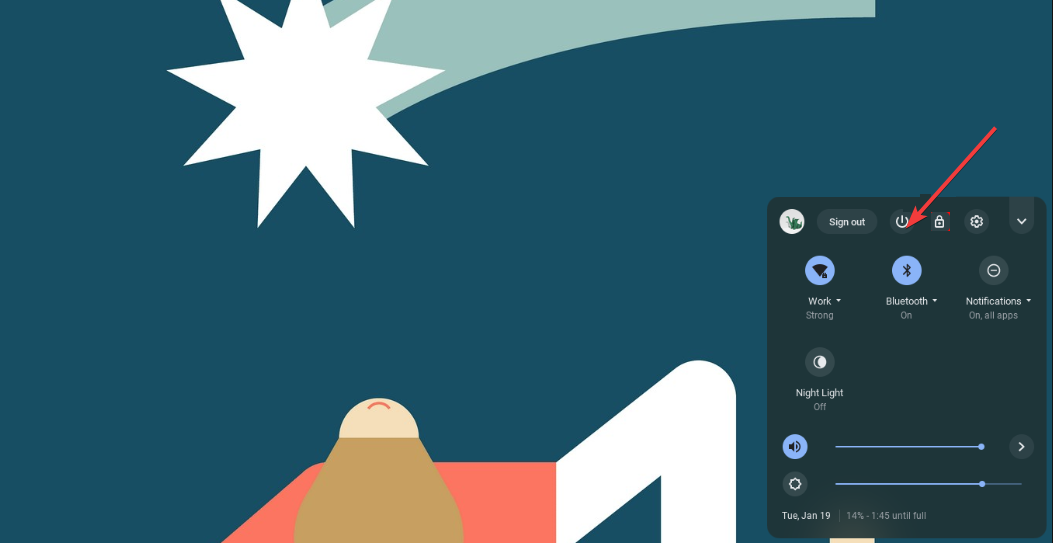

- Unplug all external devices.
- Turn the Chromebook back on with nothing connected.
Fix Chromebook stuck on Chrome screen after an update
If the issue appeared right after an update, try these update-specific fixes.
Let the Chromebook sit on the logo screen
ChromeOS sometimes finishes background tasks after an update.
Wait 10–15 minutes before forcing a shutdown, especially if the Chromebook shows disk activity or feels warm.
Restart using the power and refresh keys
A controlled restart can reload update components.
- Press and hold Power until the Chromebook shuts down.
- Wait 10 seconds.
- Press Refresh + Power to restart.
Use ChromeOS Recovery to fix startup issues
When basic fixes fail, ChromeOS Recovery offers the most reliable solution.
What ChromeOS Recovery does and when to use it
Recovery reinstalls ChromeOS from scratch and removes local data stored on the device. Google account data stays safe in the cloud.
Use recovery only after non-destructive fixes fail.
Enter recovery mode on a Chromebook
Recovery mode loads a special repair environment.
- Turn off the Chromebook.
- Press and hold Esc + Refresh.
- Press Power, then release all keys.
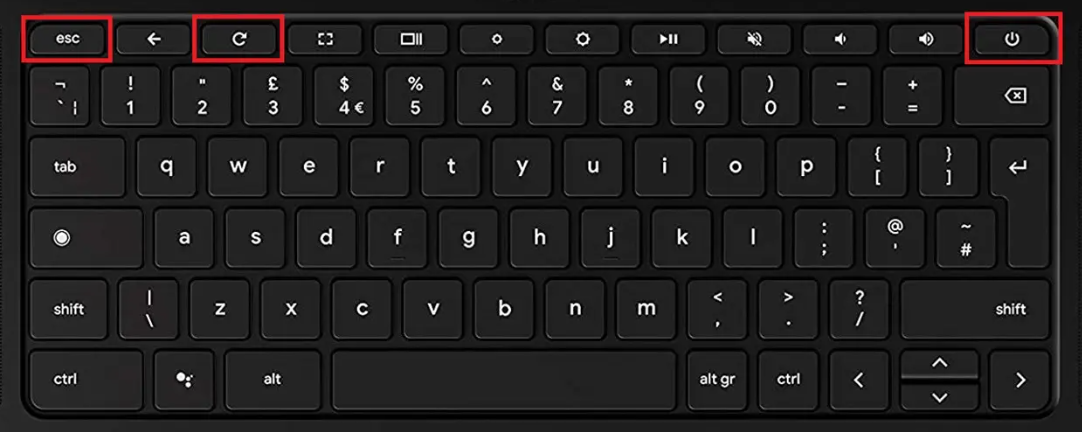

- Wait for the recovery screen to appear.
You should see a message prompting you to insert recovery media.
Reinstall ChromeOS using a USB or SD card
You’ll need another computer and a USB drive or SD card with at least 8 GB.
- Install the Chromebook Recovery Utility in Chrome from the Chrome Web Store.
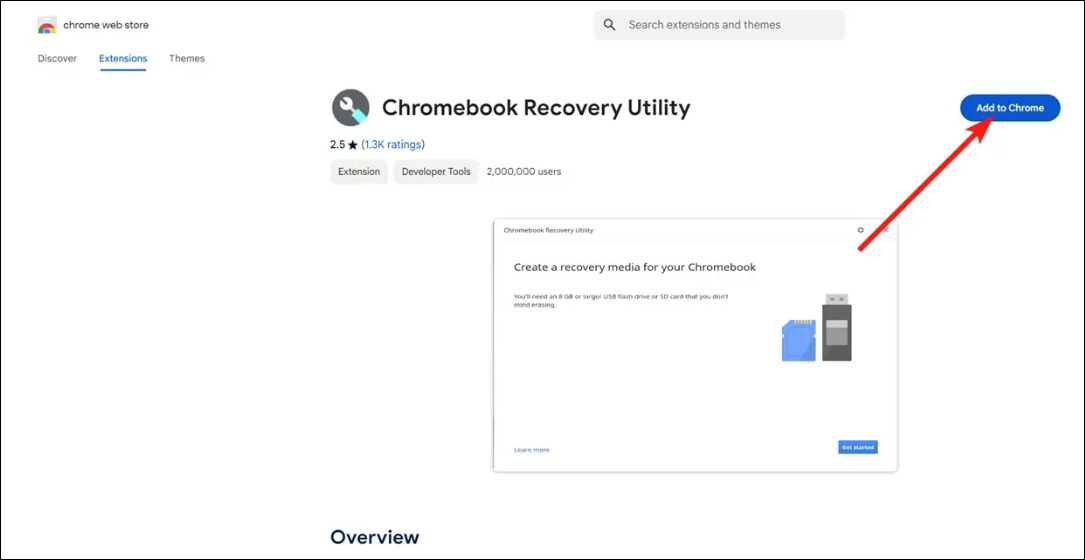

- Create recovery media using your Chromebook’s model.


- Insert the recovery USB or SD card into the broken Chromebook.
- Follow the on-screen instructions to reinstall ChromeOS.
The process usually takes 5–10 minutes.
Chromebook still stuck on Chrome screen after recovery
If recovery does not solve the issue, hardware problems may exist.
Check for hardware-related failure signs
Check if your Chromebook keeps turning off, failure to charge, unusual heat, or clicking sounds. These symptoms often point to storage or battery failure.
When to contact the manufacturer or a repair center
If the Chromebook remains stuck after recovery, contact the manufacturer or an authorized repair provider. Warranty coverage often applies to startup failures.
How to prevent your Chromebook from getting stuck again
A few habits can reduce the risk of future boot issues.
Keep ChromeOS updates uninterrupted
Always plug in the charger during updates and avoid forcing shutdowns.
Maintain battery health and proper charging habits
Use the original charger and avoid letting the battery drain to zero regularly.
Tips
- Always try a hard reset before moving to recovery.
- Wait at least 10 minutes on the Chrome logo after updates.
- Use recovery only when other fixes fail, since it erases local data.
- Keep your Chromebook charged during updates.
- Back up important files to Google Drive regularly.
Summary
- Start with a hard reset and basic power checks.
- Try update-specific restarts if the issue appeared after an update.
- Use ChromeOS Recovery to reinstall the system if needed.
- Check for hardware failure if recovery does not work.
A Chromebook stuck on the Chrome screen usually recovers with the right steps in the right order. Begin with safe fixes, move to recovery only when necessary, and contact support if software repairs fail. This approach resolves most startup problems without replacing the device.

Discussion (0)
Be the first to comment.