




If Chrome is not downloading files on Android, the issue usually comes from permissions, storage access, or the system download manager. In most cases, downloads fail silently, get stuck at 0%, or complete without appearing anywhere.
The steps below move from quick fixes to deeper system-level solutions, so you can restore Chrome downloads without resetting your phone.
Table of contents
- Check the exact download problem first
- Quick fixes that solve most Chrome download issues
- Fix Chrome storage and permission problems
- Fix system download manager conflicts
- Chrome-specific fixes
- Android version-specific fixes
- Fix file-type specific download issues
- Reinstall Chrome as a last resort
- Tips to prevent Chrome download problems
- Summary
Check the exact download problem first
Chrome download issues do not behave the same way in every case. Identifying the symptom helps you apply the correct fix faster.
Downloads stuck at 0% or pending
This usually points to network switching, Data Saver limits, or background restrictions. Chrome starts the download but cannot continue.
Download failed immediately
This often happens when Chrome lacks storage permission or the download location is invalid. Android may block the action without showing a clear error.
File downloads but does not open
The file may exist, but Android cannot open it due to missing apps or unsupported formats.
No download notification appears
Recent Android versions require explicit notification permission for Chrome downloads to appear.
Quick fixes that solve most Chrome download issues
Start with these simple steps before changing system settings. They fix the majority of cases.
Restart Chrome and your phone
- Close Chrome completely from the recent apps screen.
- Restart your Android device.
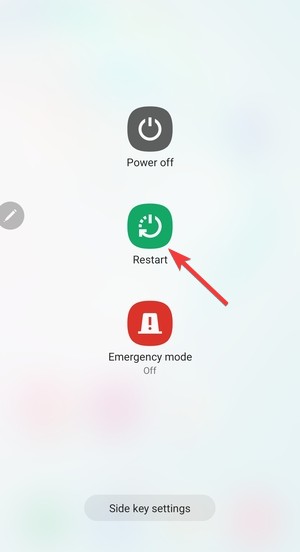

- Open Chrome and try downloading again.
This clears temporary process lockups that often block downloads.
Switch networks or disable Data Saver
- Switch from Wi-Fi to mobile data or vice versa.
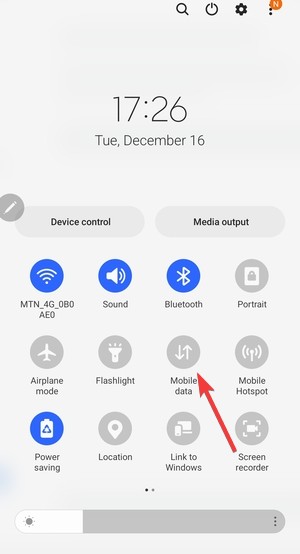

- Open Settings → Network & internet → Data Saver.
- Turn Data Saver off temporarily.
Data Saver frequently pauses or blocks large downloads.
Check Chrome basic permissions
- Open Settings → Apps → Chrome.
- Tap Permissions.
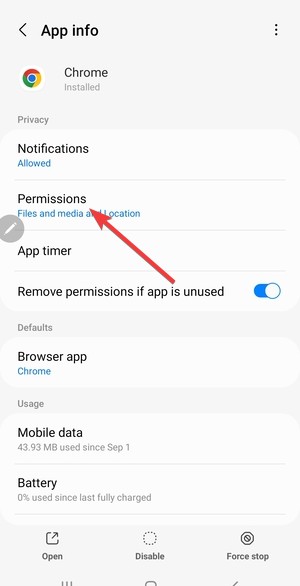

- Allow Files and media and Notifications.
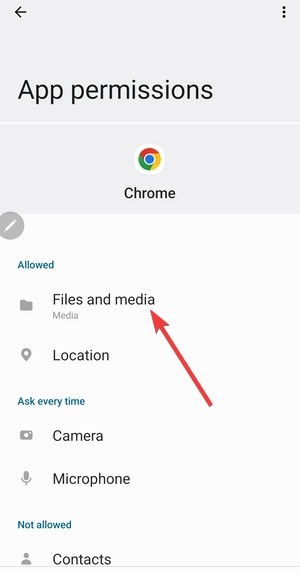

Without these permissions, Chrome cannot save or show downloads.
Fix Chrome storage and permission problems
Android storage handling changes often, and Chrome depends on proper access to save files.
Allow storage access for Chrome
- Go to Settings → Apps → Chrome.
- Open Permissions.
- Set Files and media to Allow.
If this permission is denied, downloads fail immediately.
Set a valid Chrome download location
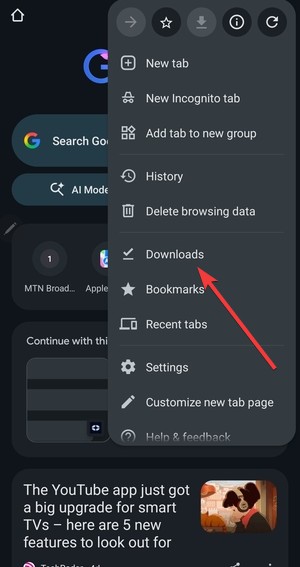
- Open Chrome and tap the three-dot menu.
- Go to Settings → Downloads.

- Next, toggle the switch for Ask where to save files to On.
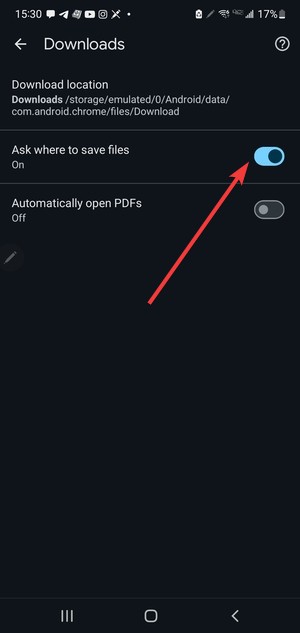

- Finally, when you want to download, select a folder inside internal storage, not an SD card.
Invalid or removed folders cause silent download failures. You can make sure this is not the cause of the issue by opening Chrome Settings and selecting the right download folder.
Free up device storage space
Android blocks downloads when storage runs low, even without warnings. Free space and retry the download.
Fix system download manager conflicts
Chrome relies on Android’s built-in download service, which can break independently.
Enable Android Download Manager
- Open Settings → Apps.
- Tap Show system apps.
- Find Download Manager.
- Tap Enable if disabled.
Clear Download Manager cache and data
- Open Download Manager app info.
- Tap Storage.
- Clear Cache and Data.
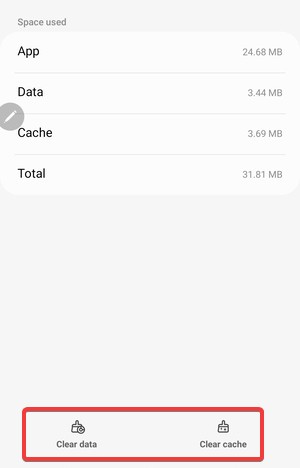

This resets corrupted download states.
Chrome-specific fixes
If system settings look correct, Chrome itself may cause the issue.
Clear Chrome cache
- Open Settings → Apps → Chrome.
- Tap Storage.
- Clear Cache only.
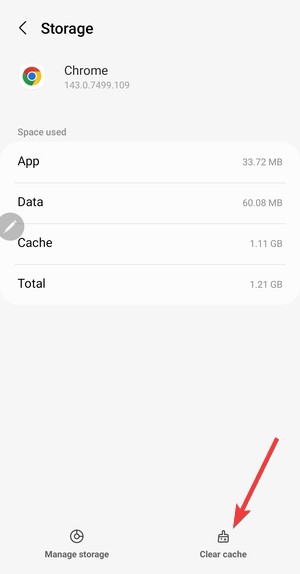

Avoid clearing data unless necessary.
Reset Chrome flags to default
- Type chrome://flags in the address bar.
- Tap Reset all.
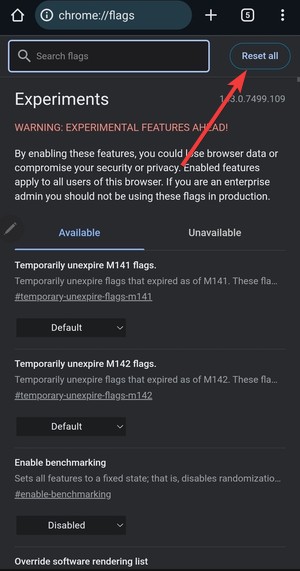

- Restart Chrome.
Experimental features often break downloads.
Update Chrome
Open the Play Store and install the latest Chrome version. Updates frequently fix download-related bugs.
Android version-specific fixes
Download behavior changes depending on Android version.
Fixes for Android 13 and newer
Chrome needs notification permission to display and complete downloads. Enable notifications manually if missing.
Fixes for Android 12 and older
Older versions rely more heavily on storage permission. Ensure Chrome has full media access.
Fix file-type specific download issues
Some downloads fail due to file restrictions rather than Chrome.
APK downloads blocked
Android blocks APKs by default. Enable install permissions for Chrome if downloading apps.
PDF, ZIP, or image files not saving
Install a compatible file viewer and check internal storage access.
Reinstall Chrome as a last resort
If nothing works, uninstall Chrome updates and reinstall from the Play Store. This fixes deeply corrupted installs.
Tips to prevent Chrome download problems
- Keep Android and Chrome updated.
- Avoid aggressive Data Saver settings.
- Clear Chrome cache after major updates.
- Verify download location regularly.
Summary
- Identify the exact download symptom first.
- Check permissions, network, and storage access.
- Fix Download Manager and Chrome cache issues.
- Apply Android version-specific fixes if needed.
Most Chrome download problems on Android resolve after correcting permissions or storage access. Once fixed, downloads usually resume immediately without requiring a factory reset.

Discussion (0)
Be the first to comment.