




The “There Is A Billing Problem With A Previous Purchase” message appears when Apple cannot process a charge linked to your Apple ID. This issue can block app downloads, updates, and subscriptions, even for free apps.
In most cases, the error relates to outdated payment details, an unpaid balance, or a temporary App Store glitch. The steps below help restore access by fixing your Apple ID billing information.
How To Fix The Billing Problem On iPhone
Start with payment-related fixes, since Apple requires a valid billing method before allowing App Store activity. Work through each step in order until the error disappears.
Update Your Apple ID Payment Method
Expired cards, incorrect billing details, or declined charges commonly trigger this error.
- Open the Settings app.
- Tap your Apple ID name at the top.
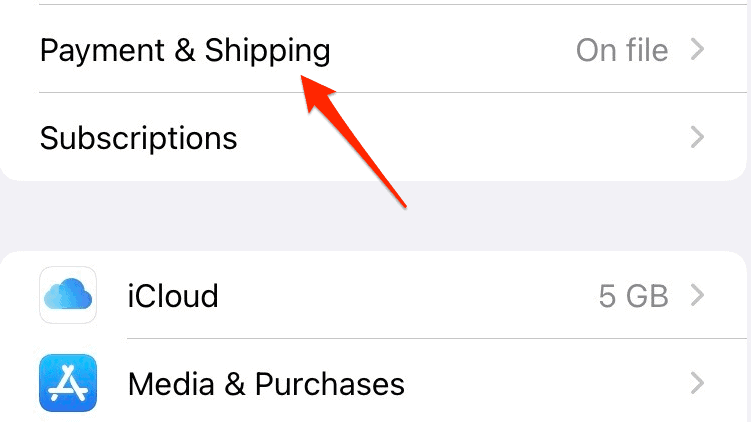
- Select Payment & Shipping.
- Authenticate using Face ID, Touch ID, or your Apple ID password.
- Tap Add Payment Method and enter valid billing details.
- Tap Done to save.
Edit Or Remove An Existing Payment Method
If a card is still on file but contains incorrect information, updating it may resolve the billing error.
- Go to Settings and tap your Apple ID.
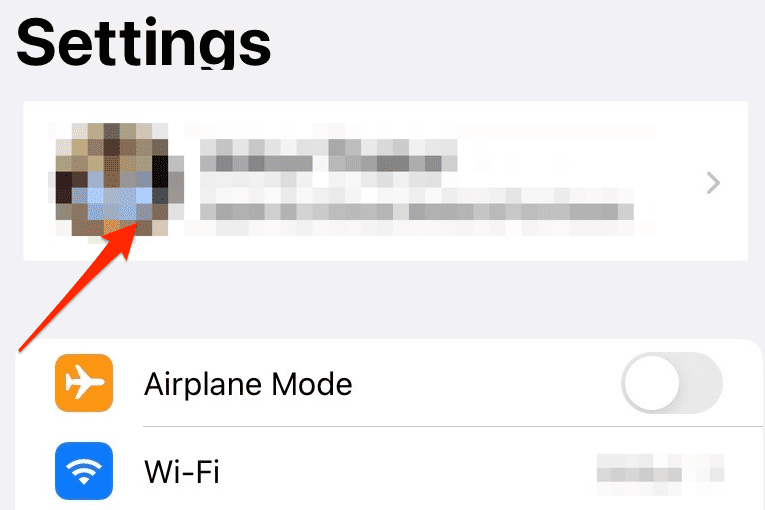
- Select Payment & Shipping.
- Tap the payment method you want to change.

- Tap Edit and update the billing details.
- Tap Done to confirm.
If the card no longer works, remove it completely.
- Open Payment & Shipping.
- Tap Edit in the top-right corner.
- Tap the red minus icon next to the payment method.
- Select Remove to confirm.
Remove And Re-Add Your Card
Re-adding the same card can clear cached billing data that causes repeated App Store errors.
- Remove the payment method from Payment & Shipping.
- Restart your iPhone.
- Return to Payment & Shipping.
- Add the card again using the correct details.
Confirm Your Payment Method Is Supported
Apple does not accept all cards or regional payment options. Unsupported methods may appear valid but still fail during verification.
- Check that your card type is supported in your country.
- Confirm the billing address matches your bank records.
- Avoid prepaid or restricted cards when possible.
Update iOS To The Latest Version
Outdated iOS versions may cause App Store and Apple ID billing glitches.
- Open Settings.
- Tap General.
- Select Software Update.
- Download and install any available update.
Contact Apple Support Or Your Bank
If the error continues, the charge may be blocked by your bank or flagged on Apple’s side.
- Contact your bank to verify the card is not restricted.
- Reach out to Apple Support for account-level billing issues.
Troubleshooting Common Problems
If free apps fail to download, an unpaid balance may still exist on your Apple ID. Clearing the balance usually restores access.
Family Sharing billing issues may require the organizer to update their payment method.
Tips
- Keep at least one valid payment method on your Apple ID.
- Update billing details before a card expires.
- Avoid switching regions unless necessary.
FAQ
Why does Apple ask for payment when downloading free apps?
Apple requires a valid billing method to cover unpaid balances or subscriptions.
Can this error appear without active subscriptions?
Yes, pending charges or failed past purchases can still trigger it.
Does removing a card delete subscriptions?
No, subscriptions remain but require a valid payment method.
Summary
- The billing error usually relates to payment verification issues.
- Updating or re-adding your payment method fixes most cases.
- iOS updates and bank verification can resolve persistent problems.
Conclusion
The “There Is A Billing Problem With A Previous Purchase” error acts as a safeguard for Apple’s billing system. Once your payment details are valid and verified, App Store downloads and subscriptions should work normally again.



Discussion (0)
Be the first to comment.