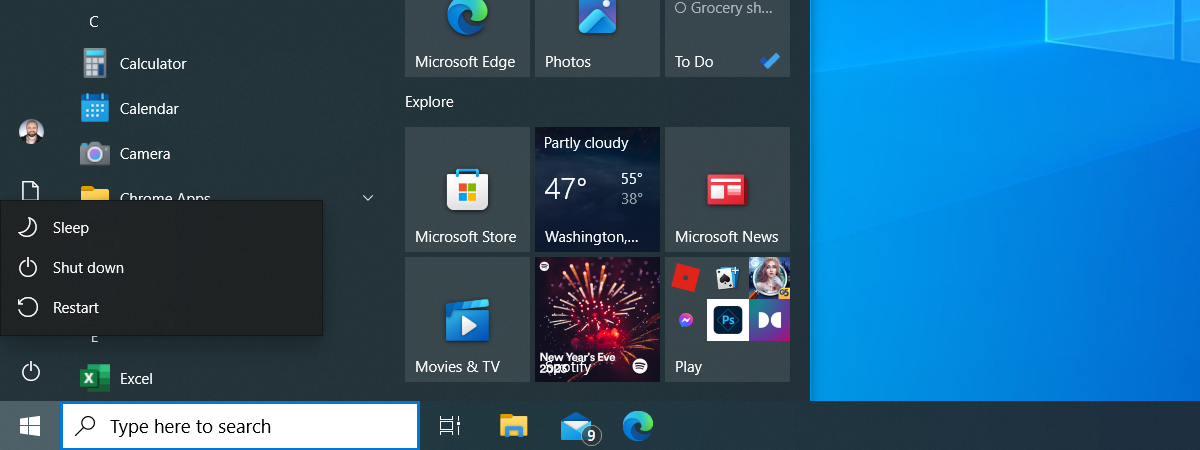
Do you need a quick and easy way to schedule when your Windows computer or device shuts down or restarts? Do you want to schedule other things like when it enters Sleep mode? Maybe you do not want to bother with complicated tools like the Task Scheduler or the Command Prompt. We have found a way to do all this, with the help of a simple app called Simple Shutdown Scheduler that is free to download and use. Here is how it works:
Download and install the Simple Shutdown Scheduler
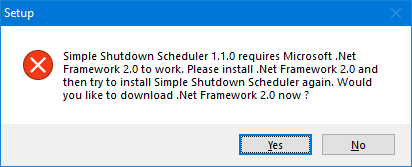
Simple Shutdown Scheduler is a free open-source app that anyone can download and install on their Windows computer and devices. First, download the app from its official project page. You download a file named SSS-v1.1.0-Setup.exe will less than 1 MB in size. When you run it, you may be informed that it needs Microsoft .NET Framework 2.0 to work. Click or tap Yes.
Simple Shutdown Scheduler requires the installation of Microsoft .NET Framework 2.0
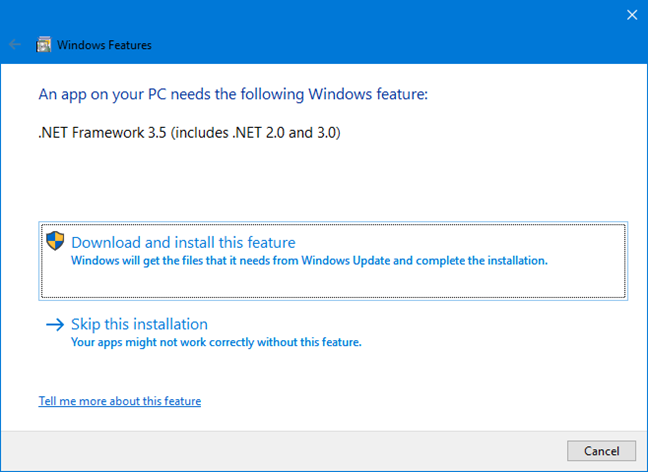
Your default web browser downloads it in the form of a file named "dotnetfx.exe." Run the file and install the .NET Framework. If you are using Windows 10, you download version 3.5 which includes .NET Framework 2.0. If you need to download the .NET Framework manually, you can find it here, on Microsoft's website.
Installation of Microsoft .NET Framework 3.5
If you are not told anything about the .NET Framework, it means that it is already installed on your Windows computer and you go ahead with the installation of the Simple Shutdown Scheduler app.
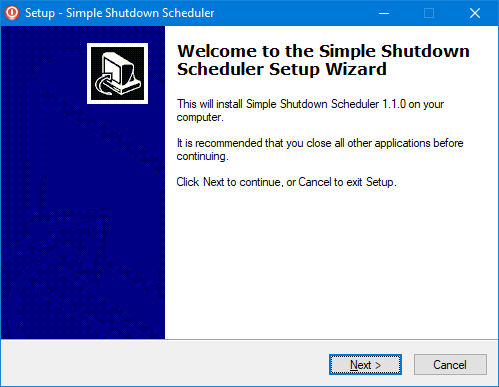
When you run the SSS-v1.1.0-Setup.exe, the installation wizard is started. Press Next and customize the installation of the app.
Installation of Simple Shutdown Scheduler
At the final step, press Finish and run the app.
How to schedule a computer shut down with the Simple Shutdown Scheduler
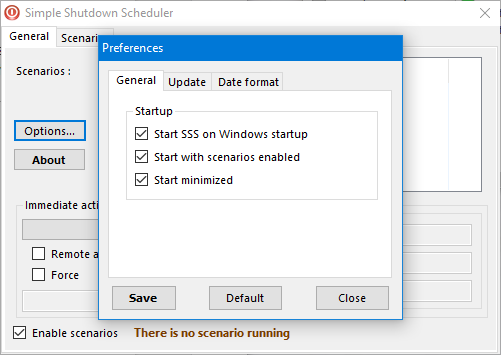
In the Simple Shutdown Scheduler app, first, go to the General tab and click or tap Options. Make sure that you enable the following options:
"Start SSS on Windows startup" - this makes sure that the app always starts automatically each time you sign into Windows. This way, if you create recurring schedules for shutdowns and other operations, the app always works in the background and does what you want it to do.
"Start with scenarios enabled" - you create scenarios to schedule regular shutdowns and other operations. You want them enabled each time the app starts.
"Start minimized" - if you want to run the app in the background and do its thing without bothering you, you want it to start minimized.
Set Preferences for Simple Shutdown Scheduler
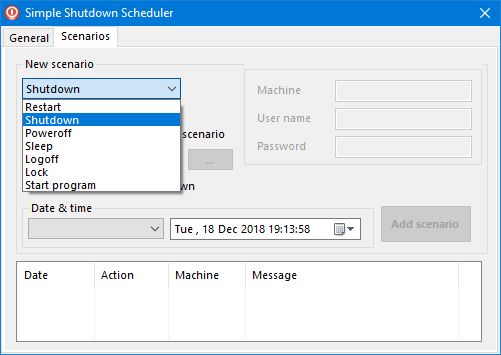
Press Save and then Close to save your configuration. Then, go to the Scenarios tab. Here you can create new scenarios. To create a new scenario, first, click or tap the "New scenario" drop-down list and select the action that you want it to perform. In our case, select Shutdown.
Choose a new scenario in Simple Shutdown Scheduler
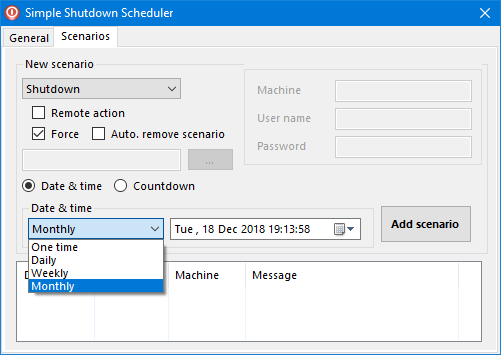
To make sure that the shut down is performed no matter what, even if apps are blocking it, check the Force option. Then, if you want to set a regular schedule for your shut down (like running it daily, at a specific time), select Date & time and click the drop-down list with the same name. Then, select the interval when you want the scenario to run: one time, daily, weekly or monthly.
Choose frequency for a new scenario
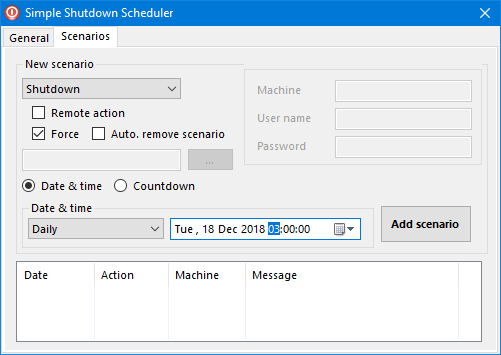
Then, modify the time when you want the scenario to run and click or tap "Add scenario."
Add a new scenario in Simple Shutdown Scheduler
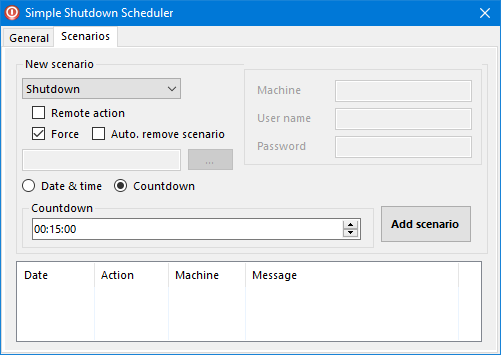
When you go to the General tab, you see that the scenario is added and active. You can also set a countdown and have the shut down performed after a certain amount of time passed. If you want this, select Countdown, set the time you want and press Add scenario.
Choose a Countdown scenario in Simple Shutdown Scheduler
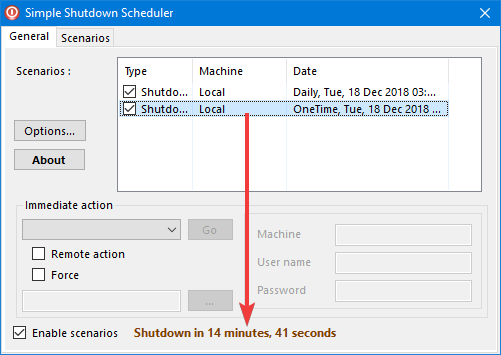
Now go back to the General tab, and you can see the countdown working and informing you when your Windows computer is about to shut down.
See active scenarios in Simple Shutdown Scheduler
Try out the app and see how it works.
How to delete scenarios from the Simple Shutdown Scheduler
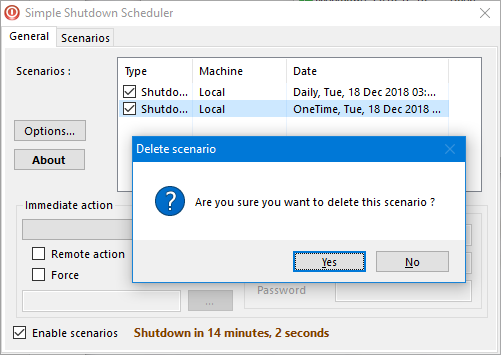
While the app is easy to use for most people, it could be improved. For example, it is not evident how to remove a scenario that you no longer want to use. To do this, select the scenario in the General tab and press the Delete key on your keyboard. Then, you are asked to confirm that you are OK to delete the selected scenario. Press Yes and you are done.
Delete a scenario in Simple Shutdown Scheduler
Another issue is that you cannot edit saved scenarios. Therefore, you have to delete the scenario that no longer works the way you want to and then create a new one.
Other things that you can do with the Simple Shutdown Scheduler
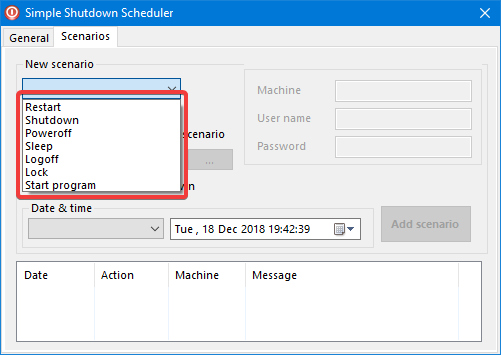
The Simple Shutdown Scheduler app is flexible, and it allows you to schedule other things besides computer shut downs. You can schedule restarts, sleep procedures, the locking of your PC or your user logging off. Also, you can use it to set schedules for running certain desktop apps that interest you at regular intervals.
Scenario options in Simple Shutdown Scheduler
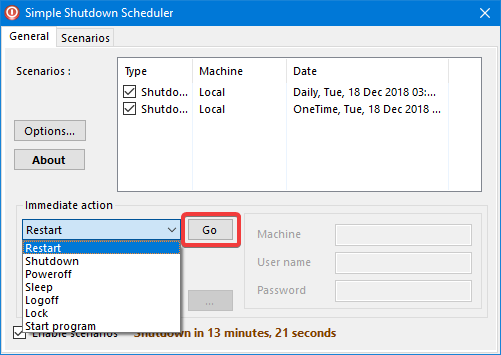
Another way you can use it is to perform immediate actions instead of scheduled ones. Select the action on the General tab from the Immediate action drop-down list, and then press Go.
Immediate action in Simple Shutdown Scheduler
Why is this method better than others?
When you search for a way to schedule the shutdown procedure of a Windows computer or device, you find many websites telling you to use the Task Scheduler in Windows or the Command Prompt, where you run the shutdown command with a particular parameter. While all these methods work well, most users prefer to avoid them because they are somewhat technical. In the end, most users have not even heard about the Task Scheduler, or when they see the Command Prompt, they feel lost and want to get out.
Using Simple Shutdown Scheduler is better because it involves using a simple app for this task, that anyone can download, install and use. Clicking on things that are easy to understand and use is always preferred to using an admin's tool like the Task Scheduler.
Does Simple Shutdown Scheduler do what you need?
Use the Simple Shutdown Scheduler app and let us know how it works for you. Did you manage to install it? Does it do what you need? Access the comments form below and share your experience.










Discussion (0)
Comments are closed.