




If you want to personalize your Samsung phone, learning how to download ringtones is one of the easiest ways to make your device feel unique. At the time of writing, Samsung phones support several reliable ringtone download methods, whether you want a classic tone, a custom audio clip, or a popular song. These steps apply to most Samsung Galaxy devices and help you set up new ringtones quickly without extra apps unless you prefer them.
How Do I Download Ringtones To My Samsung
You can download ringtones on your Samsung phone using built-in tools, third-party ringtone apps, or custom audio files from the web. The steps below walk you through each method so you can choose the one that matches your needs.
Use The Built-In Samsung Ringtone Library
Samsung includes a built-in ringtone library that lets you pick from preloaded tones or download new ones directly from your settings menu.
- Open Settings and tap Sounds and vibration.
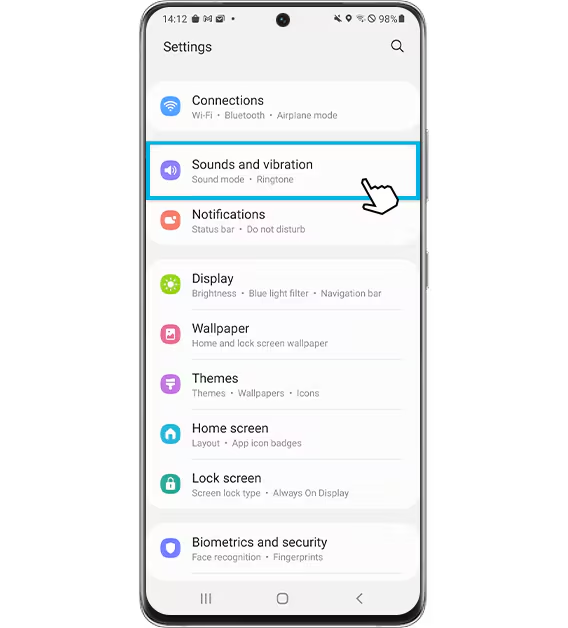
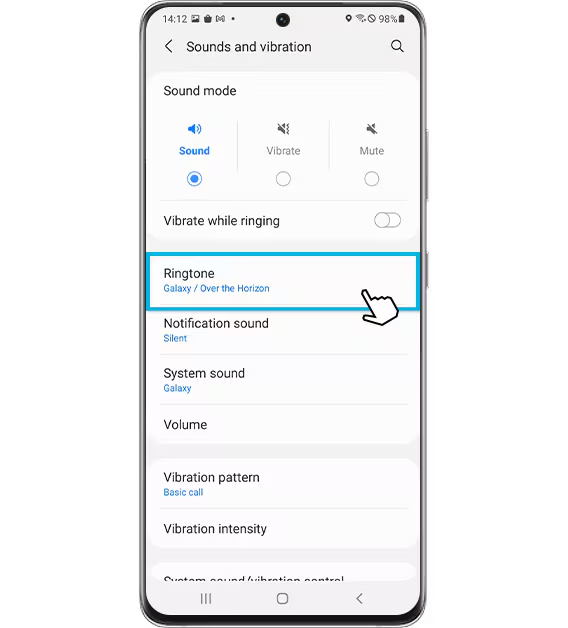
- Select Ringtone to view available tones.
- Tap + or Add ringtone if available on your model.
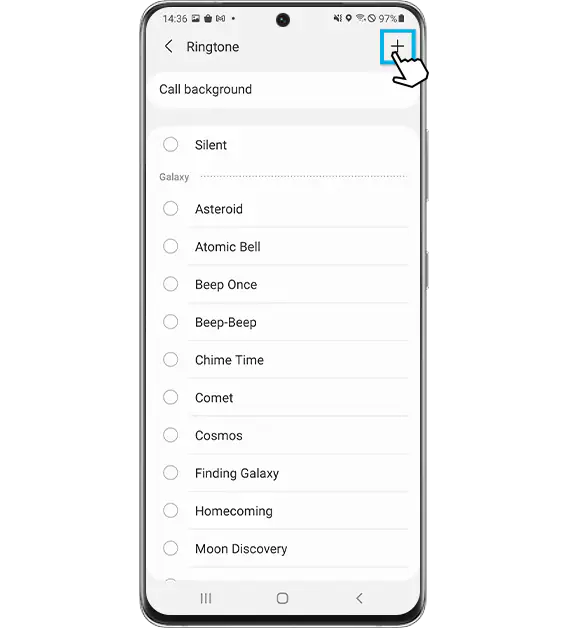
- Choose any built-in tone or select Download when prompted.
- Preview the ringtone, then apply it as your default tone.
Download Ringtones Through Galaxy Themes
Galaxy Themes provides curated ringtone packs designed for Samsung devices. This method offers higher-quality tones that integrate well with the Samsung interface.
- Open the Galaxy Themes app from your home screen or app drawer.
- Tap the Ringtones section from the menu.
- Browse categories, preview tones, and tap Download.
- Go back to Settings → Sounds and vibration to apply your new ringtone.
Use A Ringtone App From The Google Play Store
If you want more variety, apps like Zedge offer thousands of tones, including sound effects, music-style tones, and themed ringtones.
- Open the Google Play Store and search for “ringtone apps.”
- Install a highly rated app such as Zedge.
- Browse available tones and tap Download or Set ringtone.
- Approve permissions so your Samsung phone can apply the file as your ringtone.
Download Ringtones From The Internet And Import Them
You can also download audio files manually from trusted websites and use them as custom ringtones.
- Download a ringtone file in MP3 or M4R format using your browser.
- Open the My Files app and locate the downloaded audio file.
- Tap the file and select Set as ringtone.
- If no prompt appears, go to Settings → Sounds and vibration → Ringtone and choose the file from the list.
Troubleshooting Common Problems
If your ringtone won’t apply, verify the audio file is in a supported format such as MP3. When a downloaded ringtone doesn’t appear in the menu, move it into the Ringtones folder using the My Files app. If tones sound quiet or distorted, adjust the sound mode and disable vibrate-first settings.
Tips
- Use MP3 files for the best compatibility with Samsung phones.
- Preview tones before applying them to avoid low-quality audio.
- Keep downloaded tones organized in a dedicated folder.
- Restart your phone if new tones don’t appear immediately.
- Use shorter audio clips to prevent ringtone delays on incoming calls.
FAQ
Can I use part of a song as a ringtone? Yes. You can trim songs using audio editor apps and save them in MP3 format.
Why can’t I see my downloaded ringtone? Move the file into the Ringtones folder or restart your phone after saving it.
Do Samsung phones support custom text message tones? Yes. You can set notification tones separately from the ringtone menu.
Is it safe to download ringtones from the web? Only use trusted sources and avoid files from unknown websites.
Summary
- Use Samsung’s built-in ringtone menu to apply new tones quickly.
- Browse Galaxy Themes for curated ringtone options.
- Install Play Store ringtone apps for more variety.
- Download audio files manually and import them through the My Files app.
- Apply the ringtone in settings and restart if needed.
Conclusion
Downloading ringtones on Samsung phones is simple once you know where to look. Whether you prefer built-in tones, curated options, or custom audio files, Samsung gives you several flexible ways to personalize your device.



Discussion (0)
Be the first to comment.