




If Instagram keeps logging in automatically on Android, Google Smart Lock usually causes it. Smart Lock saves credentials through Google Password Manager and injects them during sign-in, even after you log out.
This guide shows how to stop Google Smart Lock from logging you into Instagram. The steps focus on Instagram-specific fixes first, then system-wide options if needed.
Table of contents
- Disable Google Smart Lock for Instagram only
- Disable Google Smart Lock completely on Android
- Stop Instagram from re-enabling Smart Lock after logout
- Android version notes that affect Smart Lock behavior
- How to confirm Google Smart Lock is fully disabled for Instagram
- Common issues and fixes if Smart Lock still appears
- Tips to prevent unwanted auto-login in the future
- FAQs
- Summary
Disable Google Smart Lock for Instagram only
Remove saved Instagram credentials from Google Password Manager
This method stops Smart Lock for Instagram without affecting other apps. It works best for users who still want Smart Lock elsewhere.
- Open Settings on your Android phone.
- Tap Google and select Manage your Google Account.
- Open the Security tab.
- Tap Password Manager.
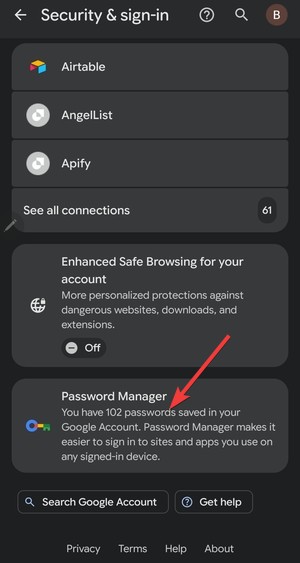

- Find Instagram and delete the saved password.


Turn off autofill for Instagram in Google settings
Autofill injects saved credentials even when Smart Lock appears disabled. Turning it off prevents login prompts.
- Open Settings.
- Tap Passwords & accounts.
- Select Autofill service.
- Choose None or disable Google Autofill.
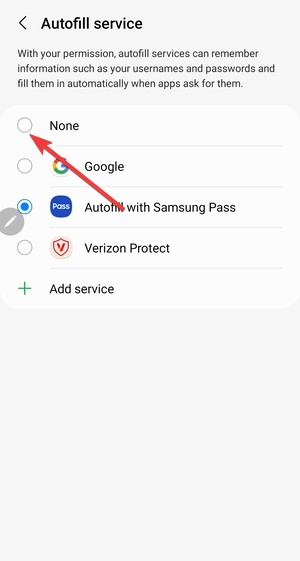

Disable Google Smart Lock completely on Android
Turn off Google Smart Lock in system settings
This option disables Smart Lock across all apps and browsers on the device.
- Open Settings.
- Tap Google.
- Select Autofill.
- Select Autofill service from Google.
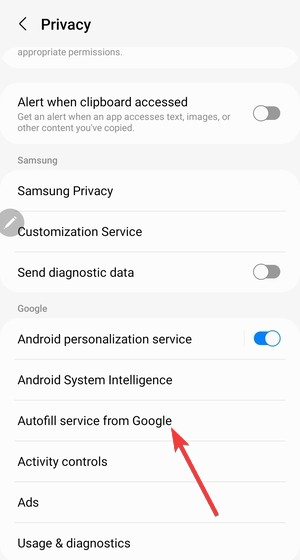

- Now, tap Use Autofill with Google and select None on the next page.
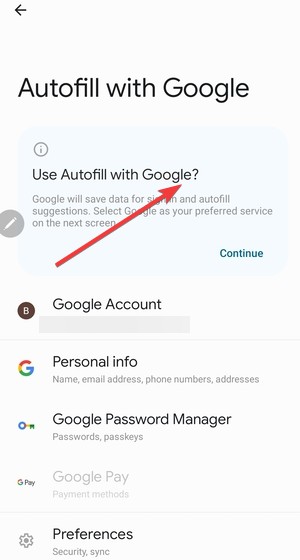
Disable Smart Lock from your Google account
Account-level settings affect every Android device linked to the same Google account.
- Open a browser and sign in to your Google account.
- Go to Security & sign in.


- Open Password Manager.
- Turn off Offer to save passwords and Auto sign-in.


Stop Instagram from re-enabling Smart Lock after logout
Clear Instagram app cache and stored login data
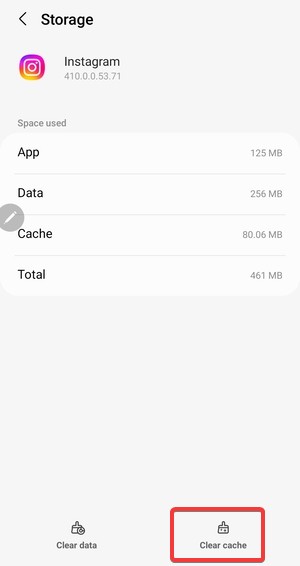
Cached sessions can restore login state automatically. Clearing the cache removes that trigger.
- Open Settings.
- Tap Apps and select Instagram.
- Tap Storage.
- Select Clear cache.

Remove Google-based login shortcuts from Instagram
Instagram can keep Google-linked login options active even when Smart Lock is disabled.
- Open Instagram.
- Go to Settings and tap Security.
- Remove saved login info and linked Google sign-in options.
Android version notes that affect Smart Lock behavior
Android 14 and Android 13 changes
Newer Android versions rename Smart Lock options under Autofill and Passwords. Many older guides reference menus that no longer exist.
Samsung One UI vs Pixel Android
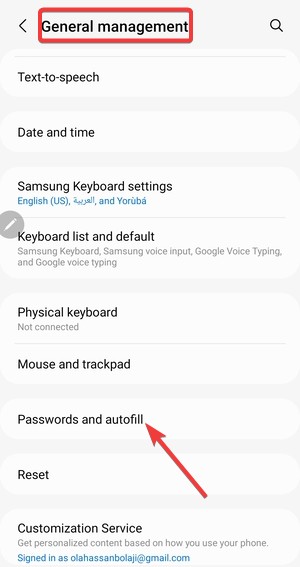
Samsung places Autofill settings under General management. Pixel devices keep them under Passwords & accounts.
How to confirm Google Smart Lock is fully disabled for Instagram
Log out of Instagram on your devices and force close the app. Reopen it and check for login prompts or autofill suggestions.
If Instagram opens without credentials filled in, Smart Lock no longer controls the login.
Common issues and fixes if Smart Lock still appears
- Smart Lock prompts keep showing: Multiple Google accounts on the device can override settings. Remove unused accounts from Settings > Accounts.
- Instagram logs in automatically after reinstall: Android backup restore can reapply saved credentials. Disable restore during setup or delete Instagram from Password Manager again.
Tips to prevent unwanted auto-login in the future
- Disable Auto sign-in inside Google Password Manager.
- Clear app cache after logging out of Instagram.
- Avoid restoring app data when reinstalling Instagram.
FAQs
Can I disable Smart Lock only for Instagram? Yes. Removing the Instagram entry from Google Password Manager achieves this.
Does logging out of Instagram disable Smart Lock? No. Smart Lock operates at the Android and Google account level.
Will this affect Facebook or Messenger logins? No. Each app stores credentials separately.
Summary
- Delete Instagram credentials from Google Password Manager.
- Disable Google Autofill if login prompts persist.
- Clear Instagram cache to remove session triggers.
- Turn off Smart Lock system-wide only if needed.
Google Smart Lock causes Instagram auto-login on Android through saved credentials and Autofill. Removing Instagram from Google Password Manager usually fixes the issue instantly.
If the problem continues, clear the app cache and review account-level Smart Lock settings. Once disabled, Instagram stops logging in automatically.


Discussion (0)
Be the first to comment.