



If your iPad feels cluttered or storage keeps running low, deleting unused apps quickly solves the problem. iPadOS lets you remove apps from the Home Screen, App Library, or Settings, and you can also offload apps to keep data while freeing space.
Delete Apps From The Home Screen
This is the fastest option if the app appears on your Home Screen.
- Press and hold the app icon until the menu appears.
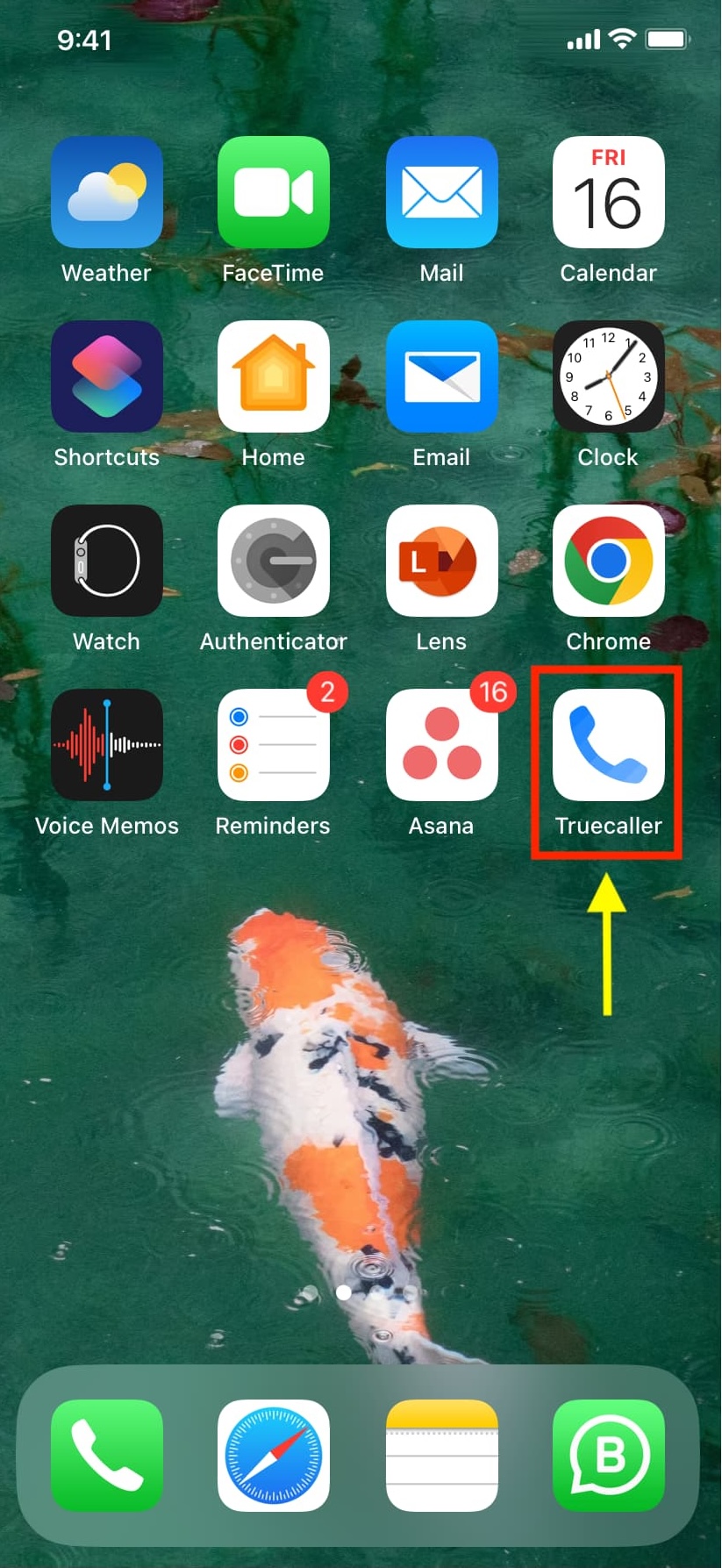
- Select Remove App.

- Tap Delete App, then confirm.

To delete multiple iPad apps, press and hold an empty Home Screen area until icons start shaking, then tap the minus icon on each app.
Delete Apps Using The App Library
The App Library stores all installed apps, including ones hidden from the Home Screen.
- Swipe left until the App Library opens.
- Use the search bar to find the app.
- Press and hold the app icon.
- Select Delete App and confirm.
Delete Apps From Settings
This method works best when you want to remove large apps taking up storage.
- Open Settings.
- Go to General → iPad Storage.
- Select the app you want to remove.
- Tap Delete App, then confirm.
Offload Apps To Save Storage Without Losing Data
Offloading removes the app but keeps documents and settings, making it ideal for rarely used apps.
- Open Settings → General → iPad Storage.
- Select the app.
- Tap Offload App.
- Confirm the action.
You can reinstall the app later and restore all saved data automatically.
Troubleshooting Common Problems
If your iPad does not allow app deletion, Screen Time restrictions usually cause the issue. Go to Settings → Screen Time → Content & Privacy Restrictions and allow app deletion.
Some built-in apps cannot be removed because iPadOS requires them for system functions.
Tips
- Sort apps by size in iPad Storage to find space hogs faster.
- Offload apps you rarely open instead of deleting them.
- Restart your iPad if deletion options fail to appear.
FAQ
Does deleting an app remove its data? Yes, deleting an app removes all associated data unless you offload it.
Can I delete Apple apps? Some built-in apps can be deleted, but core system apps cannot.
Will deleting an app on iPad delete it on iPhone? No, unless both devices sync through the same iCloud setting.
Summary
- Delete apps from the Home Screen for quick cleanup.
- Use App Library to remove hidden apps.
- Delete large apps from Settings to free space.
- Offload apps to keep data while saving storage.
Conclusion
Deleting apps on iPad stays simple once you know where to look. Whether you remove apps completely or offload them to save space, iPadOS gives you flexible tools to manage storage without breaking your workflow.



Discussion (0)
Be the first to comment.