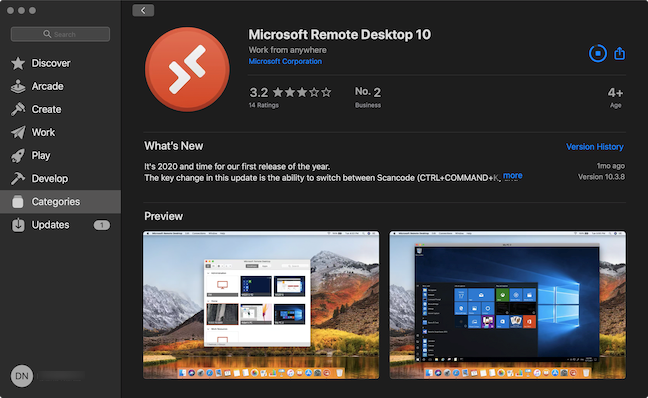
To remote access Windows 10 from Mac, you can use the Microsoft Remote Desktop 10 app. With it, computers running Windows 10 Professional or Enterprise can be controlled remotely through the Remote Desktop protocol. This allows a remote user using macOS to log in to the Windows 10 computer and control it as if he or she were sitting right in front of it. This tutorial illustrates the steps you need to take in order to connect via Remote Desktop from a Mac to Windows 10, using Microsoft Remote Desktop 10:
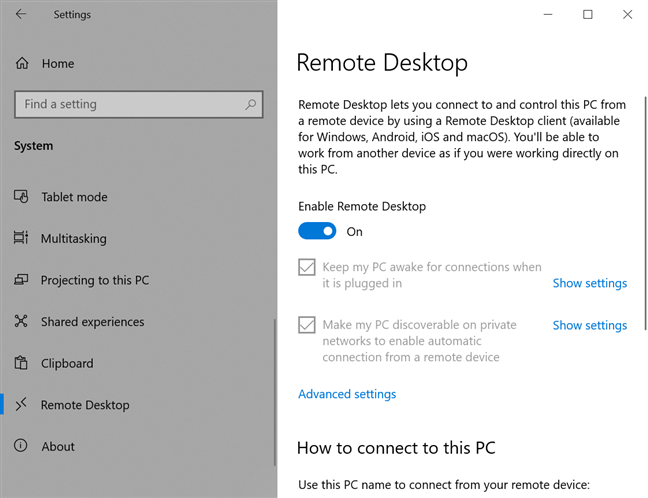
Step 1. Enable Remote Desktop on your Windows 10 device
Windows 10 machines need Remote Desktop enabled to accept connections from other Windows computers, as well as macOS computers running the Microsoft Remote Desktop 10 app for Mac. If you're not sure how to turn on and configure the feature, read our tutorial on How to enable Remote Desktop in Windows 10 (or Windows 7).
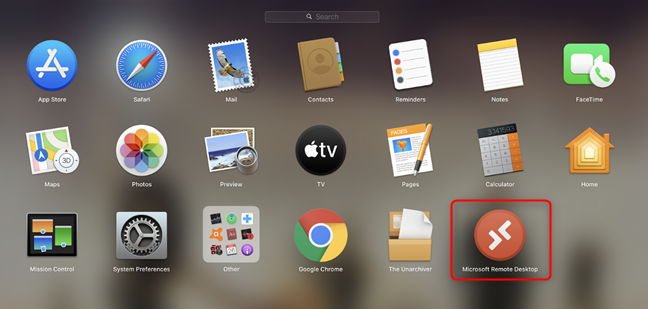
Once the download is complete, Open the app from the Apple Store. You can also press F4 on your keyboard to open the Applications folder, find the Microsoft Remote Desktop app, and click on it.
Click on Microsoft Remote Desktop
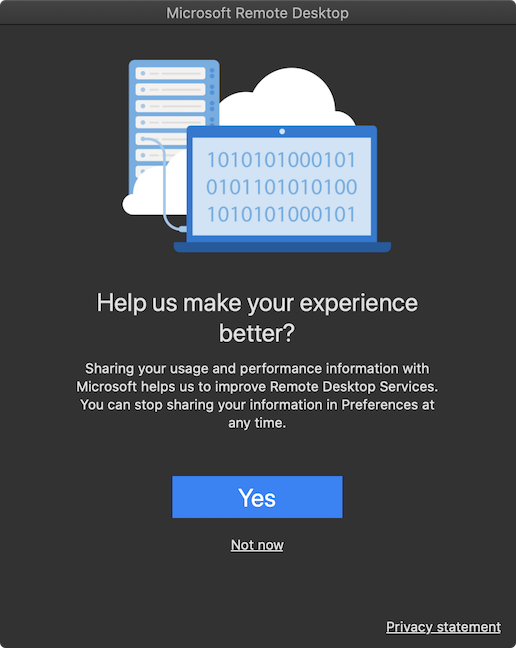
When you first open the app, you are prompted to share "your usage and performance information with Microsoft." Click Yes or Not now, depending on what you want.
Decide if you want to share info with Microsoft
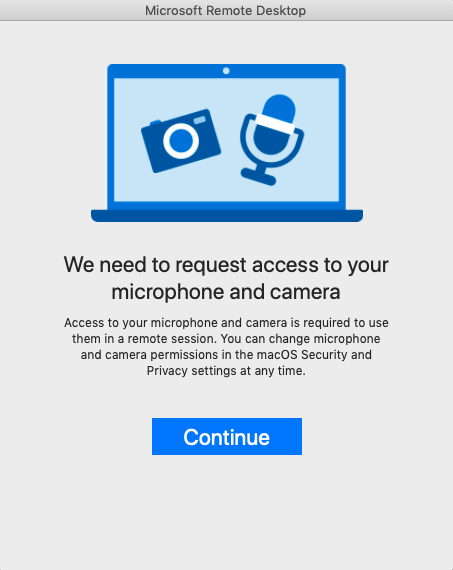
You also need to grant the app access to your Mac's microphone and camera. Click Continue.
Press Continue to access the microphone and the camera
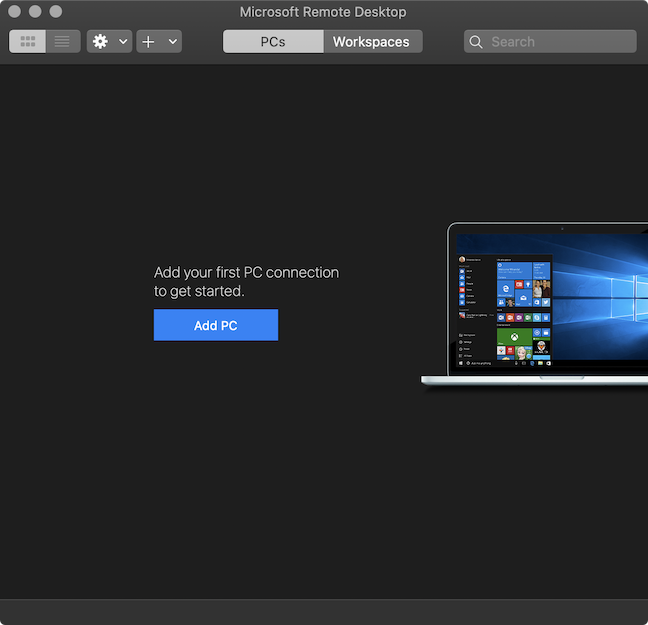
The app opens and you can start using it to connect from your Mac to a Windows 10 PC.
Microsoft Remote Desktop opens
NOTE: In order to connect remotely to your computer from work, you might first need to connect through VPN to your company's network.
Step 3. Configure your Remote Desktop connection
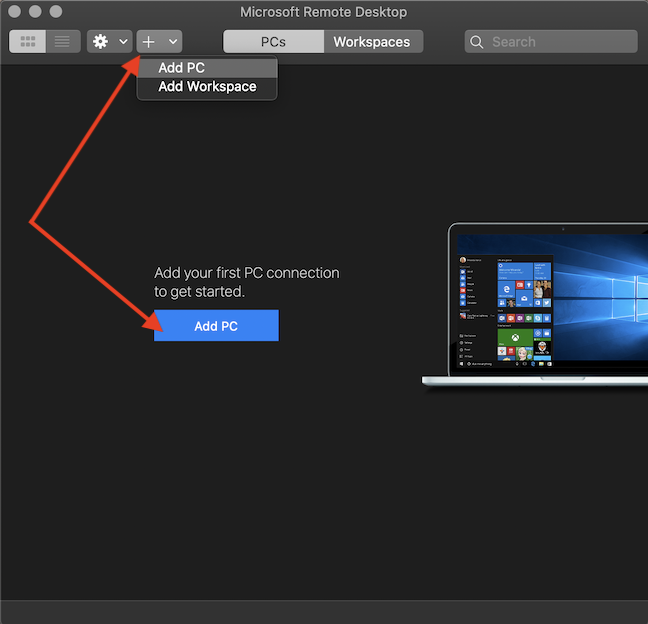
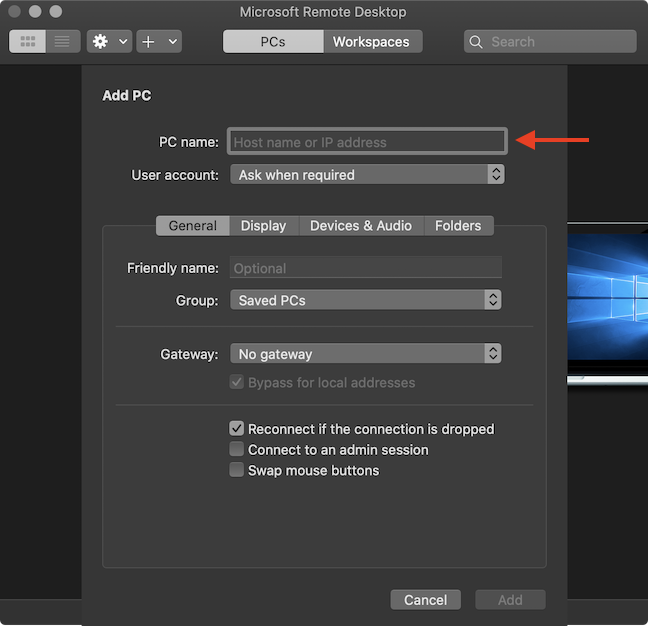
To use Microsoft Remote Desktop 10 to connect from your Mac to a Windows 10 PC, you first need to add that PC to the app. Click the Add PC button in the middle, or press on the + (plus sign) button on top and click on Add PC.
Click Add PC in Microsoft Remote Desktop
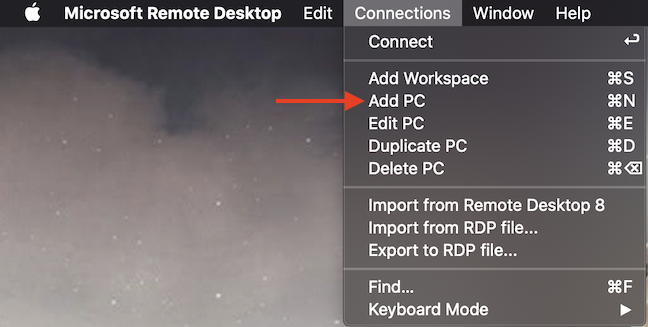
Alternatively, you can also access the app's Connections menu and click on Add PC.
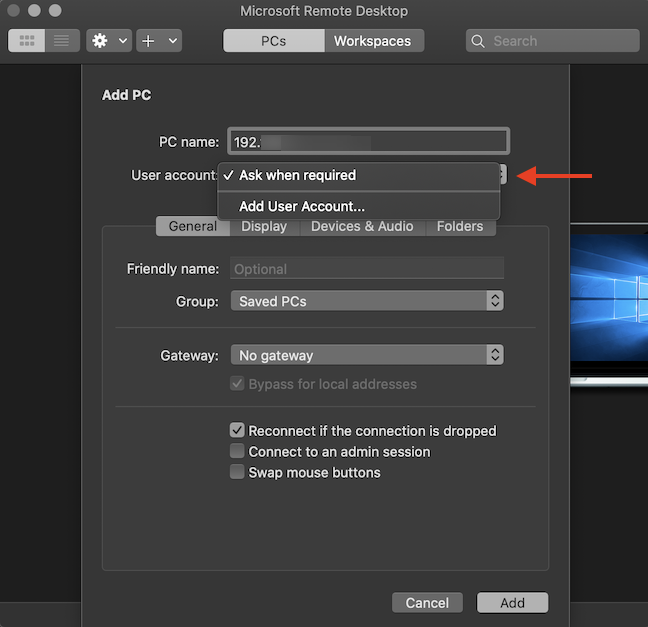
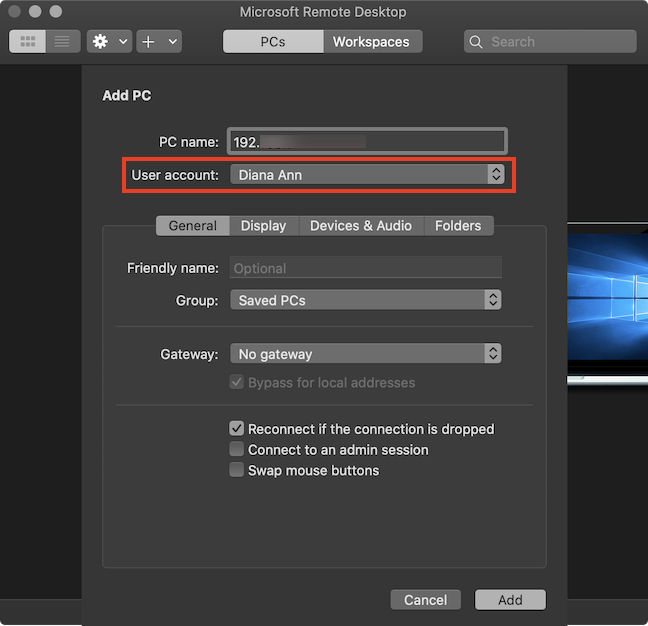
Click the User account field to open a dropdown menu. With the default option, "Ask when required," you need to insert your Username and Password each time you connect to that PC. If you plan to use the same user account to connect remotely to that Windows 10 computer often, click on "Add User Account."
Choose Add User Account to save the credentials for a connection
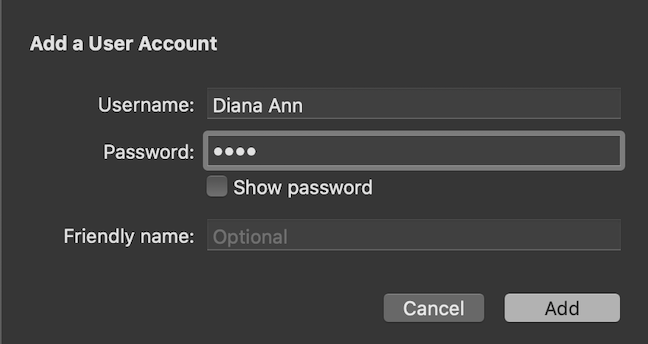
In the "Add a User Account" pop-up, insert the Username and Password for the Windows 10 account. Press Add to save your credentials and avoid having to insert them every time you remotely connect to Windows 10.
NOTE: You can also choose a Friendly name, if you add more User Accounts and need to differentiate between them.
Click Add to save the Username and Password
The User Account you inserted is saved, and you can see it displayed in the corresponding field.
Your User Account is shown in its field
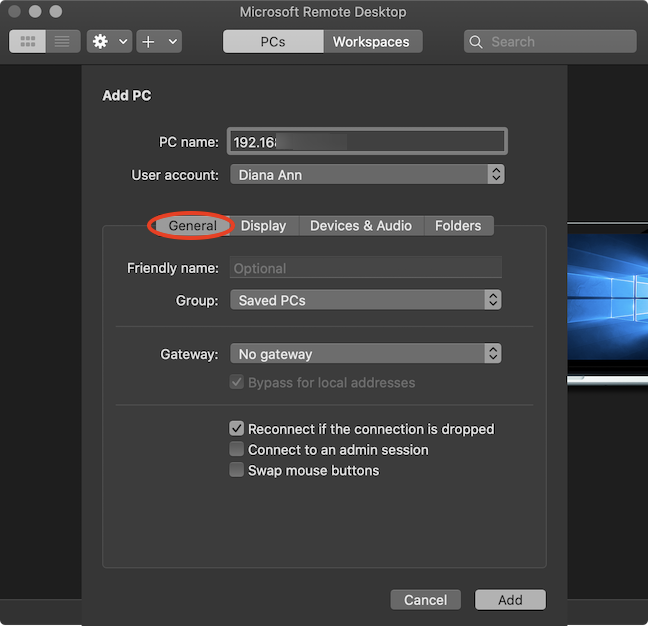
The lower part of the Add PC pane has four tabs with different settings for your remote connection. The pane opens in the General tab, where you can modify the following settings:
The General tab in the Add PC pane
Friendly name - Type a name for your Windows 10 remote desktop connection, to be used inside Microsoft Remote Desktop instead of the PC name or IP. If you add more devices, this can make it easier to differentiate between them.
Group - Click this field to open a drop-down menu that lets you Add Group, and you can enter the name of a new group. If you add a lot of devices in the Microsoft Remote Desktop app, you can use this option to create different groups of computers for easy sorting.
Gateway - Click this field to open a drop-down menu that lets you Add Gateway. Type a Gateway name and a User Account. This option allows you to connect through a Remote Desktop Gateway (used to allow secure connections using HTTPS from computers outside your corporate network). If you use a gateway, you can also choose to check the box underneath and enable the related setting "Bypass for local addresses."
Reconnect if the connection is dropped - Check this box to connect automatically when your Remote Desktop connection is interrupted.
Connect to an admin session - Check this box if you want to make sure you can always connect to a terminal server. Most users shouldn't need this option.
Swap mouse buttons - Check this box to invert the mouse button functions. This option is useful if the remote Windows 10 PC is configured for left-handed use.
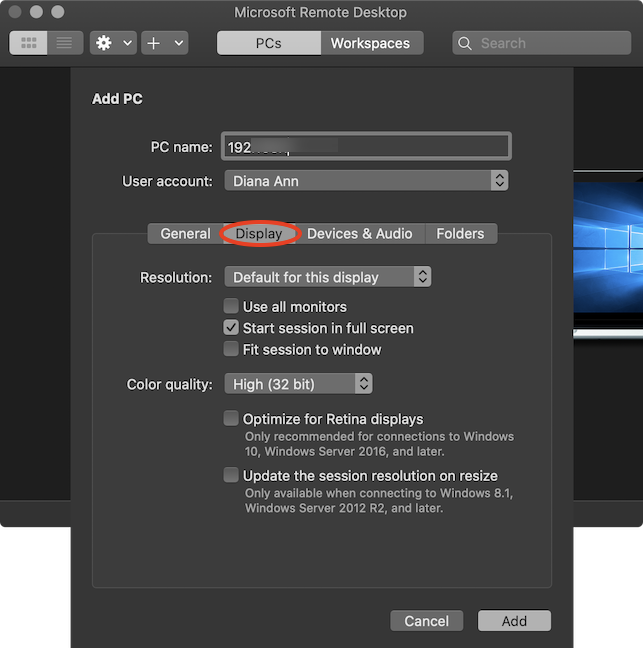
The options in the Display tab are pretty easy to figure out:
The Display tab in the Add PC pane from Microsoft Remote Desktop
Resolution - Click the field to open a dropdown menu. On top of "Default for this display," there are many other options to choose from to optimize the resolution of your remote connection. If you scroll to the bottom, you can even "Add Custom Resolution."
Use all monitors - Check the box to configure the Remote Desktop connection to use support for multiple monitors.
Start session in full screen - This box is checked by default. At the beginning of your session, Microsoft Remote Desktop uses your Mac's entire screen to display the screen in Windows 10.
Fit session to window - Check the box if you want the session content resized to fit inside the window. This setting is important when the resolution of the remote device differs from the size of the local window.
Color quality - Click the field to customize the color quality of your connection. You can choose between High (32 bit) and Medium (16 bit).
Optimize for Retina displays - Check this box if you have a Retina display and you want to optimize the resolution of your remote connection. Keep in mind that enabling this automatically reverses the resolution to the "Default for this display" option and checks the "Fit session to window" box. These two options are greyed out and can not be modified while your connection is optimized for Retina displays.
Update the session resolution on resize - Check this box if you want the resolution to be updated when you resize the session's window. This has the same effect as the previous option on the "Default for this display" setting and the "Fit session to window" box.
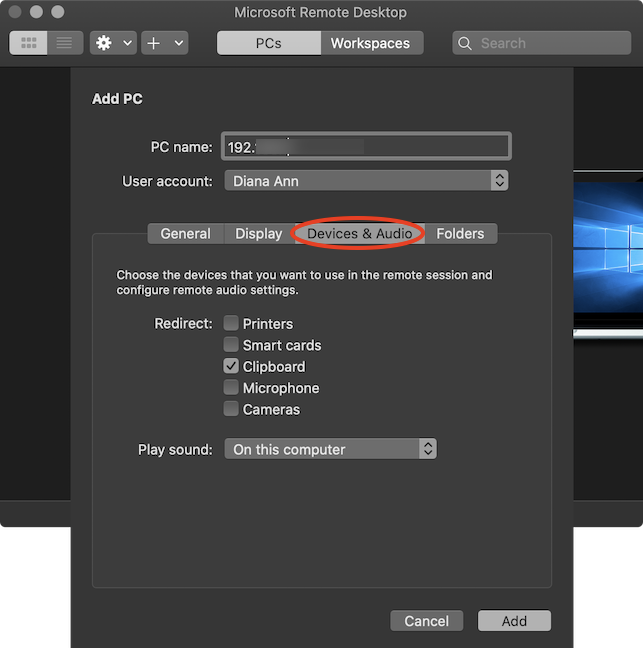
In the Devices & Audio tab, check the boxes to choose the corresponding devices that are to be used in the remote session. Clicking the Play Sound field reveals a drop-down menu with three options: Never, the default "On this computer," and "On the remote PC."
The Devices & Audio tab in the Add PC pane of Microsoft Remote Desktop
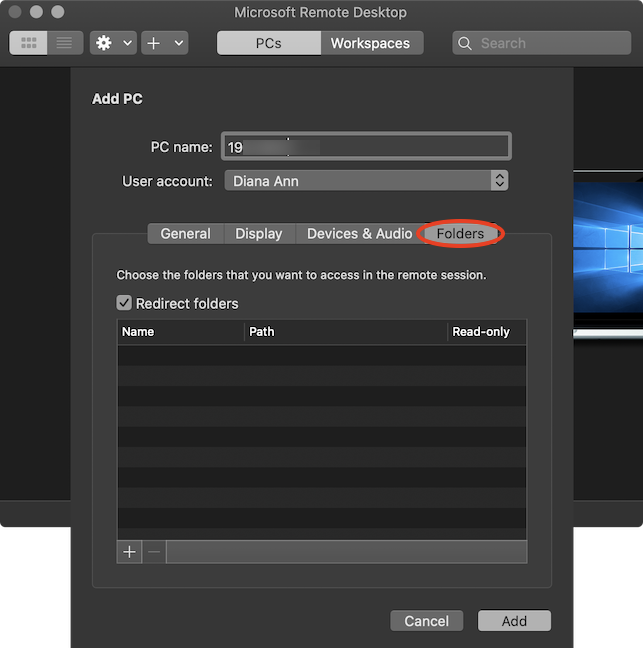
The last tab is called Folders and it allows you to share files and folders from your Mac to your remote Windows 10 PC. Check the Redirect folders box and press the + (plus sign) button at the bottom to browse your Mac for the files and folders you want to share and open them. Once you start the session, the shared items can be found on the remote Windows 10 PC. To find them, open File Explorer, access This PC, and you can see them in the "Redirected drives and folders" section.
Use the Folders tab to share files with Microsoft Remote Desktop
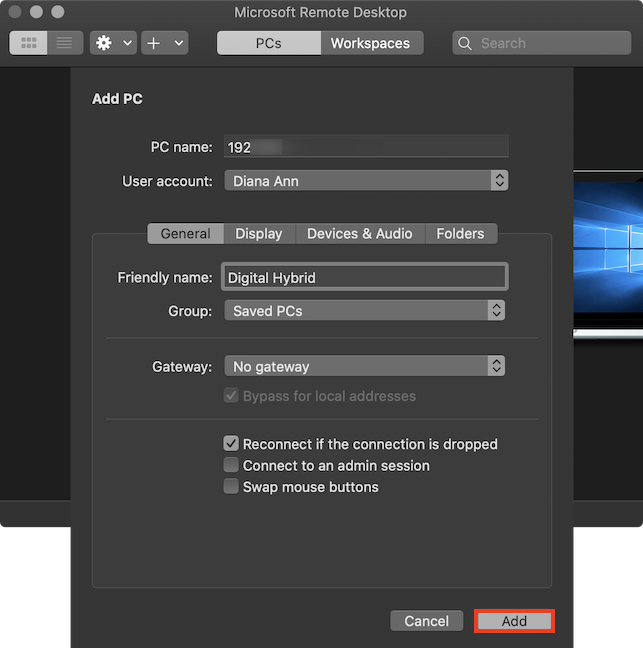
When you are done tinkering with the various settings from the four different tabs, click the Add button in the bottom-right corner of the screen.
Press Add to finish adding a Remote Desktop connection
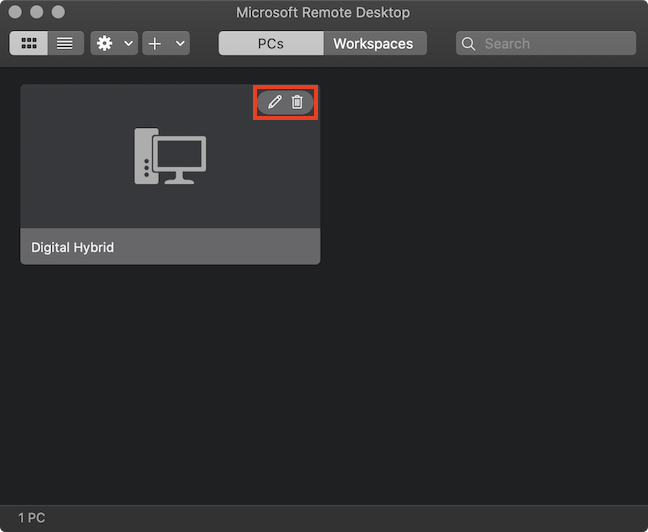
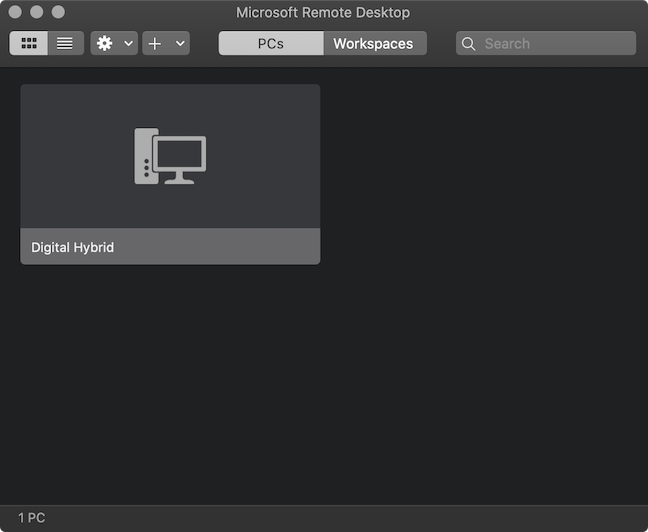
Your connection is displayed in the Microsoft Remote Desktop app. Hover over it to reveal two buttons in the upper-right corner. Click on the pen if you want to edit the configuration for this connection, or press on the trash can icon to erase the connection if you no longer need it.
You can also configure the connection after adding it or you can delete it
Step 4. Use Microsoft Remote Desktop on your Mac to connect to a Windows 10 PC
After completing the previous step, where you added and configured a new connection in the Microsoft Remote Desktop app, you can use it to access the Windows 10 device from your Mac.
To start your remote session, double click on the connection or select it and press Enter on your keyboard.
Open your remote connection in Microsoft Remote Desktop
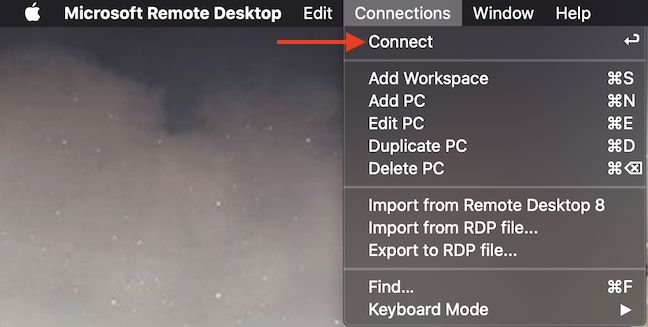
Alternatively, you can also select the connection, access Microsoft Remote Desktop'sConnections menu, and press Connect.
Connect to your remote desktop
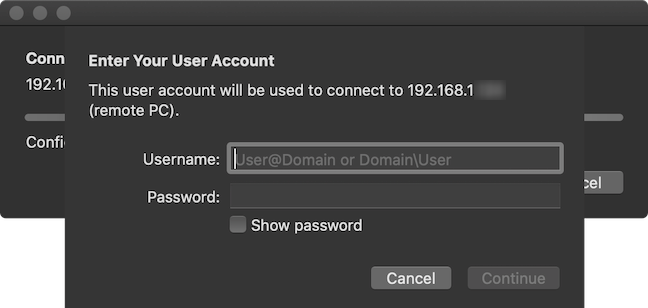
If you did not "Add a User Account" during the configuration process, you have to insert one now. Enter your Windows 10 Username and Password just like you would if you were sitting in front of the host computer. Then, click Continue.
Add credentials for Windows 10 and Continue
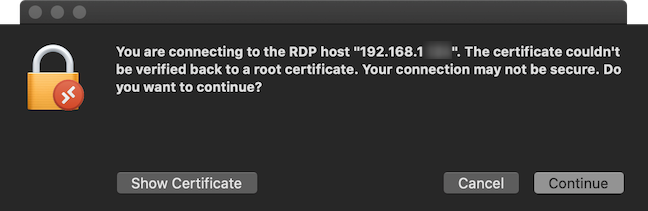
Depending on your network settings, you might see the prompt below. Click Continue to finalize the connection.
Press Continue to connect to the remote Windows 10 PC
Your Remote Desktop session starts, and the screen of the remote Windows 10 PC is shown in a new Microsoft Remote Desktop window. If you configured your session to start in full screen, the window is expanded. Hover your cursor over the top edge of the window to reveal the menu bar and the usual options for closing or minimizing the window in the upper-left corner.
Reveal the menu bar for more options for your session
That is all! You can now enjoy your Remote Desktop session.
Why do you need to remote access Windows 10 from Mac?
My job at Digital Citizen requires me to use devices with Windows 10, but I like my Mac better. Since I am naturally lazy, I sometimes use Microsoft Remote Desktop to check certain details in Windows 10 from my beloved Mac. We assume the majority of our readers also got here trying to remotely connect to their Windows 10 work PCs. Is that the case for you also? Let us know in a comment below.
Sorry, forgot to fill out the name and email for the message just sent.
Jim
KB ·
That works like a charm. But the HP printer i have at home prints everything duplex – i can’t find how to change it. Loaded single print settings on mac but they aren’t crossing over to remote PC. i have tried a restart. HAve you struck this before?
Mike ·
Hello all, just to let you know that the application discussed in this article is no longer available from Microsoft website. They now provide Microsoft Remote Desktop using Apple’s App Store.
Martin ·
Hi can you help I can connect to my windows PC at work from my MacBook but I would like to save my credentials but whatever I try when I connect it always asks for my password I have highlighted add user information to keychain but still no joy Thanks
Alfred Gaskin ·
Hello all, there is a new version of Microsoft Remote Desktop on the App Store. This version works brilliantly with OS X Mavericks. Hope this helps.
Cheers.
Aliasgar Babat ·
Thank you for the above mentioned steps in regards to establishing remote connection between windows and MAC computers. The above mentioned steps work for computers in the same network. For computers in different networks, one can deploy on premise remote support appliance such as RHUB or Bomgar appliances. It works on both MAC and Windows computers.
Pip ·
Using Remote desktop my “line in” and all recording inputs are disabled.
Although system sounds remain, I cannot get access to a receiver input plugged into the sound card. Is there any way around this?
janko ·
hi,
i’m trying to print via rdp from win7 location back to mac, but i can’t see the printer.
if i try it on winXP works fine.
any ideas?
Vincent D'Souza ·
When the RDC is on to enter your remote computer’s name/ip, on the top left corner click on RDC->Preferences. There you see the Printers icon, click on it and make sure the check box next to “Use a printer that is connect to the Mac” is checked and the correct printer is selected from the drop down below. If you are already connected remotely you may have to disconnect and reconnect but I will leave it up to you to verify.
Vincent D'Souza ·
Also, on the second thought, have you installed the printer on Win7 yet? Since you said, it works on winXP, you might have forgotten to install printer on Win7…
G Gabriel ·
Keyboard input not working : Any reason that the keyboard input would not work from the Mac once the connection is made and successful. It allows me to run an executable on the Windows side, but when the application prompts for username and password , keyboard input from the Mac does not work.
thanks
Ciprian Adrian Rusen ·
What you are seeing – is it a UAC prompt? If yes, then you cannot remotely type input to it. You must change it default settings, as advised here: How to Change User Account Control (UAC) Levels.
G Gabriel ·
Not a UAC prompt. The application that is running on the Windows side has a prompt for a username and password to use the Windows app. If I remote into the same Windows system from a Windows system then it all works fine (starting the app and logging in with the username and password for that application).
Was hoping that even though the application itself does not run on a Mac, that a remote connection from a Mac to the Windows system it would work.
Ciprian Adrian Rusen ·
It is a UAC prompt. 🙂 Try the configuration I suggested. It might help to lower the UAC level a bit.
However, do not turn off UAC. You will expose yourself to security problems.
DAVID OCAMPO ·
This is a very helpful tutorial but I’d like to note that you should also set port forwarding in the wireless router to the default 3389 and enter your wireless IPv4 address, and also be sure your firewall settings allow access to RDC.
rick ·
Just wanted to say thank you for posting this; I was having a lot of trouble connecting and your tut made it happen!
Ciprian Adrian Rusen ·
Glad to be of help!
Vincent D'Souza ·
Great product and I love it. Of course it needs a few tweaks but lets hope that they will come out in the coming releases…. 🙂
Lauriena ·
When I was running OS X 10.6, I had not problems getting RDC to work. But now that I have upgraded to an iMac with OS X 10.7, my connection seems to get dropped on a fairly regular basis. If I am away from my desk for more than 2 or 3 minutes, or if I minimize the RD screen to do something locally on my iMac, I get disconnected. The message I am getting is “Someone with access to the Windows-based computer may have ended the connection, or the Windows-based computer has dropped the connection” And I know that no one at my office is accessing my computer while I am working.
I am connected via VPN to my work network, and have no problems with the VPN connection. It is the RDC connection that keeps dropping. I have even tried running a “mouse jiggler” program on the Windows based PC, but that does not help.
If I go back to OS X 10.6, no issues (I have this on another iMac and on my MacBook Pro), but it happens multiple times during the day when on OS X 10.7.2
I spend 8+ hours a day connected to my work computer, two provinces away, so this is becoming a huge hassle.
Alex Currie ·
This is a great tutorial but it has one flaw.
RDC does not work as advertised with XP SP3, Vista and I am told with Windows 7. You can spend hours trying, there are people who will lead you through a huge registry change on the discussion forums and in the end you will be banging your head against the wall.
Save yourself the agony. Either pay someone to transfer your stuff or buy a portable HD (if you don’t have one) big enough to cover your current HD and just move the stuff.
Apple was next to useless in support here. The answer I got was there was a virus in my PC which Norton and McAfee did not find in full system scans.
I was told by a service guy at a store that with Windows 7 it may be possible to export to a Mac by initiating the move from the PC vs from the MAC
Vincent D'Souza ·
Wow, buddy! I have this installed in my Mac, used with Snow Leopard and now on Lion and have no problems whatsoever! I love it. I also use to connect to my office over Cisco VPN and works perfectly without any hassle.
If you cannot connect then there might be reasons for it.
1. Windows Firewall
2. in Windows, you have to enable the Remote Desktop by checking the check-box and not the remote assistance. They are two different things. You right click on the My Computer and goto properties and there you find the Remote tab.
3. Of course, in my case Norton gives me lot of headache. Especially, when I use the Parallels it doesn’t even recognize the .exe files for windows. I had to uninstall to make it work. So, yes these Virus software definitely create lot of headaches.
4. Never ever trust the service rep. They are so stupid, when they don not know how they have to respond they will just make up some things and give you the wrong directions. Just follow your own instinct and google it and you will find tones of help.
Keith Butten ·
Running Lion on iMac with Thunderbolt display, would like RDC to be available in a dual screen mode, is this supported? What options do I have?
Thank you
Ronald Willey ·
Mike: Try to find the older version of RDC 1.0.2 for the mac. It works, regardless of network. I have tried the current version of RDC on our internal network, and still failed to get it to connect with my office PC. There is one tip, or a missing link in the code itself, that is preventing us from success with RDC 2.1.0. I suspect that it is related to a handshake between the two platforms, one side is sending a username/password combination that the other side does not understand.
Mike ·
Hi,
Can’t get this to work at all.
I have a laptop connected wirelessly – justs does not work.
Was hoping to use RDC to remote connect to in-laws PC many miles away.
Mac OS X 10.6.7
Ciprian Adrian Rusen ·
This works for computers in the same network. If your in-laws computer is in another network and has an IP which is not accessible from your network, then it will never work.
For such connections you should use other solutions like TeamViewer.
Loosekonnection ·
It will work, but you’ll need to configure the remote end to accept connections. (and as said below teamviewer will be simpler)
i.e. remote public IP, if it is static ‘great’ you can use this if not you’ll need the end user to give it to you when connecting this can be done by them googling whatismyipaddress this will show the user their current public IP address, or you can setup dyndns on their router.
You’ll also need to configure port forwarding on port 3389 to the internal IP address of the remote PC on their router, again if this is dynamic and their enviroment changes alot this may change. but theres no harm in them having a static one internally.
Ronald Willey ·
Thank you, Your work is very thorough. I am using Mac OS X 10.6.6 and Remote Desktop Connection (RDC) for Mac Version 2.1.0. Presently, no luck connecting to my remote desktop using IP or computer name. I can connect using version 1.0.2 and I can connect via Windows 7 on another machine, so I know the connection works. Somehow, there is a user name/password/or domain that is not transferred or read correctly. I am posting this just in case others are experiencing problems with RDC for Mac 2.1.0 and are seeking help or know the answer.























Discussion (28)
Thanks
Sorry, forgot to fill out the name and email for the message just sent.
Jim
That works like a charm. But the HP printer i have at home prints everything duplex – i can’t find how to change it. Loaded single print settings on mac but they aren’t crossing over to remote PC. i have tried a restart. HAve you struck this before?
Hello all, just to let you know that the application discussed in this article is no longer available from Microsoft website. They now provide Microsoft Remote Desktop using Apple’s App Store.
Hi can you help I can connect to my windows PC at work from my MacBook but I would like to save my credentials but whatever I try when I connect it always asks for my password I have highlighted add user information to keychain but still no joy Thanks
Hello all, there is a new version of Microsoft Remote Desktop on the App Store. This version works brilliantly with OS X Mavericks. Hope this helps.
Cheers.
Thank you for the above mentioned steps in regards to establishing remote connection between windows and MAC computers. The above mentioned steps work for computers in the same network. For computers in different networks, one can deploy on premise remote support appliance such as RHUB or Bomgar appliances. It works on both MAC and Windows computers.
Using Remote desktop my “line in” and all recording inputs are disabled.
Although system sounds remain, I cannot get access to a receiver input plugged into the sound card. Is there any way around this?
hi,
i’m trying to print via rdp from win7 location back to mac, but i can’t see the printer.
if i try it on winXP works fine.
any ideas?
When the RDC is on to enter your remote computer’s name/ip, on the top left corner click on RDC->Preferences. There you see the Printers icon, click on it and make sure the check box next to “Use a printer that is connect to the Mac” is checked and the correct printer is selected from the drop down below. If you are already connected remotely you may have to disconnect and reconnect but I will leave it up to you to verify.
Also, on the second thought, have you installed the printer on Win7 yet? Since you said, it works on winXP, you might have forgotten to install printer on Win7…
Keyboard input not working : Any reason that the keyboard input would not work from the Mac once the connection is made and successful. It allows me to run an executable on the Windows side, but when the application prompts for username and password , keyboard input from the Mac does not work.
thanks
What you are seeing – is it a UAC prompt? If yes, then you cannot remotely type input to it. You must change it default settings, as advised here: How to Change User Account Control (UAC) Levels.
Not a UAC prompt. The application that is running on the Windows side has a prompt for a username and password to use the Windows app. If I remote into the same Windows system from a Windows system then it all works fine (starting the app and logging in with the username and password for that application).
Was hoping that even though the application itself does not run on a Mac, that a remote connection from a Mac to the Windows system it would work.
It is a UAC prompt. 🙂 Try the configuration I suggested. It might help to lower the UAC level a bit.
However, do not turn off UAC. You will expose yourself to security problems.
This is a very helpful tutorial but I’d like to note that you should also set port forwarding in the wireless router to the default 3389 and enter your wireless IPv4 address, and also be sure your firewall settings allow access to RDC.
Just wanted to say thank you for posting this; I was having a lot of trouble connecting and your tut made it happen!
Glad to be of help!
Great product and I love it. Of course it needs a few tweaks but lets hope that they will come out in the coming releases…. 🙂
When I was running OS X 10.6, I had not problems getting RDC to work. But now that I have upgraded to an iMac with OS X 10.7, my connection seems to get dropped on a fairly regular basis. If I am away from my desk for more than 2 or 3 minutes, or if I minimize the RD screen to do something locally on my iMac, I get disconnected. The message I am getting is “Someone with access to the Windows-based computer may have ended the connection, or the Windows-based computer has dropped the connection” And I know that no one at my office is accessing my computer while I am working.
I am connected via VPN to my work network, and have no problems with the VPN connection. It is the RDC connection that keeps dropping. I have even tried running a “mouse jiggler” program on the Windows based PC, but that does not help.
If I go back to OS X 10.6, no issues (I have this on another iMac and on my MacBook Pro), but it happens multiple times during the day when on OS X 10.7.2
I spend 8+ hours a day connected to my work computer, two provinces away, so this is becoming a huge hassle.
This is a great tutorial but it has one flaw.
RDC does not work as advertised with XP SP3, Vista and I am told with Windows 7. You can spend hours trying, there are people who will lead you through a huge registry change on the discussion forums and in the end you will be banging your head against the wall.
Save yourself the agony. Either pay someone to transfer your stuff or buy a portable HD (if you don’t have one) big enough to cover your current HD and just move the stuff.
Apple was next to useless in support here. The answer I got was there was a virus in my PC which Norton and McAfee did not find in full system scans.
I was told by a service guy at a store that with Windows 7 it may be possible to export to a Mac by initiating the move from the PC vs from the MAC
Wow, buddy! I have this installed in my Mac, used with Snow Leopard and now on Lion and have no problems whatsoever! I love it. I also use to connect to my office over Cisco VPN and works perfectly without any hassle.
If you cannot connect then there might be reasons for it.
1. Windows Firewall
2. in Windows, you have to enable the Remote Desktop by checking the check-box and not the remote assistance. They are two different things. You right click on the My Computer and goto properties and there you find the Remote tab.
3. Of course, in my case Norton gives me lot of headache. Especially, when I use the Parallels it doesn’t even recognize the .exe files for windows. I had to uninstall to make it work. So, yes these Virus software definitely create lot of headaches.
4. Never ever trust the service rep. They are so stupid, when they don not know how they have to respond they will just make up some things and give you the wrong directions. Just follow your own instinct and google it and you will find tones of help.
Running Lion on iMac with Thunderbolt display, would like RDC to be available in a dual screen mode, is this supported? What options do I have?
Thank you
Mike: Try to find the older version of RDC 1.0.2 for the mac. It works, regardless of network. I have tried the current version of RDC on our internal network, and still failed to get it to connect with my office PC. There is one tip, or a missing link in the code itself, that is preventing us from success with RDC 2.1.0. I suspect that it is related to a handshake between the two platforms, one side is sending a username/password combination that the other side does not understand.
Hi,
Can’t get this to work at all.
I have a laptop connected wirelessly – justs does not work.
Was hoping to use RDC to remote connect to in-laws PC many miles away.
Mac OS X 10.6.7
This works for computers in the same network. If your in-laws computer is in another network and has an IP which is not accessible from your network, then it will never work.
For such connections you should use other solutions like TeamViewer.
It will work, but you’ll need to configure the remote end to accept connections. (and as said below teamviewer will be simpler)
i.e. remote public IP, if it is static ‘great’ you can use this if not you’ll need the end user to give it to you when connecting this can be done by them googling whatismyipaddress this will show the user their current public IP address, or you can setup dyndns on their router.
You’ll also need to configure port forwarding on port 3389 to the internal IP address of the remote PC on their router, again if this is dynamic and their enviroment changes alot this may change. but theres no harm in them having a static one internally.
Thank you, Your work is very thorough. I am using Mac OS X 10.6.6 and Remote Desktop Connection (RDC) for Mac Version 2.1.0. Presently, no luck connecting to my remote desktop using IP or computer name. I can connect using version 1.0.2 and I can connect via Windows 7 on another machine, so I know the connection works. Somehow, there is a user name/password/or domain that is not transferred or read correctly. I am posting this just in case others are experiencing problems with RDC for Mac 2.1.0 and are seeking help or know the answer.