You might have heard about remote desktop connections, either at work, from your network admin or just from a friend who is rather geeky and knowledgeable about computers and networks. If you don't know what remote desktop connections are, then this article is for you. After receiving a number of questions regarding the purpose and usefulness of remote desktop connections, we've come to the conclusion that it would be a good idea if we explained you a few basic things about what they are, and how they can make your life easier in certain situations. Here we go:
What Is A Remote Desktop Connection?
To understand what a remote desktop connection is, we need to understand what it does and how. A remote desktop connection implies the existence of two computers that can communicate with each other. That means they have to be powered and connected to either the same network or be connected to the Internet.
A remote desktop connection allows you to use virtually any computer or device in order to connect to another computer. Once you connect remotely, you get access to all the resources on the computer you've connected to. That means you get unrestricted control over the mouse and the keyboard and you can see everything happening on the screen of the computer you've connected to. Furthermore, unrestricted access to all the resources on the remote computer also means you can do everything you could if you were actually using it from where it's located.
For a clearer view of all this, imagine a situation when you have to meet a tight deadline and you can't do all the work at your office, but you need to work on your office computer. Wouldn't it be great if you could stay at your home but still work on your office computer? That is, without physically taking your office computer with you!.
Well, all that is possible if you set a remote desktop connection between your work computer and your home computer. The one in your office would be the host (because you're working on it) and the computer at home would be the client (as it's the one used to establish the connection). Then, after the remote desktop connection is set, you could sit in front of your home computer but you'd actually be working on your office computer. It's a very useful tool, don't you think?
What Is Needed To Establish Remote Desktop Connections?
First of all, in order to be able to establish a remote desktop connection between two different computers, they should both be connected to the same local area network. Or, they can connect over the Internet, but in this case, the host computer's IP address must be public.
Secondly, to be able to establish a remote desktop connection between two computers, they must either support this feature out-of-the-box (by the operating systems that are installed), or they must run specialized remote desktop apps.
If you're using Windows computers, the good news is that most of recent versions of Windows (Windows 7, Windows 8.1 & Windows 10) all support remote desktop connections. The bad news is that not all Windows editions do. This feature is available in the following versions and editions of Windows:
If both the computers you want to connect via a remote desktop connection run on one of the Windows operating systems in the above list, then everything is great. All you have to do is set up your remote desktop connection. And if you need guidance on how to do that, these tutorials are a very good starting point:
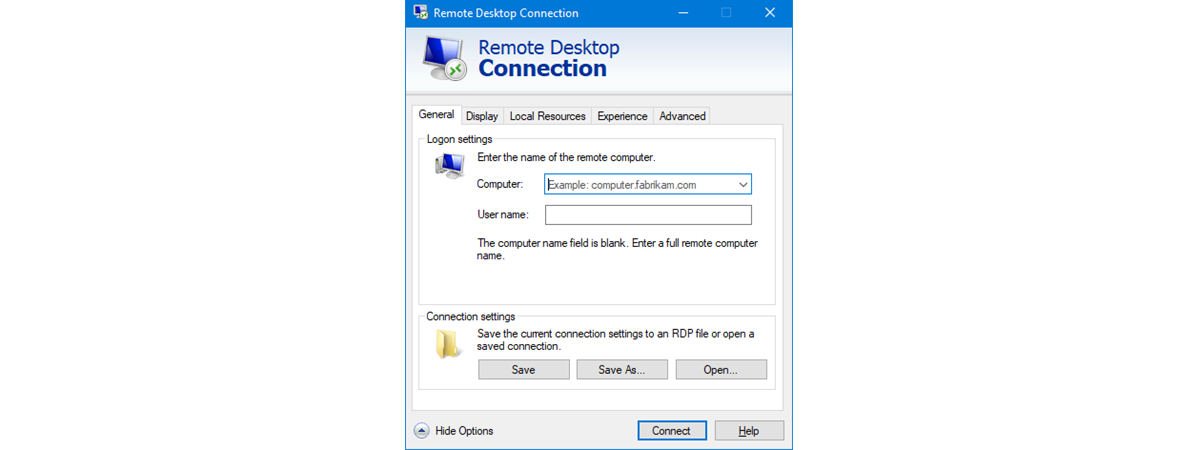
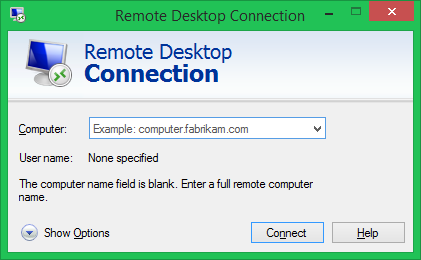
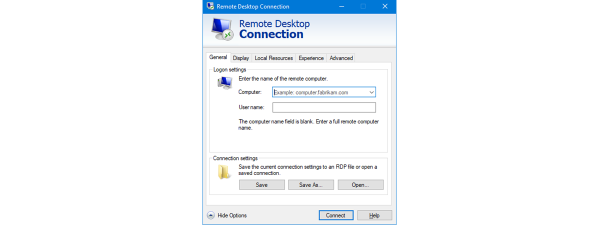
How To Connect Remotely To A Windows PC From Windows - this tutorial explains what you'll need to do on your Windows client computer in order to establish a remote desktop connection with a remote host computer.
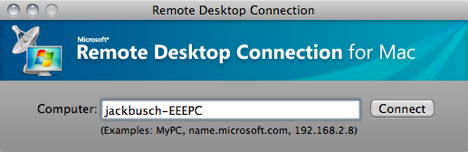
While Windows is the operating system of choice for the vast majority of people and companies, there are some who also use other platforms: either Linux machines or Macs. If you use Ubuntu or OS X on your client computer, these articles we've previously published might come in handy:
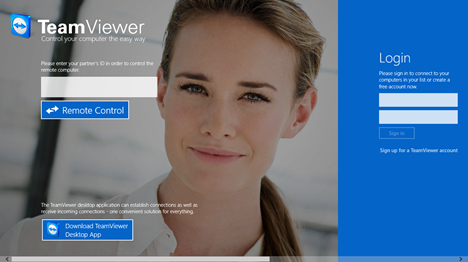
And if you find yourself in a situation in which you want to establish a remote desktop connection between two computers that either don't support this feature in their operating systems, or you intend to create a remote desktop connection between two computers over the Internet, but the host computer's IP address isn't visible, then you should use specialized apps and services like TeamViewer or LogMeIn.
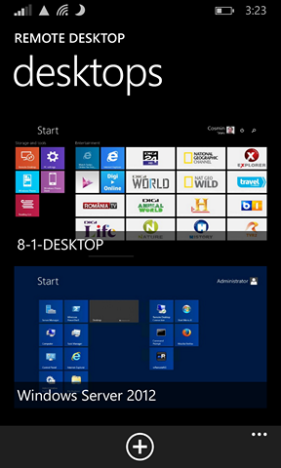
There is one more thing we'd like to mention: up until now we've talked about remote desktop connections between two computers. However, you can also establish remote desktop connections between other kinds of devices too. With a twist: the host device must be a computer. But the client doesn't have to be. The device you use to access the host computer remotely can be a smartphone, a tablet, a hybrid device, etc. For instance, you can use your Microsoft Lumia smartphone to access your home computer. But for that to work, you'll need an app that knows how to make remote desktop connections.
Remote desktop connections allow you to access and control a computer from virtually anywhere. This feature is invaluable for many people out there, and the first ones we think of are technical support teams, system administrators and all those who need to take their work at home. 🙂






 There is one more thing we'd like to mention: up until now we've talked about remote desktop connections between two computers. However, you can also establish remote desktop connections between other kinds of devices too. With a twist: the host device must be a computer. But the client doesn't have to be. The device you use to access the host computer remotely can be a smartphone, a tablet, a hybrid device, etc. For instance, you can use your Microsoft Lumia smartphone to access your home computer. But for that to work, you'll need an app that knows how to make remote desktop connections.

Discussion (0)
Comments are closed.