One useful feature of Windows is that you can connect to your desktop from another location to remotely manage your computer. Fortunately, major Linux distributions also offer this feature and Ubuntu is one of them. If you want to connect to your Windows computers from Ubuntu remotely, you can use the default RDP client found in it, called Remmina. Here is how to create, configure and establish a remote desktop connection from Ubuntu to Windows:
NOTE: This tutorial was created on Ubuntu 18.04 LTS (Bionic Beaver). However, it works in other versions of Linux too.
Step 1: Enable Remote Desktop Connections on your Windows PC
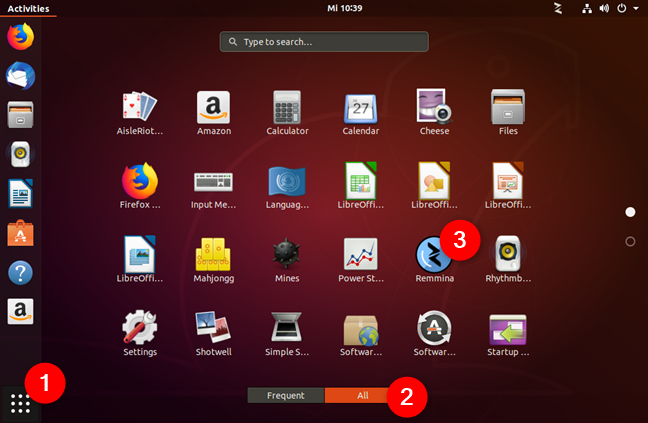
By default, Ubuntu comes with a remote desktop client app that supports the Remote Desktop Protocol (RDP) used by Windows operating systems for remote connections. You can find it in Ubuntu's Apps list.
Remmina Remote Desktop Client in Ubuntu
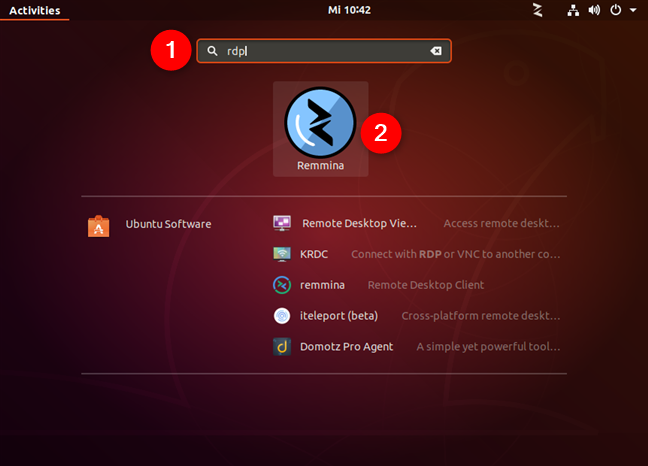
If you prefer to search, you can find the default Ubuntu RDP client by using the RDP search term.
Searching for the default Ubuntu RDP client
Step 3: Configure and establish the Ubuntu remote desktop session to Windows
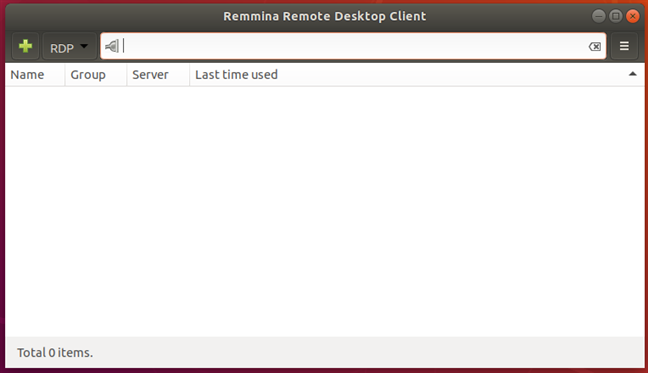
Once you open the Remmina Remote Desktop Client, you should see something like this:
The Remmina Remote Desktop Client
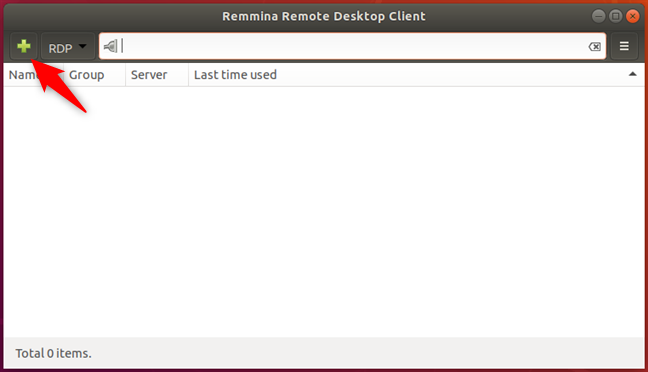
Click the "Create a new connection profile" button.
Its icon is a green plus sign which is easy to spot in the top-left corner of the window.
Create a new connection in Remmina Remote Desktop Client
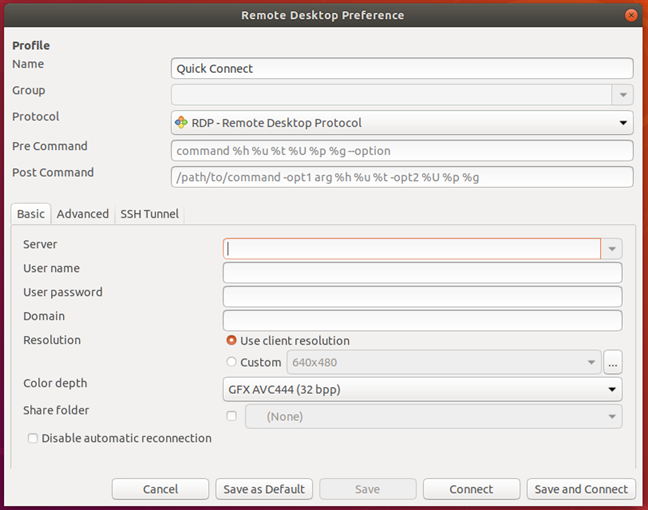
The previous action opens a window called Remote Desktop Preference. Here you can configure the remote desktop Ubuntu to Windows connection that you are going to establish.
The Remote Desktop Preference window
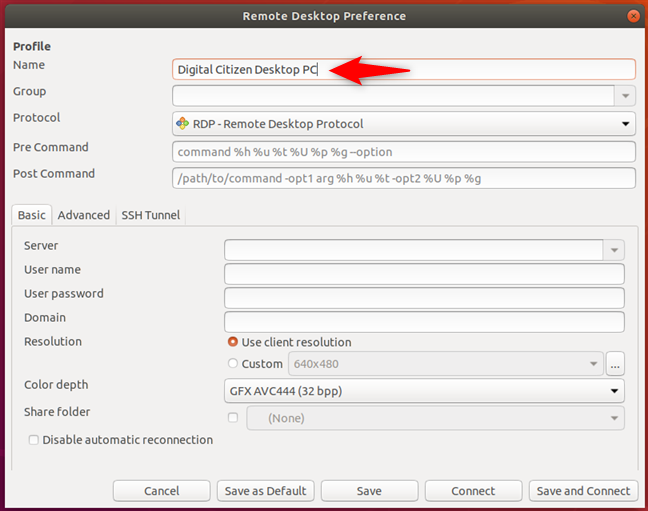
In the Profile section, type the Name that you want to use for the connection. It can be anything you wish. Leave the other settings from the Profile section set to their defaults.
Choosing a name for the remote desktop profile
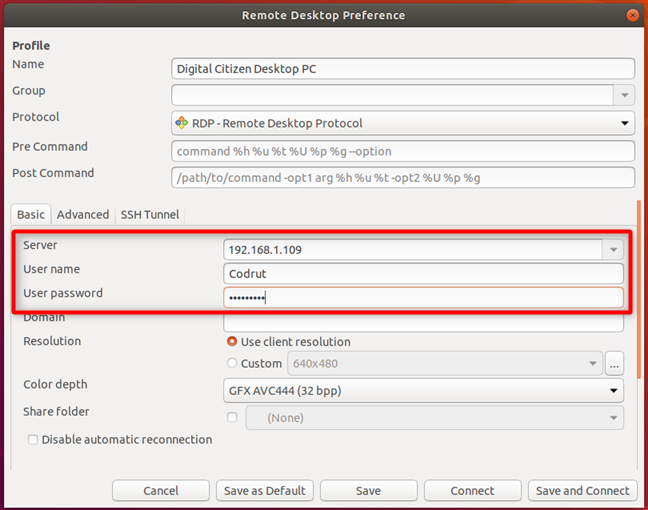
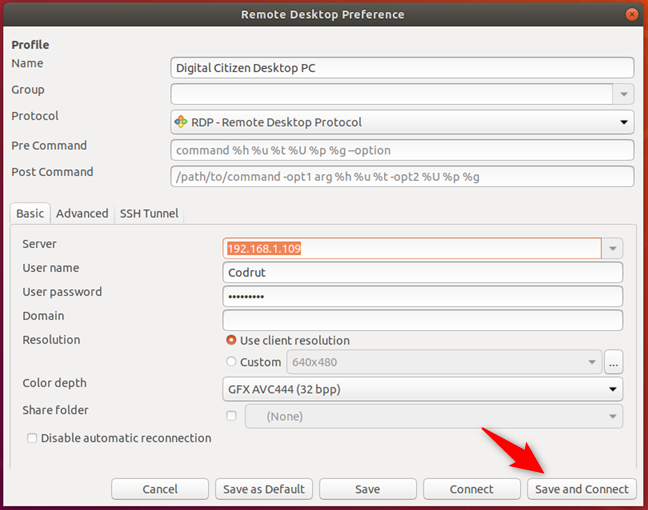
In the Server field from the Basic tab, type the IP address of the Windows PC to which you will connect. Enter the User name and User password for the user account that you want to use on the remote Windows PC. That user account needs to exist on the Windows PC.
If you are using a Microsoft account on your Windows PC, it is OK to fill in your email address and password. If your Windows PC is part of a domain, enter it in the Domain field, otherwise, leave this field empty.
Entering the IP address and the username and password
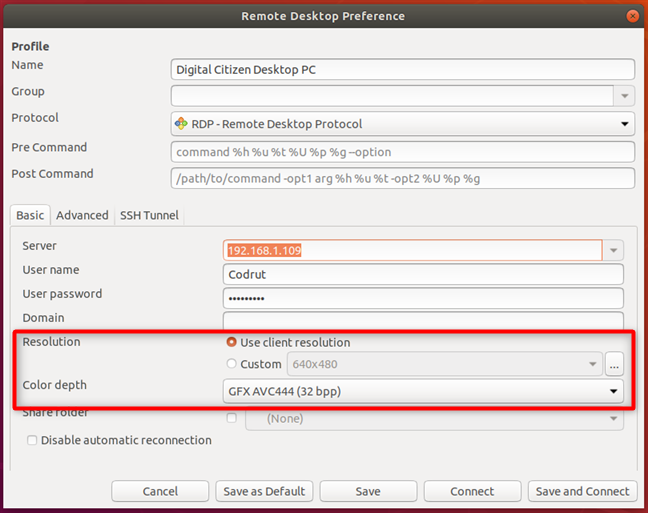
Next, you can set the Resolution and the Color depth that you want to use for your remote desktop connection. By default, the remote desktop profile is set to use the "Use client resolution" which means that the connection uses the same resolution as the Windows computer to which you connect. The Color depth is also set at the highest quality possible. However, selecting a smaller desktop resolution and color depth can improve the performance of your Linux to Windows remote desktop session. If you experience lag when connected to the remote Windows desktop, try reducing the color depth or resolution.
Configuring the resolution and color depth used by the remote desktop profile
If you want to share a folder from your Ubuntu computer with the Windows PC, check the Share folder box and select it.
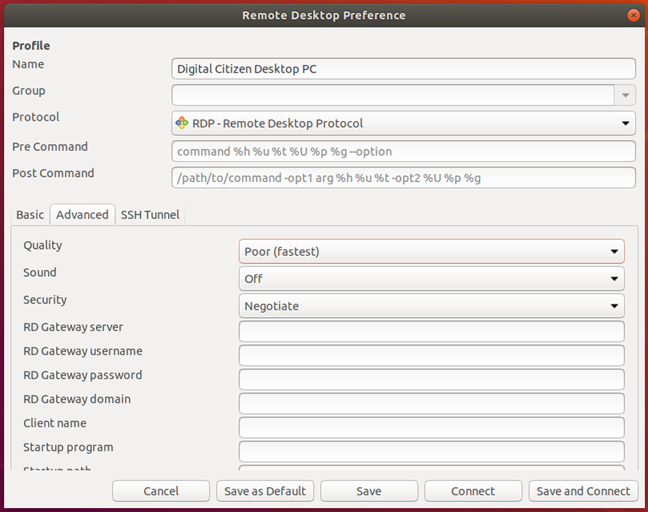
Also, for more advanced settings, go to the Advanced tab. There you can turn the sound on or off, share printers, disable clipboard synchronization, and so on.
Configuring the advanced settings for the remote desktop connection
Once you finish configuring all the details, click Save and Connect. This saves your connection profile and then initiates an RDP connection to the Windows PC.
Saving the RDP profile and connecting to the Windows PC
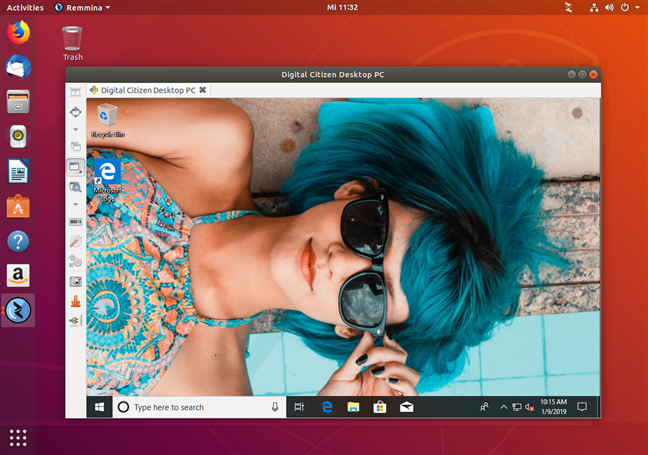
In a matter of seconds, you should have a running remote desktop connection established to your Windows PC.
A remote desktop connection established from Ubuntu to Windows
You could also Connect to the remote Windows PC, without all the personalization steps shared earlier. However, that means that you have to reconfigure the remote desktop connection profile the next time you want to remote control your Windows PC.
Do you use Ubuntu to remote control Windows PCs?
As you can see, it is easy to establish a remote desktop connection from Linux to Windows. The Remmina Remote Desktop Client is available by default in Ubuntu, and it supports the RDP protocol, so connecting remotely to a Windows desktop is almost a trivial task. Did you use it? How did it work for you? Also, if you have any questions or if you need help, feel free to leave a comment below.
I was able to connect to my office pc over cisco anyconnect vpn and RDPL (Remmina Remote Desktop Client)
Scott ·
Yeah, it works, but to be brutally honest, it’s not really worth the effort, control’s are counter intuitive, icons with no indication of what they do, and an oh so ugly interface and the display rendering almost unreadable. It’s back to Windows for me.
Abdifatah Ciilka ·
Thanks for give me Quick Guide for Ubuntu Remote to Window OS
@chiwanja ·
This worked great, thanks 😉
Ivan ·
Thanks
This article helped me connect in no time at all.
I used DYNU to configure dynamic IP address.
Uģis ·
Any chances to get RD gateway setings in client?
JJP ·
Thanks! It worked for me to remote into my computer at work. Only thing I do not like, is I cannot use multiple screens like I can in Windows Remote Desktop. I will need to find another application to remote in. With Windows RD, I am able to use my laptop screen as well as two additional external screens. Each screen showing their own content. Do you have any suggestions for Linux apps that can do this?
Joe Cocovich ·
“Unable to connect to RDP Server”
Hafiz Adnan ·
yes it works flawlessly, thank you for your help
Usman ·
It worked like a charm. Thanks
Paulo Santos ·
I use Check Point’s Linux SNX to connect to my enterprises VPN and then Remmina to access my WIndows 10 workstation. It works fine.
Dawood ·
That was really helpful
Dipali Matkar ·
Good article. Additionally, you can also easily connect to a Windows PC from Ubuntu using tools like on premise R-HUB remote support servers. It works on all platforms.
Carlo ·
How ti do if the firewall of the LAN where Is connceted the server requier an authentication certificate? I got it, how to install It in the xubuntu client?
Rich Brake ·
Why don’t you use NoMachine? Much more straightforward.
Kasper Rylander-Hansen ·
Installing proprietary software on both systems is more straight forward?
Peter ·
Really helpful! Thanks!
Uttam Prakash Manher ·
Thanx Bro.
Anonymous ·
You are welcome. 😉
zixuan ·
I have an error “Unable to connect to RDP server 192.168.0.6”.
Leaf Dude ·
To solve this problem, I reinstalled with the latest Remmina client (with all it’s dependencies). See this URL and follow the steps: https://github.com/FreeRDP/Remmina/wiki
Allwin ·
Thanks, This works great.
Richard Vance ·
Thanks you. This helped me out immensely. There are so many tips on connecting to the Ubuntu servers and so few on connecting to an Azure WIN server!
It turned out that I already had the REMMINA app on by Ubuntu box and didnt’t know it.
There was angst at first as I followed the instructions and could get no connection even though I had no problem connecting from a WIN7 box. Sane URL, etc.
The thing to do is open the .rdp file that the Azure portal provides. Download that then rename it as a .txt file and open it with a text editor. In my case it provided the URL with a specific port.
“full address:s:xxxxxxx.yyyyy.net:63716
prompt for credentials:i:1”
The x and y are my edits for privacy..
So for the address I entered
xxxxxxx.yyyyy.net:63716
Then the biggie that made it connect was leaving the username and password blank since the .RDP file had a
prompt for credentials:i:1
I placed the domain name into the REMMINA box whilst leaving username and password blank.
BAM! I got a hit with a credentials box to enter username and password then a big Azure WIN server box popped right up.
Thanks again.
Richard
Sandeep Kumar ·
You have explained brilliantly, but i have faced a issue regarding RDP server Connection. how can i solve it?
Ben ·
Thanks, this really helped me out.
cmcanulty ·
I am trying to connect with remmina on rdp. I can connect with vnc but that is insecure. I am going from xubuntu 14.04 over wan to a specific windows 7 computers. I have access to all routers and computer settings. I don’t see a way to set a specific port in windows 7 for remmina. I have several to do. Open ssh is installed on all but can’t ssh either.
Padhmakumar P K ·
Thanks its working. But the certificate mentioned is not received and the profile is not getting saved in the client. So every time I have to edit the connection profile..
Maciej ·
RDP plugin is separate for Remmina. Search Remmina in Software Manager and download plugin, then you need to restart the computer for plugin to take effect. Then open Remmina and RDP should now be a connection option.
Mega Byte ·
I am getting this error while connecting my Windows 7 laptop,
“unable to connect to rdp server”
also in my laptop it is not finding my ubuntu machine, all are in same LAN
Tom Liotta ·
At first, didn’t work in Mint 17.1 (64-bit). Ran across a comment saying the “RDP plugin” had to be installed first; so I uninstalled it all, installed the RDP plugin and it worked immediately. Simply installing the plugin caused everything else needed to install, apparently in the proper order. Works great now.
the moose ·
Thank you for the OP of this article, it helped and now I’m using a new app for lubuntu box.
Thx from, Canada he!
Atit Sasono ·
Thanks.
that is worked.
Muluken Sholaye ·
that really works…tnx
mape ·
I tried but i got poor color quality
mape ·
I managed to fix it , thanx for the post
Muriagoro ·
Thanks for the article, really helped.
nguyen ·
If you cannot connect to RDp server form ubuntu to windows7, maybe you need change a setting in windows7
Remote Settings –> remote –> Allow connection from computers running any version of Remote Desktop (less secure)
neetu gokhe ·
thanks its really very helpful
Geir Wathne ·
Hi everyone:-)
I’ve tried both clients with no luck. I cant see the server. The PC i want to connect to is located as 192.168.0.1 on a router that is wired to the main router where i’m connected via wifi. it’s inside LAN but i can’t find it?
Any ideas about how to fix that?
Shetty ·
The PC is on a “different” LAN and hence shouldn’t be open to access via main router’s LAN.
Open the port for the PC, “on the router” it connects to, and give access permissions to that PC (enabling access to that PC from outside the LAN). Now from your client machine, use the address:port like, for example, 66.151.189.213:45123 and user_credentials to RDP into the PC
P. Stine ·
Any other choices besides Remmina as a client?
humberto ·
Remmina sucks. krdc blows Remmina out of the water. Highly recommend krdc. Oh, and your comment captcha sucks, too.
Ciprian Adrian Rusen ·
If everything sucks, why bother commenting?
You could use a more constructive attitude and share more details. Why is krdc better? Where can one find krdc? How does it work?
Simon Wenger ·
Maybe this has changed… I need to additionally install the RDP plugin for Remmina. Else Remmina will only support ssh connections. Thanks!
Miles ·
How are we supposed to know what the “User Name” is? It looks like you’re typing an email address to me. And how do you go about obtaining an IP address? I’m aware of “ipconfig”, but I don’t know which address is the one Remmina is looking for.
Ciprian Adrian Rusen ·
I am typing an email address because, for this tutorial, I connected to a Windows 8 PC that used a Microsoft account. The username should be the username you use to log in to that Windows PC.
Also, ipconfig returns the IP address of the Windows PC you are trying to connect to. Use the address returned by this command for the PC you want to connect to.
EeveePotter ·
did you turn on the allowance of remote desktop on your win8 pc.
Andrey ·
Unable to connect to RDP server
Why? I want to see the details
shahuraj ·
Thank you very very very much…..
Echo ·
echo “I loved this article :)”
Shahab ·
thx 🙂
Ali ·
I just tried the above to connect to win7 laptop from my ubuntu desktop, but it does not work! The IP addresses you have used in this tutorial are the internal IPs right?
ubuntu newbie ·
i tried this and it did not work
Deepak ·
Thanks a lot man.
It really Helped.
🙂
Anonymous ·
Thanks, works great!
jasray ·
Nice find, but with so many possibilities, not sure where to go. VNC (and now Thin VNC), TeamViewer, TSWeb, etc. Trial and error to see which works best for me I guess.
Hugo ·
You can use ThinVNC. Here is an article which explains how to do that.














Discussion (57)
I was able to connect to my office pc over cisco anyconnect vpn and RDPL (Remmina Remote Desktop Client)
Yeah, it works, but to be brutally honest, it’s not really worth the effort, control’s are counter intuitive, icons with no indication of what they do, and an oh so ugly interface and the display rendering almost unreadable. It’s back to Windows for me.
Thanks for give me Quick Guide for Ubuntu Remote to Window OS
This worked great, thanks 😉
Thanks
This article helped me connect in no time at all.
I used DYNU to configure dynamic IP address.
Any chances to get RD gateway setings in client?
Thanks! It worked for me to remote into my computer at work. Only thing I do not like, is I cannot use multiple screens like I can in Windows Remote Desktop. I will need to find another application to remote in. With Windows RD, I am able to use my laptop screen as well as two additional external screens. Each screen showing their own content. Do you have any suggestions for Linux apps that can do this?
“Unable to connect to RDP Server”
yes it works flawlessly, thank you for your help
It worked like a charm. Thanks
I use Check Point’s Linux SNX to connect to my enterprises VPN and then Remmina to access my WIndows 10 workstation. It works fine.
That was really helpful
Good article. Additionally, you can also easily connect to a Windows PC from Ubuntu using tools like on premise R-HUB remote support servers. It works on all platforms.
How ti do if the firewall of the LAN where Is connceted the server requier an authentication certificate? I got it, how to install It in the xubuntu client?
Why don’t you use NoMachine? Much more straightforward.
Installing proprietary software on both systems is more straight forward?
Really helpful! Thanks!
Thanx Bro.
You are welcome. 😉
I have an error “Unable to connect to RDP server 192.168.0.6”.
To solve this problem, I reinstalled with the latest Remmina client (with all it’s dependencies). See this URL and follow the steps: https://github.com/FreeRDP/Remmina/wiki
Thanks, This works great.
Thanks you. This helped me out immensely. There are so many tips on connecting to the Ubuntu servers and so few on connecting to an Azure WIN server!
It turned out that I already had the REMMINA app on by Ubuntu box and didnt’t know it.
There was angst at first as I followed the instructions and could get no connection even though I had no problem connecting from a WIN7 box. Sane URL, etc.
The thing to do is open the .rdp file that the Azure portal provides. Download that then rename it as a .txt file and open it with a text editor. In my case it provided the URL with a specific port.
“full address:s:xxxxxxx.yyyyy.net:63716
prompt for credentials:i:1”
The x and y are my edits for privacy..
So for the address I entered
xxxxxxx.yyyyy.net:63716
Then the biggie that made it connect was leaving the username and password blank since the .RDP file had a
prompt for credentials:i:1
I placed the domain name into the REMMINA box whilst leaving username and password blank.
BAM! I got a hit with a credentials box to enter username and password then a big Azure WIN server box popped right up.
Thanks again.
Richard
You have explained brilliantly, but i have faced a issue regarding RDP server Connection. how can i solve it?
Thanks, this really helped me out.
I am trying to connect with remmina on rdp. I can connect with vnc but that is insecure. I am going from xubuntu 14.04 over wan to a specific windows 7 computers. I have access to all routers and computer settings. I don’t see a way to set a specific port in windows 7 for remmina. I have several to do. Open ssh is installed on all but can’t ssh either.
Thanks its working. But the certificate mentioned is not received and the profile is not getting saved in the client. So every time I have to edit the connection profile..
RDP plugin is separate for Remmina. Search Remmina in Software Manager and download plugin, then you need to restart the computer for plugin to take effect. Then open Remmina and RDP should now be a connection option.
I am getting this error while connecting my Windows 7 laptop,
“unable to connect to rdp server”
also in my laptop it is not finding my ubuntu machine, all are in same LAN
At first, didn’t work in Mint 17.1 (64-bit). Ran across a comment saying the “RDP plugin” had to be installed first; so I uninstalled it all, installed the RDP plugin and it worked immediately. Simply installing the plugin caused everything else needed to install, apparently in the proper order. Works great now.
Thank you for the OP of this article, it helped and now I’m using a new app for lubuntu box.
Thx from, Canada he!
Thanks.
that is worked.
that really works…tnx
I tried but i got poor color quality
I managed to fix it , thanx for the post
Thanks for the article, really helped.
If you cannot connect to RDp server form ubuntu to windows7, maybe you need change a setting in windows7
Remote Settings –> remote –> Allow connection from computers running any version of Remote Desktop (less secure)
thanks its really very helpful
Hi everyone:-)
I’ve tried both clients with no luck. I cant see the server. The PC i want to connect to is located as 192.168.0.1 on a router that is wired to the main router where i’m connected via wifi. it’s inside LAN but i can’t find it?
Any ideas about how to fix that?
The PC is on a “different” LAN and hence shouldn’t be open to access via main router’s LAN.
Open the port for the PC, “on the router” it connects to, and give access permissions to that PC (enabling access to that PC from outside the LAN). Now from your client machine, use the address:port like, for example, 66.151.189.213:45123 and user_credentials to RDP into the PC
Any other choices besides Remmina as a client?
Remmina sucks. krdc blows Remmina out of the water. Highly recommend krdc. Oh, and your comment captcha sucks, too.
If everything sucks, why bother commenting?
You could use a more constructive attitude and share more details. Why is krdc better? Where can one find krdc? How does it work?
Maybe this has changed… I need to additionally install the RDP plugin for Remmina. Else Remmina will only support ssh connections. Thanks!
How are we supposed to know what the “User Name” is? It looks like you’re typing an email address to me. And how do you go about obtaining an IP address? I’m aware of “ipconfig”, but I don’t know which address is the one Remmina is looking for.
I am typing an email address because, for this tutorial, I connected to a Windows 8 PC that used a Microsoft account. The username should be the username you use to log in to that Windows PC.
Also, ipconfig returns the IP address of the Windows PC you are trying to connect to. Use the address returned by this command for the PC you want to connect to.
did you turn on the allowance of remote desktop on your win8 pc.
Unable to connect to RDP server
Why? I want to see the details
Thank you very very very much…..
echo “I loved this article :)”
thx 🙂
I just tried the above to connect to win7 laptop from my ubuntu desktop, but it does not work! The IP addresses you have used in this tutorial are the internal IPs right?
i tried this and it did not work
Thanks a lot man.
It really Helped.
🙂
Thanks, works great!
Nice find, but with so many possibilities, not sure where to go. VNC (and now Thin VNC), TeamViewer, TSWeb, etc. Trial and error to see which works best for me I guess.
You can use ThinVNC. Here is an article which explains how to do that.
https://hugo-sanoguera.blogspot.com/2010/11/now-i-can-forget-about-logmein.html
Regards,
Hugo