




If an app freezes, stops responding, or behaves strangely, closing it completely can help. While iPadOS manages background apps efficiently, there are situations where manually quitting an app makes sense. This guide explains how to close apps on iPad models with or without a Home button and when force quitting is actually useful.
How To Close Apps On iPad Without A Home Button
Newer iPad models rely on gesture navigation instead of a physical Home button. These devices use the App Switcher to manage and close running apps.
- Swipe up from the bottom edge of the screen and pause in the center.
- Wait for the App Switcher to appear with all open apps.
- Find the app you want to close.
- Swipe up on the app preview to remove it.
The app disappears from the App Switcher, confirming it has fully closed.
How To Close Apps On iPad With A Home Button
Older iPads include a physical Home button, but the process still relies on the App Switcher.
- Double-press the Home button to open the App Switcher.

- Swipe left or right to locate the app.
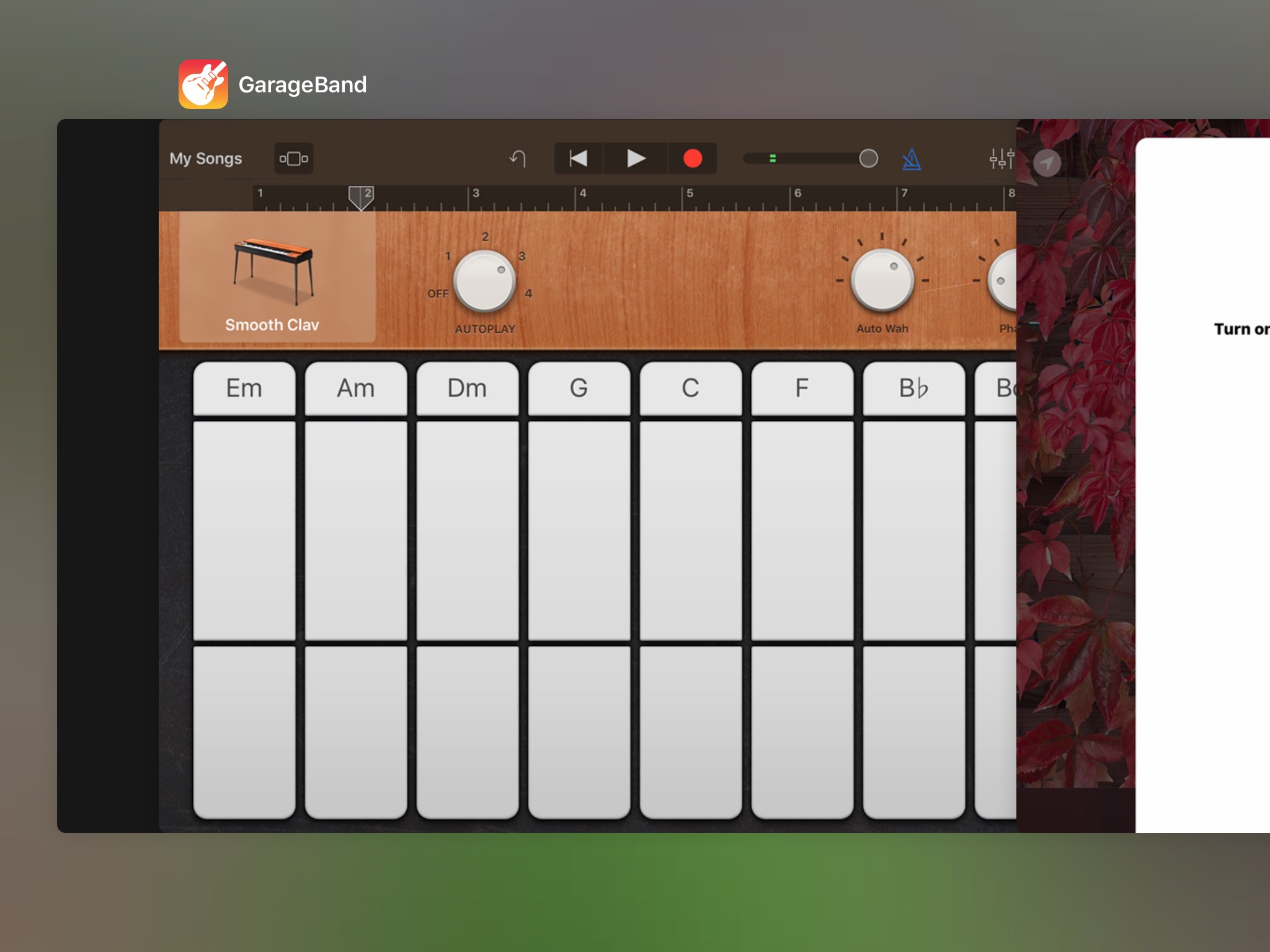
- Swipe up on the app preview to close it.

This method works on all Home button-equipped iPad models.
How To Close Multiple Apps On iPad At Once
iPadOS does not include a one-tap option to close all apps, but you can close several at the same time using gestures.
- Open the App Switcher.
- Place two or three fingers on different app previews.
- Swipe up with all fingers simultaneously.
This removes multiple apps in one motion, saving time when several apps are unresponsive.
Troubleshooting Common Problems
If an app refuses to close, try reopening the App Switcher and swiping again. Restarting the iPad can also resolve apps that remain stuck or crash repeatedly.
Tips
- Only close apps when they freeze or misbehave.
- Leaving apps open does not usually drain battery.
- Restart your iPad if multiple apps act unstable.
- Avoid force closing apps after every use.
FAQ
Do I need to close apps to improve iPad performance?
No, iPadOS automatically manages memory and background activity.
Why does Apple not offer a close-all option?
Closing all apps can increase battery drain and system load.
Can I close Safari tabs the same way?
Safari tabs must be closed inside Safari, not from the App Switcher.
Summary
- Use gestures or the Home button to open the App Switcher.
- Swipe up on app previews to close them.
- Close multiple apps with multi-finger gestures.
Conclusion
Closing apps on iPad is simple and effective when an app stops responding. In most cases, letting iPadOS manage apps is best, but knowing how to force close apps gives you control when problems arise.


Discussion (0)
Be the first to comment.