



Game Center makes iPhone and iPad games more social by letting you add friends, compare scores, and play multiplayer titles together. If you enjoy competing on leaderboards or jumping into online matches with people you know, setting up Game Center correctly is essential.
This guide walks through how to enable Game Center, add friends, and start playing supported games together on iPhone or iPad.
What Is Game Center And How It Works
Game Center is Apple’s built-in gaming service that connects supported games to leaderboards, achievements, and multiplayer features. Instead of using a separate app, Game Center runs in the background through your Apple ID.
Once enabled, it allows you to invite friends, send challenges, and play multiplayer games without creating separate game accounts.
How To Enable Game Center On iPhone Or iPad
Before you can play with friends, Game Center must be turned on and linked to your Apple ID.
- Open Settings on your iPhone or iPad
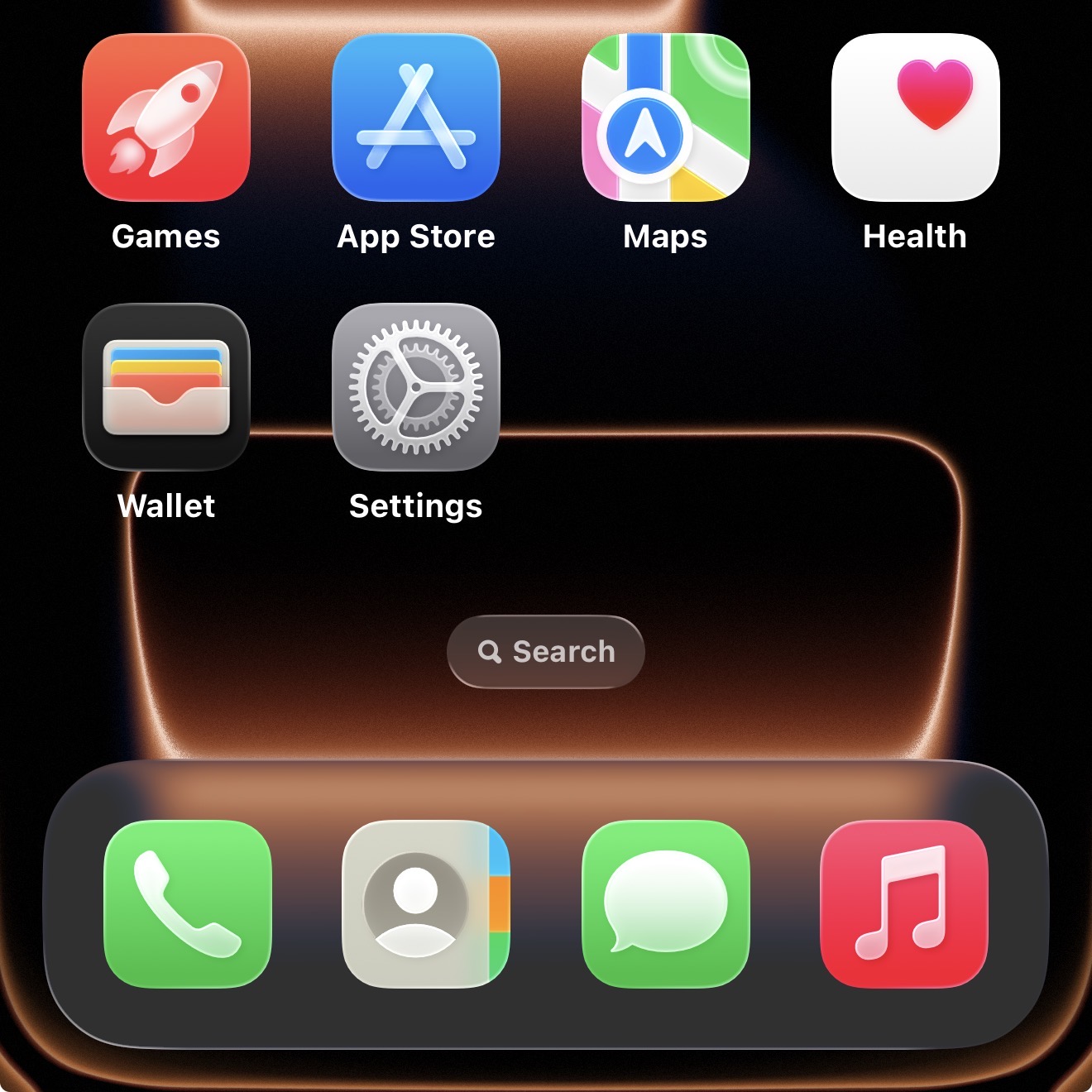
- Scroll down and tap Game Center
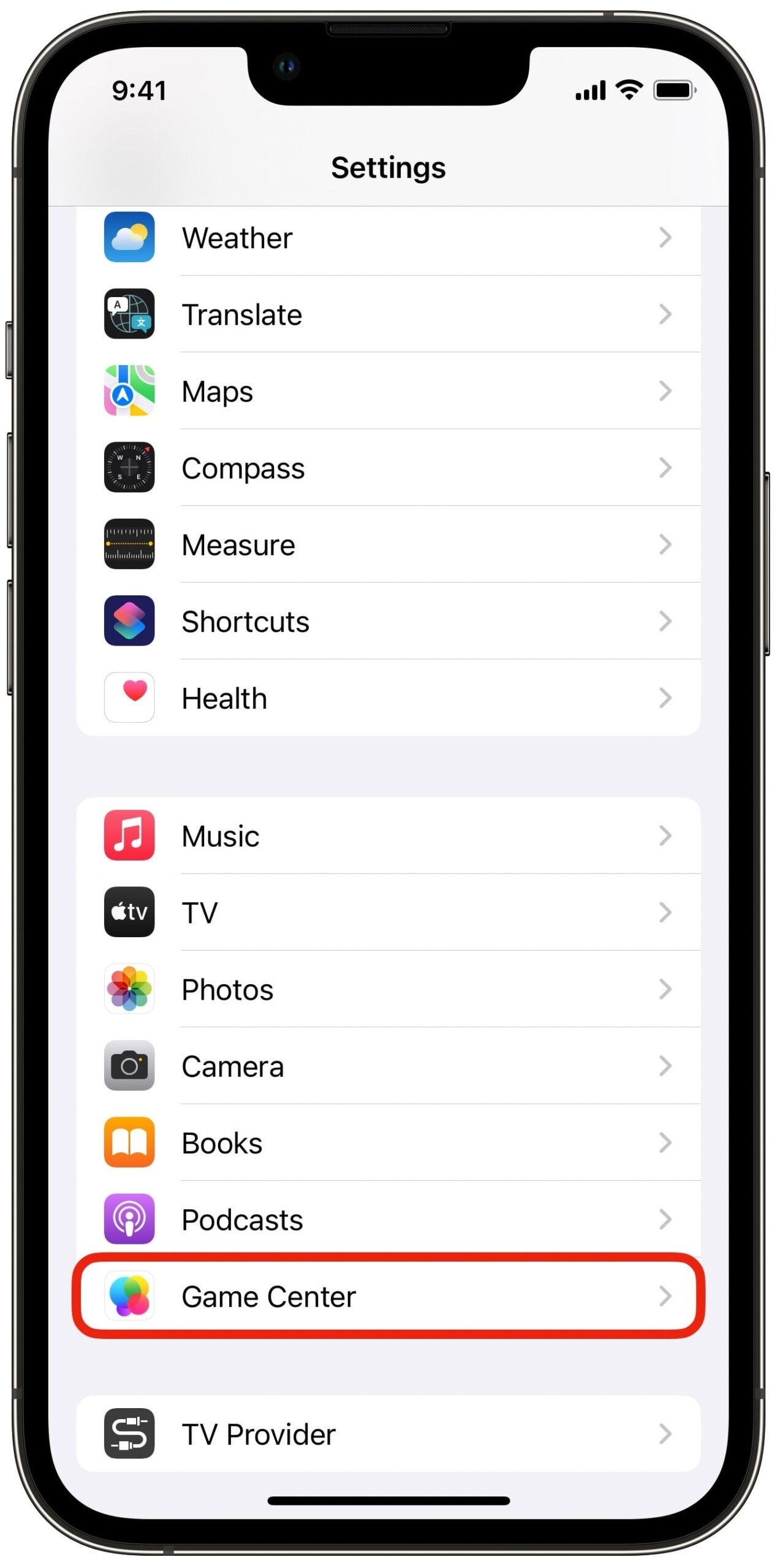
- Turn on Game Center
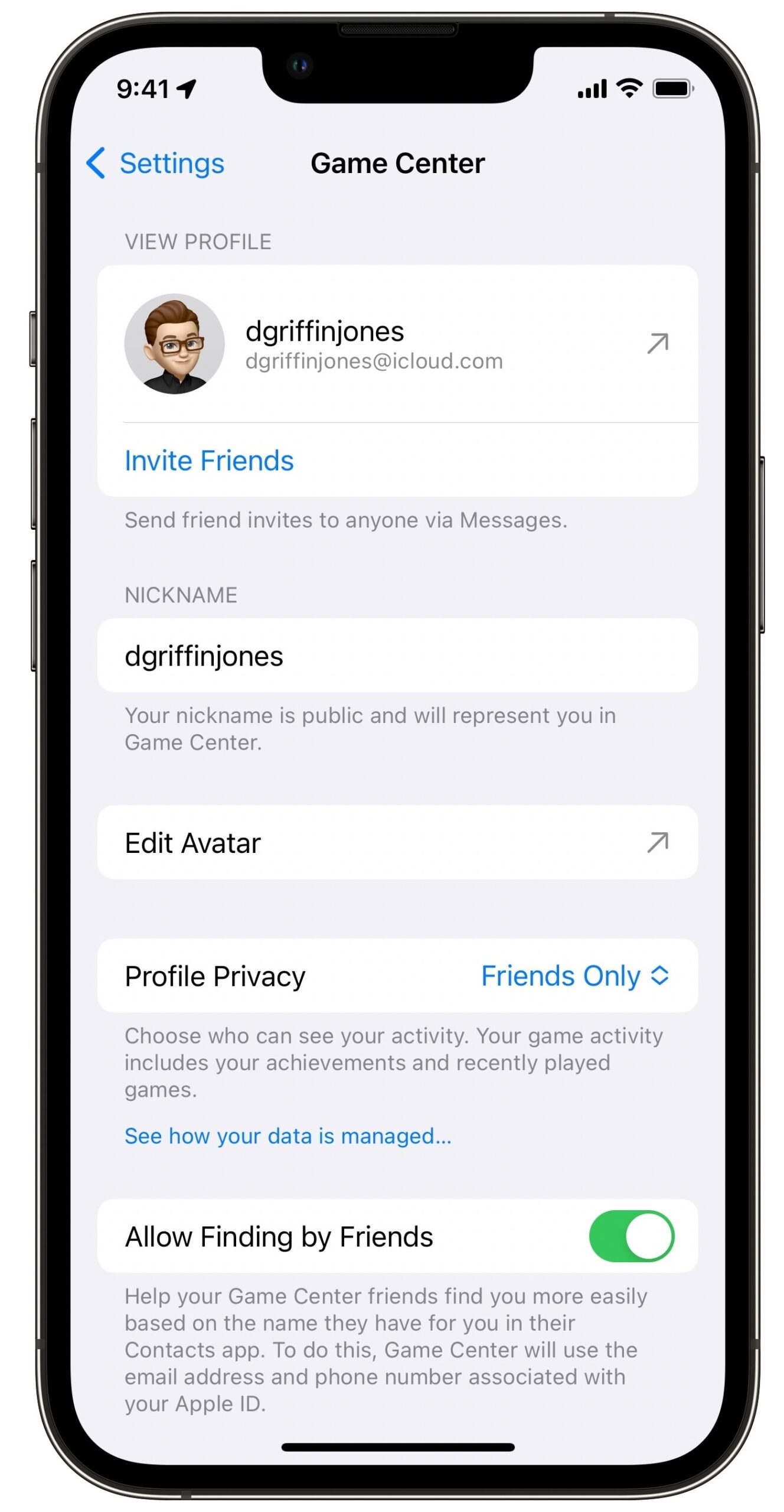
- Sign in with your Apple ID if prompted
Once enabled, your device is ready to connect with other players.
How To Add Friends In Game Center
Adding friends allows you to compete on leaderboards and access multiplayer features in supported games.
- Open Settings and tap Game Center
- Tap your profile icon or nickname
- Select Friends
- Tap Add Friends
- Enter your friend’s contact or Apple ID and send the request
Your friend must accept the request before you can play together.
How To Play Games With Friends Using Game Center
Once friends are added, supported games will automatically recognize them inside multiplayer menus.
- Launch a Game Center–supported game
- Sign in to Game Center if prompted
- Open the multiplayer, friends, or leaderboard section
- Select a friend to invite or challenge
Some games allow real-time multiplayer, while others support turn-based challenges or score competitions.
How To Remove Friends From Game Center
If you no longer want to connect with someone, you can remove them from your Game Center friends list.
- Go to Settings → Game Center
- Tap your profile
- Select Friends
- Tap the friend’s name
- Choose Remove Friend
This removes leaderboard comparisons and multiplayer access with that user.
Troubleshooting Common Problems
If Game Center is not working as expected, check the following:
- Ensure you are signed into the correct Apple ID
- Confirm Game Center is enabled in Settings
- Restart your iPhone or iPad
- Check that the game supports Game Center multiplayer
- Verify your internet connection
Signing out of Game Center and signing back in can also resolve sync issues.
Tips
- Use a recognizable nickname so friends can find you easily
- Enable notifications to avoid missing game invites
- Check game descriptions in the App Store for Game Center support
- Review privacy settings if friend requests are not appearing
FAQ
Do both players need Game Center enabled?
Yes. Both players must have Game Center turned on to connect.
Can I play with friends on iPad and iPhone?
Yes. Game Center works across Apple devices using the same Apple ID system.
Does Game Center support voice chat?
Voice chat depends on the game itself, not Game Center.
Will my friends see my activity automatically?
Only leaderboard scores and multiplayer interactions are shared.
Summary
- Game Center enables multiplayer gaming on iPhone and iPad
- You must enable Game Center before adding friends
- Friends can be invited directly from supported games
- Privacy and settings control what others can see
Conclusion
Game Center makes playing with friends on iPhone and iPad simple once it is properly set up. By enabling the service, adding friends, and choosing supported games, you can turn solo mobile gaming into a shared experience without extra accounts or apps.


Discussion (0)
Be the first to comment.