UP

Productivity

What does it mean to use technology productively? Which apps and gadgets make your work easier? How to personalize the computers and other gadgets you’re using?

article Chrome Extensions That Actually Make Browsing Better in 2026

Chrome Extensions That Actually Make Browsing Better in 2026

If you want the best Chrome extensions in 2026, start with a short, practical stack: a Manifest V3 ad blocker, a password manager, a tab manager, and a dark mode tool. These four upgrades cover speed, privacy, security, and focus with minimal setup. Chrome’s extension world also changed fast over the last year. Google has pushed Manifest V3, and that shift has already disabled
article Top Web Browsers for Windows 11 You Should Use in 2026

Top Web Browsers for Windows 11 You Should Use in 2026

Choosing the right browser for Windows 11 means balancing speed, security, and features that fit how you use the web. Some browsers load pages quickly. Others protect your privacy or offer tools for gamers. You can tailor your choice to what matters most. Here are the best options as of early 2026, based on performance, privacy, and gaming features. Microsoft Edge stands out for
article Best Browser Extensions for Microsoft Edge This Year

Best Browser Extensions for Microsoft Edge This Year

Microsoft Edge runs on the same engine as Chrome, so it supports extensions from both the Edge Add-Ons store and the Chrome Web Store. You can widen what Edge does by adding tools for security, productivity, clipping content, development, and more. Below are the top Edge extensions for 2026, ranked by what they add to your browser. Many of these tools serve different needs.
tutorial How to Login to Roblox on PC, Mobile, and Xbox: Guide for Beginners

How to Login to Roblox on PC, Mobile, and Xbox: Guide for Beginners

Logging into Roblox is quick once you know the steps for your device. You only need your username (or email or phone) and password. On PC, you can use a browser or the Roblox app. On Android or iPhone, you sign in through the Roblox app. Lastly, on Xbox, you link your account using your credentials from another device. Read on for step-by-step instructions,
tutorial How to Clear Cache and Cookies in Microsoft Edge on Windows 11

How to Clear Cache and Cookies in Microsoft Edge on Windows 11

You can clear cache and cookies in Microsoft Edge to fix slow pages, stop errors, and improve privacy. The steps below work on Windows and Mac versions of Edge. They also work on synced profiles if you want to remove data only on your device. First, open Edge and access the Settings menu. Then go to the section where browser data is stored and
tutorial How to Access Microsoft Edge Bookmarks Location

How to Access Microsoft Edge Bookmarks Location

Here’s a clear, thorough guide on how to access the Microsoft Edge bookmarks location on your device. You’ll find steps, file paths, and tips for Windows, macOS, and Linux. I also include a table and FAQs to help you use this information practically. Microsoft Edge stores bookmarks in a file called Bookmarks. This file holds all your saved favorite sites in a structured format.
tutorial How to enable Energy Saver on Windows 11

How to enable Energy Saver on Windows 11

On Windows 11, you can enable the Energy Saver feature to reduce power usage and extend battery life. This feature works on laptops and desktop computers, including devices that do not have a battery. Energy Saver is designed to help lower electricity consumption by adjusting system performance and background activity. It is especially useful when you want your device to last longer on battery
tutorial How to disable notifications on Windows 11

How to disable notifications on Windows 11

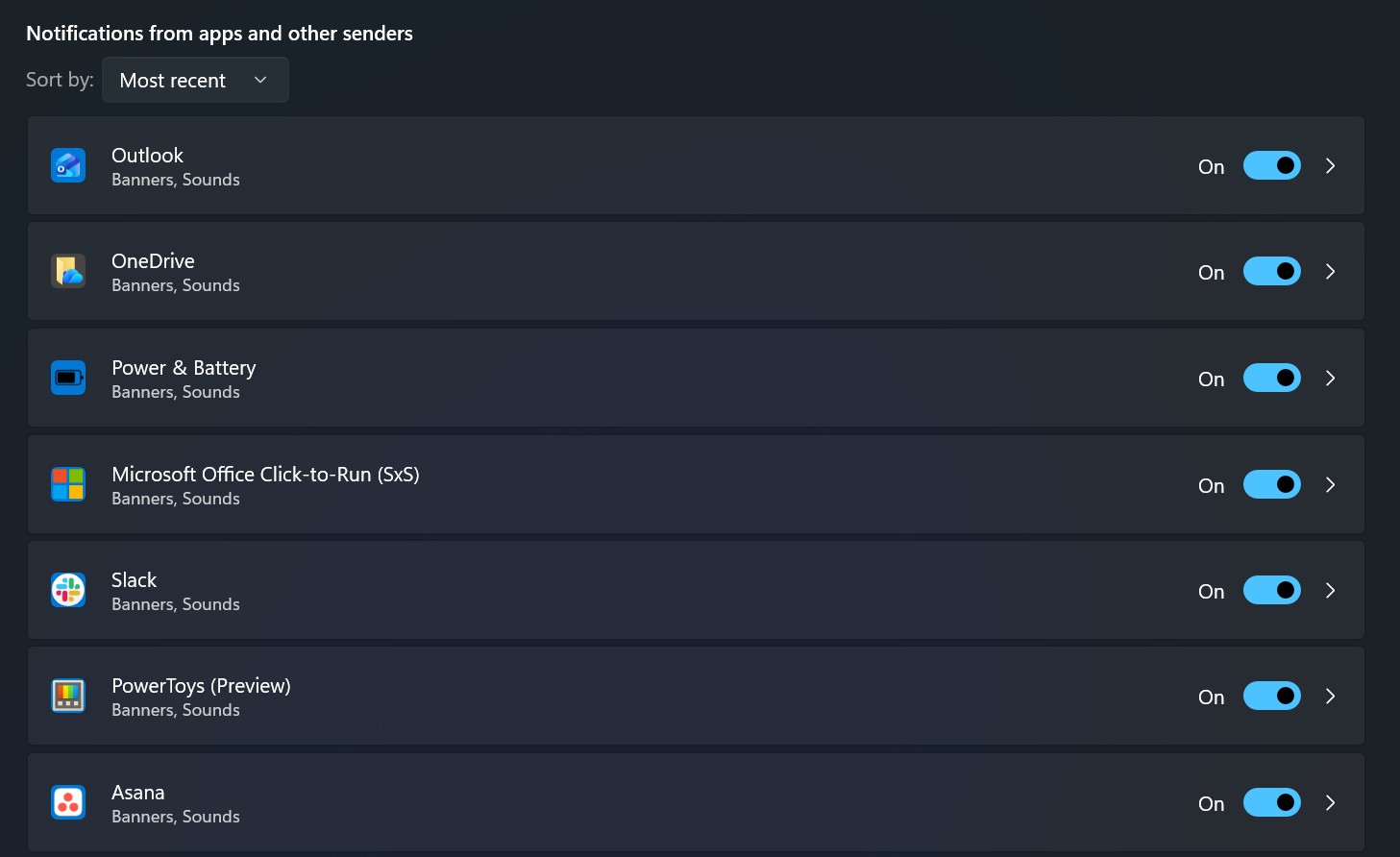
On Windows 11, you can turn off notifications completely or control them on a per-app basis. This is useful if constant pop-ups, sounds, and badge alerts are distracting you while working, gaming, or studying. Notifications in Windows 11 are designed to keep you informed about new messages, reminders, system updates, and app activity. While helpful, they can quickly become overwhelming. Thankfully, Windows 11 offers
tutorial How to change screen brightness on Windows 11

How to change screen brightness on Windows 11

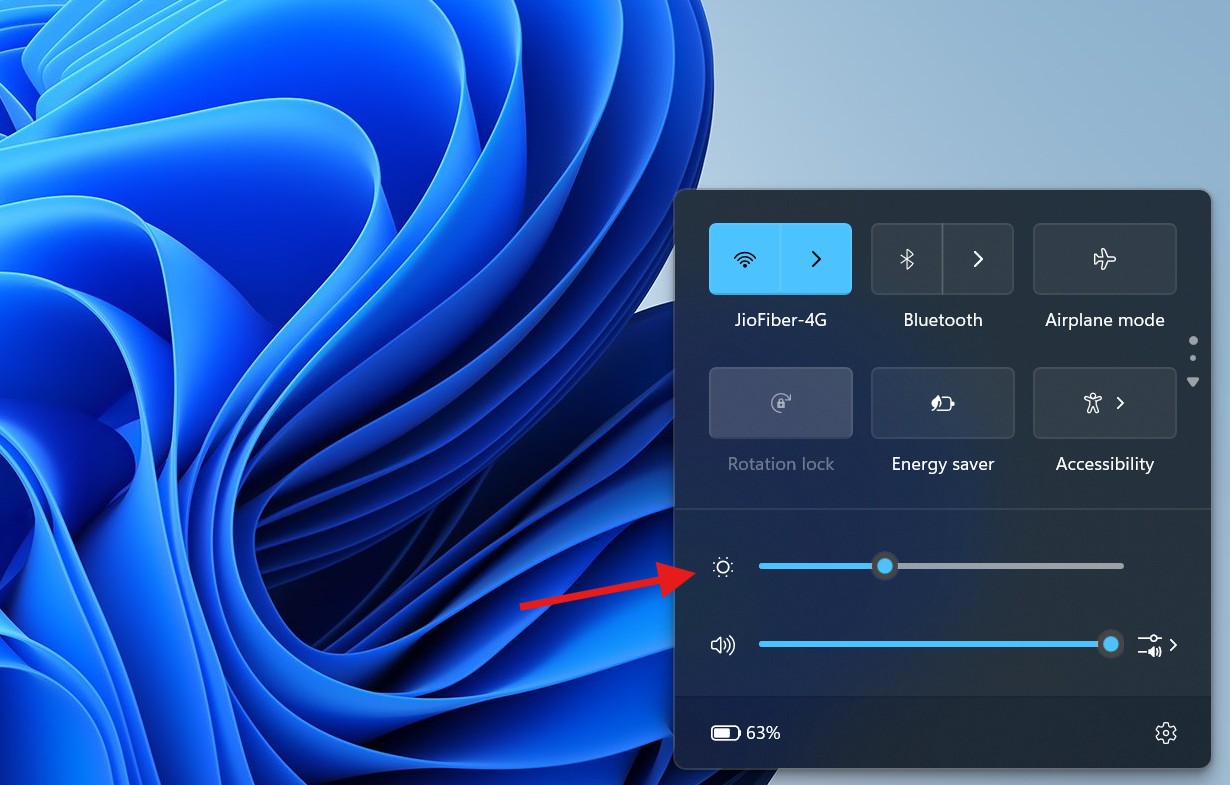
On Windows 11, you can adjust your screen brightness in several different ways, depending on whether you’re using a laptop or a desktop computer with an external monitor. Changing the brightness level can help improve visibility in different lighting conditions, reduce eye strain during long work sessions, save battery life on laptops, or ensure consistent brightness across multiple displays. Unlike earlier versions of Windows,
tutorial All ways to check OS version on Windows 11

All ways to check OS version on Windows 11

Microsoft releases a new Windows 11 feature update almost every year, and each update increases the system’s version number. However, since every release is still marketed simply as “Windows 11,” the operating system doesn’t clearly display the version name on the desktop or sign-in screen. This often makes it confusing to know exactly which version is installed on your computer. Fortunately, Windows 11 offers
tutorial How to enable God Mode in Windows using Command Prompt

How to enable God Mode in Windows using Command Prompt

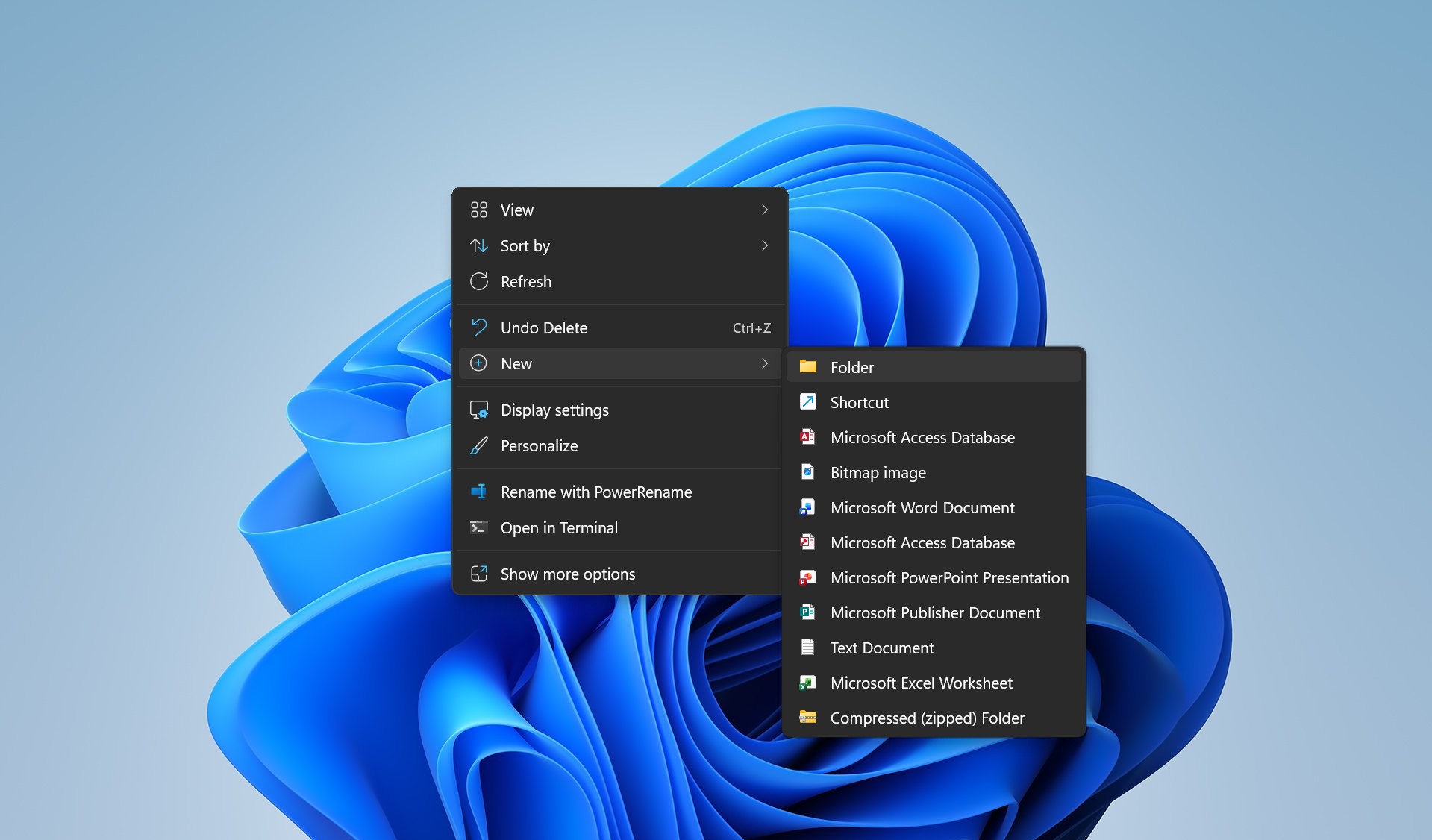
On Windows 11, Windows 10, and even older versions, you can still enable a hidden feature commonly known as God Mode. This feature gives you quick access to a large number of system settings from one place, making it easier to manage advanced options without opening multiple menus. God Mode works by creating a special folder that collects many Control Panel settings into a
tutorial How to check CPU temperature on Windows 11

How to check CPU temperature on Windows 11

Although Windows 11 doesn’t include a built-in feature to monitor the processor temperature, there are several reliable ways to check how hot or cool your CPU is running. Monitoring CPU temperature is important to ensure your system is operating within safe limits, especially during demanding tasks such as gaming, video editing, or heavy multitasking. On Windows 11, you can check the processor temperature using
tutorial How to reset your account password on Windows 11

How to reset your account password on Windows 11

On Windows 11, forgetting your account password is no longer a major problem. Unlike older versions of the operating system, Windows 11 includes built-in recovery options that allow you to reset your password easily, regardless of whether you’re using a Microsoft account or a local account. The recovery experience is integrated directly into the sign-in screen, making it possible to regain access without reinstalling
tutorial How to show battery percentage in the taskbar on Windows 11

How to show battery percentage in the taskbar on Windows 11

For a long time, Windows laptops have shown a battery icon in the Taskbar whenever the device runs on battery power. However, for reasons that puzzled many users, the system never displayed the battery percentage alongside the icon. In the past, some PC manufacturers added custom utilities to show this information, but Windows itself didn’t offer a native option. That’s finally changing. Microsoft is
tutorial How to Set Apps Volume and Device Preferences on Windows 11

How to Set Apps Volume and Device Preferences on Windows 11

Windows 11 lets you set volume levels for each app and choose which audio devices they use. You can lower music apps while keeping meeting alerts loud. You can pick output devices like speakers or headsets per app. These settings live in Sound settings under Advanced sound options. You access them from the taskbar or the Settings menu. Once open, you adjust volume sliders
tutorial How to Open and Use the Startup Folder in Windows 11

How to Open and Use the Startup Folder in Windows 11

The Windows 11 Startup folder sits in two places: one folder runs items for your current account, and another runs items for everyone who signs in on the PC. You usually add a shortcut there so Windows launches the app at sign-in. For the fastest access, use Run commands. Type shell:startup for your account’s Startup folder, or shell:common startup for the all-users Startup folder.
tutorial How to Open Advanced System Settings in Windows 11 and Boost Performance

How to Open Advanced System Settings in Windows 11 and Boost Performance

You can open Advanced System Settings in Windows 11 in a few seconds with a built-in command. Press Windows + R, type sysdm.cpl, and press Enter. The System Properties window opens. Click the Advanced tab. You now see Advanced System Settings. These settings control performance, user profiles, and startup behavior. They also give you direct access to tools that affect speed, stability, and how
tutorial How to check for app updates on Windows 11

How to check for app updates on Windows 11

Keeping apps updated on Windows 11 is important, not only to access new features but also to fix bugs and security issues. App updates often close security gaps that could otherwise be misused, and they also improve stability and performance. On Windows 11, apps are installed from two main sources. Some apps come from the Microsoft Store, while others are downloaded directly from developer
tutorial How to manually update WSL on Windows 11 (Command Prompt method)

How to manually update WSL on Windows 11 (Command Prompt method)

WSL updates are usually delivered automatically through Windows Update. However, there are times when you may want to manually check for updates to the WSL kernel and other components. In these cases, the wsl.exe command-line tool makes the process quick and easy. If you are switching from WSL 1 to WSL 2, keep in mind that this is not an update. It is an
tutorial How to Change Sleep Settings on Windows 11

How to Change Sleep Settings on Windows 11

Windows 11 uses power and sleep settings to manage how your computer behaves when it is not actively in use. These settings control two main actions. One action puts the device into sleep mode, which saves power while keeping your work in memory. The other action only turns off the screen while the system continues running in the background. By default, Windows 11 applies