




In most cases, you do not need to know your IP address. However, there are situations where this information becomes important. For example, a local IP address helps when setting up file sharing, fixing network problems, or connecting to other devices on the same network. A public IP address is useful when troubleshooting internet issues or configuring remote access.
Windows 11 includes several built-in tools that make it easy to find both your local and public IP addresses. You can use the Settings app, Command Prompt, PowerShell, or a web browser, depending on your preference.
This guide explains how to find your computer’s local IP address and your internet IP address on Windows 11 using clear and simple steps.
Local IP Address vs Public IP Address
Before checking your IP address, it helps to understand the difference between local and public addresses.
| Type | Purpose |
|---|---|
| Local IP (LAN) | Connects your computer to devices on the same network |
| Public IP (WAN) | Connects your network to the internet |
| Assigned by | Router or internet provider |
| Common use | File sharing, troubleshooting, remote access |
How to Find Your Computer’s Local IP Address on Windows 11
Your local IP address is assigned by your router or network and is used for communication inside your home or office network.
Find Local IP Address Using Command Prompt
This method shows basic network information for active connections.
Steps
- Open Start.
- Search for Command Prompt and open it.
- Type the following command and press Enter:
ipconfig
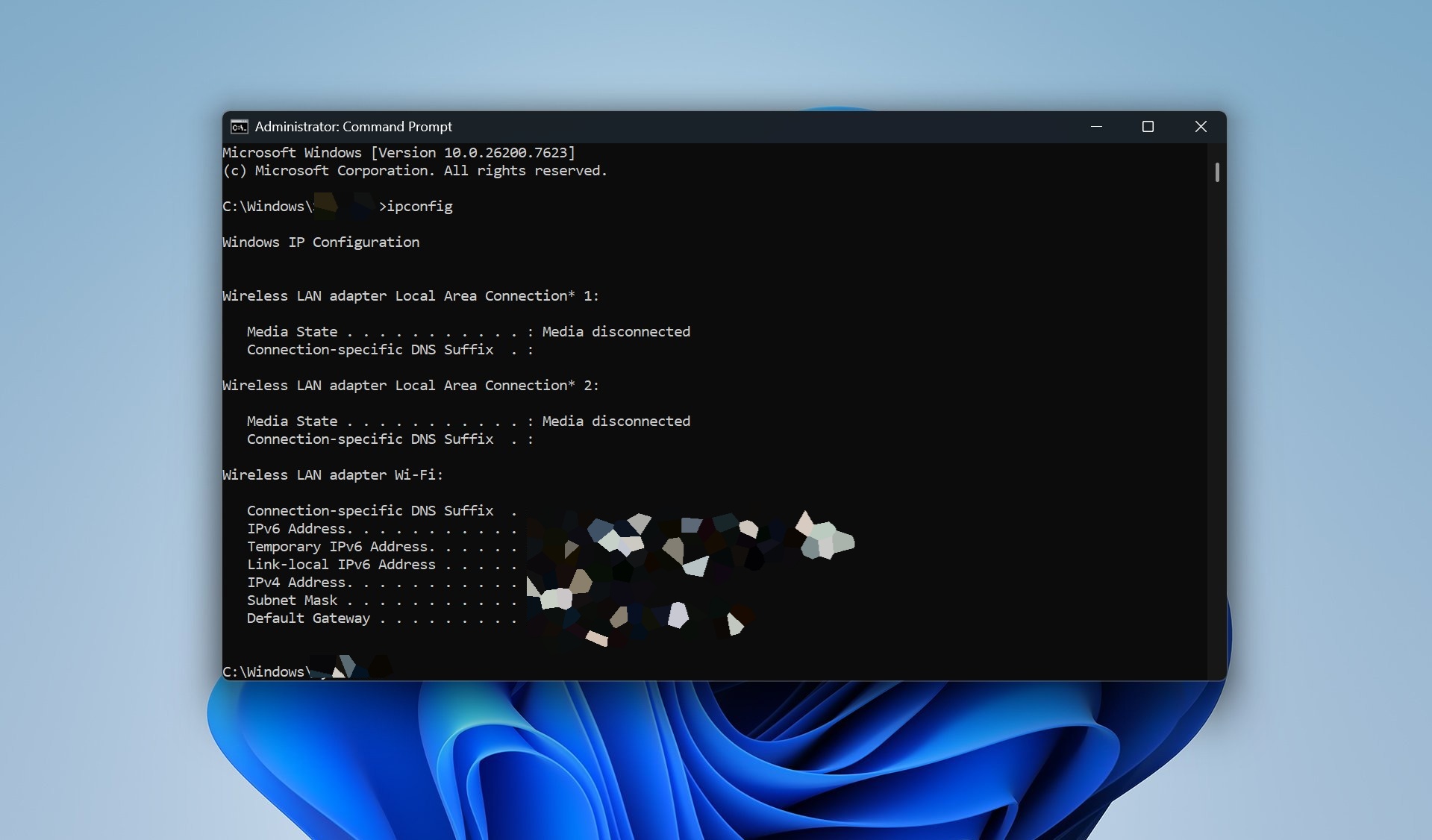

Look for the IPv4 Address under the active network adapter, such as Wi-Fi or Ethernet.
The Default Gateway listed here is the IP address of your router.
Find Local IP Address Using PowerShell
PowerShell provides more detailed network information.
Steps
- Open Start.
- Search for PowerShell and open it.
- Type the following command and press Enter:
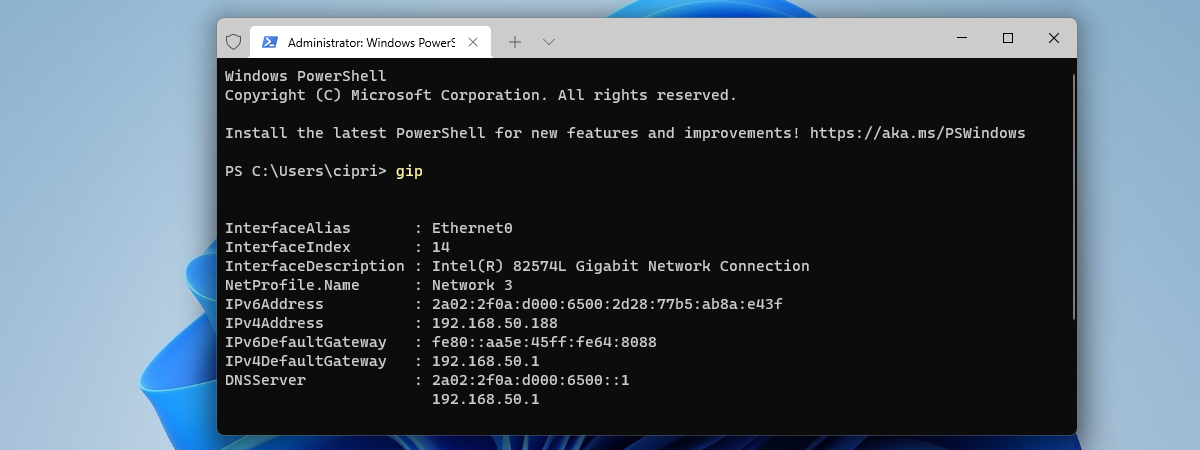
Get-NetIPConfiguration -Detailed
Check the IPv4Address and IPv6 entries under the active adapter.
The IPv4DefaultGateway shows the address of your local router.
Find Local IP Address Using the Settings App
The Settings app offers an easy way to view basic IP details.
Steps
- Open Settings.
- Click Network & internet.
- Select Wi-Fi or Ethernet, depending on your connection.
- Click Properties.
- Scroll down to view the IP address information.
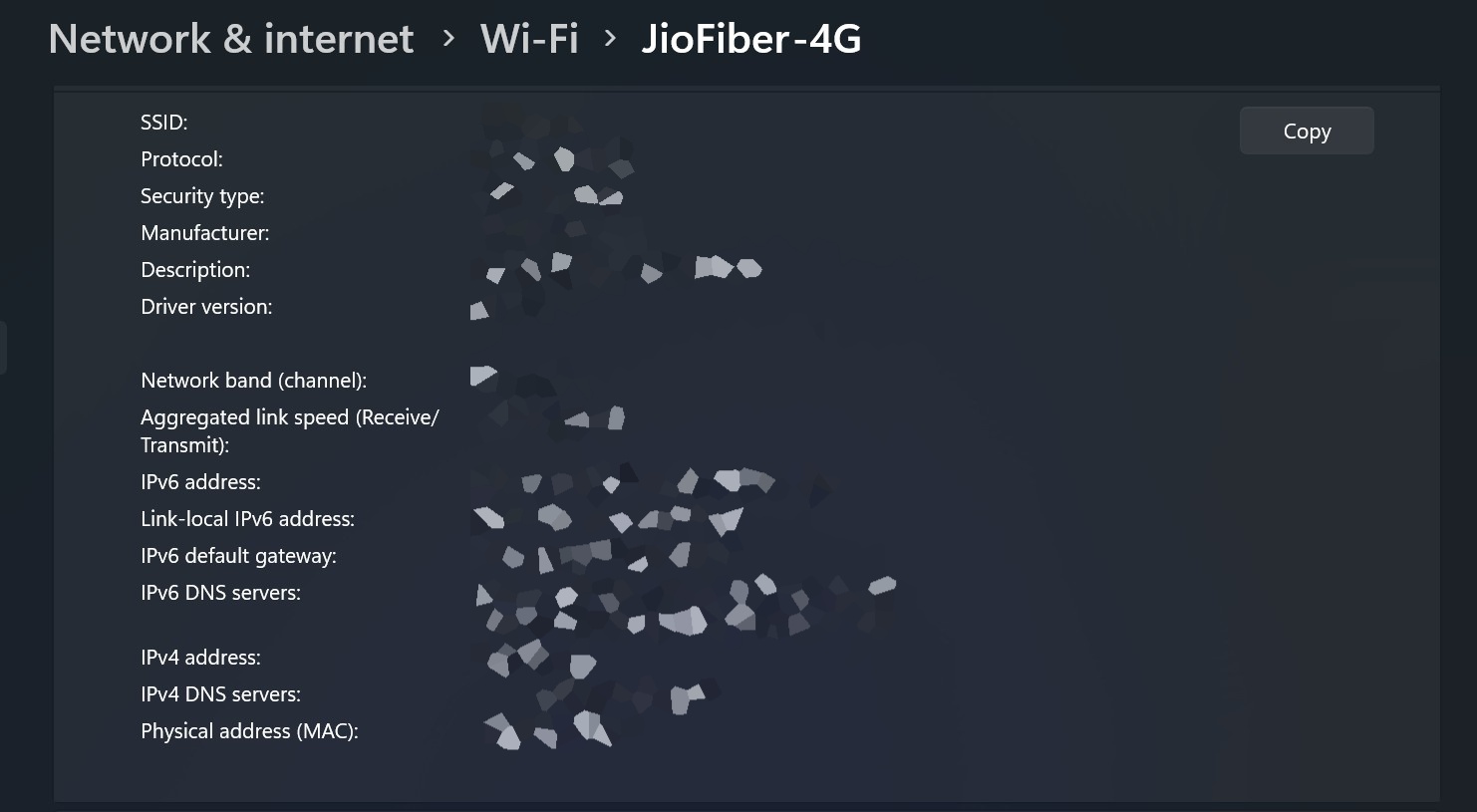

This view shows IPv4 and IPv6 addresses but does not include full network details.
View Full Network Configuration in Settings
If you need complete network information, Windows 11 provides a detailed overview.
Steps
- Open Settings.
- Click Network & Internet.
- Select Advanced network settings.
- Click Hardware and connection properties.
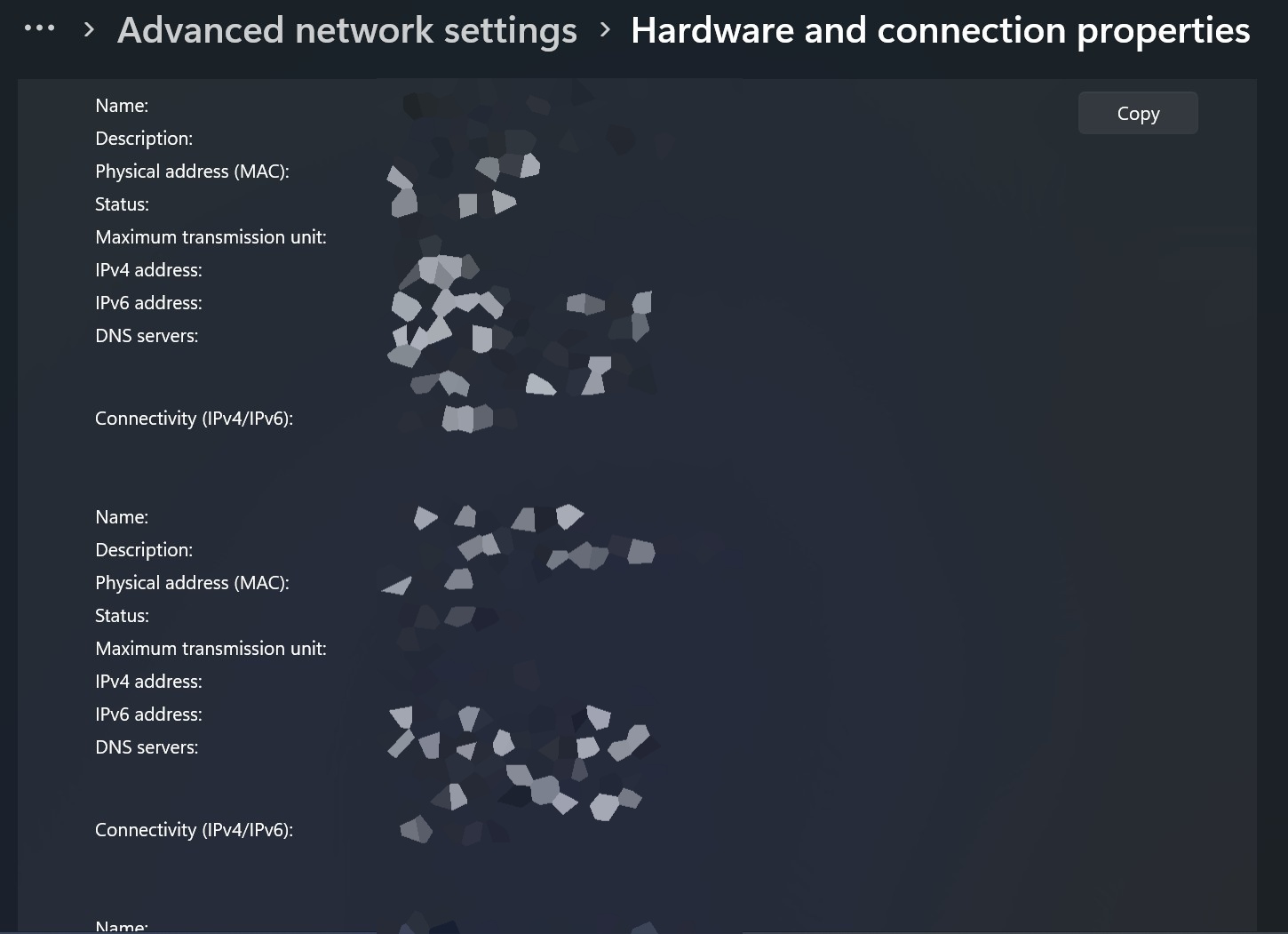

This page displays all network adapters along with IP addresses, default gateway, DNS servers, and other details.
How to Find Your Public IP Address on Windows 11
Your public IP address is assigned by your internet provider and identifies your network on the internet.
Find Public IP Address Using a Web Browser
This is the fastest and simplest option.
Steps
- Open any web browser.
- Type the following in the address bar and press Enter:
ifconfig.me
Your public IP address will be shown on the page.
Find Public IP Address Using Command Prompt
You can also find your public IP address without using a browser.
Steps
- Open Command Prompt.
- Type the following command and press Enter:
nslookup myip.opendns.com. resolver1.opendns.com
Your public IP address appears under the Non-authoritative answer section.
Find Public IP Address Using PowerShell
PowerShell offers a clean and quick command-based method.
Steps
- Open PowerShell.
- Run the following command:
(Invoke-WebRequest ifconfig.me/ip).Content.Trim()
The command returns your public IP address directly in the window.
Common Reasons to Check Your IP Address
- Troubleshooting network or internet problems
- Setting up file sharing or printers
- Connecting to other devices on the network
- Configuring router or firewall settings
Frequently Asked Questions
Why does my IP address change over time?
Most networks use dynamic IP addresses, which can change when the router reconnects.
Is it safe to share my public IP address?
It is best to avoid sharing it publicly, especially on forums or social media.
Why do I see more than one IP address?
Each network adapter, such as Wi-Fi and Ethernet, can have its own IP address.
What is IPv6 and do I need it?
IPv6 is a newer version of IP designed to support more devices. Most systems support it automatically.
Summary
Windows 11 offers several easy ways to find both your local and public IP addresses. Whether you prefer using the Settings app, Command Prompt, PowerShell, or a web browser, each method provides reliable access to the information you need. Knowing how to locate your IP address can help with troubleshooting, network setup, and device connectivity, making everyday system management simpler and more efficient.

Discussion (0)
Be the first to comment.