



On Windows 11, Windows 10, and even older versions, you can still enable a hidden feature commonly known as God Mode. This feature gives you quick access to a large number of system settings from one place, making it easier to manage advanced options without opening multiple menus.
God Mode works by creating a special folder that collects many Control Panel settings into a single, organized view. While Windows has shifted most system controls to the Settings app over the years, this feature is still available and useful for users who prefer a classic, centralized list of options.
This guide explains what God Mode is and shows you how to enable it on almost any version of Windows.
What is God Mode on Windows?
God Mode is not an official Windows feature name. It is a nickname given by users and tech communities to describe a hidden Control Panel view that lists dozens of system configuration tools in one window.
When enabled, God Mode creates a folder that displays shortcuts to settings related to:
- System and security
- Network and internet
- Hardware and sound
- Programs and features
- User accounts
- Accessibility tools
The idea behind God Mode is simple. Instead of navigating through multiple Control Panel pages, you can access many settings from a single location.
It is important to understand that God Mode does not unlock new features or provide extra permissions. It only shows settings that already exist and are available to your user account.
This feature has been around since Windows 7, which means it works on Windows 8, Windows 10, and Windows 11 as well.
Enable God Mode on Windows
You can activate God Mode using the desktop or Command Prompt. Both methods achieve the same result.
Enable God Mode from the desktop
To enable God Mode using the desktop, follow these steps:
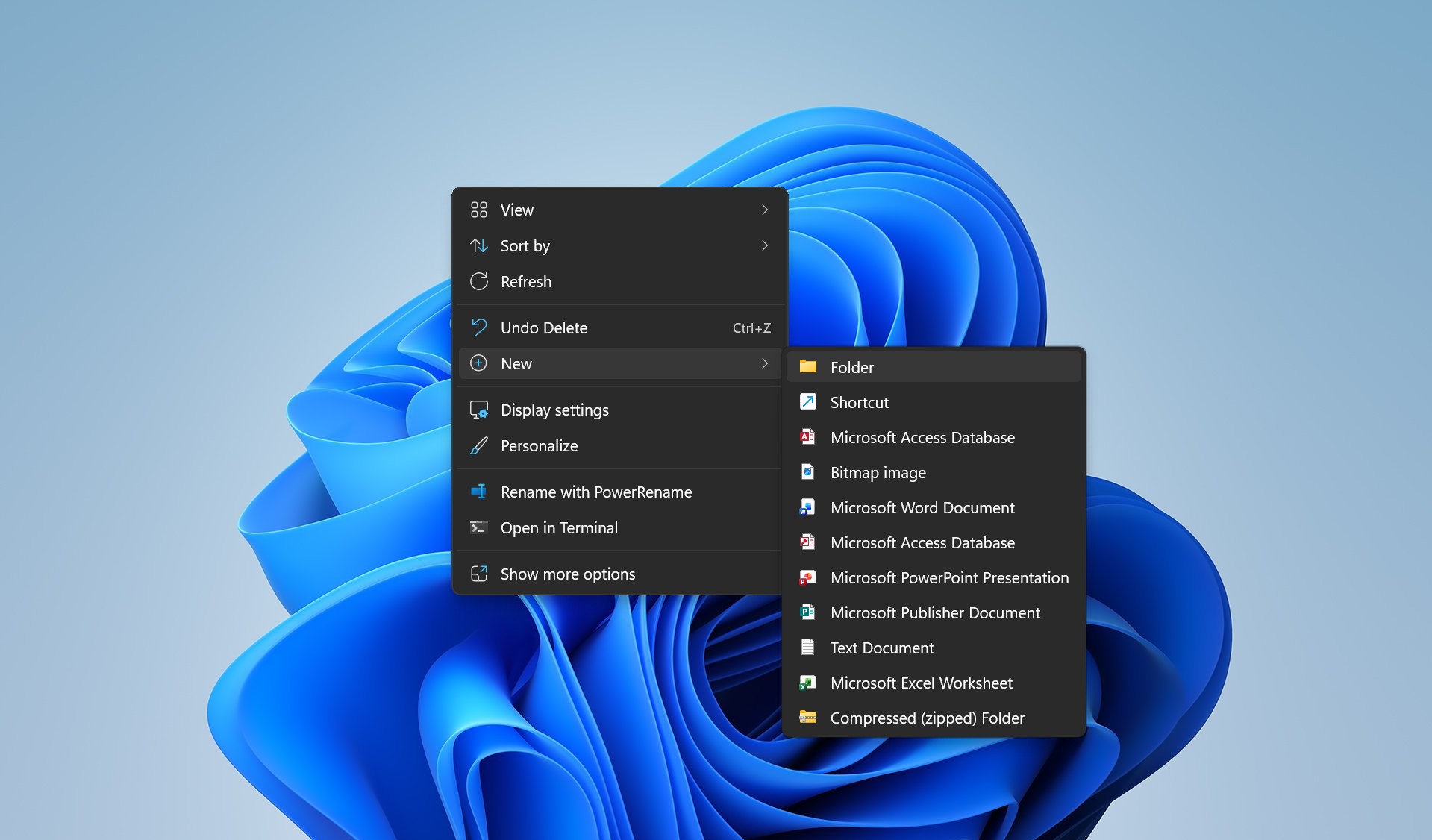
- Right-click an empty area on the desktop
- Select New, then choose Folder

- Rename the folder to the following and press Enter:
GodMode.{ED7BA470-8E54-465E-825C-99712043E01C}
After renaming the folder, the icon will change to a Control Panel icon with no visible name. Double-click the icon to open God Mode and view the available settings.
Tip: You can press Windows key + D to quickly show the desktop.
Enable God Mode using Command Prompt
You can also create the God Mode folder using Command Prompt.
- Open Start
- Search for Command Prompt
- Click the top result to open it
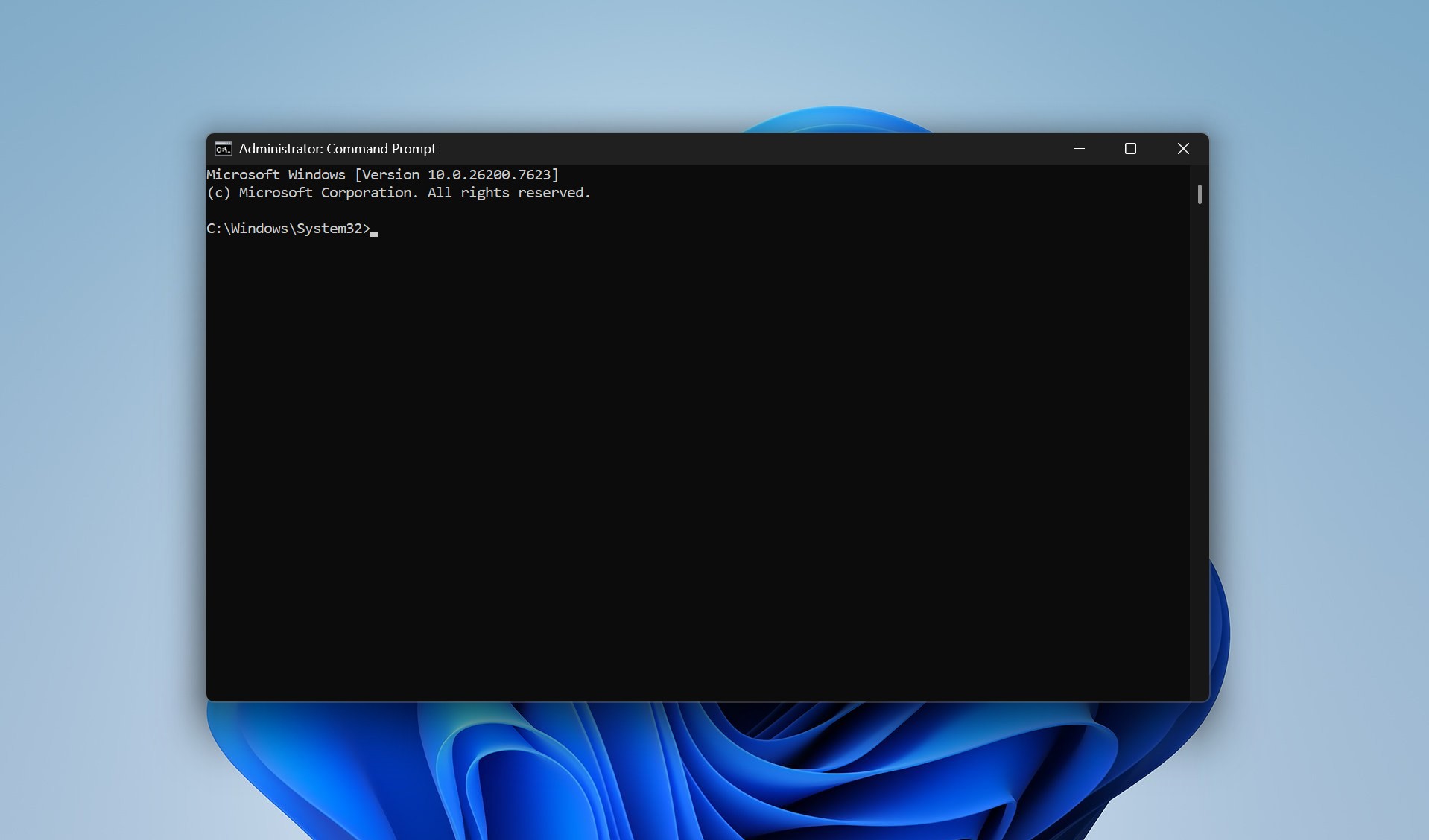

Type the following command and press Enter to go to the desktop:
cd %HOMEPATH%\Desktop
Then type the following command and press Enter:
mkdir GodMode.{ED7BA470-8E54-465E-825C-99712043E01C}
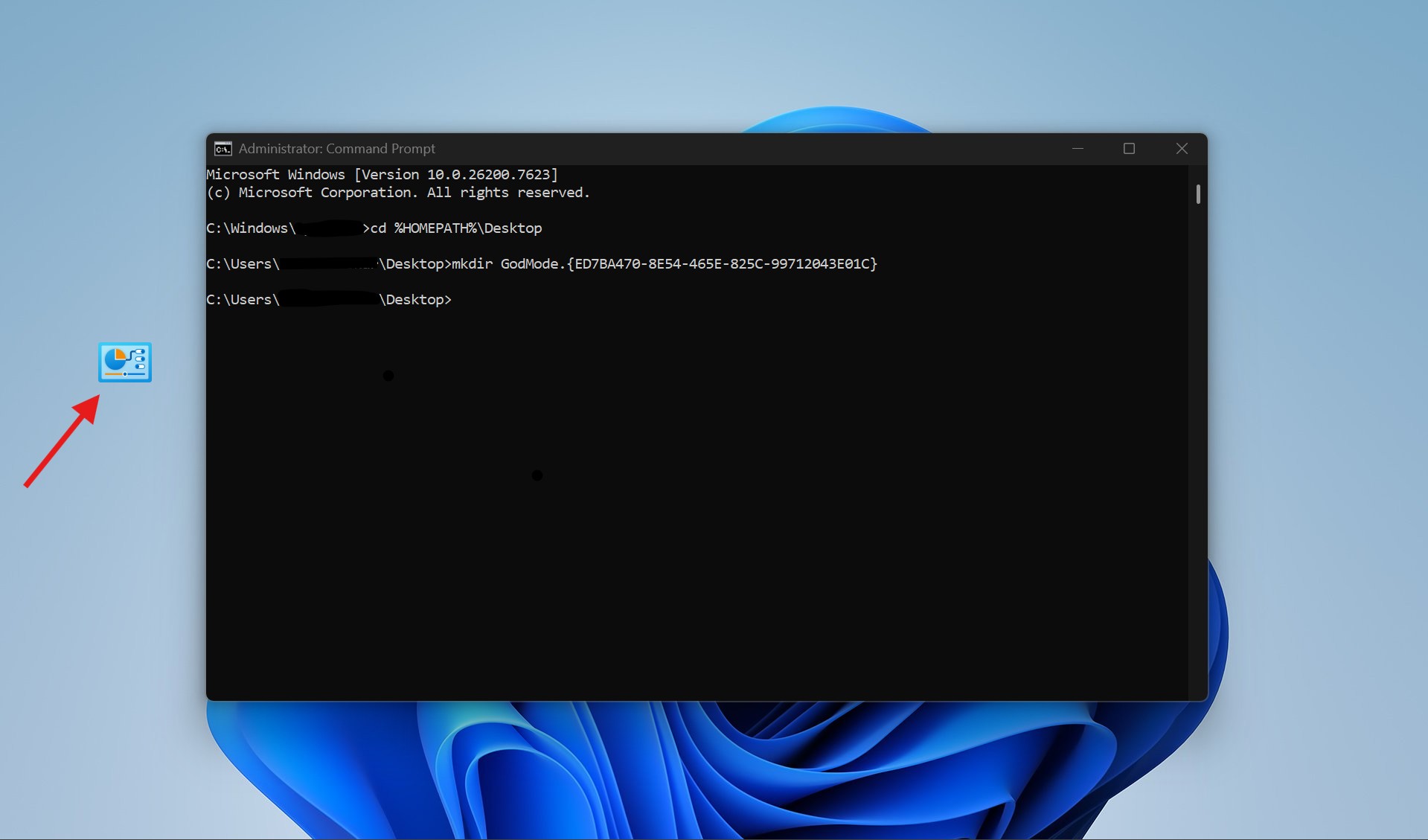
Once completed, the God Mode folder will appear on the desktop, ready to use.

Customize and manage the God Mode folder
After enabling God Mode, you can customize how you access it:
- To rename the icon, hold Shift, right-click it, select Rename, and enter a name
- Right-click the folder and choose Pin to Quick access to add it to File Explorer
- Drag individual shortcuts from the folder to the desktop for faster access
You can also create the God Mode folder in any location, not just on the desktop.
Important things to know
- The number of available settings depends on the Windows version
- Windows 10 usually shows more options than Windows 11 due to Settings app changes
- God Mode does not replace the Settings app
- No hidden or restricted features are unlocked
Despite its name, God Mode is simply a convenient view of existing tools.
God Mode is a useful feature for users who want faster access to system settings from a single window. While Windows continues to move more options into the Settings app, this hidden Control Panel view remains available across multiple versions of the operating system. Enabling it takes only a few seconds and can save time when managing advanced Windows settings.
Discussion (0)
Be the first to comment.