



On Windows 11, you can adjust your screen brightness in several different ways, depending on whether you’re using a laptop or a desktop computer with an external monitor. Changing the brightness level can help improve visibility in different lighting conditions, reduce eye strain during long work sessions, save battery life on laptops, or ensure consistent brightness across multiple displays.
Unlike earlier versions of Windows, Windows 11 offers multiple built-in methods to control brightness without relying on third-party tools or graphics card software. You can adjust the display brightness using hardware controls, system settings, quick-access menus, and even command-line tools.
In this guide, you’ll learn seven different ways to change the screen brightness on Windows 11.
Ways to change brightness on Windows 11
You can adjust the brightness using the following methods:
- On-screen display (OSD) menu
- Keyboard brightness keys
- Quick Settings
- Settings app
- Battery Saver
- Mobility Center
- Command Prompt
1. Adjust brightness using the monitor’s OSD menu
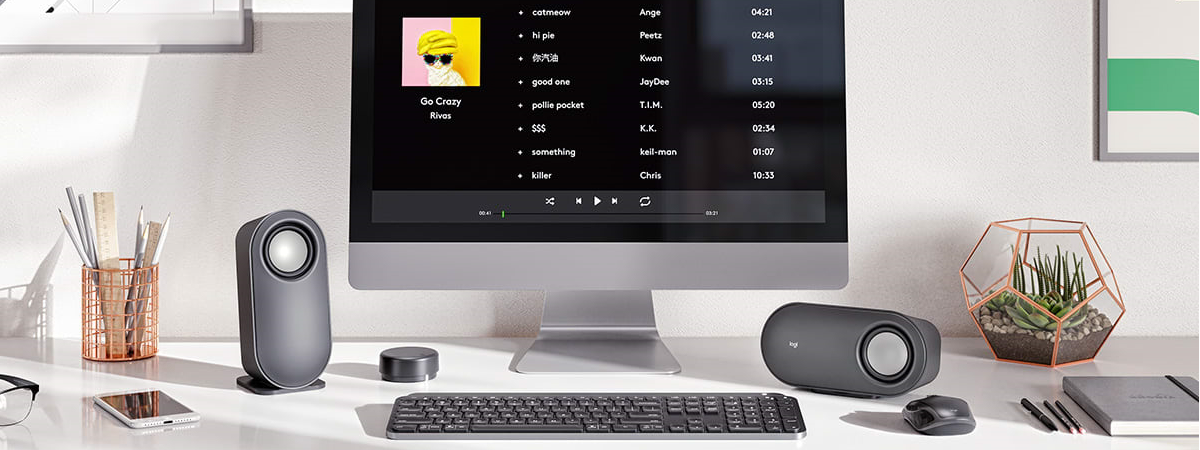
If you’re using an external monitor, the most reliable way to change brightness is through the monitor’s built-in on-screen display (OSD) menu.
To adjust brightness using the OSD menu:
- Press the OSD menu button on your monitor
- Navigate to the Picture or Display settings
- Use the available controls to increase or decrease brightness
The location of the OSD button varies by manufacturer and model. It’s usually found on the front, bottom, or back of the monitor.
This method works on all desktop monitors, regardless of the operating system.
2. Adjust brightness using the keyboard
Most laptops include dedicated brightness keys on the keyboard.
To change brightness using the keyboard:
- Press the brightness increase or decrease function keys
- On some keyboards, hold the Fn key while pressing the brightness keys
The brightness keys are typically located on the top row and are often labeled with sun icons. The exact key combination may vary depending on the laptop manufacturer.
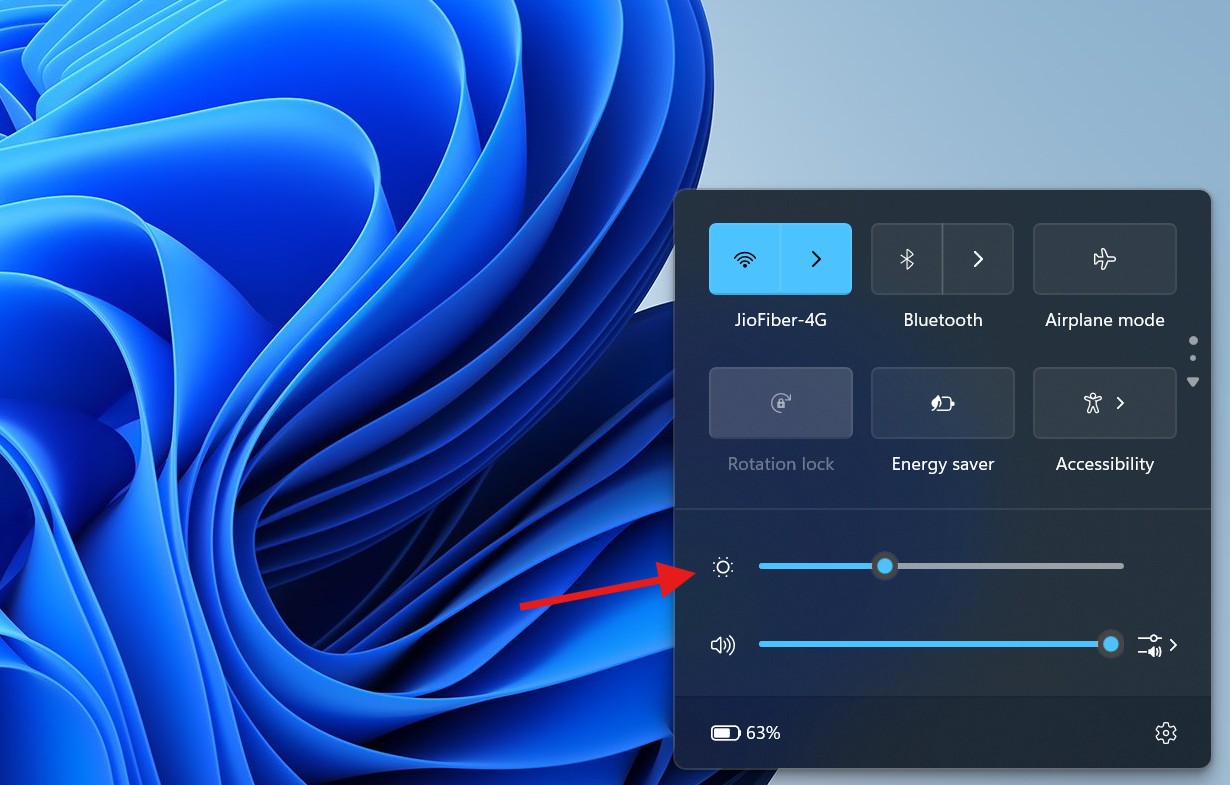
3. Adjust brightness from Quick Settings
Windows 11 includes a brightness slider in the Quick Settings panel for supported devices.
To change brightness using Quick Settings:
- Click the network, volume, or battery icon in the taskbar
- Or press Windows key + A
- Use the brightness slider to adjust the screen intensity

If the brightness slider is missing, you’re likely using an external monitor. The Quick Settings brightness control is usually available only on laptops and built-in displays.
4. Adjust brightness from the Settings app
You can also change brightness from the Windows Settings app.
To adjust brightness from Settings:
- Open Settings
- Click System
- Select Display
- Use the Brightness slider to adjust the screen level


If you don’t see the brightness slider, you’re probably using an external monitor.
Optional brightness settings
- Click the Brightness option
- Configure Change brightness based on content
- Choose Off, Always, or On battery only
This feature automatically adjusts brightness and contrast based on what’s displayed on the screen to help conserve battery life.
5. Adjust brightness using Battery Saver
Battery Saver mode can automatically lower the screen brightness to extend battery life on laptops.
To enable brightness reduction with Battery Saver:
- Open Settings
- Click System
- Select Power & battery
- Click Battery saver
- Turn on Lower screen brightness when using battery saver
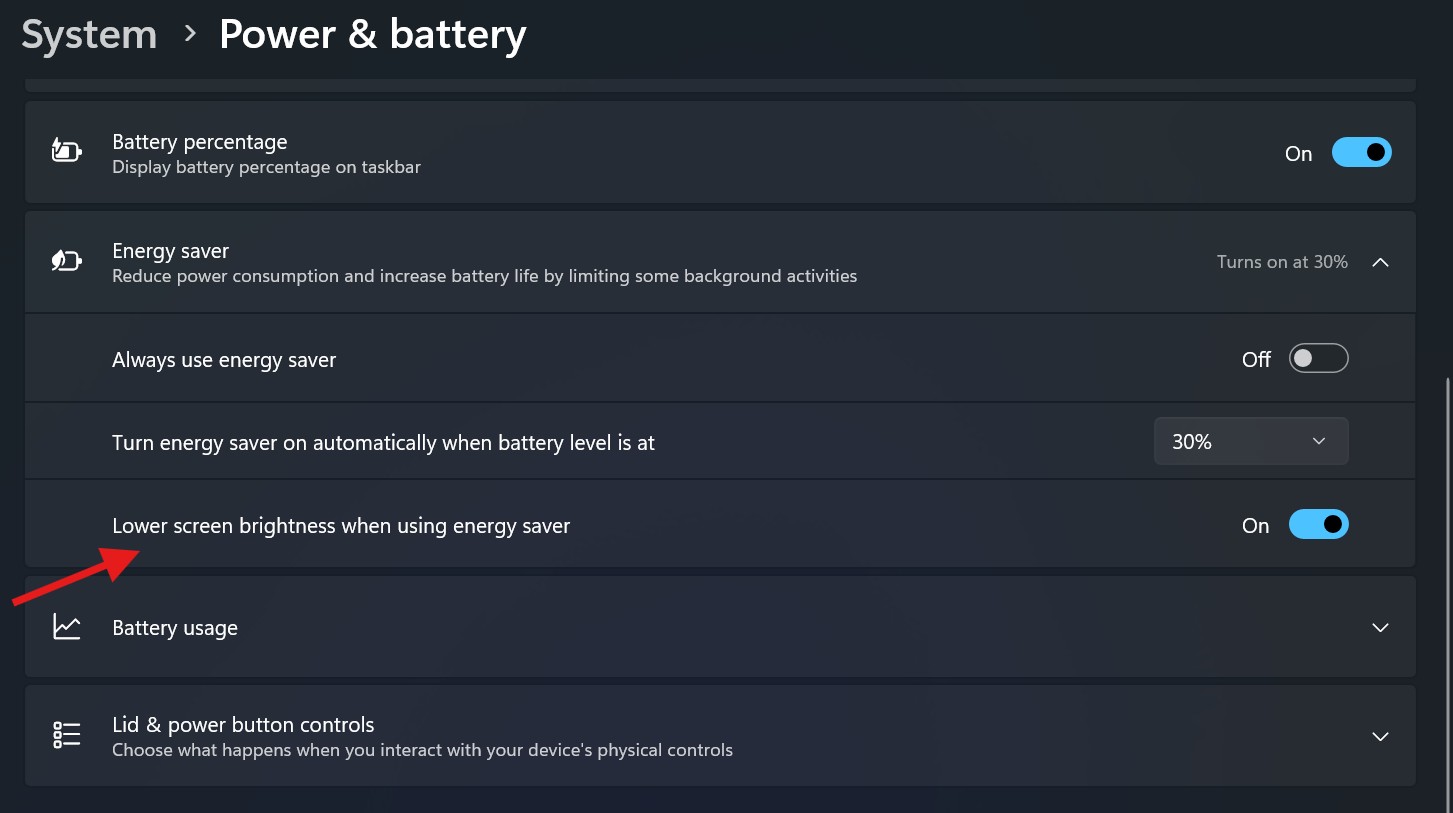

Once enabled, Windows 11 will reduce brightness automatically when Battery Saver is active.
6. Adjust brightness from Mobility Center
Mobility Center is available only on laptops and provides quick access to common system controls.
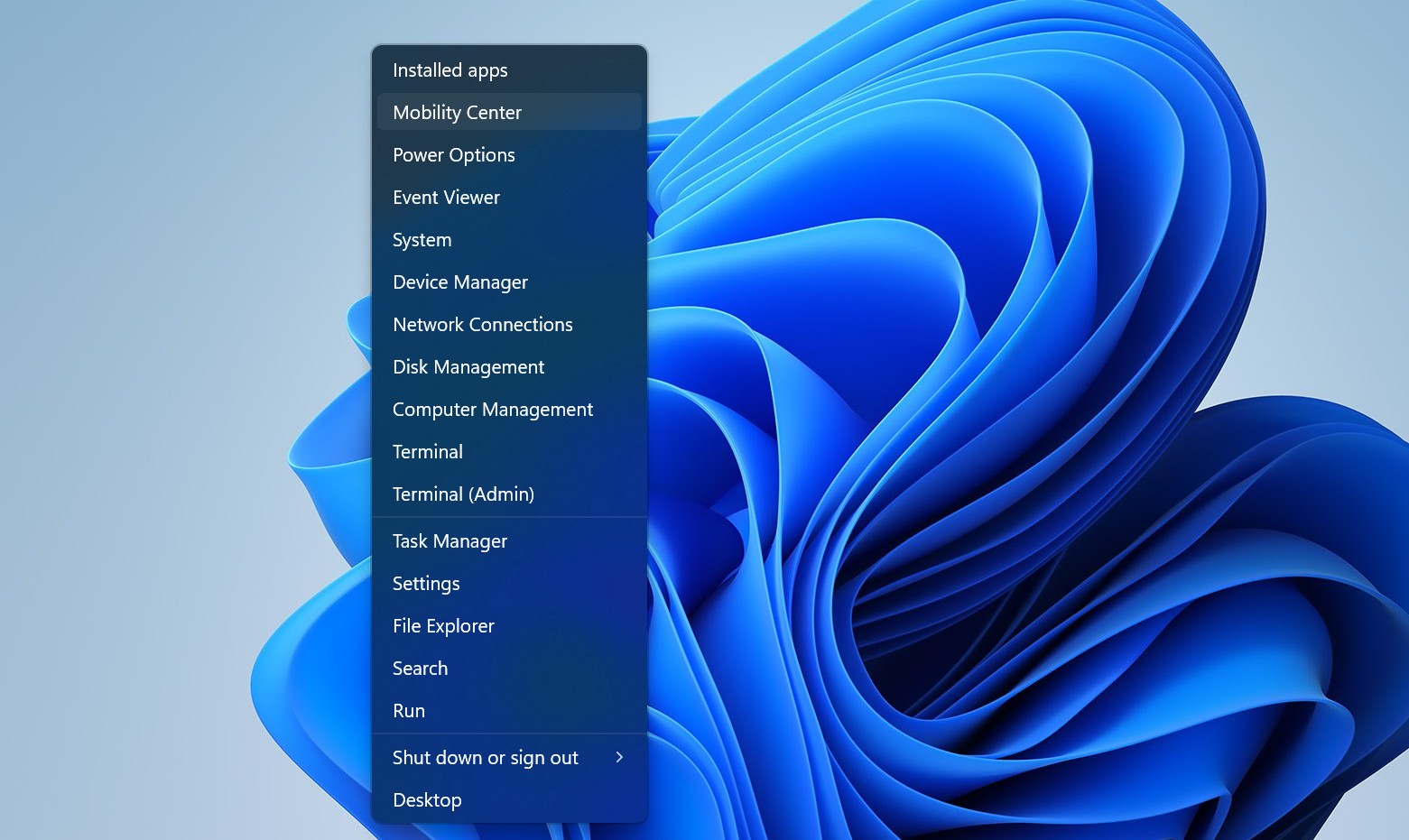
To change brightness using Mobility Center:
- Right-click the Start button
- Select Mobility Center

- Use the Display brightness slider
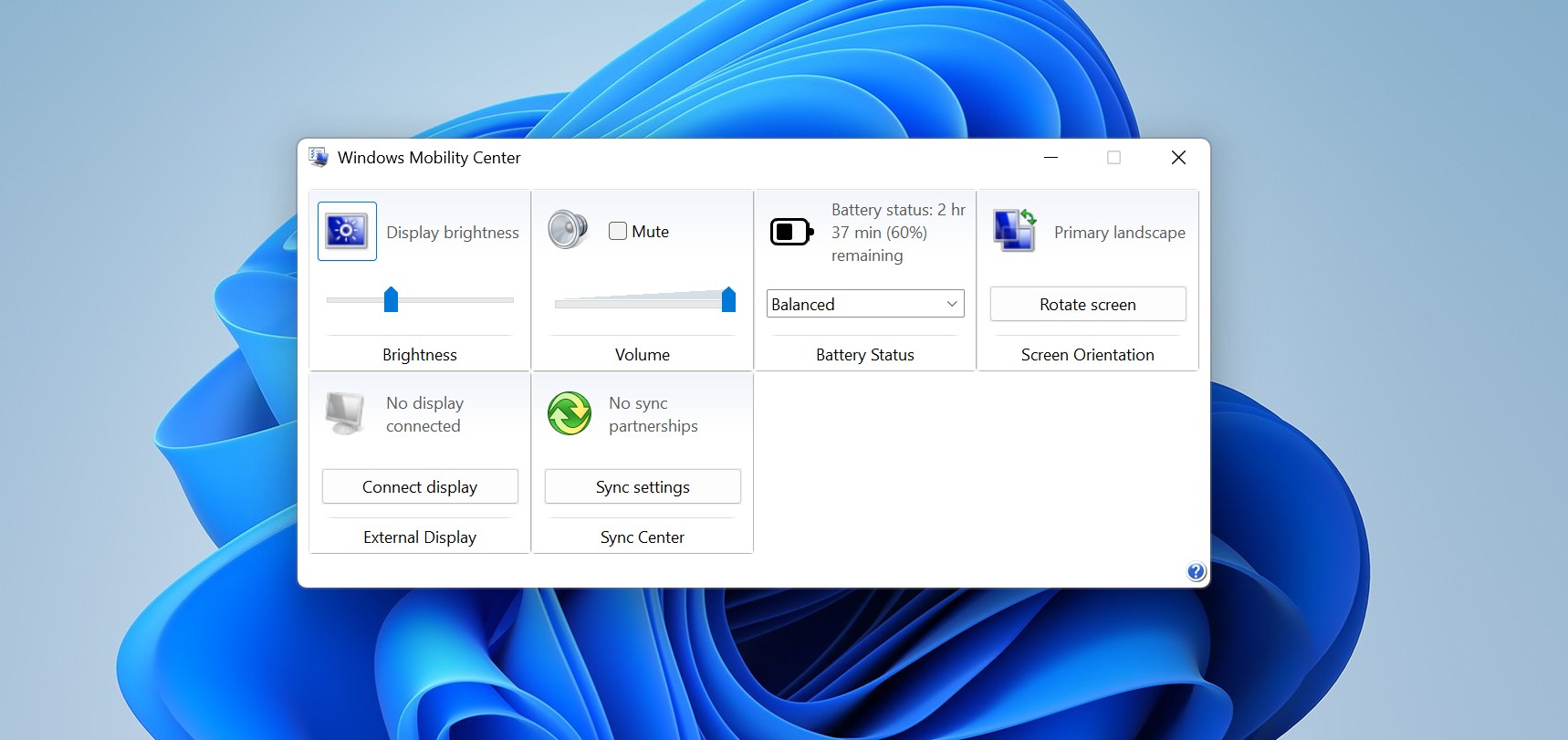

This method is especially useful if you prefer a compact control panel instead of navigating through Settings.
7. Adjust brightness using Command Prompt
Advanced users can also change brightness using Command Prompt or PowerShell.
To change brightness using Command Prompt:
- Open Start
- Search for Command Prompt
- Open the app
- Run the following command:
powershell (Get-WmiObject -Namespace root/WMI -Class WmiMonitorBrightnessMethods).WmiSetBrightness(1,75)
Replace 75 with the brightness level you want (0–100).
If you’re already using PowerShell, you can run the same command directly without typing powershell first.
After running the command, the screen brightness will update immediately.
Windows 11 offers several convenient ways to adjust screen brightness, whether you’re using a laptop or a desktop with an external monitor. From physical monitor controls and keyboard shortcuts to system settings and command-line tools, you can choose the method that best fits your workflow. Adjusting brightness not only improves visibility and comfort but can also help extend battery life and reduce eye strain, making it an essential setting to customize on any Windows 11 device.
Discussion (0)
Be the first to comment.