



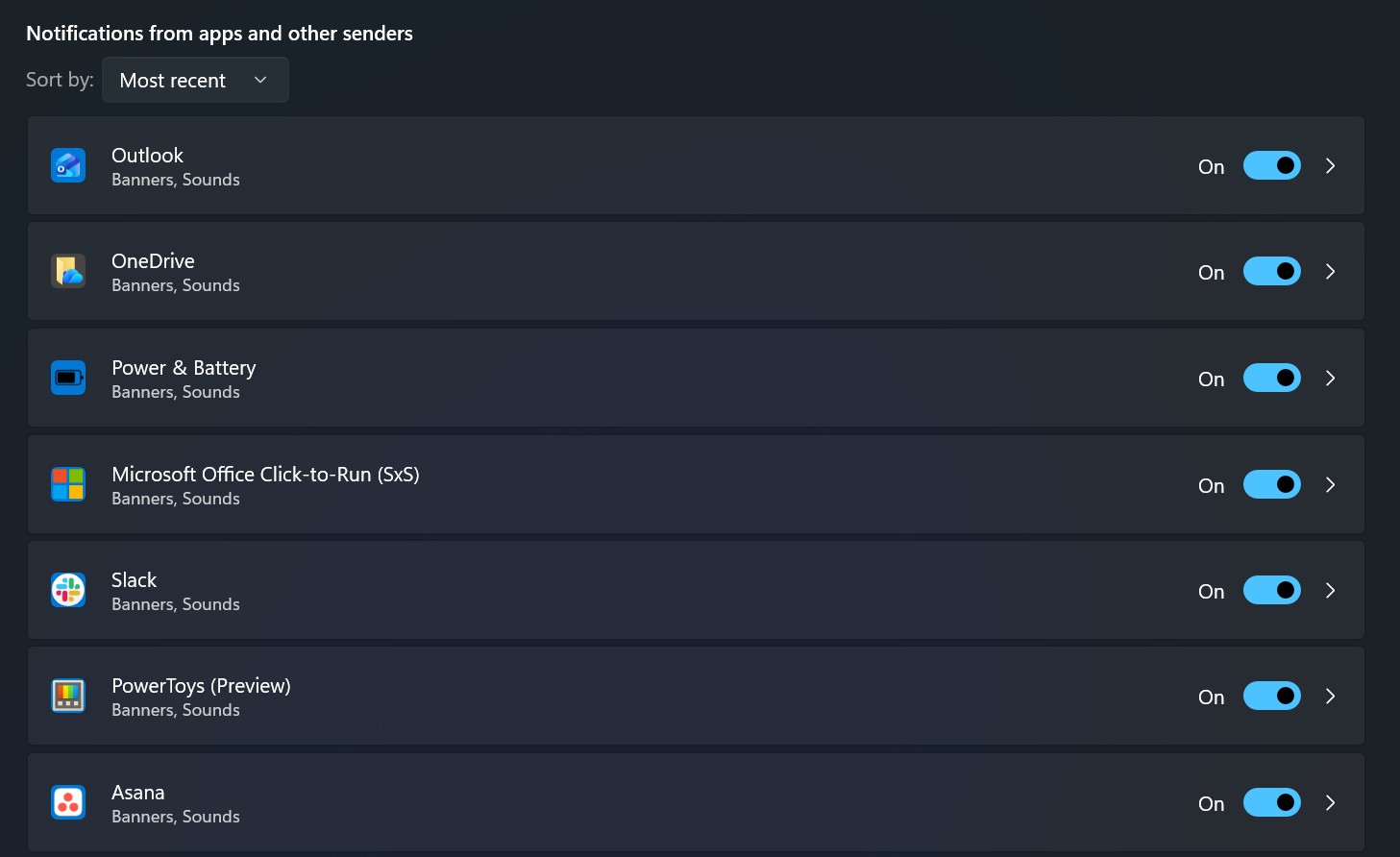
On Windows 11, you can turn off notifications completely or control them on a per-app basis. This is useful if constant pop-ups, sounds, and badge alerts are distracting you while working, gaming, or studying.
Notifications in Windows 11 are designed to keep you informed about new messages, reminders, system updates, and app activity. While helpful, they can quickly become overwhelming. Thankfully, Windows 11 offers multiple ways to manage or disable notifications depending on your needs.
This guide walks you through all the available methods to turn notifications on or off in Windows 11.
What are notifications on Windows 11?
Notifications are alerts shown by apps, websites, and the operating system itself. They appear as toast pop-ups on the screen and may also play sounds or display badges on the taskbar, Start menu, or system tray.
Windows 11 allows you to:
- Disable all notifications system-wide
- Turn off notifications for specific apps
- Disable badge notifications from Start and Windows Update
- Control notifications using the Registry
Turn off all notifications on Windows 11
If you want complete silence from apps and system alerts, you can disable notifications entirely.
To turn off all notifications, follow these steps:
- Open Settings
- Click System
- Select Notifications
- Turn off the Notifications toggle switch
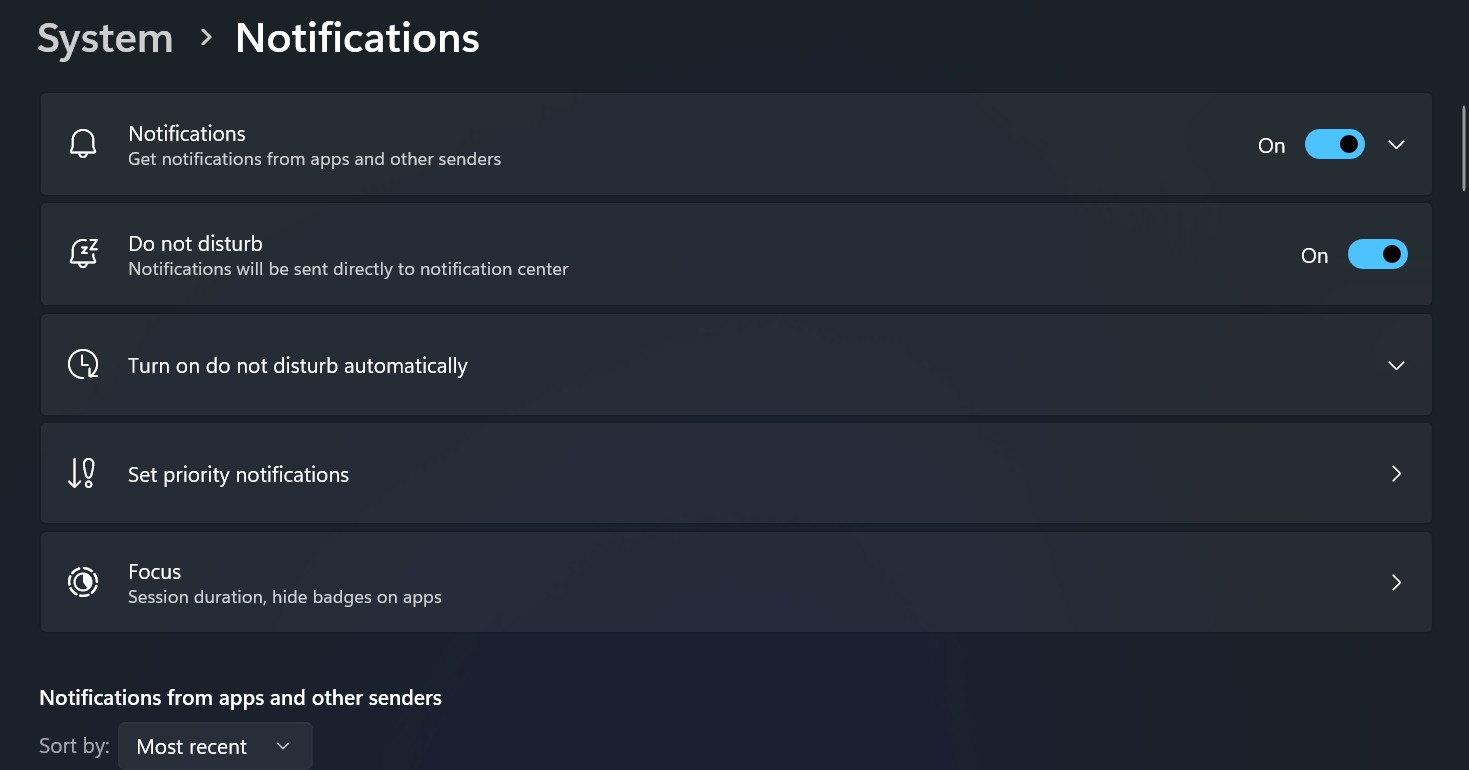

Once disabled, Windows 11 will stop showing all notification pop-ups and alerts.
Keep in mind that some apps use their own internal notification systems. In those cases, you’ll need to disable notifications directly from the app’s settings.
Turn off notifications for specific apps
If you only want to silence certain apps while keeping others active, Windows 11 lets you manage notifications individually.
To disable notifications per app:
- Open Settings
- Click System
- Click Notifications
- Under Notifications from apps and other senders, turn off the toggle for the app you want to silence

After completing these steps, that specific app will no longer send notifications, while system alerts and other apps will continue to work normally.
Disable app notifications from Notification Center
You can also turn off notifications directly from the Notification Center:
- Press Windows key + N or click the time and date in the taskbar
- Click the three-dot menu next to an app notification
- Select Turn off all notifications for this app
This method is quick and useful when a notification pops up unexpectedly.
Turn off notifications using the Registry (advanced)
Warning: Editing the Registry incorrectly can cause system issues. Make sure you know what you’re doing and back up your system before proceeding.
To disable notifications using the Registry:
- Open Start
- Search for regedit and open the Registry Editor
- Navigate to:
HKEY_CURRENT_USER\Software\Microsoft\Windows\CurrentVersion\PushNotifications
- Double-click ToastEnabled
- Change the value from 1 to 0
- Click OK
- Restart your computer
After restarting, Windows 11 notifications will be completely disabled.
Turn off Start menu badge notifications
Windows 11 may show badges in the Start menu related to your Microsoft account. You can disable these notifications as well.
To turn off Start menu badge notifications:
- Open Settings
- Click Personalization
- Select Start
- Turn off Show account-related notifications
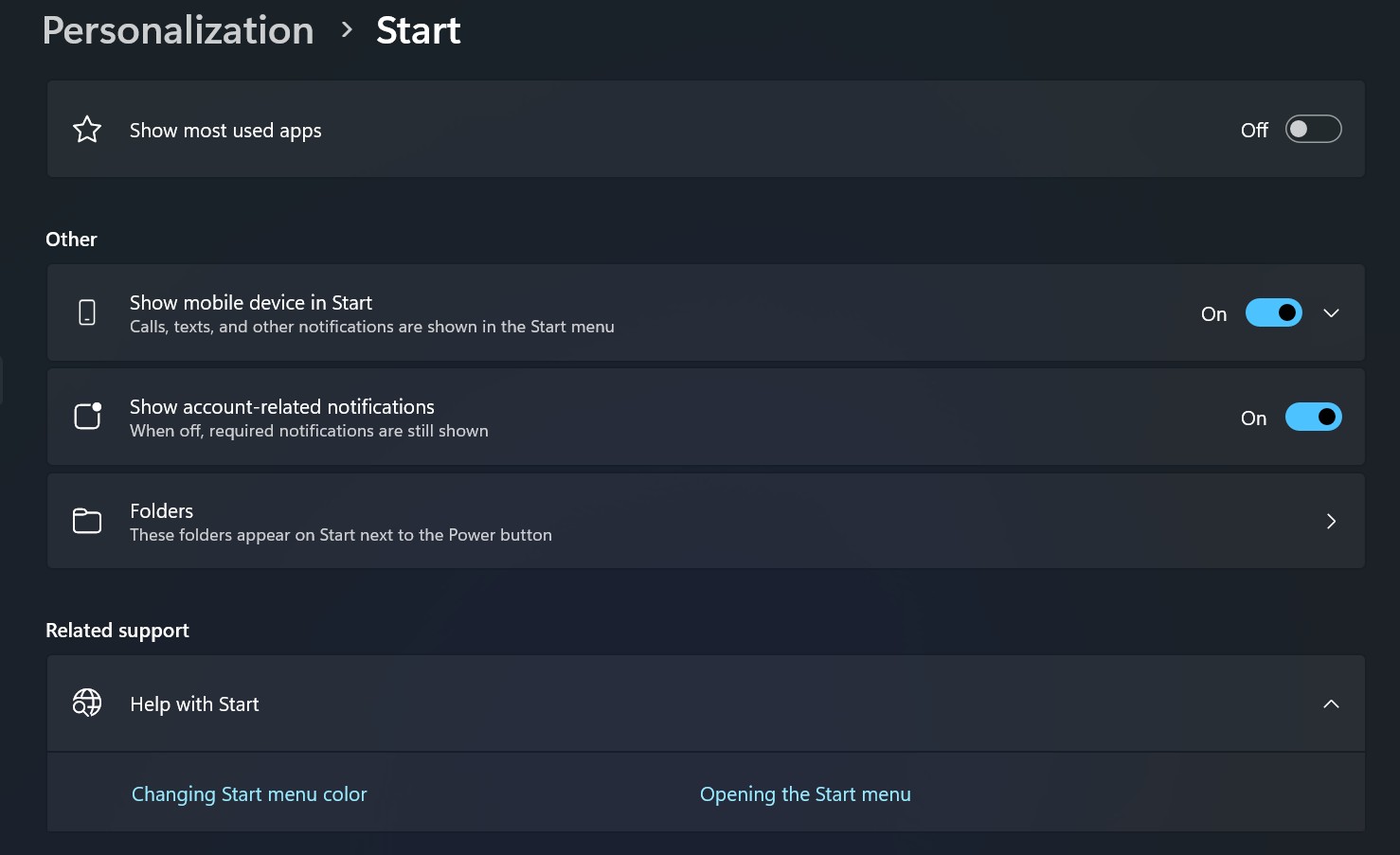

Once disabled, the Start menu will stop showing account alerts and prompts.
Turn off Windows Update badge notifications
Windows Update can display badge notifications when a restart is required. If you find these distracting, you can disable them.
To turn off Windows Update badge notifications:
- Open Settings
- Click Windows Update
- Select Advanced options
- Turn off Notify me when a restart is required to finish updating


After this, Windows 11 will no longer show update-related badge alerts in the taskbar or Start menu.
Turn notifications back on in Windows 11
If you change your mind, you can easily re-enable notifications.
Enable all notifications
- Open Settings
- Click System
- Click Notifications
- Turn Notifications back on
Enable notifications per app
- Open Settings
- Go to System > Notifications
- Turn on the toggle for the app under Notifications from apps and other senders
Enable notifications using the Registry
- Open Registry Editor
- Navigate to:
HKEY_CURRENT_USER\Software\Microsoft\Windows\CurrentVersion\PushNotifications
- Change ToastEnabled from 0 to 1
- Restart the computer
Windows 11 offers flexible notification controls that let you decide how much information reaches you throughout the day. Whether you want to turn off all alerts, silence specific apps, or fine-tune badge notifications, the operating system provides multiple ways to stay focused without missing what matters. By adjusting these settings, you can create a quieter and more productive Windows 11 experience.

Discussion (0)
Be the first to comment.