




The C drive on a Windows 11 PC is one of the most important storage areas. It usually holds your system files, installed programs, and personal folders like Documents, Pictures, and Downloads. Knowing how to open and access the C drive helps you find files, manage storage, and organize your data.
This guide explains several ways to open the C drive quickly on a Windows 11 computer. It also includes tips for working with files and keeping your system organized.
What the C Drive Is
The C drive is your main internal storage partition on a Windows PC. It contains the Windows operating system, program files, and most user data. When you install a new app or save a file without choosing a different location, it usually goes to the C drive.
In simple terms, think of the C drive as the main folder where your computer keeps most of its essential data.
Method 1: Open the C Drive Using File Explorer
The most common way to open the C drive is through File Explorer.
- Click the folder icon on the taskbar or press Windows + E on your keyboard.
- In the left sidebar, look for This PC and click it.
- Under Devices and drives, double-click on the Local Disk (C:) icon.
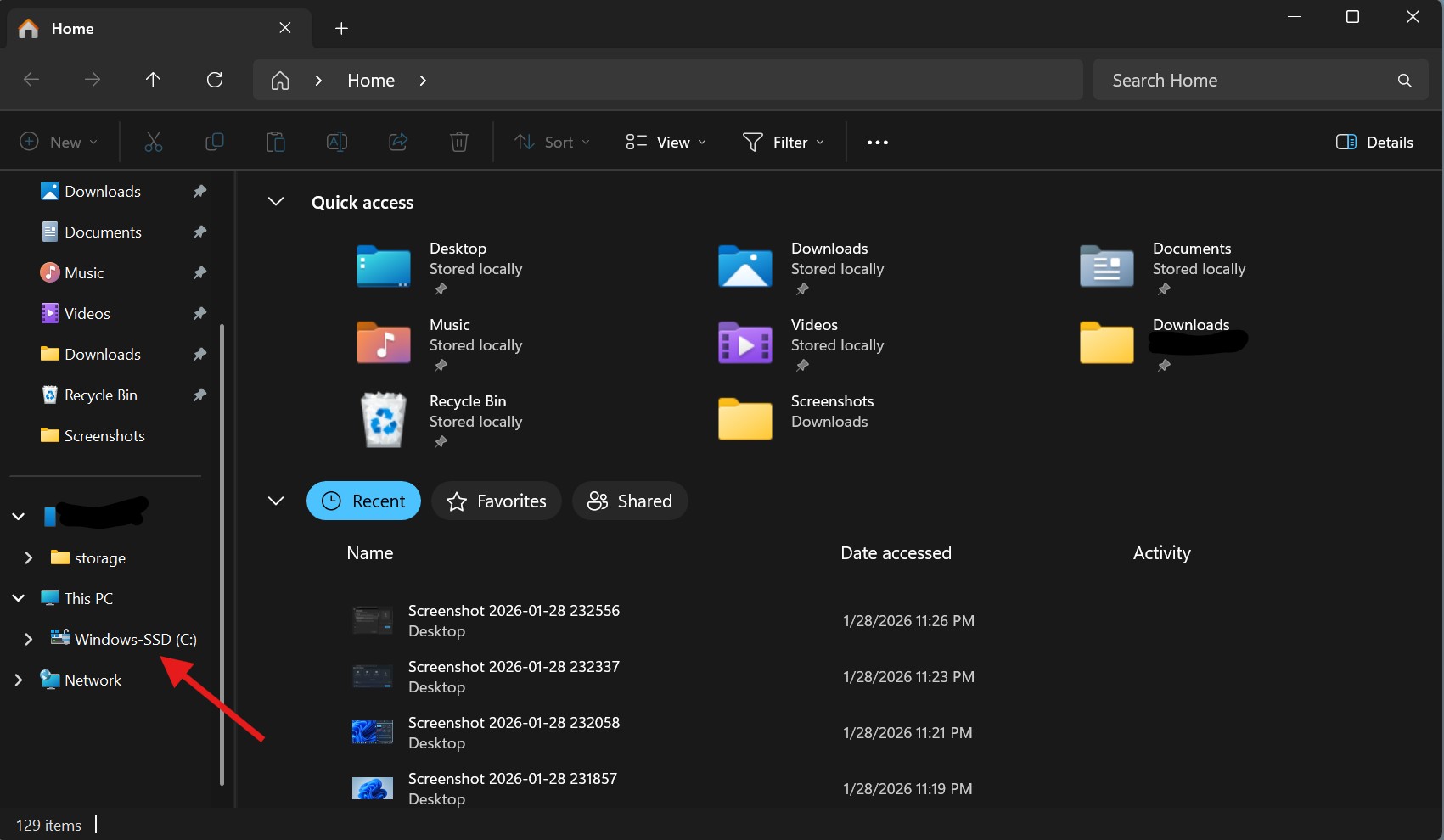

- The C drive will open and show its folders and files.
This method works on almost every Windows 11 PC and is the easiest for most users.
Method 2: Open the C Drive Using the Run Window
You can open the C drive directly using the Run dialog box.
- Press Windows + R on your keyboard to open the Run box.
- In the text field, type C: and press Enter.
- File Explorer will open the C drive right away.


This method is quick if you like using keyboard shortcuts and commands.
Method 3: Open the C Drive From Desktop Shortcuts
Some Windows 11 systems show a This PC icon on the desktop. If you see it:
- Double-click the This PC icon on your desktop.
- Then double-click Local Disk (C:) to open it.
If you don’t see the icon, you can turn it on through Settings by adding desktop icons (Desktop icon settings).
What You Can Do Inside the C Drive
Once the C drive is open, you can view and manage its folders and files:
- Documents, Pictures, Music — Your personal folders
- Program Files — Installed apps
- Windows — System files used by the operating system
- Downloads — Files you downloaded from the internet
Knowing where your files are helps you keep your system organized and frees up space when needed.
Tips for Working With the C Drive
- Avoid deleting system files. Removing files from the Windows folder can make your PC unstable.
- Use search to find files quickly inside the C drive if there are many items.
- Sort and group files by name, date, type, or size to make things easier to find.
- Empty the Recycle Bin after deleting files to free up space.
Being careful about what you delete or move helps keep your system running smoothly.
Comparison: Ways to Open the C Drive
| Method | How You Open It | Best Use Case |
|---|---|---|
| File Explorer | From taskbar or keyboard shortcut | Easy and visual |
| Start Menu Search | Search “This PC” then open | When Explorer isn’t on the taskbar |
| Run Window | Enter “C:” in Run | Fast if you like keyboard commands |
| Desktop Icon | Double-click This PC | Quick if the icon is visible |
Frequently Asked Questions (FAQs)
Why do I need to open the C drive?
You open the C drive to find files, check storage space, or manage installed apps and personal documents.
Can I delete anything from the C drive?
Be careful. Deleting system files or program files can cause problems. Only remove files you are sure you don’t need.
What if the C drive doesn’t show up?
If the C drive does not appear, it might be hidden, or your account might not have permission to view it. Make sure you are signed in with an administrator account.
Can I rename the C drive?
It is not recommended to rename the C drive, as many system processes rely on its name and location.
Opening the C drive in Windows 11 is easy once you know the different methods. Whether you use File Explorer, the Start menu, the Run window, or a desktop icon, you can access your main storage quickly. Understanding how to navigate the C drive helps you find your files, manage storage space, and organize your data.
If you need more help with Windows 11 file management or storage settings, let me know and I can expand this article further.
Discussion (0)
Be the first to comment.