



The “Update Shipping Contact” message in Apple Pay usually appears when your shipping details do not match across Apple Account, Wallet, or AutoFill settings. Even a small mismatch can prevent payments from completing. At the time of writing, this issue still affects iPhone users during both in-store and online Apple Pay transactions.
Fixing the problem requires reviewing where Apple Pay pulls shipping data and making sure everything matches.
Why Apple Pay Asks You To Update Shipping Contact
Apple Pay relies on multiple data sources to verify shipping information before approving a transaction. If those sources conflict, Apple Pay pauses checkout.
Common causes include outdated addresses, missing phone numbers, AutoFill errors, or shipping details that do not match your bank’s records.
Check Shipping Contact In Apple Account
Your Apple Account acts as a primary source for Apple Pay shipping data. Incorrect information here often triggers repeated update requests.
- Open Settings
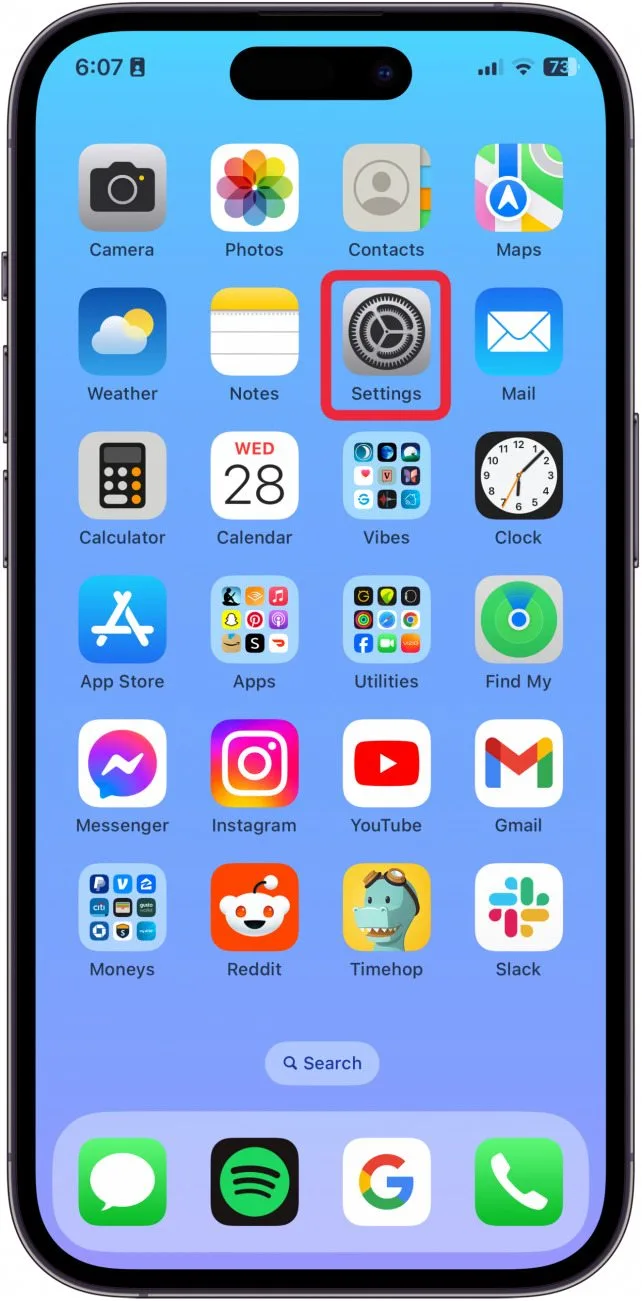
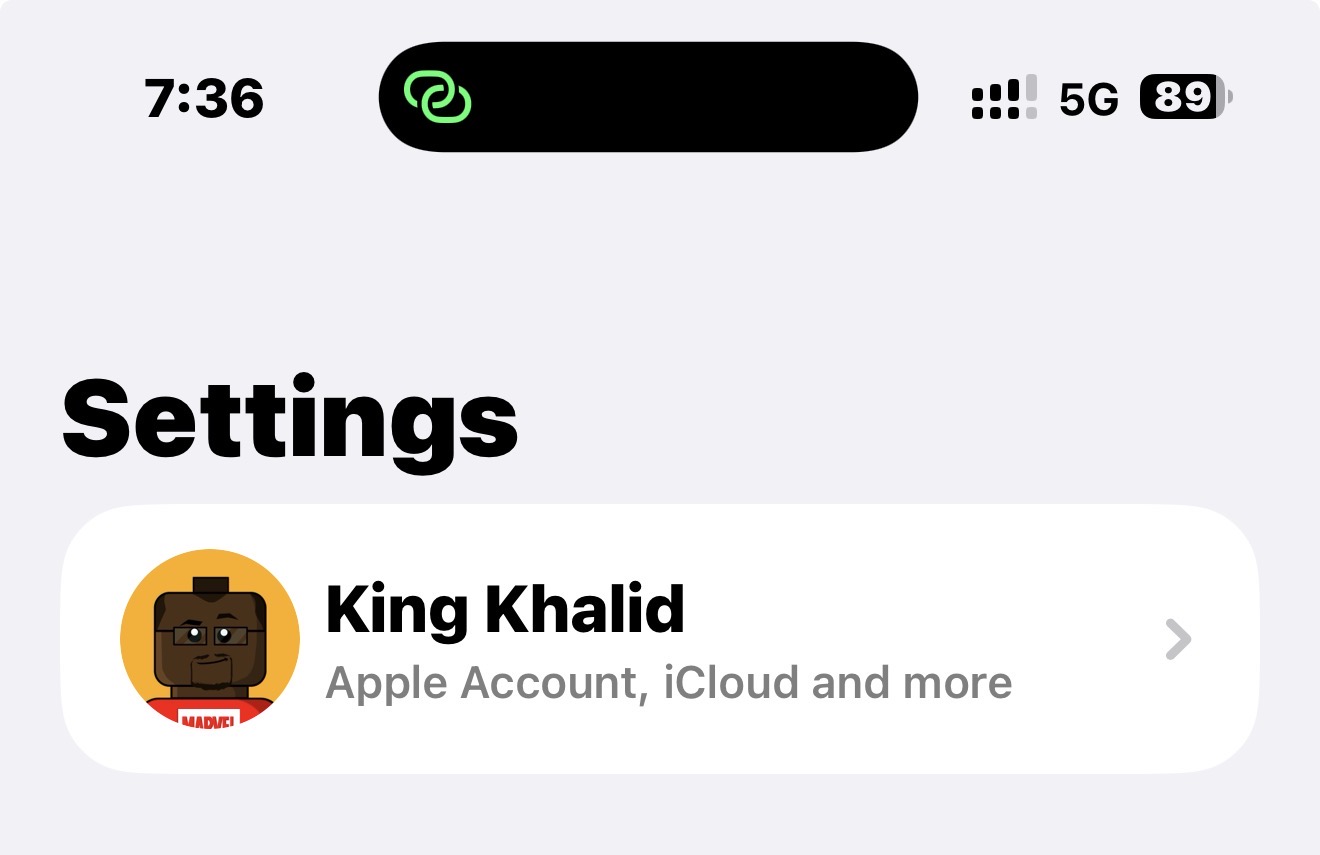
- Tap your Apple ID.
- Select Payment & Shipping.
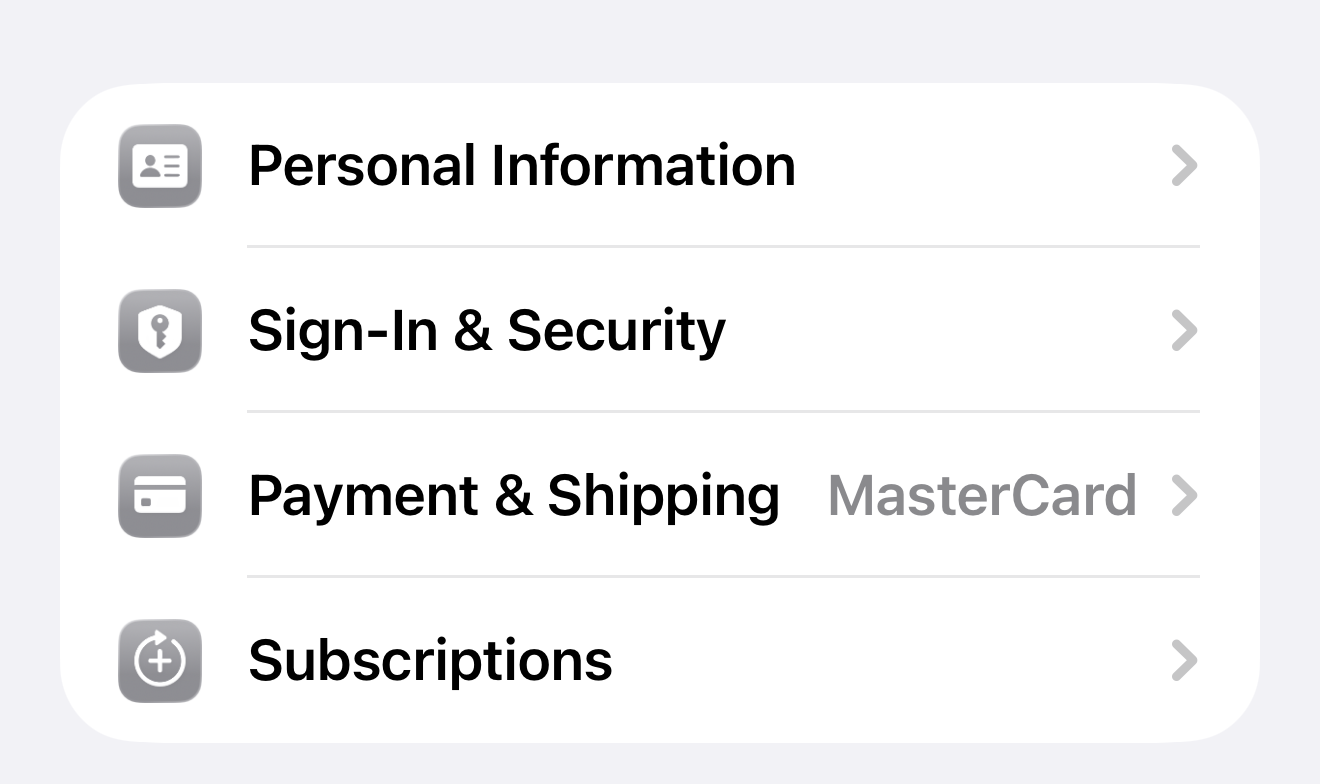
- Review the shipping address for accuracy and completeness.
- Edit any incorrect fields and save changes.
Make sure the address includes a phone number and matches your current location.
Update Shipping Address In Apple Wallet
Apple Wallet settings can override Apple Account information during checkout. An outdated Wallet address frequently causes this error.
- Open Settings and tap Wallet & Apple Pay.
- Select Shipping Address under transaction defaults.
- Edit or add the correct shipping details.
- Save your changes.
This ensures Apple Pay uses the correct address during purchases.
Fix Safari AutoFill Shipping Information
Safari AutoFill can silently override Wallet and Apple Account data, causing Apple Pay shipping conflicts.
- Open Settings and tap Safari.
- Select AutoFill.
- Tap My Info and confirm the correct contact card is selected.
- Edit your contact card if needed and save changes.
Removing outdated or duplicate contact cards helps prevent future checkout errors.
Reset Apple Pay Settings
If shipping details look correct but the error persists, refreshing Apple Pay settings can resolve sync issues.
- Open Settings and tap Wallet & Apple Pay.
- Disable Apple Cash and remove cards if necessary.
- Restart your iPhone.
- Re-enable Apple Pay and add your cards again.
This forces Apple Pay to reload contact and shipping data.
Troubleshooting Common Problems
If Apple Pay still requests shipping updates, a few additional checks can help.
- Make sure your iPhone software is up to date.
- Confirm billing and shipping addresses match bank records.
- Sign out and back into your Apple ID.
- Test Apple Pay with a different merchant.
Tips
- Keep one primary shipping address across all Apple services.
- Update contact details after moving or changing phone numbers.
- Review AutoFill settings after device upgrades.
- Avoid duplicate contact cards in the Contacts app.
- Sync Apple Pay fully when setting up a new device.
FAQ
Why does Apple Pay keep asking to update shipping contact?
This happens when shipping details do not match across Apple Account, Wallet, or AutoFill settings.
Does Apple Pay require a shipping address for in-store payments?
Some merchants still request shipping data even for digital or pickup transactions.
Will resetting Apple Pay remove my cards?
Yes, but you can re-add them after restarting your device.
Can banks cause this issue?
Yes. Address mismatches between Apple Pay and your bank records can trigger the error.
Summary
- Apple Pay pulls shipping data from multiple sources.
- Mismatched addresses cause checkout failures.
- Updating Wallet, Apple Account, and AutoFill fixes the issue.
- Resetting Apple Pay can resolve sync problems.
Conclusion
The Apple Pay update shipping contact error is usually caused by mismatched or outdated address information. Once all shipping details align across Apple services, payments should process normally without repeated interruptions.


Discussion (0)
Be the first to comment.