




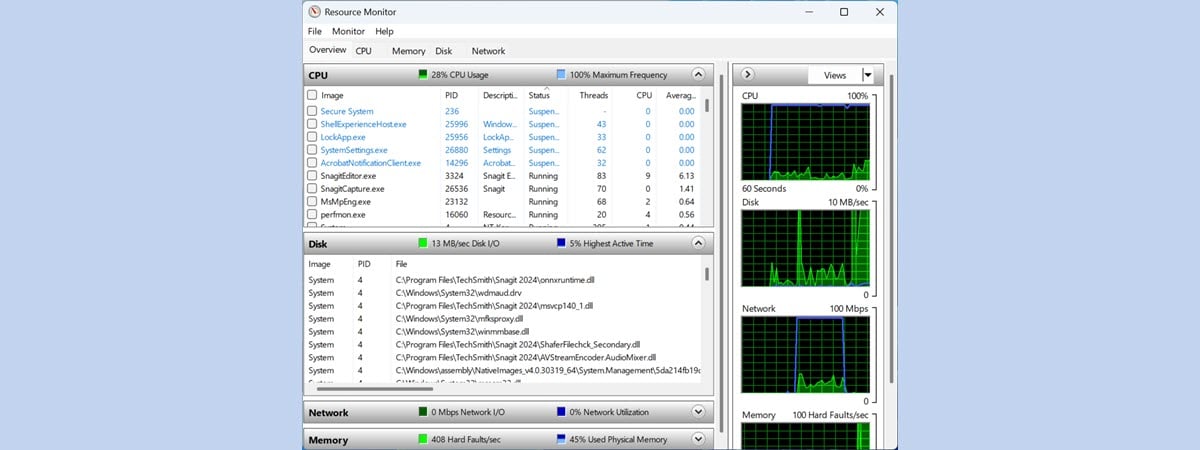
Antimalware Service Executable, also known as MsMpEng.exe, is a core background process used by Windows Security to protect your system from malware. While it must use system resources to function, excessive memory usage can slow down your PC.
At the time of writing, high memory usage by the Antimalware Service Executable usually points to aggressive real-time scanning, corrupted files, malware activity, or misconfigured scan schedules. The fixes below address each of these causes.
Turn Off Real-Time Protection Temporarily
Real-time protection continuously scans files and processes, which directly increases memory usage. Turning it off temporarily can confirm whether it is the source of the problem.
- Open Windows Security from the Start menu
- Select Virus & Threat Protection
- Click Manage Settings
- Toggle off Real-Time Protection
This reduces memory usage immediately, but it also lowers system protection.
Remove Pirated Or Modified Applications
Pirated software often injects background code that triggers constant antivirus scans. Windows Defender flags these behaviors repeatedly, causing Antimalware Service Executable to consume more memory.
- Open Settings
- Go to Apps and Installed Apps
- Uninstall any pirated or cracked software
- Restart your PC
Removing these apps often resolves the issue without further steps.
Scan Your PC For Malware
Hidden malware can force Windows Defender to run persistent scans. A secondary scan helps rule this out.
- Open Windows Security
- Select Virus & Threat Protection
- Click Scan Options
- Run a Full Scan
If threats exist, Windows Security removes them automatically.
Reschedule Windows Defender Scans
Scheduled scans may run during active work hours, increasing memory usage when you need performance most.
- Open Task Scheduler
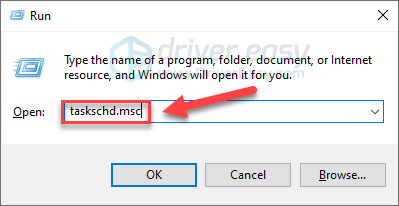
- Navigate to Task Scheduler Library
- Open Microsoft and then Windows
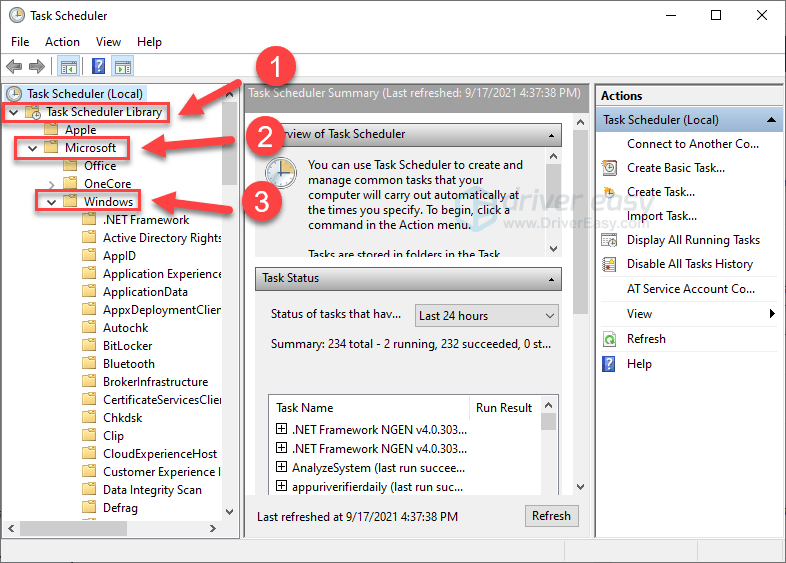
- Select Windows Defender
- Edit scan triggers to run during idle hours

This limits performance impact during daily use.
Disable AntiSpyware Using Registry Editor
This method should only be used if you install a third-party antivirus. Disabling AntiSpyware stops Antimalware Service Executable entirely.
- Open Registry Editor
- Navigate to HKEY_LOCAL_MACHINE\\SOFTWARE\\Microsoft\\Windows Defender
- Locate DisableAntiSpyware
- Set its value to 1
- Restart your PC
This eliminates high memory usage but removes Windows Defender protection.
Troubleshooting Common Problems
If memory usage remains high, Windows updates or corrupted system files may be responsible. Restarting after updates often resolves lingering Defender activity.
Systems with limited RAM experience higher impact during scans.
Tips
- Keep Windows fully updated
- Avoid cracked or modified software
- Schedule scans during idle hours
- Monitor Task Manager for recurring spikes
FAQ
Is Antimalware Service Executable safe?
Yes. It is a core Windows Security process.
How much memory should it use?
Typically between 120 MB and 180 MB under normal conditions.
Can I disable it permanently?
Yes, but only if you use a third-party antivirus.
Does high memory usage mean malware?
Not always. It can also be caused by scan schedules or updates.
Summary
- Antimalware Service Executable protects Windows from malware
- High memory usage is usually fixable
- Real-time scanning is the main cause
- Scan scheduling reduces system impact
Conclusion
Antimalware Service Executable high memory usage can make even powerful PCs feel slow. In most cases, the issue comes from scanning behavior rather than actual threats.
By adjusting scan settings, removing problematic software, or switching antivirus solutions, you can restore normal system performance without sacrificing security.

Discussion (0)
Be the first to comment.