




If you’re looking for all macOS versions in order, this guide lists every major Mac operating system release from the original Mac OS X public beta to the latest macOS version. Apple has changed names, numbering systems, and even its release strategy over time, which makes the timeline confusing if you only remember parts of it.
Below, you’ll find a complete chronological list, followed by clear explanations of what each macOS version introduced and why it mattered, so you can quickly identify the right release for your Mac or understand how the platform evolved.
Table of contents
- macOS versions in order (quick list)
- Complete macOS timeline by era
- Mac OS X public beta (Kodiak)
- Mac OS X 10.0 Cheetah
- Mac OS X 10.1 Puma
- Mac OS X 10.2 Jaguar
- Mac OS X 10.3 Panther
- Mac OS X 10.4 Tiger
- Mac OS X 10.5 Leopard
- Mac OS X 10.6 Snow Leopard
- Mac OS X 10.7 Lion
- OS X 10.8 Mountain Lion
- OS X 10.9 Mavericks
- OS X 10.10 Yosemite
- OS X 10.11 El Capitan
- macOS 10.12 Sierra
- macOS 10.13 High Sierra
- macOS 10.14 Mojave
- macOS 10.15 Catalina
- macOS 11 Big Sur
- macOS 12 Monterey
- macOS 13 Ventura
- macOS 14 Sonoma
- macOS 15 Sequoia
- macOS Tahoe 26
- Which macOS versions are still supported?
- macOS naming explained
- Common questions about macOS versions
- Summary
macOS versions in order (quick list)
Use this list when you only need the names and version numbers in release order. It starts with Apple’s public beta and then covers every major release through the newest naming scheme.
- Mac OS X Public Beta (Kodiak)
- Mac OS X 10.0 Cheetah
- Mac OS X 10.1 Puma
- Mac OS X 10.2 Jaguar
- Mac OS X 10.3 Panther
- Mac OS X 10.4 Tiger
- Mac OS X 10.5 Leopard
- Mac OS X 10.6 Snow Leopard
- Mac OS X 10.7 Lion
- OS X 10.8 Mountain Lion
- OS X 10.9 Mavericks
- OS X 10.10 Yosemite
- OS X 10.11 El Capitan
- macOS 10.12 Sierra
- macOS 10.13 High Sierra
- macOS 10.14 Mojave
- macOS 10.15 Catalina
- macOS 11 Big Sur
- macOS 12 Monterey
- macOS 13 Ventura
- macOS 14 Sonoma
- macOS 15 Sequoia
- macOS Tahoe 26
Latest macOS version
Apple’s newest major release uses the year-based naming approach, so you’ll see it written as macOS Tahoe 26. Apple introduced this style to make versions easier to recognize across platforms.
Complete macOS timeline by era
This section explains what changed between naming eras, so the list makes sense even if you remember “OS X” or “Mac OS X” labels. It also helps when you try to match an older Mac’s installer to the right name.
Mac OS X public beta (Kodiak)
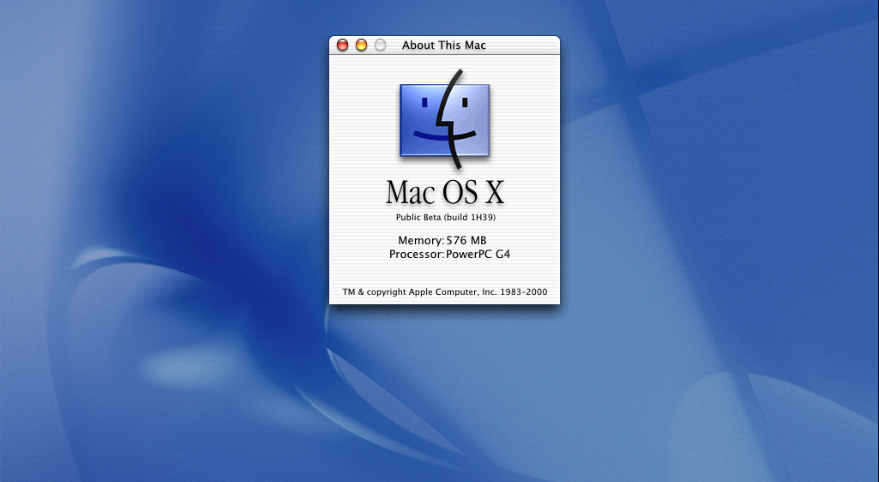
Apple used the public beta to preview the UNIX-based foundation that would replace classic Mac OS. It gave early adopters a first look at the direction Apple planned for the platform.
This release mattered because it set expectations for a new interface and a modern architecture, even if many users still relied on classic apps at the time. It also helped developers start adjusting software for what came next.
Mac OS X 10.0 Cheetah
Mac OS X 10.0 marked the first mainstream desktop release of the new system Apple built from NeXT technology. It introduced the “new era” experience that eventually became today’s macOS.
Many users experienced 10.0 as a major reset rather than a polished upgrade. It established the base Apple refined quickly through frequent point releases.
Mac OS X 10.1 Puma

Mac OS X 10.1 arrived as the “make it usable” follow-up to 10.0, with improvements that pushed adoption forward. Apple focused on stability and performance more than splashy headline features.
This version reduced friction for people moving from classic Mac OS. In practice, it felt like Apple’s first serious attempt to turn the new platform into the default OS for most Macs.
Mac OS X 10.2 Jaguar
Jaguar pushed Mac OS X closer to a complete daily driver. Apple also began treating the release name as a major marketing identity.
Many users remember Jaguar as the point where the OS started to feel faster and more complete. It also set the tone for more visible, consumer-friendly upgrades each year.
Mac OS X 10.3 Panther
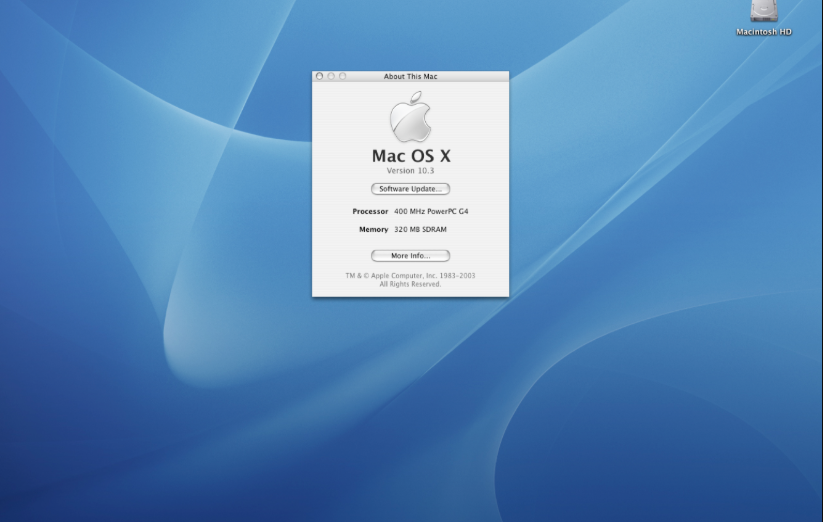
Panther continued Apple’s annual cadence and tightened the overall experience with meaningful refinements. Apple focused on polish and system-level improvements that made Macs feel more cohesive.
For many Mac owners, Panther felt like a confident iteration rather than a transitional experiment. It reinforced Mac OS X as Apple’s long-term platform.
Mac OS X 10.4 Tiger
Tiger expanded Mac OS X with major usability additions that shaped modern workflows. It also helped Apple sell the idea of the OS as a feature upgrade, not just maintenance.
Tiger became widely adopted and stayed relevant for years on older Macs. It also normalized system search and built-in productivity tools for everyday users.
Mac OS X 10.5 Leopard
Leopard delivered a big, visible update and represented one of the largest feature jumps in the Mac OS X era. Apple used it to modernize the UI and system apps aggressively.
It also mattered for developers because it helped set up newer app foundations and tools. Many users remember Leopard as the version where Macs felt more powerful and more refined.
Mac OS X 10.6 Snow Leopard
Snow Leopard acted as a cleanup release, with Apple emphasizing performance and stability. It targeted the “make everything faster and better” goal instead of adding lots of new UI.
This approach made Snow Leopard a favorite among long-time Mac users. It also strengthened the platform for the rapid evolution that followed in the next decade.
Mac OS X 10.7 Lion
Lion pushed the Mac closer to Apple’s mobile-style direction, with changes inspired by iOS. Apple also used Lion to keep modernizing the OS experience and its built-in apps.
This version signaled Apple’s intent to unify how Macs and iPhones feel, even if some users preferred older workflows. It also set up the eventual OS X-to-macOS branding shift.
OS X 10.8 Mountain Lion
Mountain Lion established “OS X” as Apple’s main branding while continuing the iOS influence across features and apps. Apple leaned further into ecosystem integration and consistency.
For many users, Mountain Lion felt like a refinement after Lion’s bigger conceptual changes. It helped make the OS feel more stable and modern at the same time.
OS X 10.9 Mavericks
Mavericks started Apple’s California naming scheme, moving away from big cats. Apple used it to mark a new branding chapter while continuing annual releases.
This version also reinforced the idea of free major upgrades becoming normal for Mac users. It set a pattern that influenced how people think about macOS updates today.
OS X 10.10 Yosemite
Yosemite brought a major design refresh that matched Apple’s broader visual style. It also strengthened Continuity, which helped Macs and iPhones work better together.
Many users remember Yosemite for its look and ecosystem features more than any single utility. It also prepared macOS for deeper iCloud and device integration.
OS X 10.11 El Capitan
El Capitan focused on performance, stability, and usability improvements rather than a dramatic redesign. It refined Yosemite’s direction and made everyday tasks feel smoother.
It continued Apple’s pattern of alternating big UI shifts with pragmatic refinement releases. Users who wanted fewer surprises often preferred this type of update.
macOS 10.12 Sierra
Sierra introduced the macOS name, aligning the platform brand with iOS-style naming. It also deepened ecosystem features that encouraged using a Mac alongside an iPhone.
The branding change mattered because it made Apple’s OS naming consistent across devices. It also signaled that Apple saw the Mac as part of a unified product ecosystem.
macOS 10.13 High Sierra
High Sierra continued Apple’s refinement pattern, focusing on core technologies and stability. Users often associate it with foundational system changes that improved reliability.
It served as a bridge between the older 10.x era and the larger shifts that arrived soon after. Many users treated High Sierra as a practical “safe” version on older hardware.
macOS 10.14 Mojave
Mojave introduced user-facing changes that many people noticed immediately, including dark mode. It also continued Apple’s work to bring iOS-style ideas to the Mac in a controlled way.
This release also highlighted Apple’s growing focus on privacy and modern app behavior. It became a popular stopping point for users who wanted a modern feel without later breaking changes.
macOS 10.15 Catalina
Catalina marked a major compatibility shift by dropping support for 32-bit apps, which broke many older programs. It also pushed Apple’s cross-platform app strategy forward.
For many users, Catalina became the “check your apps first” release. People who relied on older creative tools and niche utilities often delayed upgrading because of that hard cutoff.
macOS 11 Big Sur
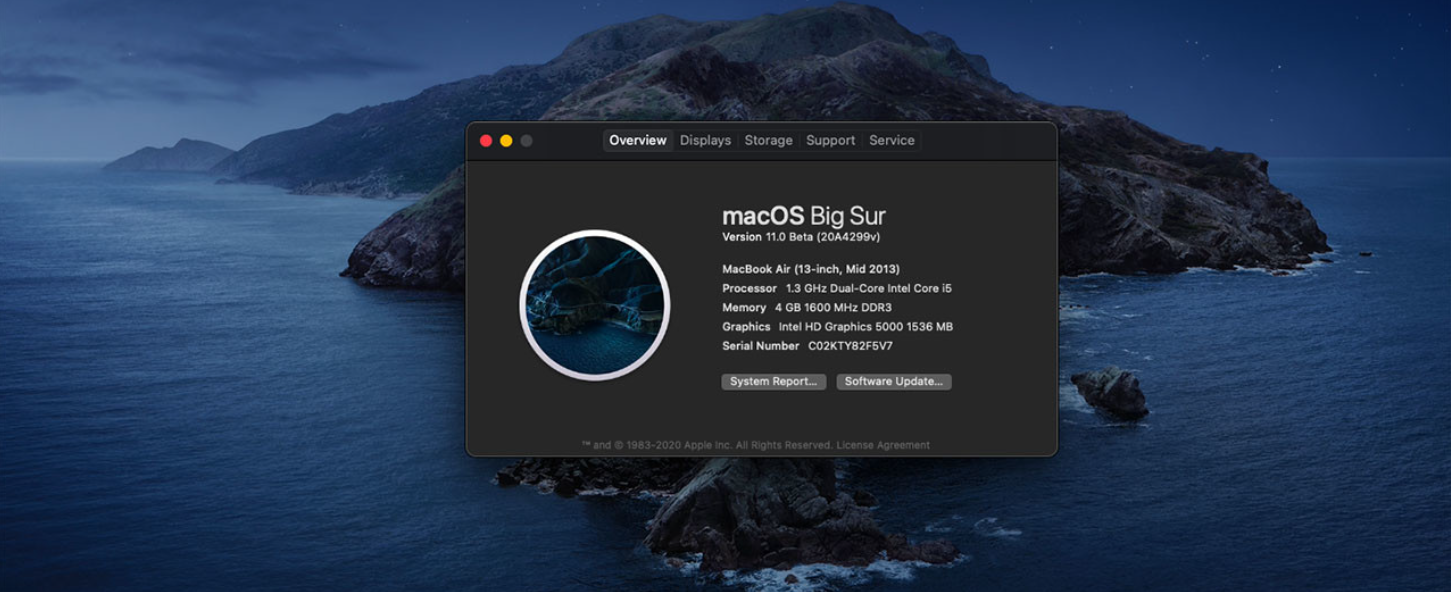
Big Sur changed the version numbering from 10.x to 11 and introduced a significant UI refresh. It also supported Apple silicon, which made it a milestone release in modern Mac history.
This version helped Macs transition into the Apple silicon era while keeping Intel Macs supported. It also shaped the design language Apple continued building on.
macOS 12 Monterey
Monterey expanded the modern macOS feature set with stronger continuity and productivity capabilities across Apple devices. It continued the theme of making the Mac feel like part of a multi-device workflow.
For many users, Monterey felt like Big Sur plus maturity. It kept the same design direction while improving daily usability in small but meaningful ways.
macOS 13 Ventura
Ventura introduced Stage Manager and modernized key system areas, including a redesigned Settings experience. Apple aimed Ventura at users who multitask heavily.
Ventura also pushed consistency across platforms. If you switch between iPhone, iPad, and Mac daily, Ventura can make those transitions feel smoother.
macOS 14 Sonoma
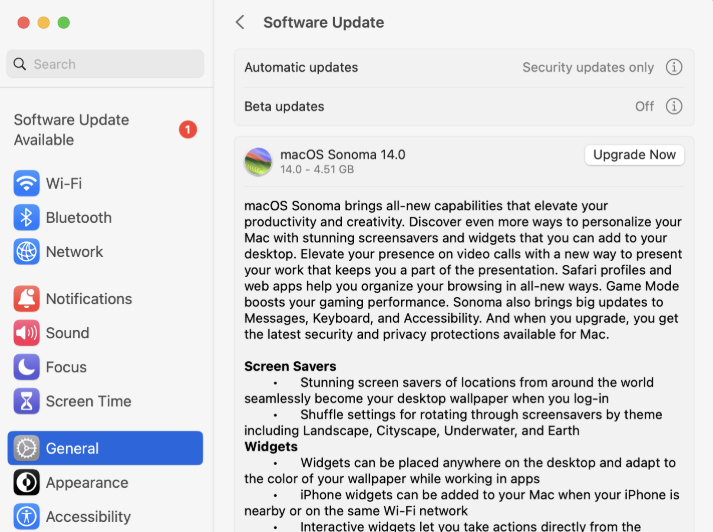
Sonoma improved widgets and personalization while adding game-focused enhancements like Game Mode. Apple positioned it as a quality-of-life release that shows up in everyday use.
This version leaned into smaller experience upgrades like customization and smoother app interactions. Many users upgraded for daily improvements rather than one headline feature.
macOS 15 Sequoia
Sequoia continued Apple’s integration story with features that make iPhone and Mac work together more seamlessly. Apple designed many of its newest capabilities with Apple silicon Macs in mind.
Sequoia fits the pattern of ecosystem upgrades that feel biggest if you use multiple Apple devices. It also serves as the last numbered release before Apple’s year-based naming shift.
macOS Tahoe 26
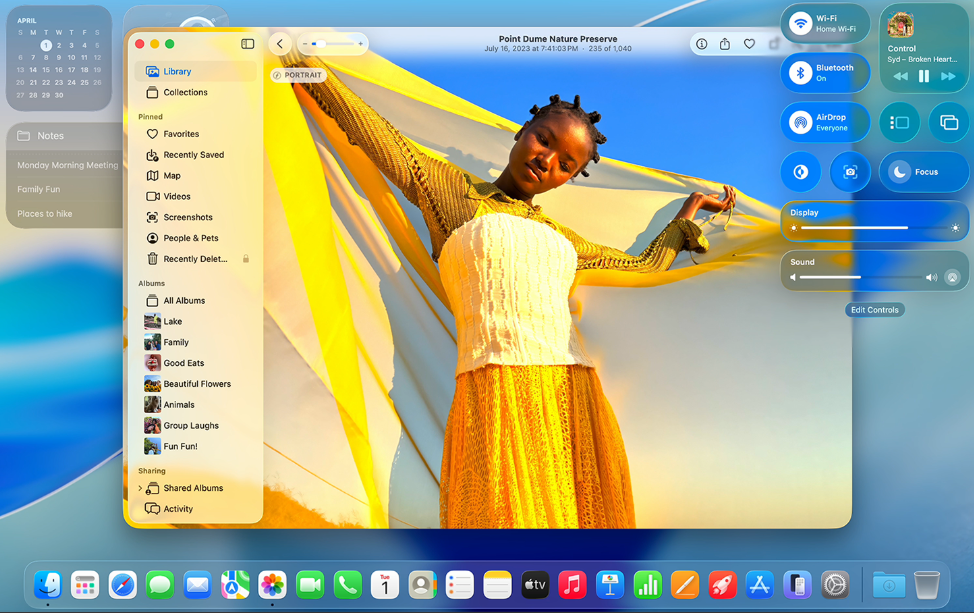
Tahoe 26 introduced Apple’s year-based macOS naming approach and arrived with a major refresh aimed at modern workflows. It changes how people track macOS versions going forward.
Instead of a sequential number like “macOS 16,” Apple uses “26” to align with the year-based naming Apple applies across platforms. This shift helps users identify the newest release at a glance.
Which macOS versions are still supported?
Apple changes support status over time, so you should prioritize a version that still receives security updates. You should avoid running unsupported macOS versions on a Mac you use online.
If your Mac cannot run a supported macOS version, treat it like an offline machine for legacy apps. You can also repurpose it for tasks that do not require logging into accounts or browsing the web.
macOS naming explained
Apple used big cats for early releases (Cheetah through Mountain Lion), then switched to California place names starting with Mavericks. Apple later renamed OS X to macOS with Sierra to match platform branding.
Apple now uses year-based version naming, which is why you see macOS Tahoe 26. This approach makes it easier to recognize the most current OS across Apple’s lineup.
Common questions about macOS versions
What is the oldest macOS still supported?
The oldest supported macOS changes as Apple ends security update coverage for older releases. Check Apple’s current security update coverage before you decide to upgrade or stay on an older version.
What macOS version should I use on an old Mac?
Pick the newest macOS your Mac officially supports, then stop there if the next version drops your model. You usually get the best balance of app compatibility and performance by staying within your Mac’s official support range.
If you rely on older apps, check 32-bit compatibility first, because Catalina and later can break older software. When you cannot upgrade safely, keep the Mac offline for legacy use.
Why did Apple drop OS X and switch to macOS?
Apple renamed OS X to macOS to match the naming pattern used across iOS, watchOS, and tvOS. That change helped Apple present the Mac as part of a unified family of platforms.
Summary
- Apple’s modern Mac OS timeline runs from Mac OS X to OS X to macOS, with branding changes along the way.
- The full release list spans the public beta through macOS 15 Sequoia and the year-based macOS Tahoe 26.
- Catalina dropped 32-bit apps, and Big Sur marked the jump from 10.x to 11, so both versions often affect upgrade decisions.
- Prioritize a macOS version that still receives security updates if you use your Mac online.
Use the quick list when you need the order fast, then use the era breakdown when the names confuse you. If you plan to upgrade, check your current macOS version, then treat support status and app compatibility as your two deciding factors.


Discussion (0)
Be the first to comment.