




The Alcatel Linkzone 2 is a compact 4G LTE hotspot that keeps your laptop, tablet, and phone online when you are away from home Wi-Fi. This step-by-step Alcatel Linkzone 2 hotspot setup guide walks you through unboxing, inserting the SIM, connecting your devices, and securing the Wi-Fi network so you stay connected with fewer drops and surprises on your data plan.
Most US carriers that support the Alcatel Linkzone 2 use a simple web interface at https://mobile.hotspot or https://192.168.0.1 to manage settings. You will use that page to change the Wi-Fi name and password, update the admin password, and, if needed, add custom APN settings for your mobile data provider. This guide focuses on Linkzone 2 hotspot setup for typical US travel and home backup use, with notes for T-Mobile and similar prepaid plans.
In short, you will insert the SIM card, charge and power on the hotspot, connect your phone or laptop to the default Wi-Fi, and then visit the hotspot’s web page to finish the Alcatel Linkzone 2 setup. Once you change the default Wi-Fi and admin passwords, the device becomes much harder for other people to access without your permission.
How To Set Up Your Alcatel Linkzone 2 Hotspot
Use these quick steps if you just want the fast version of the Alcatel Linkzone 2 hotspot setup step by step, then follow the detailed sections below if something does not work or you want to change more advanced options.
- Unbox the Alcatel Linkzone 2 and charge it with the included USB-C cable.

- Get the SIM card ready.
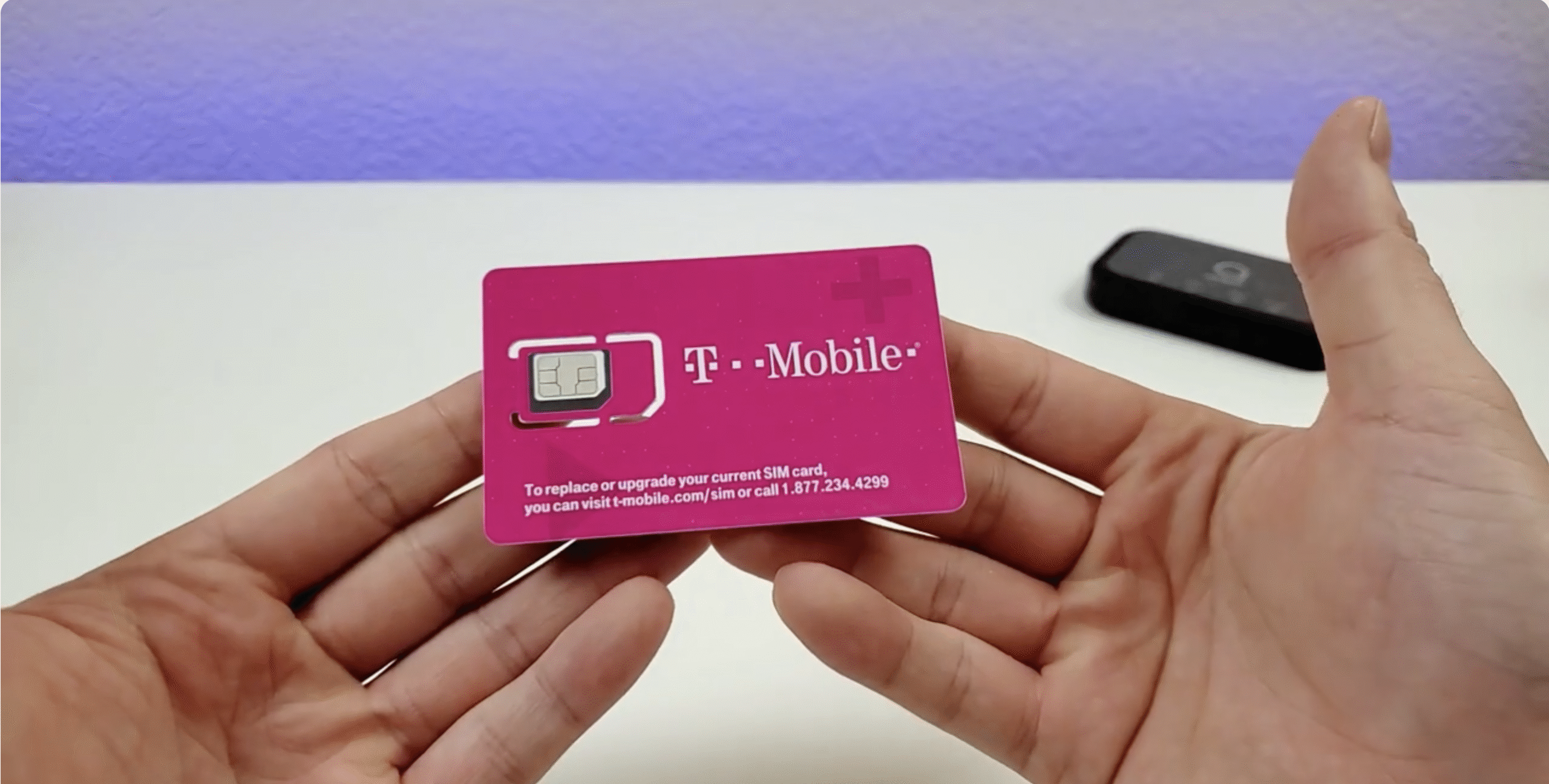
- Insert an active nano SIM card from your carrier into the Linkzone 2 SIM slot.
- Power on the hotspot and wait for the signal and Wi-Fi lights to stabilize.

- On your phone or laptop, connect to the default Linkzone 2 Wi-Fi network printed on the label.
- Open a browser and go to https://mobile.hotspot or https://192.168.0.1 and log in.
- Change the hotspot Wi-Fi network name (SSID) and Wi-Fi password to something unique.
- Change the admin password so only you can manage the Linkzone 2 settings.
- Optional: Add or edit APN settings if your carrier requires custom values for mobile data.
Unbox And Charge The Alcatel Linkzone 2
Before you configure anything, make sure the Linkzone 2 hotspot has enough power. A full charge also prevents mid-setup shutdowns that can corrupt settings.
- Remove the hotspot, battery, USB-C cable, and any included SIM card from the box.
- Insert the battery into the hotspot if it is not pre-installed, lining up the contacts.
- Connect the USB-C cable to the hotspot and to a wall adapter or laptop USB port.
- Let the Linkzone 2 charge until at least one or two battery LEDs stay solid.
Insert The SIM Card
An active SIM card from your mobile carrier is required for the Alcatel Linkzone 2 to access the cellular network. Without it, devices can connect to the Wi-Fi signal but will not reach the internet.
- Power off the hotspot by holding the power button until the lights turn off.
- Remove the back cover carefully to reveal the battery and SIM slot.
- Take out the battery if it blocks the SIM slot.
- Insert the nano SIM card with the gold contacts facing down and the notched corner aligned with the slot diagram.
- Reinstall the battery and snap the back cover into place.
- Press and hold the power button until the lights turn on again.
Wait For Network And Wi-Fi Lights
The Linkzone 2 takes a minute to boot, register on the LTE network, and start broadcasting Wi-Fi. Watching the indicator lights helps you confirm the mobile hotspot setup is working before you touch any settings.
- Wait for the cellular signal icon to appear and stop blinking, which indicates it found a network.
- Check that the Wi-Fi icon comes on, meaning the wireless network is active.
- If you see a red or warning light, move near a window or outside to improve LTE signal, then restart the hotspot.
Connect Your Phone Or Laptop To The Linkzone 2 Wi-Fi
Once the hotspot broadcasts Wi-Fi, you connect a device just like any other wireless network. This step is required before you can open the web interface and finish the Alcatel Linkzone 2 setup.
- On the back of the hotspot or inside the battery compartment, find the default Wi-Fi name (SSID) and Wi-Fi password.
- On your phone, tablet, or laptop, open the Wi-Fi settings screen.
- Look for the default network name that matches the label, such as “LINKZONE2-XXXX”.
- Select that network and enter the default Wi-Fi password exactly as printed, including capital letters.
- Wait until the device shows “Connected” or a similar status before moving on.
Log In To The Alcatel Linkzone 2 Web Interface
The web interface controls almost every part of your Alcatel Linkzone 2 hotspot setup, including data usage, Wi-Fi, and security. You access it with a browser while connected to the hotspot Wi-Fi.
- Open a browser on the connected device, such as Chrome, Edge, or Safari.
- Type https://mobile.hotspot in the address bar and press Enter.
- If that page does not load, type https://192.168.0.1 and press Enter.
- When the login page appears, enter the default admin password from the label or quick start guide, often “admin” in lowercase.
- Select the option to sign in and wait for the dashboard to load.
Change The Wi-Fi Network Name And Password
Changing the default Wi-Fi name and Wi-Fi password keeps neighbors and strangers from guessing their way onto your connection. This step is one of the most important parts of a secure Alcatel Linkzone 2 hotspot setup.
- From the web interface menu, select Settings or a similar option.
- Choose Wi-Fi Settings or Wi-Fi from the left or top menu.
- In the SSID field, enter a new Wi-Fi name that does not reveal your full name or phone number.
- In the password field, create a strong Wi-Fi password with at least 12 characters, a mix of letters, numbers, and symbols.
- Confirm that the security type is set to WPA2 or WPA2/WPA3 where available.
- Save or apply your changes and wait for the hotspot to restart the Wi-Fi radio.
- Reconnect your devices using the new Wi-Fi name and password you just created.
Change The Admin Password
The admin password controls access to the hotspot’s settings page. Leaving it at the default makes it easier for anyone on your Wi-Fi to change your Alcatel Linkzone 2 configuration without your consent.
- Return to the Settings area in the web interface.
- Select Device Settings or Account Management, depending on your firmware version.
- Locate the option to change the admin or login password.
- Enter the current admin password, then create a new strong password you can remember but others cannot guess.
- Save the change and sign back in with the new admin password to confirm it works.
Optional: Update APN Settings For Your Carrier
Most US carriers configure APN settings automatically for the Alcatel Linkzone 2 hotspot. In some prepaid or reseller plans, you may need to add a custom APN profile to get a stable LTE connection or full-speed data.
- While still logged in, select Settings, then choose Network or APN.
- Look for an option like Add New or Create APN.
- Enter the APN values provided by your carrier, including APN name, APN value, and, if required, username, password, and authentication type.
- Save the APN and set it as the active profile if your interface requires you to pick one.
- Restart the hotspot so the new APN takes effect, then confirm that your devices have internet access.
Troubleshooting Common Problems
If something goes wrong during your Alcatel Linkzone 2 hotspot setup step by step, these quick checks usually restore connectivity without a support call.
Connected To Wi-Fi But No Internet
- Confirm your mobile data plan is active and not suspended for non-payment or data cap limits.
- Check the hotspot display for signal bars and make sure you are in LTE coverage, not out of range.
- Restart the hotspot and then toggle Airplane Mode on and off on your phone or laptop.
- If you added custom APN settings, double-check the APN name and values against your carrier documentation.
Default Web Page Will Not Load
- Make sure your device stays connected to the Linkzone 2 Wi-Fi and not another known network.
- Try both https://mobile.hotspot and https://192.168.0.1 in the browser address bar.
- Disable any VPN client temporarily, which can block access to the local admin page.
- Use a different browser or another device to rule out a local browser issue.
Forgot Wi-Fi Or Admin Password
- If you only forgot the Wi-Fi password, connect with another device that still remembers it and look under Wi-Fi settings in the web interface.
- If you forgot the admin password, check your manual for the exact reset steps and reset pin location.
- Use a paperclip to press and hold the reset button for the recommended number of seconds until the lights flash.
- Set up the hotspot again from scratch, including new Wi-Fi and admin passwords.
Hotspot Overheats Or Battery Drains Fast
- Keep the Alcatel Linkzone 2 in an open area, not buried in a bag, glove box, or under blankets.
- Reduce the number of connected devices if more than ten users share the hotspot at once.
- Lower the Wi-Fi transmit power in the settings if the interface offers that option and you only use it in a small room.
- Fully charge the battery and avoid leaving the hotspot plugged in in a hot car for long periods.
Tips
- Save the hotspot admin page as a bookmark on your laptop so you can quickly check data usage and signal strength.
- Use a short, memorable Wi-Fi name but avoid including your full name, phone number, or street address.
- Turn off the hotspot when you do not need it to extend battery life and reduce data leaks from background apps.
- Consider enabling MAC address filtering or a whitelist if you want to lock access to just your own devices.
- Set a calendar reminder to check for firmware updates at least a few times per year so you keep security patches and performance improvements.
FAQ
How Many Devices Can Connect To The Alcatel Linkzone 2?
Most Alcatel Linkzone 2 hotspots support around 15 devices at once, but performance drops as more phones, tablets, and laptops share the same LTE connection. For smoother video streaming and gaming, keep the active device count lower when possible.
Do I Need A Specific Carrier For The Linkzone 2?
Your Alcatel Linkzone 2 must match your carrier’s network bands and be unlocked or sold for that carrier. In the US, many Linkzone 2 hotspots are provisioned for a specific provider, so always confirm compatibility with your mobile plan before you buy or move the SIM card.
Can I Use The Linkzone 2 As A Home Internet Replacement?
The Linkzone 2 can work as temporary home internet for light browsing, email, and streaming on a few devices. For heavy daily use, data caps, LTE congestion, and hotspot throttling can cause slowdowns, so treat it as a backup or travel solution rather than a full broadband replacement.
How Do I Check Data Usage On The Hotspot?
Log in to the hotspot web interface and look for a Home, Usage, or Statistics page that shows total data used and, in some firmware versions, per-session or per-month counters. Always cross-check with your carrier account, which remains the official source for billing data usage.
Is It Safe To Use The Linkzone 2 On Public Charging Stations?
You can use the USB-C port on public outlets to charge the hotspot, but avoid connecting it to unknown computers that could try to access the web interface. Use charge-only cables where possible and rely on your own wall adapter or power bank when you travel.
Summary
- Insert an active nano SIM card, charge the Alcatel Linkzone 2, and wait for stable LTE and Wi-Fi lights.
- Connect your phone or laptop to the default Linkzone 2 Wi-Fi network and log in to the web interface.
- Change the Wi-Fi network name and password, then update the admin password to secure the hotspot.
- Optional: Add carrier-specific APN settings if your data provider requires custom values for mobile data.
- Use the troubleshooting and security tips to keep your Alcatel Linkzone 2 hotspot fast, safe, and reliable.
Conclusion
A clean, step-by-step Alcatel Linkzone 2 hotspot setup gives you a more reliable and secure mobile connection, whether you work from a coffee shop, travel with family, or back up your home internet. Once you know how to connect, log in, and change key settings like the Wi-Fi and admin passwords, you can reuse the same process any time you swap SIM cards, reset the device, or move to a new data plan.
By taking a few extra minutes to update security options and understand the web interface, you turn the Alcatel Linkzone 2 from a basic travel gadget into a dependable mobile hotspot that supports your laptops, tablets, and streaming devices on the road. If you run into problems, revisit the troubleshooting section and your carrier’s plan details, then adjust APN or network settings as needed.


Discussion (0)
Be the first to comment.