




Activating Verizon mobile hotspot is the key to turning your phone or dedicated hotspot device into a portable Wi-Fi network. Whether you need to stay connected while traveling, working remotely, or managing multiple devices, this feature gives you reliable internet access wherever Verizon’s network reaches.
This guide walks you through checking eligibility, setting up your hotspot device, and activating your Verizon hotspot service. It applies to both smartphones and dedicated Verizon Jetpack or prepaid hotspot devices.
1. Check Eligibility for Verizon Mobile Hotspot
Before activating Verizon mobile hotspot, confirm that your device and plan support this feature. Most Verizon plans include hotspot access, but some prepaid or older data plans may require upgrades. Check your My Verizon account or contact Verizon support to verify eligibility.
- Device compatibility: Modern Verizon smartphones and tablets support the hotspot function. Verify in your phone’s Settings → Network → Hotspot & Tethering.
- Data plan inclusion: Ensure your plan includes mobile hotspot data. If not, add or switch to a plan that supports it.
- Account status: Make sure your account is active and in good standing before starting activation.
2. Set Up Your Verizon Hotspot Device
Setting up your Verizon mobile hotspot is simple. Depending on whether you’re using a smartphone, Verizon Jetpack hotspot, or prepaid hotspot, follow these steps:
- Insert the SIM card: If you’re using a Verizon 4G prepaid hotspot or Jetpack, carefully insert the SIM card without touching the gold contacts.
- Power on the device: Press and hold the Power button until the screen lights up. Activation may begin automatically.
- Connect to the Wi-Fi network: On your computer or phone, search for the hotspot’s SSID (network name) and connect using the password printed on the device label.
- Open your browser: If prompted, go to vzw.com/activate and follow the on-screen instructions to finish activation.
For Verizon Jetpack hotspots, wait until the display shows a full network connection. The activation process may take several minutes depending on your model and signal strength.
3. Activate the Verizon Mobile Hotspot Feature on a Smartphone
If you prefer using your phone as a hotspot, activating Verizon hotspot access is quick and doesn’t require extra hardware. Here’s how to turn it on:
- Open Settings → Cellular → Personal Hotspot (iPhone) or Settings → Connections → Mobile Hotspot (Android).

- Enable Allow Others to Join or Mobile Hotspot.
- If prompted, sign in to your Verizon account to confirm the feature is active on your plan.
- Set a strong password for your network to prevent unauthorized access.

- Connect your other devices using Wi-Fi, Bluetooth, or USB tethering.
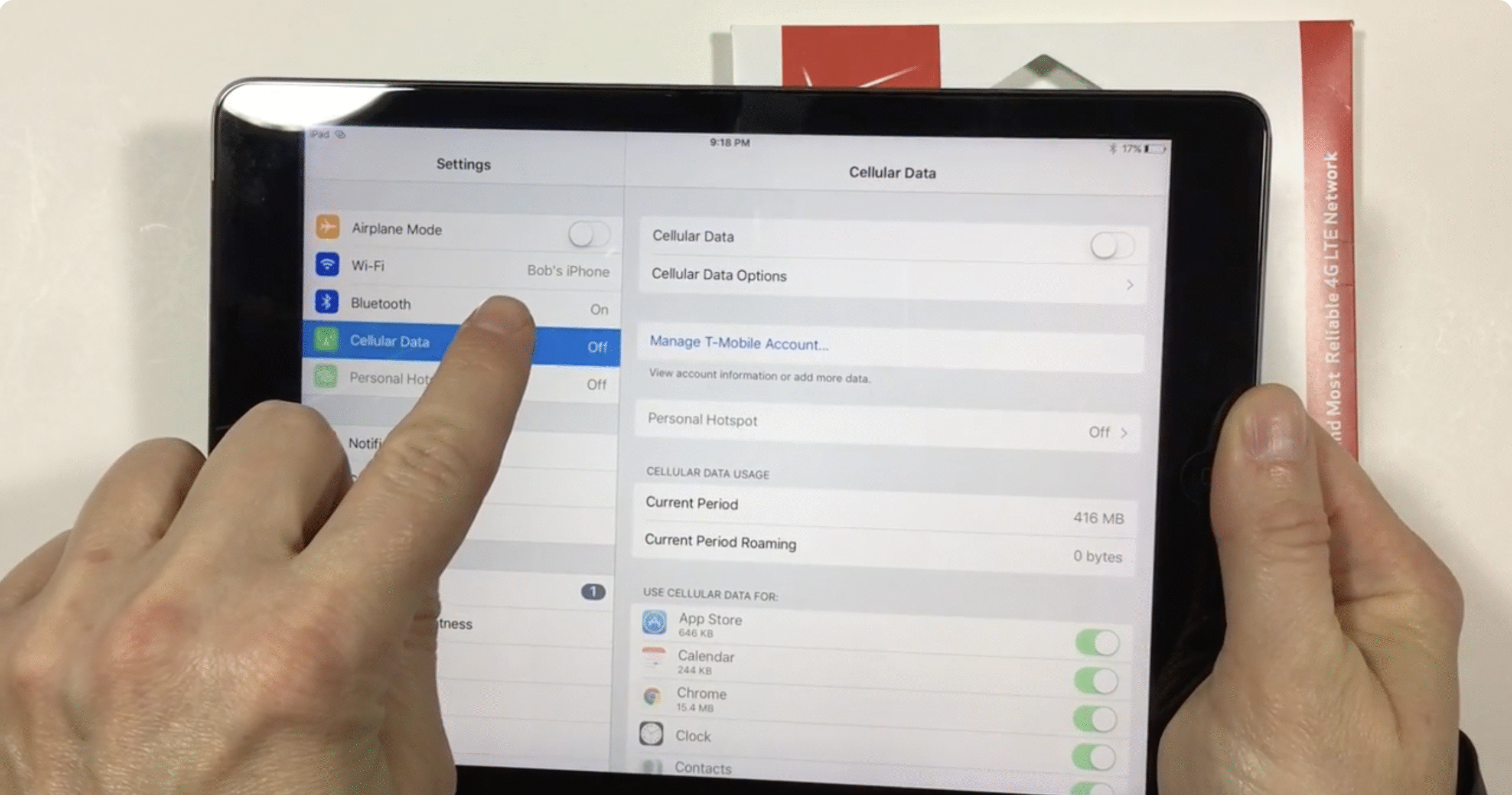
Once activated, your phone broadcasts a secure Wi-Fi signal so laptops, tablets, and other gadgets can connect to the internet through Verizon’s network.
4. Troubleshooting Verizon Hotspot Activation
If your Verizon mobile hotspot isn’t activating, try these quick fixes before contacting support:
- Restart your hotspot device or smartphone.
- Reinsert the SIM card to ensure proper connection.
- Visit vzw.com/activate manually if the redirect page doesn’t load automatically.
- Check your plan’s hotspot data limit in My Verizon → Usage.
- For prepaid hotspots, confirm that your service is funded and active.
5. Manage and Secure Your Hotspot Settings
After activating your Verizon mobile hotspot, take time to customize its settings for better security and performance. Log into your hotspot’s web interface or access your phone’s hotspot settings to manage the following:
- Network name (SSID): Choose a custom name that’s easy to identify.
- Password strength: Use WPA2 or WPA3 encryption and a strong password to secure your connection.
- Connected devices: Review which devices are linked and remove unknown ones.
- Data usage: Track your monthly data to avoid overage charges.
- Firmware updates: Check for updates regularly to keep your hotspot stable and secure.
FAQs About Activating Verizon Mobile Hotspot
How do I activate Verizon mobile hotspot on my phone?
Go to Settings → Mobile Hotspot or Personal Hotspot, toggle it on, and sign in to your Verizon account if prompted.
Do I need a special plan to use Verizon hotspot?
Yes, your plan must include hotspot data. You can check or add this option through My Verizon.
Can I use a Verizon Jetpack hotspot with a prepaid plan?
Yes. Insert a prepaid SIM, power on the device, and visit vzw.com/activate to complete setup.
Why won’t my Verizon hotspot activate?
Check your SIM card, restart the device, verify plan eligibility, or contact Verizon support for account assistance.
Conclusion
Activating Verizon mobile hotspot ensures reliable internet access anywhere Verizon coverage reaches. Whether you’re setting up a smartphone hotspot, a Jetpack, or a prepaid hotspot device, following these steps guarantees quick activation and secure connections. Customize your settings, manage data wisely, and enjoy flexible Wi-Fi access wherever you go.


Discussion (0)
Be the first to comment.