




When there’s no Wi-Fi nearby, your smartphone can double as an internet source for your laptop, tablet, or another device. This feature is called a personal hotspot, and it’s one of the simplest ways to stay connected on the go. This guide will walk you through everything you need to maximize the efficiency of your hotspot, secure it, and manage your data consumption, among other features.
1) What is a personal hotspot?

A personal hotspot allows your phone to share its mobile data connection with other nearby devices. It turns your smartphone into a portable Wi-Fi router, so your laptop, tablet, or even another phone can get online without public Wi-Fi.
2) How does a personal hotspot work?
Your phone uses its mobile network to create a secure Wi-Fi signal. Devices that connect to this signal use your data plan, just like your phone would. You can also connect through USB or Bluetooth, which may save power or improve stability.
3) Setting up a personal hotspot
Enable the hotspot on Android
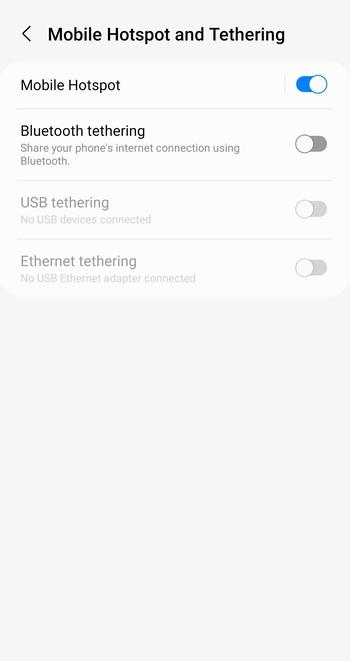
To activate your hotspot, open Settings > Network & Internet > Hotspot & Tethering > Wi-Fi Hotspot. Toggle it on, then set a network name and password. Other devices can now find your network in their Wi-Fi list.
Enable the hotspot on iPhone
On iPhone, go to Settings > Personal Hotspot and toggle Allow Others to Join. Your phone will display the network name and password automatically. Nearby devices can connect instantly using that password.
Connect another device
On your laptop or tablet, open the Wi-Fi settings and select your phone’s hotspot. Enter the password to connect. Most phones can handle up to ten devices, but performance may drop as more connect.
4) Managing data and battery usage
Monitor data consumption
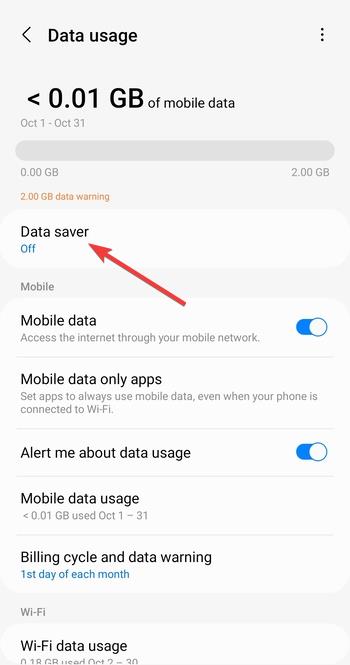
Using your phone as a hotspot consumes data quickly, especially for video streaming or downloads. Track your usage and enable Data saver in Settings > Connections > Data usage or through your carrier’s app to prevent overage charges.
Reduce battery drain
Hotspots are power-intensive. Keep your phone plugged in when using it this way, and consider switching to the 2.4 GHz band for longer range with less drain. Lower screen brightness and turn off other connections like Bluetooth when not needed.
5) Securing your personal hotspot
Set a strong password
Always secure your hotspot with WPA2 or WPA3 encryption. Use a complex password that includes letters, numbers, and symbols to keep strangers from joining your network.

Limit device connections
Fewer devices mean better performance and reduced risk of unauthorized access. Most phones let you set a connection limit under the hotspot’s advanced options.
Hide your SSID
Some Android phones let you hide your hotspot name from nearby scans. This prevents casual detection, adding a simple layer of privacy to your connection.
Troubleshooting common hotspot issues
- Hotspot option missing or grayed out: Your carrier may restrict hotspot use, or your plan might not include tethering. Contact support or reset network settings under Settings > System > Reset to restore the option.
- Connected but no internet: Restart both devices and ensure mobile data is on. Disable VPNs or battery saver modes that can block network sharing. If it persists, toggle airplane mode on and off to refresh the signal.
- Hotspot turns off automatically: Power-saving settings can disable the hotspot after inactivity. Look for a timeout setting or disable optimization features under battery settings.
Tips for smarter hotspot use
- Use 5 GHz indoors for faster speeds, and 2.4 GHz outdoors for wider coverage.
- Prefer USB tethering for the most stable connection and less interference.
- Turn off the hotspot when idle to save power and protect privacy.
FAQs on hotspot usage
Can I use my hotspot without extra charges? It depends on your mobile plan. Some carriers include tethering in their data package, while others cap usage or reduce speeds after a certain limit.
How many devices can I connect? Most smartphones allow between five and ten devices. Exceeding that number can lead to slower speeds or disconnections.
Is personal hotspot safe? Yes, when secured with WPA2 or WPA3 and a strong password. Avoid sharing your hotspot in public areas where nearby users could attempt to connect.
Summary
- Turn your phone into a hotspot to share mobile data safely.
- Set a strong password and limit device access for security.
- Monitor your data usage and plug in your device to avoid drain.
- Troubleshoot quickly if your hotspot disconnects or fails.
Conclusion
A personal hotspot is a valuable feature that allows you to share your mobile data with other devices, ensuring you stay connected even when Wi-Fi is unavailable. By setting it up properly, managing your data and battery, and following best security practices, you can make the most out of this handy tool. Remember to monitor your usage and secure your connection to avoid interruptions and potential risks. Whether you're working remotely or on the go, your phone's personal hotspot keeps you connected whenever you need it.

Discussion (0)
Be the first to comment.