




Accessing the admin page for your mobile hotspot lets you change the Wi-Fi name, update passwords, manage devices, and adjust security settings. Every hotspot (whether from Verizon, T-Mobile, or Alcatel) includes a web-based admin page you can reach through its IP address or login URL.
This guide explains how to access your mobile hotspot admin page from any device, using simple step-by-step instructions. You’ll also find default IP addresses and passwords for common hotspot models, as well as solutions for when the login page won’t open.
Step 1: Connect to Your Mobile Hotspot
Before opening the admin page, you must connect your device to the hotspot network.
- Turn on your hotspot: Power on your mobile hotspot or enable it in your smartphone’s settings.

- Locate the SSID: Find your hotspot’s network name (SSID) on the screen, packaging, or user manual.
- Connect your device: On your laptop or phone, go to Wi-Fi settings, select the hotspot SSID, and enter its password.
- Verify connection: Once connected, open a webpage to confirm internet access before proceeding.
Step 2: Open a Web Browser
After you’re connected to the hotspot, open any modern web browser such as Chrome, Safari, or Microsoft Edge. This is where you’ll enter the admin login address.
- Launch the browser: Tap or click on your browser icon.
- Check connectivity: Confirm the Wi-Fi icon is active and the device is still connected to the hotspot network.
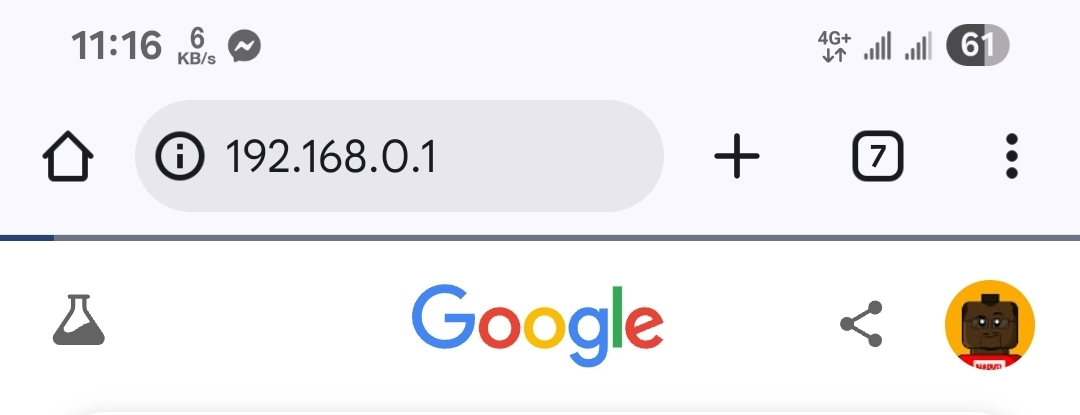
- Prepare to log in: In the address bar, type the default IP address (for example,
192.168.0.1or192.168.1.1) or the manufacturer’s admin URL.
Step 3: Enter the Admin Page Address
Most hotspot brands use a specific IP or URL to access the admin interface. These are usually listed in the manual or printed on the device label.
Step 3: Enter the Admin Page Address
Most mobile hotspot brands use a specific IP address or URL to access the admin interface. You can usually find these details on the device label, in the quick start guide, or in the manufacturer’s manual. Below are the most common default addresses and login details for popular hotspot brands.
Samsung: Samsung mobile hotspots and phones don’t use a separate web interface. Instead, you manage hotspot settings directly on the phone through the Settings → Connections → Mobile Hotspot and Tethering menu. There’s no default IP address, username, or password required.
T-Mobile: Most T-Mobile hotspots can be accessed at 192.168.0.1 or through mobile.hotspot or mobile.hotspotadmin in your browser. The default username is often admin, and the password may include the last four digits of your device’s IMEI or be printed on the label. These settings are common on Alcatel and Franklin models sold by T-Mobile.
Verizon: Verizon Jetpack and hotspot devices typically use 192.168.1.1 or my.jetpack to open the admin panel. The default username is admin, and the password is usually printed on the device or listed in the user manual. The exact login details can vary by model.
Alcatel: To access an Alcatel hotspot, open your browser and go to 192.168.0.1 or mobile.hotspot. The default username is admin, and the password is printed on the device label. If you’re using an Alcatel phone, you can manage hotspot options directly in the phone’s Mobile Hotspot menu instead of through a web interface.
AT&T: For AT&T hotspots, type attwifimanager in your browser’s address bar. The default username is admin, and the password varies by model—it’s typically printed on the device label or inside the manual. This admin page is only accessible through a web browser connection to the hotspot network.
Tip: If none of these addresses work, check the bottom or back of your hotspot for a printed label. It usually includes the correct admin page address, default username, and password for your specific model.
Why it matters: Entering the correct admin address is key to reaching your hotspot’s configuration interface. Typing errors or using the wrong IP will cause the page to fail to load.

Step 4: Log In to the Admin Page
Once you enter the address, a login screen appears. Here’s what to do:
- Enter the username and password: Use the defaults listed above if you haven’t changed them.
- Authenticate: Click Login or Submit to access the admin dashboard.
- Reset if needed: If you forget your credentials, use the reset pinhole on the device to restore factory settings.
Once logged in, you’ll have full access to your hotspot’s control panel, where you can manage network, security, and connected devices.
Step 5: Access and Customize Settings
The admin dashboard lets you control key settings to optimize your hotspot's performance and security. Below are the most important areas to check:
- Network Settings: Change the SSID (network name) and set a new password for security.
- Connected Devices: View and manage devices currently using your hotspot.
- Security Settings: Enable WPA2/WPA3 encryption and set access controls.
- Advanced Options: Adjust the DHCP range, DNS settings, or firewall rules.
- Firmware Updates: Check for updates to ensure compatibility and patch vulnerabilities.
Troubleshooting Common Issues
- 192.168.0.1 not opening: Clear your browser cache or try another browser. Ensure you’re connected directly to the hotspot’s Wi-Fi.
- Login credentials incorrect: Check the default credentials on the device label or reset the hotspot.
- Hotspot disabled by administrator: Restart the device or restore factory settings to regain access.
- No internet after login: Access the network settings tab and verify APN or SIM configuration.
- Slow admin page: Disconnect extra devices and use a wired connection if possible.
Tips for Secure Hotspot Management
- Change the default admin password immediately after first login.
- Use a strong Wi-Fi password combining letters, numbers, and symbols.
- Disable remote management unless absolutely necessary.
- Keep firmware up to date to prevent vulnerabilities.
- Periodically monitor connected devices to block unknown users.
FAQ
What is 192.168.0.1 for a mobile hotspot?
It’s the local IP address used to access your hotspot’s admin interface. Type it into your browser’s address bar while connected to the hotspot network.
How do I log in to my hotspot?
Connect to the hotspot Wi-Fi, open your browser, and enter the IP address or web URL. Then use your default or custom admin credentials.
What if my hotspot settings are not opening?
Check your Wi-Fi connection, clear browser cache, or reset the hotspot to factory defaults if the page fails to load.
What is the default admin password for my hotspot?
Most models use “admin” or “password.” You can find this printed on the hotspot label or in the user manual.
Can I access the hotspot admin page from my phone?
Yes. Connect your phone to the hotspot Wi-Fi, open a browser, and enter the same admin IP (e.g., 192.168.0.1).
Summary of Steps
- Connect your device to the mobile hotspot Wi-Fi.
- Open a web browser.
- Enter the admin IP or login URL.
- Log in using the correct username and password.
- Adjust security, network, and advanced settings as needed.
Conclusion
Accessing the admin page for your mobile hotspot gives you complete control over its network, security, and connected devices. Whether you’re using a Samsung, Verizon, or T-Mobile model, the process is the same: connect to the hotspot, open your browser, log in using the default IP, and customize your settings for better performance and safety.
With these steps, you can manage your hotspot confidently and keep your connection secure and reliable across all your devices!

Discussion (0)
Be the first to comment.