




Every mobile hotspot includes a built-in web interface, also called a WebUI, that lets you control WiFi settings, passwords, and connected devices. If you need to log in fast, the process is simple once you know the right IP address and login details. However, you need to confirm that your phone, laptop, or tablet is connected to your hotspot’s Wi-Fi network.
You’ll also need the WebUI address or IP printed on the device label or shown on its display screen. If all these are ready, accessing your hotspot's WebUI will be a walk in the park with the help of this guide.
Step 1: Connect to the hotspot network
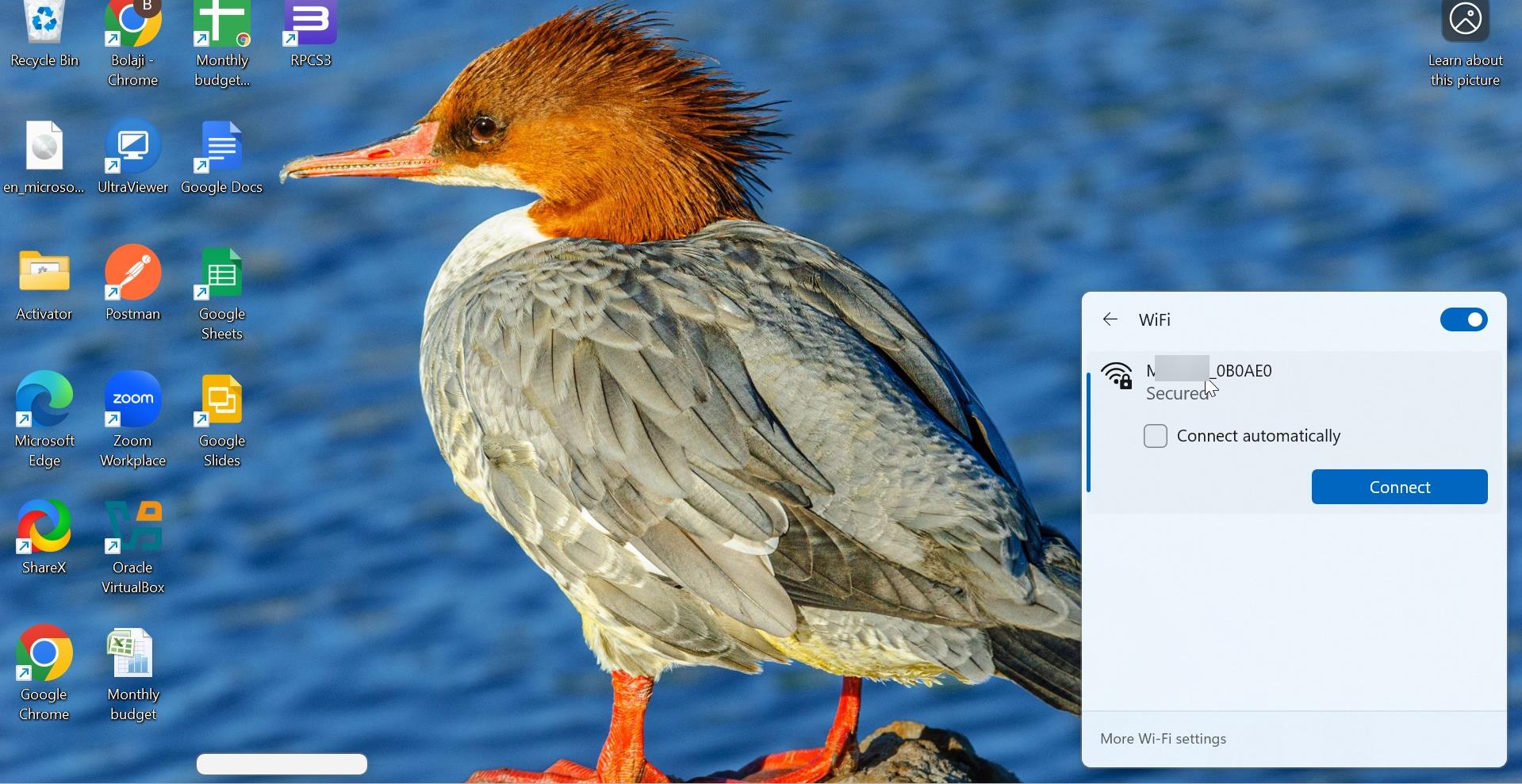
Turn on your hotspot and look for its network name (SSID) on your device’s Wi-Fi list. Tap or click it and enter the password found on the back label or settings screen. Make sure the connection is active before moving on.
Step 2: Open the Hotspot WebUI
Open a browser such as Chrome, Edge, or Safari. In the address bar, type your hotspot’s WebUI address, not in a search engine. Common ones include:
| Brand | WebUI URL / IP | Default Username | Default Password |
|---|---|---|---|
| T-Mobile | https://mobile.hotspot | admin | Last 8 digits of IMEI |
| Verizon Jetpack | https://my.jetpack | admin | Printed on device |
| AT&T | https://attwifimanager | admin | Printed on device |
| Alcatel | 192.168.1.1 | admin | admin |
| Huawei | 192.168.8.1 | admin | admin |
If your model isn’t listed, check your hotspot’s back label or quick start guide.
Step 3: Log in to the WebUI

When the login screen appears, enter the default username and password. Once signed in, you’ll see the control panel for your hotspot. From here, you can change the network name, password, or other preferences.
Step 4: Manage and secure your hotspot

Inside the WebUI, update your network name and password to something unique. Enable WPA2 or WPA3 encryption if available to protect your connection. You can also manage connected devices, check data usage, or update firmware for better performance.
Step 5: Log out and save changes

Click Apply or Save to store your new settings. Then log out to prevent unauthorized access. Some devices may reboot automatically to apply changes.
Step 6: Accessing WebUI from a phone
You can also log in from a smartphone. Connect to the hotspot’s Wi-Fi, open a browser, and type the same WebUI address. Turn off mobile data so the browser routes locally. Some manufacturers offer companion apps that connect directly without typing an IP.
Troubleshooting WebUI access error
- Page doesn’t load: Check that you’re connected to the hotspot's WiFi, not mobile data. Re-enter the correct IP or URL. Clear your browser cache or try another browser if needed.
- Can't login after changing the admin password: Press the small reset button on your hotspot for about ten seconds to restore defaults.
Tips for Faster Access
- Bookmark the WebUI login page for next time.
- Use a password manager to store admin credentials securely.
- Check for firmware updates every few months.
- Create a QR code to connect your devices faster.
FAQs
What is a WebUI on a hotspot? It’s the browser-based dashboard that lets you manage Wi-Fi settings, passwords, and device connections.
Can I access the WebUI without Wi-Fi? No. Your device must be connected to the hotspot’s Wi-Fi network to reach the WebUI.
What if I forgot my WebUI password? Reset your hotspot using the pinhole button to restore the default admin credentials.
Does every hotspot have a WebUI? Yes, nearly all modern hotspots include one, although some brands also provide mobile apps for easier setup.
Summary
- Connect your device to the hotspot’s Wi-Fi.
- Type the WebUI address or IP in your browser.
- Log in using the default credentials.
- Adjust your settings and save changes.
- Secure the connection and update firmware regularly.
Conclusion
Accessing your hotspot’s WebUI only takes a minute and gives you full control of your connection. Once you’re familiar with your device’s IP and login details, you can manage passwords, monitor usage, and keep your hotspot secure with just a few clicks.

Discussion (0)
Be the first to comment.