




When YouTube shows the “something went wrong” error, videos refuse to load, thumbnails disappear, or the app gets stuck on refresh. This issue usually comes from account sync failures, corrupted app data, browser conflicts, or network restrictions.
The steps below walk you through the fastest fixes first, then move to device-specific solutions for Android, iPhone, and desktop browsers. Follow them in order to restore YouTube without guessing or reinstalling everything.
Table of contents
- Check if YouTube is down
- Refresh YouTube properly
- Sign out of YouTube and sign back in
- Restart your device
- Fix the error on Android
- Fix the error on iPhone or iPad
- Fix the error in a web browser
- Fix network-related issues
- Check account and region settings
- Reset network settings (last resort)
- Tips to prevent the error
- Summary
Check if YouTube is down
With YouTube just restoring services after experiencing global outage recently, you should check again if everything is working well for others before changing settings.
Do this:
- Open a browser and search for YouTube down.
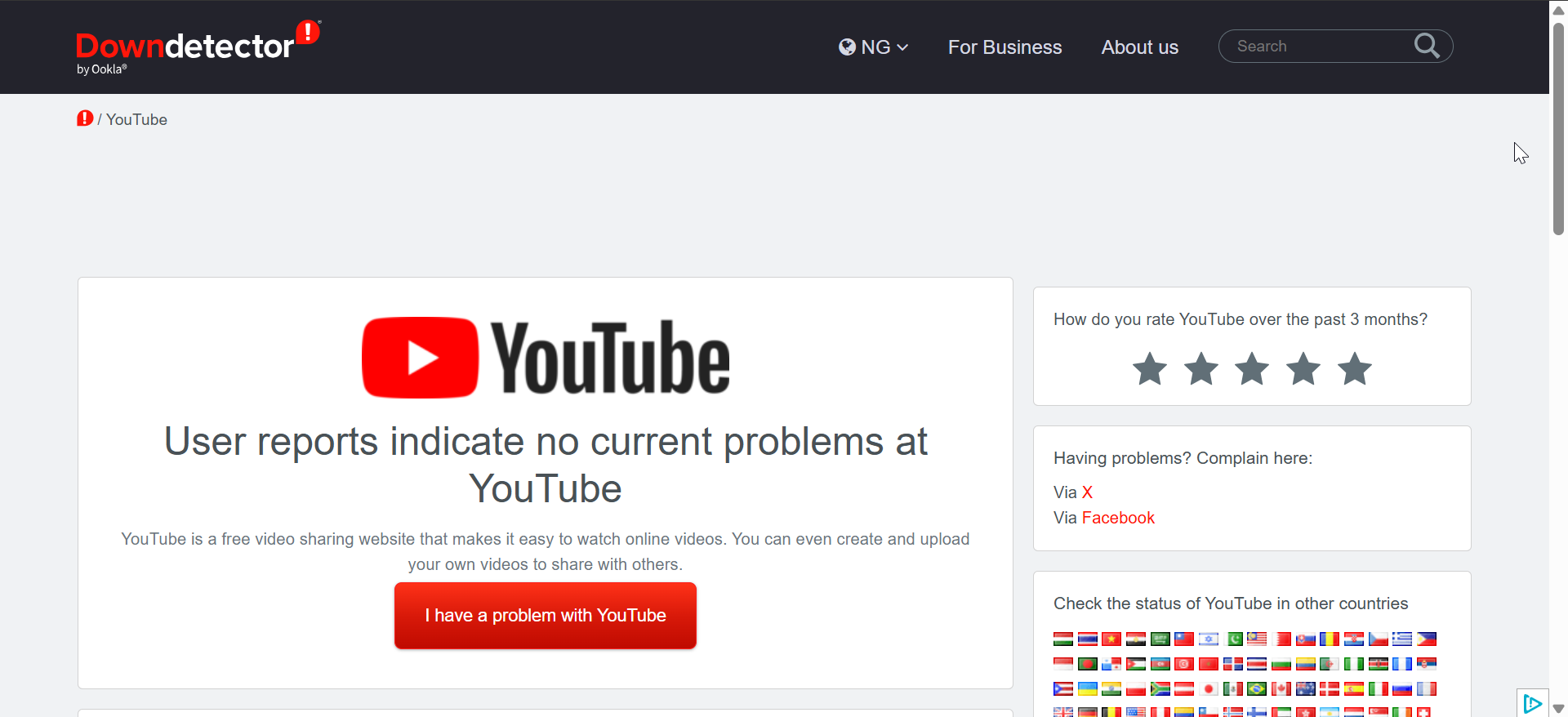

- Check recent outage reports.
- Try opening YouTube on a different device or network.
If YouTube is down, wait. No local fix will work.
Refresh YouTube properly
A simple reload often clears temporary loading errors.
On mobile
- Close the YouTube app.
- Reopen it.
- Pull down on the Home feed to refresh.
On desktop
- Press Ctrl + F5 (Windows).
- Or click the browser refresh button.
Sign out of YouTube and sign back in
This resets broken account authentication.
On Android and iPhone
- Open the YouTube app.
- Tap your profile icon.


- Next, tap Switch account.
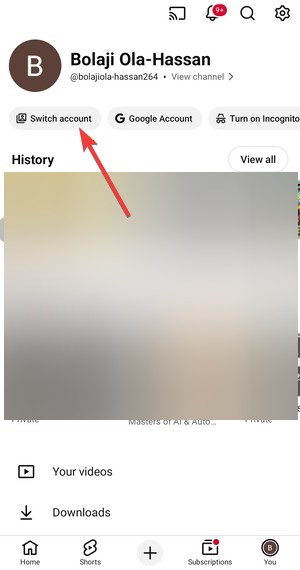

- Now, select Use YouTube without an account.
- Finally, close and reopen YouTube, and sign back in.
On desktop
- Open youtube.com.
- Click your profile picture.
- Click Sign out.
- Reload the page and sign back in.
Restart your device
This clears stuck background processes and network sessions.
Do this:
- Power off your phone or computer.
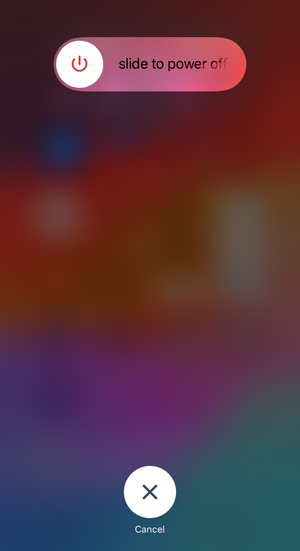

- Wait 30 seconds.
- Turn it back on.
- Open YouTube again.
Fix the error on Android
Android devices commonly show this error due to corrupted app data.
Clear YouTube cache and data
- Open Settings.
- Tap Apps.
- Select YouTube.
- Tap Storage.
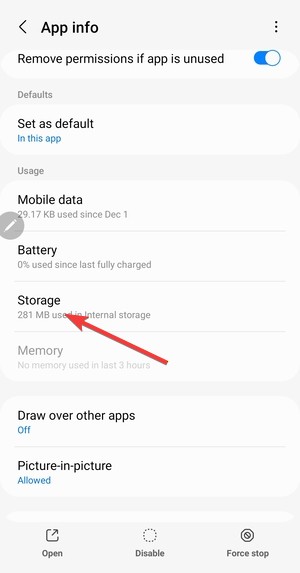

- Tap Clear cache.
- If the error continues, tap Clear data.
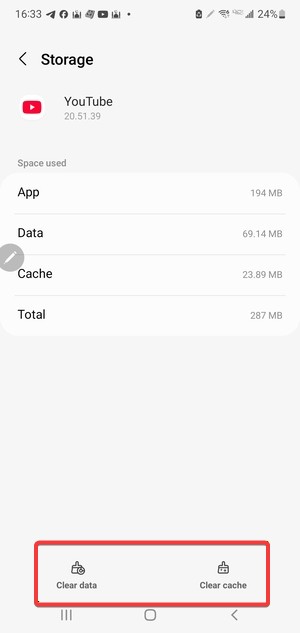

- Open YouTube and sign back in.
Update YouTube and Google Play Services
- Open the Play Store.
- Search for YouTube.
- Tap Update if available.
- Search for Google Play Services.
- Update it as well.
Disable battery restrictions
- Open Settings.
- Go to Battery.
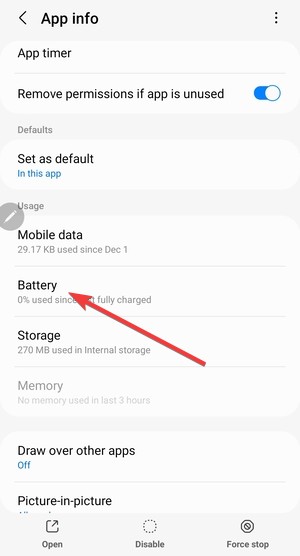

- Turn off Battery Saver.
- Go to Apps > YouTube.
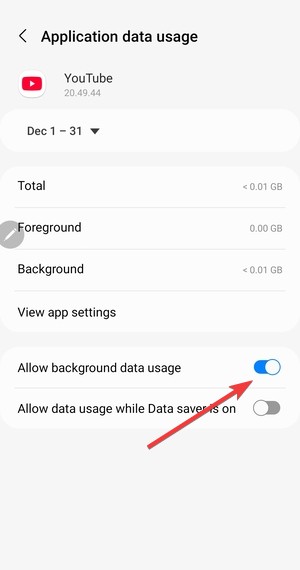
- Allow Background data and Unrestricted battery usage.
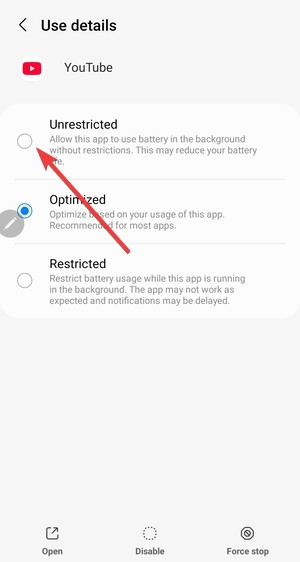

Fix the error on iPhone or iPad
iOS limits background activity aggressively, which can trigger this issue.
Force close the YouTube app
- Swipe up from the bottom of the screen.
- Find YouTube.
- Swipe it away.
- Reopen the app.
Update iOS and YouTube
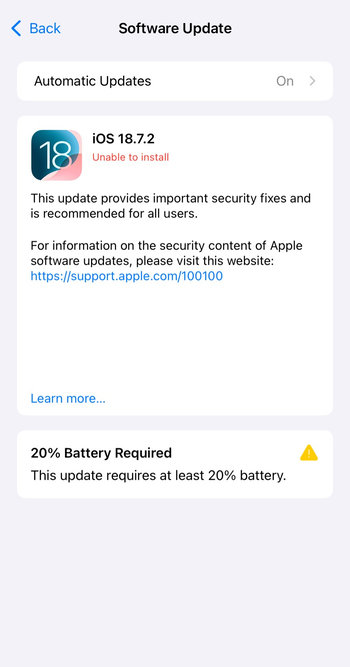
- Open Settings > General > Software Update.
- Install any available updates.

- Open the App Store.
- Update YouTube.
Disable VPN and iCloud Private Relay
- Open Settings.
- Tap Apple ID > iCloud.
- Tap Private Relay.
- Turn it Off.
- Disable any VPN apps.
- Restart the YouTube app.
Fix the error in a web browser
Browser data and extensions often cause this issue.
Clear YouTube cookies and cache
- Open your browser settings.
- Go to Privacy and security.
- Click Delete browsing data.
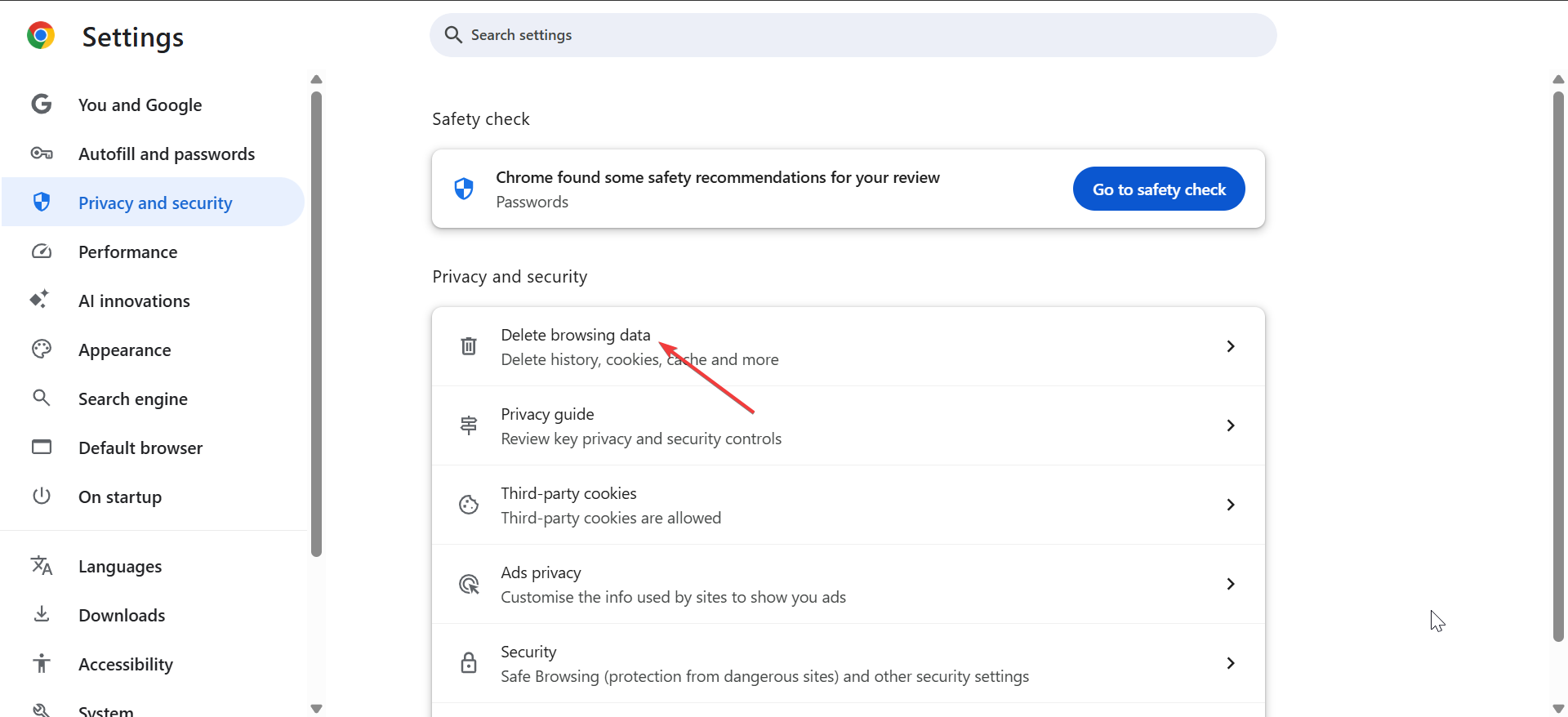
- Select Cookies and Cached images and files.
- Next, click Delete data.

- Reload YouTube.
Disable extensions
- Open your browser’s extensions page.
- Disable all extensions.
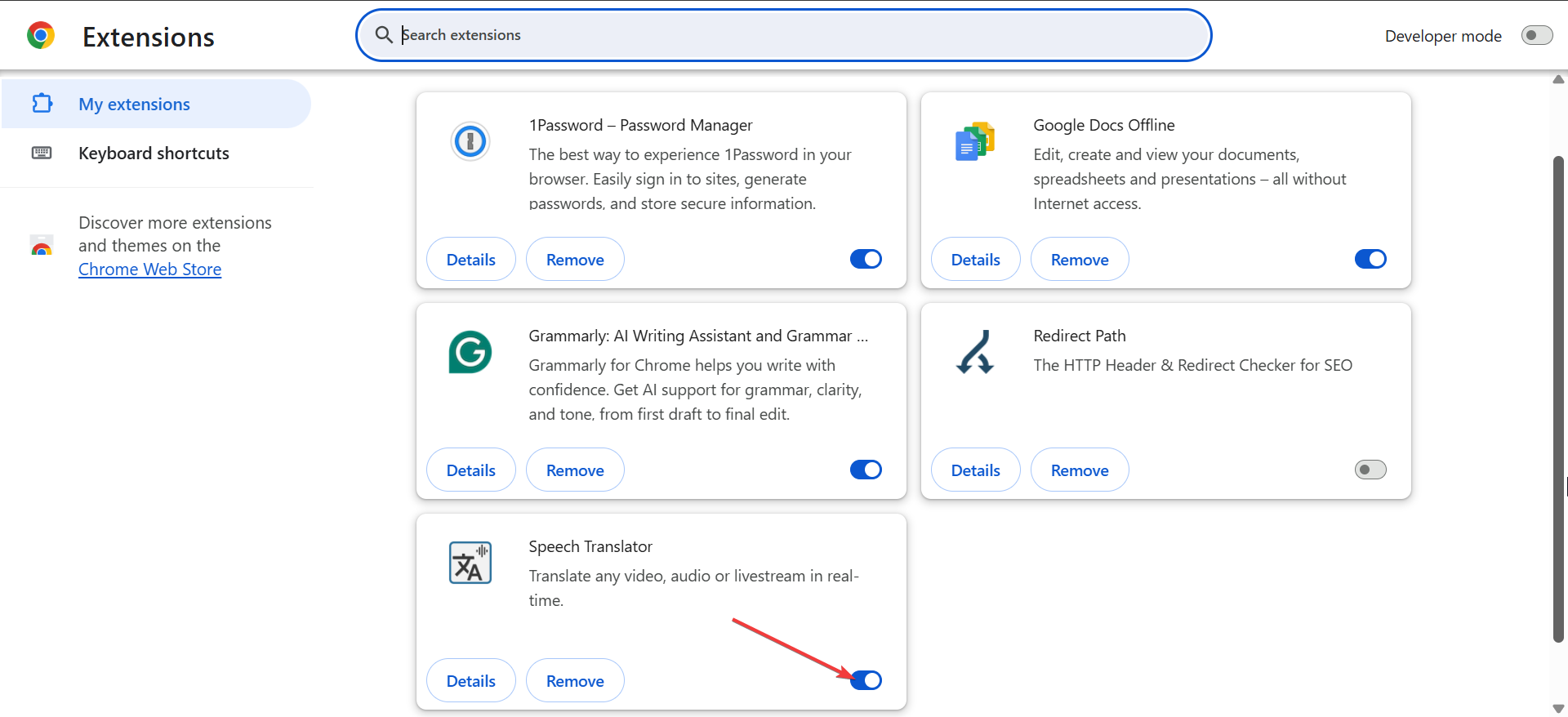
- Reload YouTube.
- Re-enable extensions one by one to find the cause.
Test Incognito mode
- Open an Incognito or Private window.
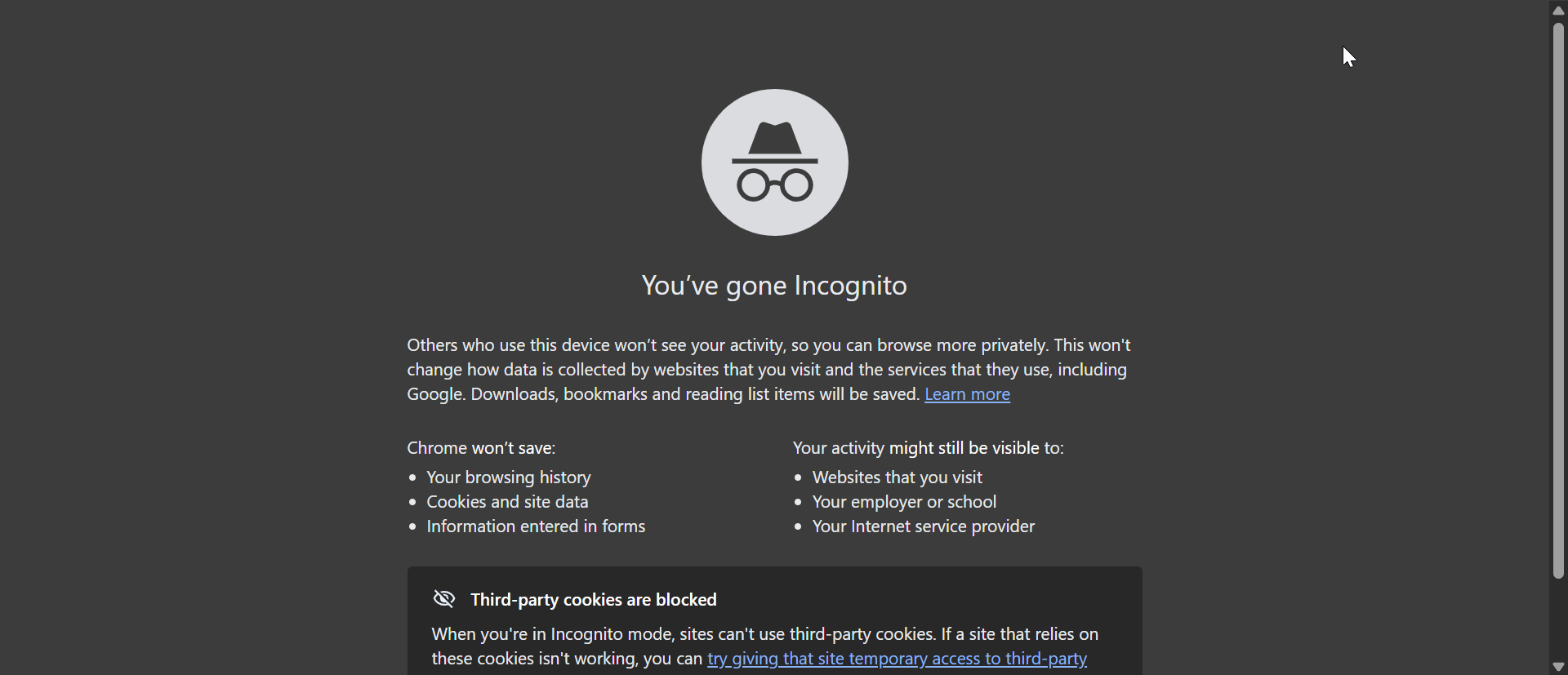

- Go to youtube.com.
- If it works, an extension or browser setting caused the error.
Fix network-related issues
Some networks block YouTube connections without affecting other sites.
Switch networks
- Turn off Wi-Fi.
- Enable mobile data.
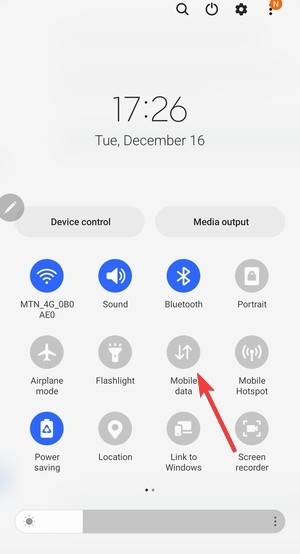

- Open YouTube.
- If it works, your Wi-Fi network is the problem.
Restart your router
- Unplug your router and modem.
- Wait 60 seconds.
- Plug them back in.
- Wait for the internet light to stabilize.
- Test YouTube again.
Change DNS settings (optional)
- Open your device’s network settings.
- Edit your Wi-Fi network or adapter settings.
- Set DNS to 8.8.8.8 and 8.8.4.4.
- Save changes and reconnect.
- Open YouTube and test again.
Check account and region settings
Account restrictions and location masking can trigger generic YouTube errors.
Do this:
- Disable VPNs and proxy services.
- Try YouTube again.
- Sign in with a different Google account if you have one.
Reset network settings (last resort)
Use this only if nothing else works. This removes saved Wi-Fi networks and VPN settings.
On mobile
- Open Settings.
- Go to Reset or Transfer or Reset.
- Tap Reset network settings.
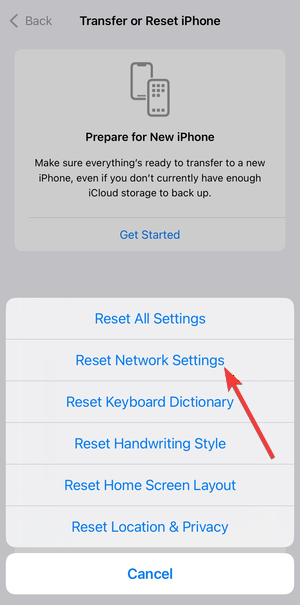

- Reconnect to Wi-Fi.
- Test YouTube again.
Tips to prevent the error
- Keep the YouTube app and your device software updated.
- Avoid aggressive ad blockers or privacy extensions.
- Restart your device weekly.
- Use stable networks and trusted DNS providers.
Summary
- Check if YouTube is down.
- Refresh the app and sign out and back in.
- Clear cache, update apps, and restart devices.
- Disable VPNs, extensions, and network restrictions.
The YouTube “something went wrong” error usually comes from app data issues, account sync problems, or network conflicts. Start with the quick steps, then use the platform-specific fixes that match your device.
If the error still appears after every step, YouTube is likely experiencing a server-side problem. Waiting for YouTube to recover will solve it.


Discussion (0)
Be the first to comment.