




The device limit exceeded error on YouTube Premium appears when your account reaches its allowed number of registered devices. This usually happens after switching phones, reinstalling apps, or downloading videos on multiple devices without removing older ones.
The fixes below resolve the issue in most cases, starting with the fastest options.
Table of contents
Why YouTube shows the device limit exceeded error
YouTube Premium tracks devices that download or access offline content. Each phone, tablet, TV, or app instance counts as a separate device, even if you no longer actively use it. When that list fills up, YouTube blocks new downloads and shows the error.
How many devices YouTube Premium allows
Premium allows offline downloads on up to 10 devices per Google account. This limit applies across phones, tablets, and supported TVs, not just active devices you remember using.
Device swap limits and annual reset rules
You can replace or “swap” devices only a limited number of times per year. After you hit that swap cap, removing devices alone may not work until YouTube resets the count automatically or through support.
Fix the device limit exceeded error on YouTube Premium
Follow these fixes in order. Stop once downloads work again.
Remove unused devices from your Google account
This removes inactive devices that still count toward the limit.
- Open your Google Account.
- Go to Security & sign-in.


- Scroll to Your devices and select Manage all devices.
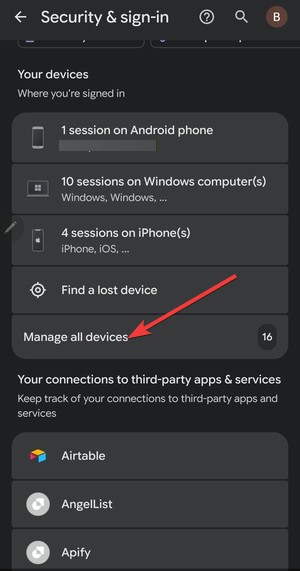

- Sign out of phones, tablets, or TVs you no longer use.
This fix works best when old or lost devices remain linked.
Sign out and back in on the affected device
Signing out refreshes your device authorization.
- Open the YouTube app.
- Tap your profile picture.


- Next, tap Switch account.


- Finally, scroll down and select Use YouTube signed out.
This clears stale sessions that still register as extra devices. After some time, switch back to your Google Account.
Clear YouTube app data and offline downloads
Offline downloads can keep a device registered even after sign-out.
Steps on Android
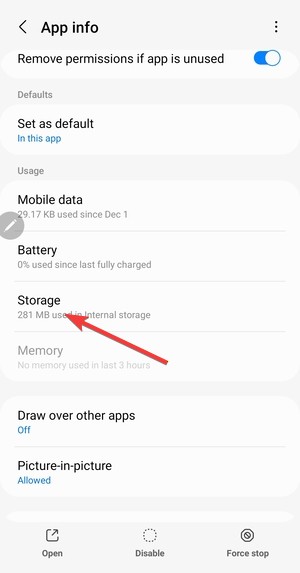
- Open Settings > Apps > YouTube.
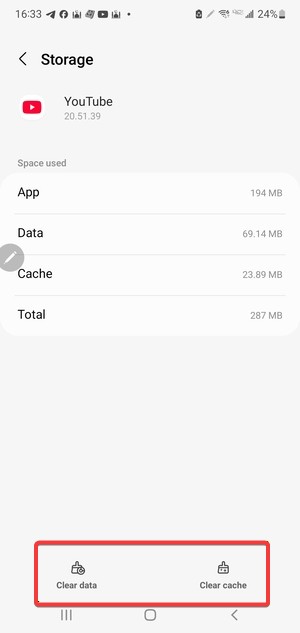
- Tap Storage.

- Select Clear cache and Clear data.

- Open YouTube and sign in again.
Steps on iPhone
- Delete the YouTube app.
- Restart the device.
- Reinstall YouTube and sign in again.
This forces YouTube to re-register the device cleanly.
Contact YouTube support to reset device count
When you hit the yearly swap limit, only support can reset it.
- Open YouTube.
- Tap your profile picture.
- Next, click the Gear icon in the top right corner.
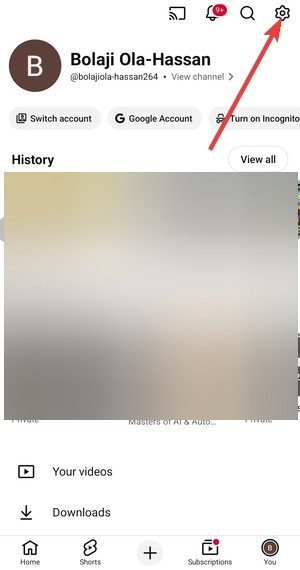
- Now, select Help.
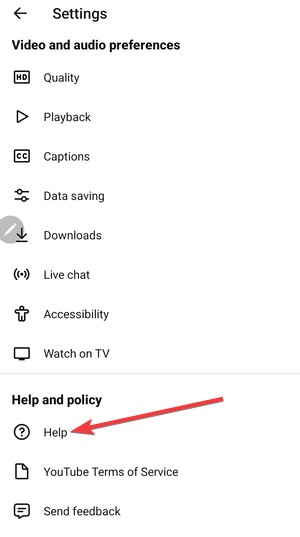

- Finally, select the option that best describes your issue and follow the onscreen instructions.
Support usually responds within a few days.
Fix the error on specific devices
Fix on Android phones and tablets
Android devices often hit the limit due to cached downloads. Clearing app data and signing in again resolves most cases.
Fix on iPhone and iPad
On iOS, app reinstalls can count as new devices. Remove old iPhones or iPads from your Google account before downloading again.
Fix on Smart TVs and streaming devices
Smart TVs register separately. Sign out of YouTube on unused TVs or streaming sticks you no longer own.
Fix on desktop and web browsers
Browsers usually do not count unless multiple Google profiles stay signed in. Log out of unused browser profiles to avoid confusion.
Tips to prevent the device limit error in the future
- Before setting up a new phone or tablet, remove the old one from your Google account. This avoids wasting yearly swaps.
- Delete offline downloads before uninstalling the YouTube app or resetting a device.
FAQs
Why does YouTube Premium say device limit exceeded even after removing devices?
YouTube does not always sync device removals instantly. Cached offline licenses or delayed account updates can keep removed devices counted for several hours.
Does uninstalling the YouTube app remove a device from the limit?
No. Uninstalling the app does not deauthorize the device. You must remove the device from your Google account or clear app data before uninstalling.
How long does it take for YouTube support to reset the device limit?
Most reset requests receive a response within one to three days. Approval depends on how often you reached the device swap limit.
Do Smart TVs and streaming devices count toward the YouTube Premium limit?
Yes. Smart TVs, streaming sticks, and consoles register as separate devices and count toward the same YouTube Premium device limit.
Summary
- Remove unused devices from your Google account.
- Sign out and back in on the affected device.
- Clear app data or reinstall YouTube.
- Contact support if you hit the yearly swap limit.
The YouTube Premium device limit error usually comes from old or forgotten devices still tied to your account. Removing inactive devices and refreshing your app fixes most cases quickly. If the limit persists, a support reset is the most reliable solution.


Discussion (0)
Be the first to comment.