




Downloading a YouTube video on your Mac helps you watch content offline, prepare clips for presentations, or save tutorials for later use. macOS users run into limits when streaming, especially with poor Wi-Fi or device restrictions.
This guide shows clear, safe, and reliable methods that work on every modern Mac. You get step-by-step instructions, the best tools, and troubleshooting tips so you avoid common download failures.
Before getting to the fixes, note that macOS uses Gatekeeper to block apps from unidentified developers. You can allow trusted apps under System Settings > Privacy & Security when needed.
Method 1: Use the YouTube website (official method)
The YouTube website gives you the simplest and most reliable offline option. Open YouTube on your Mac and sign in with your account. Next, open the video you want to save and click Download under the player. Now, choose a quality level and wait for the confirmation badge.
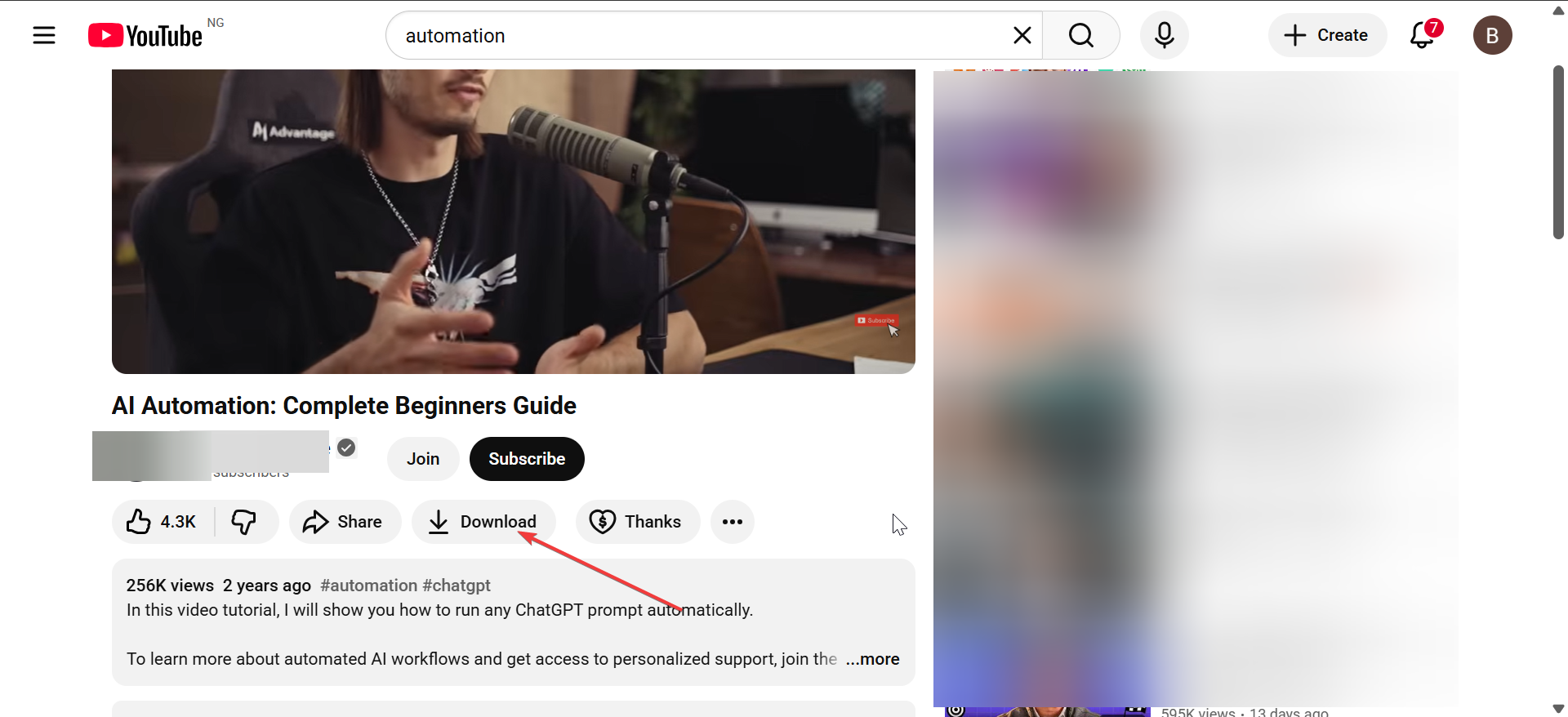
Note that downloads stay inside YouTube and do not export as standalone files. Some videos have resolution limits, and offline access expires if you stay signed out.
Method 2: Download videos with a desktop app
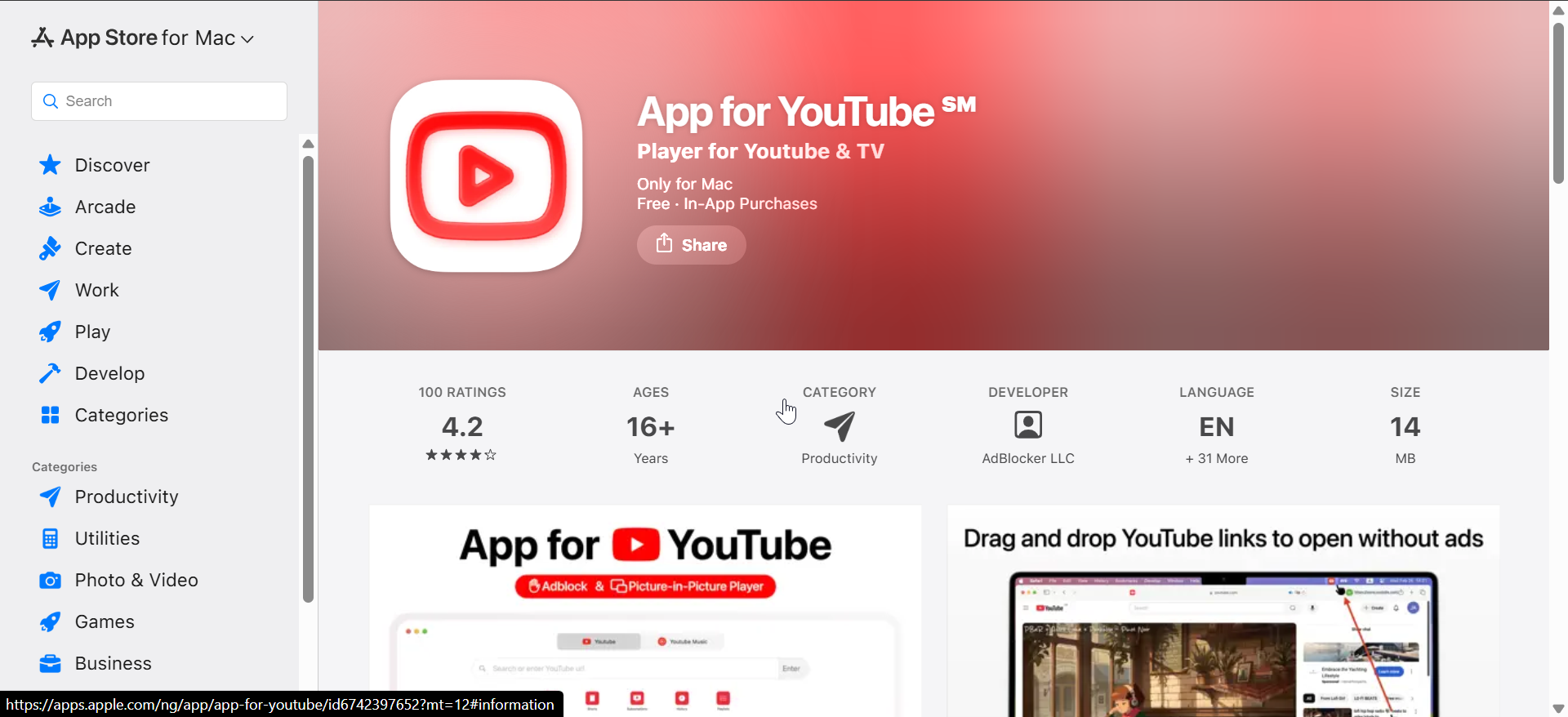
Install your preferred downloader, open it, and copy your YouTube link. Next, paste the link into the download box and pick a format and quality, such as MP4 1080p. Now, save the file to your Downloads folder.
Method 3: Use a browser tool (free, no installation)
Online downloaders help when you need a quick one-off video and prefer not to install software. They work inside your browser and require only a paste-and-click workflow.
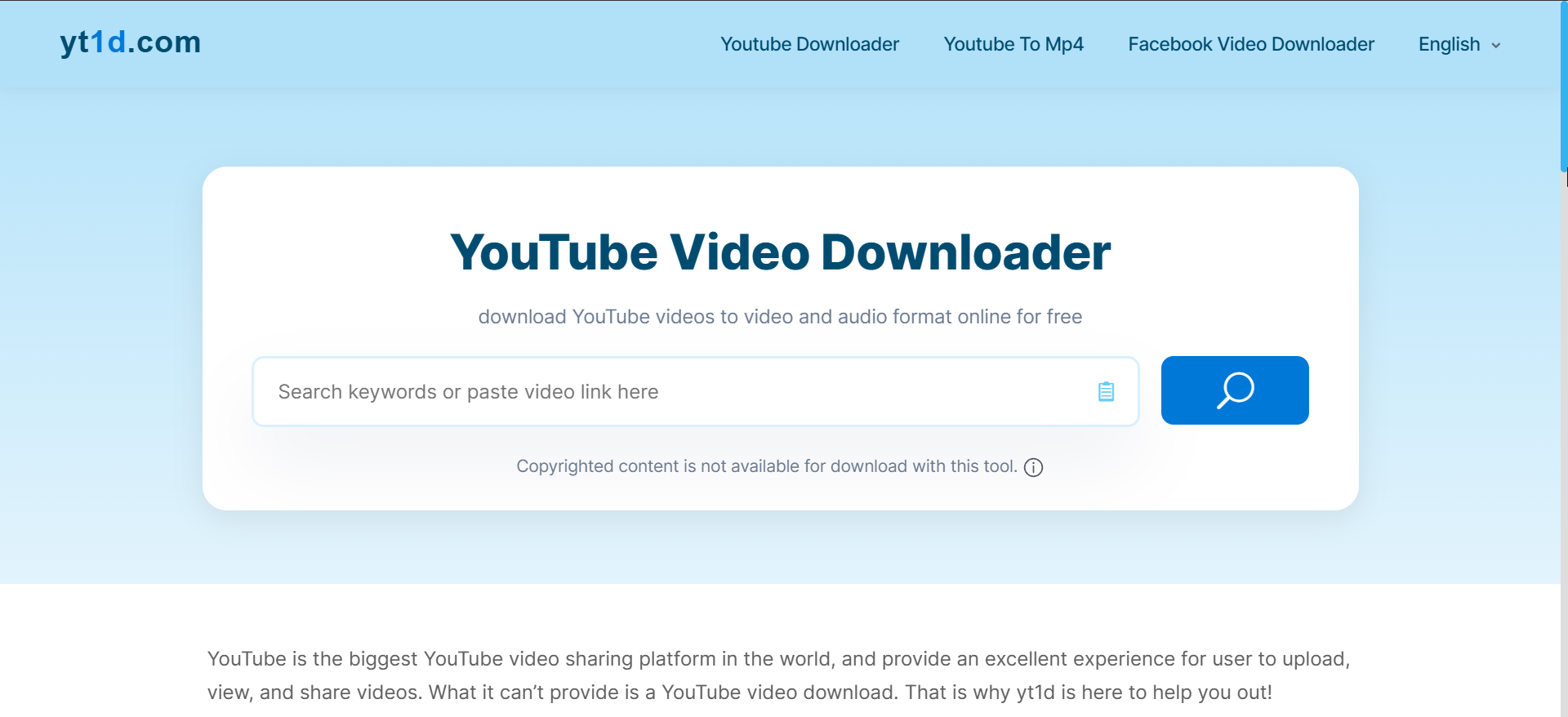
Open the browser tool and paste the YouTube link into the field. Next, select a quality and download the file. Now, check your Downloads folder for the final video.
Security tip: Many browser tools display intrusive ads or pop-ups. Some limit quality or struggle with long videos, so use caution and avoid sites that request unusual permissions.
Method 4: Use a command-line tool (advanced users)
Power users may prefer Terminal to automate downloads or handle playlists. Command-line tools offer deep control of quality, metadata, and subtitles.
To install and run yt-dlp, open Terminal and install Homebrew if needed. Next, run: brew install yt-dlp. Now, you can ownload a video with: yt-dlp <paste-link-here>
Commands for playlists, subtitles, and formats
Use flags to customize output. Examples include playlist downloads, subtitle merging, and format selection for editing on macOS.
Troubleshooting download problems on Mac
- If the app won’t open due to security: Open System Settings > Privacy & Security, then click Open Anyway for trusted apps.
- If the video won’t download or errors appear: Update your downloader or verify the link. Some videos use restricted streams that require a newer version.
- If audio or 1080p/4K is missing: Some online tools split audio and video. Switch to a desktop app that supports DASH merging.
Tips to choose the right video format & quality on Mac
- MP4, MOV, MKV: MP4 works best for most Mac apps. MOV integrates smoothly with QuickTime and iMovie. MKV offers flexibility for advanced workflows.
- 1080p vs 4K quality: 1080p balances clarity and file size for general use. 4K works well for large displays or editing, but needs more storage and time to download.
FAQs
Why can’t I download YouTube videos directly in Safari? Safari does not include a built-in video downloader for YouTube. YouTube also blocks direct downloads through browser controls, so you need Premium, a desktop downloader, or a trusted tool.
What’s the safest way to download a YouTube video on a Mac? A desktop app offers the safest and most reliable experience. macOS security prompts help you verify trusted apps before allowing them to run.
Can I download a YouTube video in 1080p or 4K? Yes. Most desktop downloaders support 1080p and 4K. Browser tools often limit resolution, especially when YouTube uses separate audio and video streams.
Why do browser downloaders only give me 720p? Online downloaders often struggle with YouTube’s adaptive streaming formats. They may not merge audio and video, which prevents higher resolutions.
Summary
- Use YouTube Premium for the simplest offline option.
- Choose a desktop app for the best speed and quality.
- Try a browser tool for quick, no-install downloads.
- Use Terminal tools for playlists and automation.
- Pick formats like MP4 for best compatibility.
- Fix issues by updating tools or adjusting macOS security settings.
Conclusion
Downloading a YouTube video on your Mac becomes easy once you pick the method that fits your workflow. Premium offers the official route, while desktop apps deliver high-quality files for editing and storage. With the right tools and a few macOS adjustments, you can save videos reliably and avoid common download problems.



Discussion (0)
Be the first to comment.